
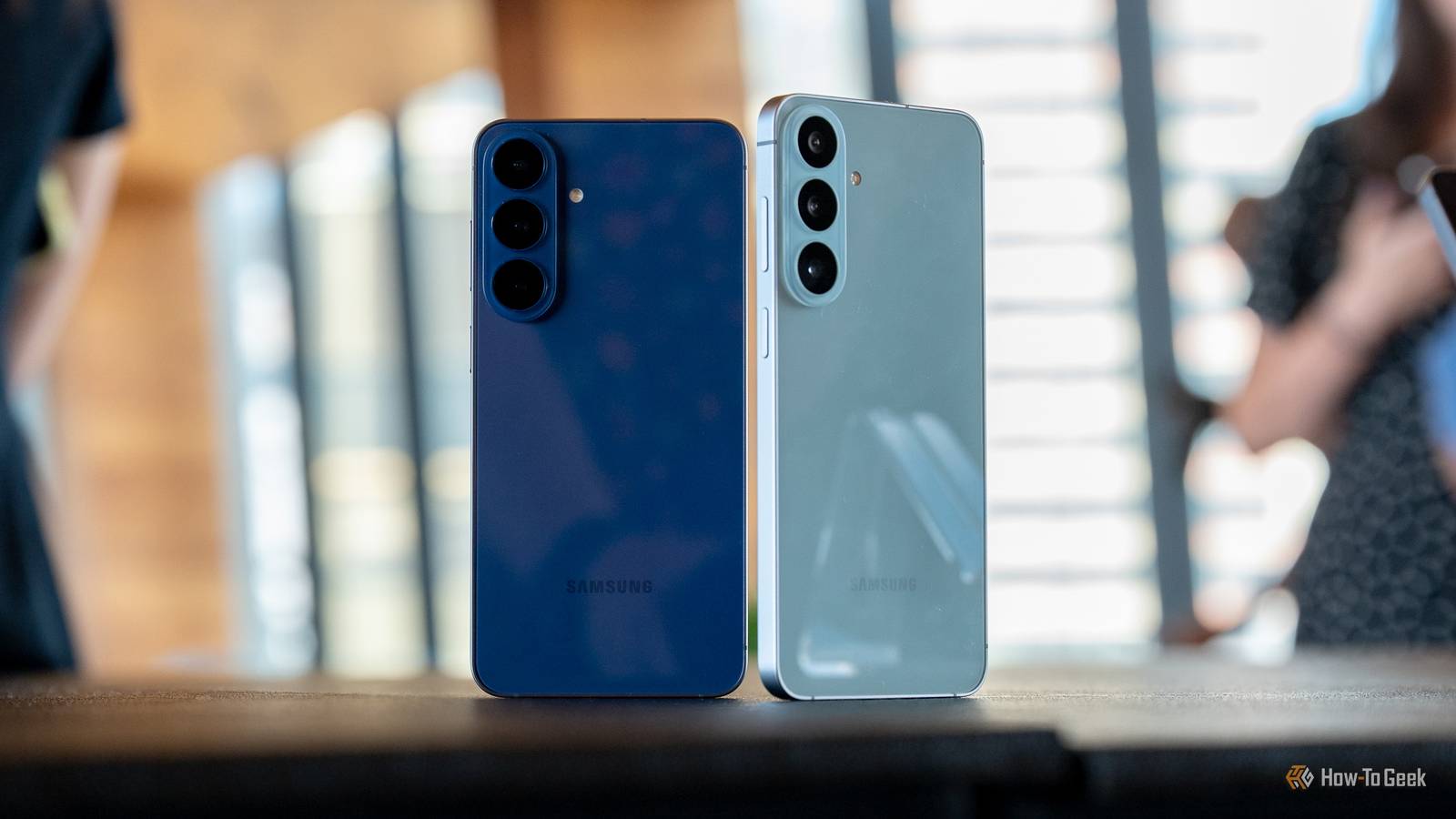
Published Oct 21, 2026, 9:00 AM EDT T.M. Amrita is a writer and tech enthusiast with experience as a news reporter covering technology, artificial intelligence, and gadgets. A journalist at heart, she found a soft spot for technology reporting during her tenure as a reporter at The Hindu Businessline, where she covered topics like the economy, data, and personal finance. She has published more than 250 news stories, tech guides, and opinion articles. Outside of technology, she is a passionate poet and brings her interest in learning new things to her work as a writer. Amrita is also a student of design and interface development, and likes to take on passion projects in her free time. The way you play your music, listen to your favorite podcasts, and immerse yourself in your comfort movie can be a deeply personal experience. This also calls for the best sound quality your device can deliver, but not all devices are set up by default to give you what you may be looking for. If you are a Samsung Galaxy user, you can adjust a few audio settings to make sure you get the best listening experience possible, whether you listen through your phone's speakers or compatible headphones and earbuds. Here are four settings to check today. Dolby Atmos Immerse yourself in the experience For film enthusiasts and music lovers, one Galaxy sound setting can be an absolute game changer. For film enthusiasts and music lovers, Dolby Atmos can noticeably improve the listening experience. It creates a more immersive, three-dimensional soundstage, adding more space and separation to compatible audio. To enable it, go to Settings -> Sounds and Vibrations -> Sound quality and effects -> Dolby Atmos, then toggle it on. (I'm using a Samsung Galaxy S26+ here, so your interface and setting names may vary). Under Dolby Atmos, you will see four options that you can choose from for a more personalized experience: Auto (Default) — Adapt and optimize sound automatically for whatever you're listening to. Movie — The best possible audio for movies, shows, and videos. Music — Make all your music sound richer, fuller, and more balanced. Voice — Make voices loud and clear. For your convenience, you can add this setting to your notification panel (or Quick Settings) to toggle it on without navigating to Settings. Equalizer Find your sound If you're looking to get really personal with your audio settings and fine-tune your listening experience, the setting you need to experiment with is Equalizer. It lets you adjust different parts of the audio spectrum, so you can find a sound profile that better suits your music and personal preferences. To access it, go to Settings -> Sounds and vibration -> Sound quality and effects -> Equalizer. Here, you can find presets such as Normal, Pop, Classic, Jazz, and Rock, and the available options can vary by device. Each preset adjusts the balance of bass, treble, instruments, and vocals to suit a particular listening style. For a tailor-made listening experience, use the "Custom" setting to adjust the frequency sliders yourself. You can discover what works for you by trying out the different presets (or customizing your sound) in Equalizer for different forms of entertainment. Adapt Sound Set up your profile An interesting audio feature that Galaxy models host is Adapt Sound. Adapt Sound lets you personalize your Galaxy's audio profile based on your hearing, helping you find settings that work better for calls, music, and videos. To set it up, go to Settings -> Sounds and vibration -> Sound quality and effects -> Adapt Sound, then toggle it on. Depending on your device, you may first be asked to select an age group. You can preview the available profiles using the settings or gear icon next to your selection. For a more personalized option, look for the feature that lets you create a sound profile based on a hearing test. Follow the on-screen instructions and use compatible headphones or earbuds when prompted. Your phone can then use that profile to adjust the sound to suit your hearing. UHQ upscaler Enhance playback If you use compatible headphones or earbuds with your Galaxy phone, UHQ upscaler is another setting you can try out. UHQ stands for Ultra High Quality, and the feature is designed to enhance audio playback with compatible headphones. Availability depends on your Galaxy model, software version, and connected accessory. On many devices, the option is available with compatible wired headphones. To check whether it's available, go to Settings -> Sounds and vibration -> Sound quality and effects -> UHQ upscaler. If the option appears, connect your compatible audio accessory and toggle it on. Keep in mind that some Galaxy models only show this setting when a supported accessory is connected. If you own compatible Galaxy Buds, you can also try 360 Audio, which creates a more immersive surround sound experience. To enable it, connect your Galaxy Buds, then go to Settings -> your connected Buds -> Sound quality and effects -> 360 Audio. Find what works for you Note that not every setting will be available on every Galaxy device, and the best combination and personalization ultimately come down to your preference. Try a few options with your favorite song, podcast, or movie sequence to find the key settings that make the most difference for you. Samsung Galaxy S26+ SoC Snapdragon 8 Elite Gen 5 Display 6.7-inch Dynamic AMOLED 2X The Samsung Galaxy S26+ strikes a sweet spot between the compact Galaxy S26 and the feature-packed Galaxy S26 Ultra. It pairs a large, vibrant AMOLED display with flagship performance, excellent cameras, and long battery life. RAM 12 GB Storage 256 or 512 GB Battery 4,900 mAh Operating System Android Colors Violet, Sky Blue, Black, White, Silver Shadow, Pink Gold Weight 190g
Music and podcasts sound better when you change these 4 Samsung Galaxy settings
Full Article
Original Source
Read the full article at Howtogeek →KhanList aggregates and links to publicly available news content. We do not host full articles from third-party sources. Always verify important information with original sources.