
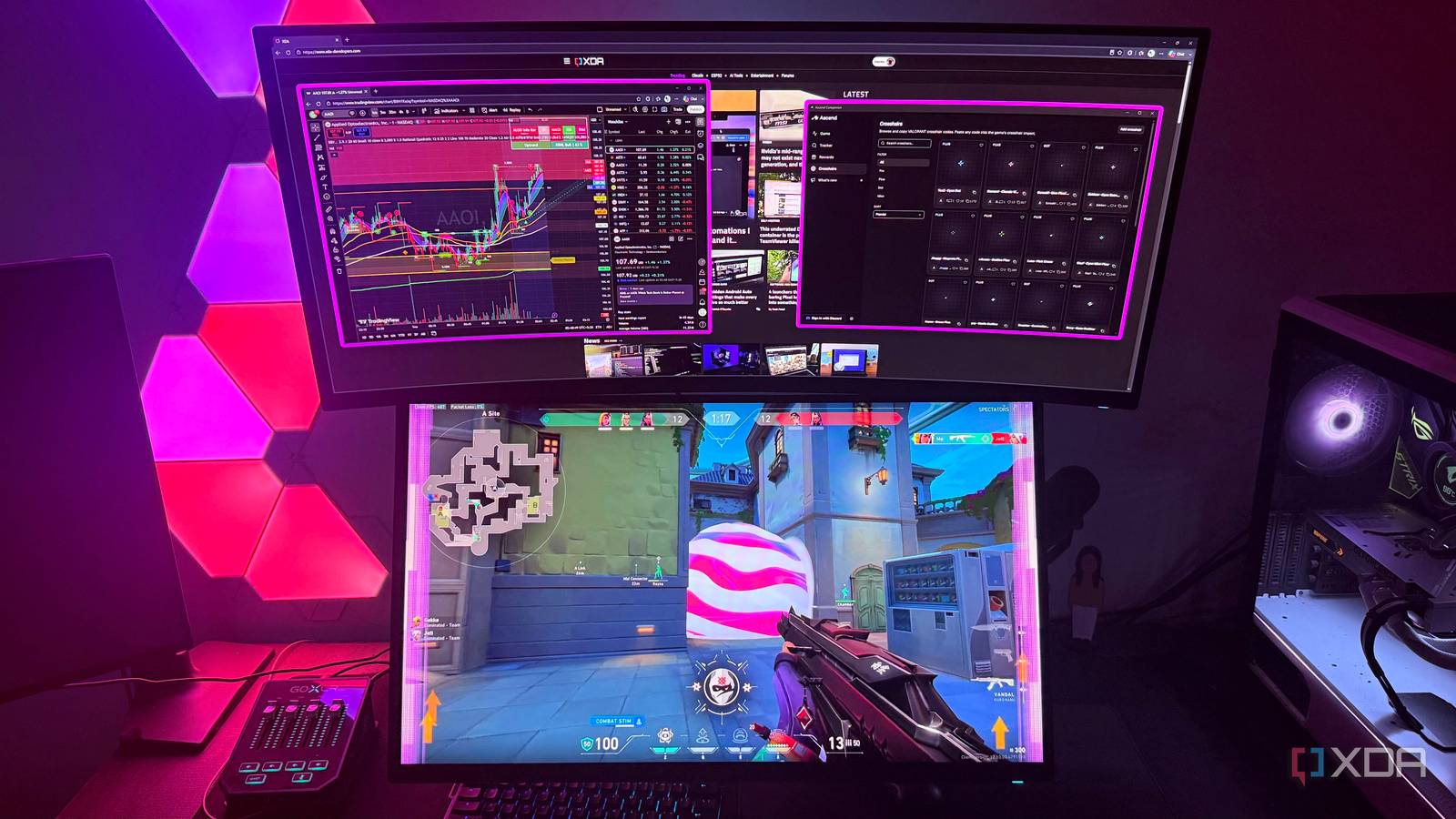
Published Nov 29, 2026, 9:00 AM EST Hamlin has been in the tech field for over nine years. Since 2017, his work has appeared on MakeUseOf, Android Police, OSXDaily, Beebom, and more. He served as the Senior Editor at Valnet's MakeUseOf for over two years before joining XDA. He uses a high-end gaming rig for desktop use and a MacBook for traveling, but dislikes some of the quirks of macOS. You're more likely to catch him at the gym or on a flight than anywhere else. I've been using Windows for nearly two decades, and although I've learned to work around the OS, some things still annoy me. And no, I'm not talking about the usual complaints you hear about Windows 11, like ads in the Start menu or Microsoft making it really hard to set up a PC with a local account. It's the little quirks that bother me more because I deal with them daily. What's funny is that Microsoft has solutions to many of these problems, but for whatever reason, they're all part of PowerToys. I've been using it for a little over a year, and while I first installed it to try out Command Palette, I've gotten far more use out of the utilities that address some of the limitations I'd otherwise have to put up with. I'm so used to these four, in particular, that I won't be ditching PowerToys until Microsoft adds them to Windows natively. Windows get buried behind other apps Always On Top lets me pin windows above everything else This is easily my favorite PowerToys utility because I use it the most. Even though I have three monitors on my desk and spread my windows across all of them, I still end up having two or three windows overlapping on the same screen. For instance, I might be watching a YouTube video while having a chart open in TradingView and a Reddit thread discussing the same stock in another tab. One click on the chart would bury all the windows in front of it, and I'd have to bring them back to the foreground from the taskbar. With Always On Top, I can select the window and press Win + Ctrl + T to pin it, so it stays visible even when I'm interacting with other apps and windows behind it. You also get a colored border around the window so you know it's pinned, along with an audio cue when you hit the shortcut. And when you no longer need it, you can unpin it with the same shortcut. I haven't gone a day without using this tool in months. Dragging and resizing windows feels like aim training With Grab and Move, I'm not reaching for the title bar or corners anymore Most of us have gotten used to dragging windows by their title bars and resizing them by their edges or corners, regardless of whether we use Windows, macOS, or Linux. But just because that's the norm doesn't mean it's the most convenient way to go about it. As someone who works across two 27-inch monitors and a 34-inch ultrawide with a pretty low mouse sensitivity, the last thing I want to do is move my cursor halfway across a screen just to grab a window by its title bar. Grab And Move has made this so much easier for me, though. Now, all I do is press and hold a modifier key, which is Alt by default, while left-clicking and dragging from anywhere within the window to move it around. Likewise, to resize it, I just need to right-click and drag while holding down the same key. PowerToys automatically determines which edge or corner to resize based on where my cursor is within the window. Snap Layouts doesn't make the most of my ultrawide FancyZones lets me create the layouts I want Snap Layouts is totally fine if you just need a few basic layouts to arrange your windows quickly. And for the most part, I'm happy with the options I get on my two 27-inch monitors. But there are two things that I don't like. One is that I didn't get any additional layouts to take advantage of that extra horizontal space on my ultrawide monitor. The other is that when I'm using my mouse, I have to drag windows all the way to the top edge of the screen or hover over the maximize button to snap them into place, which, once again, feels like target practice. FancyZones addresses both of these problems. The preset layouts are basic, but you can use the layout editor to create any layout you want. I've created four vertical zones for my ultrawide monitor, but they're not all of equal width because something like Discord or Twitch chat doesn't need nearly as much horizontal space. All I need to do is hold down Shift while dragging a window, and the zones will automatically show up on my screen. I can then drop it into any of those zones with my eyes closed—almost. The file is open in another program, but which one? File Locksmith saves me from digging through Task Manager If you're a long-time Windows user, this annoying pop-up needs no introduction. In fact, you've probably lost count of how many times you've tried to delete, move, or rename a file or folder only for Windows to tell you it's open in another program. To be fair, Windows does tell you which program is using the file in some cases, but not always. That's when I usually end up going through the list of processes in Task Manager and trying to guess which one might be using it. That's not a concern for me now that I've started using File Locksmith. Enabling it in PowerToys adds a context menu option called Unlock with File Locksmith. I just need to right-click on the file that's giving me trouble and select this option (it may be hidden in the legacy context menu) to see which processes are using it. I can end those processes immediately from the same window, so there's no need to open Task Manager. I like that I don't need to have PowerToys running in the background to use it, unlike the other utilities I mentioned above. I shouldn't need PowerToys for any of this I can understand why Microsoft doesn't want to overwhelm Windows users with all the customization options you get with something like FancyZones. But what's so niche about wanting to keep a window on top of everything else? Or making it easier to drag and resize windows? It's almost like Microsoft creates its own problems and then fixes them with PowerToys. I don't see the point in limiting these features to power users when just about anyone who uses Windows could benefit from them. Perhaps Microsoft is just taking its time testing them, but I'm losing patience. Microsoft PowerToys is a collection of free, open-source tools that can improve Windows productivity.
Microsoft has fixes for 4 Windows 11 annoyances, but they're hiding in PowerToys
Full Article
Original Source
Read the full article at Xda-developers →KhanList aggregates and links to publicly available news content. We do not host full articles from third-party sources. Always verify important information with original sources.