
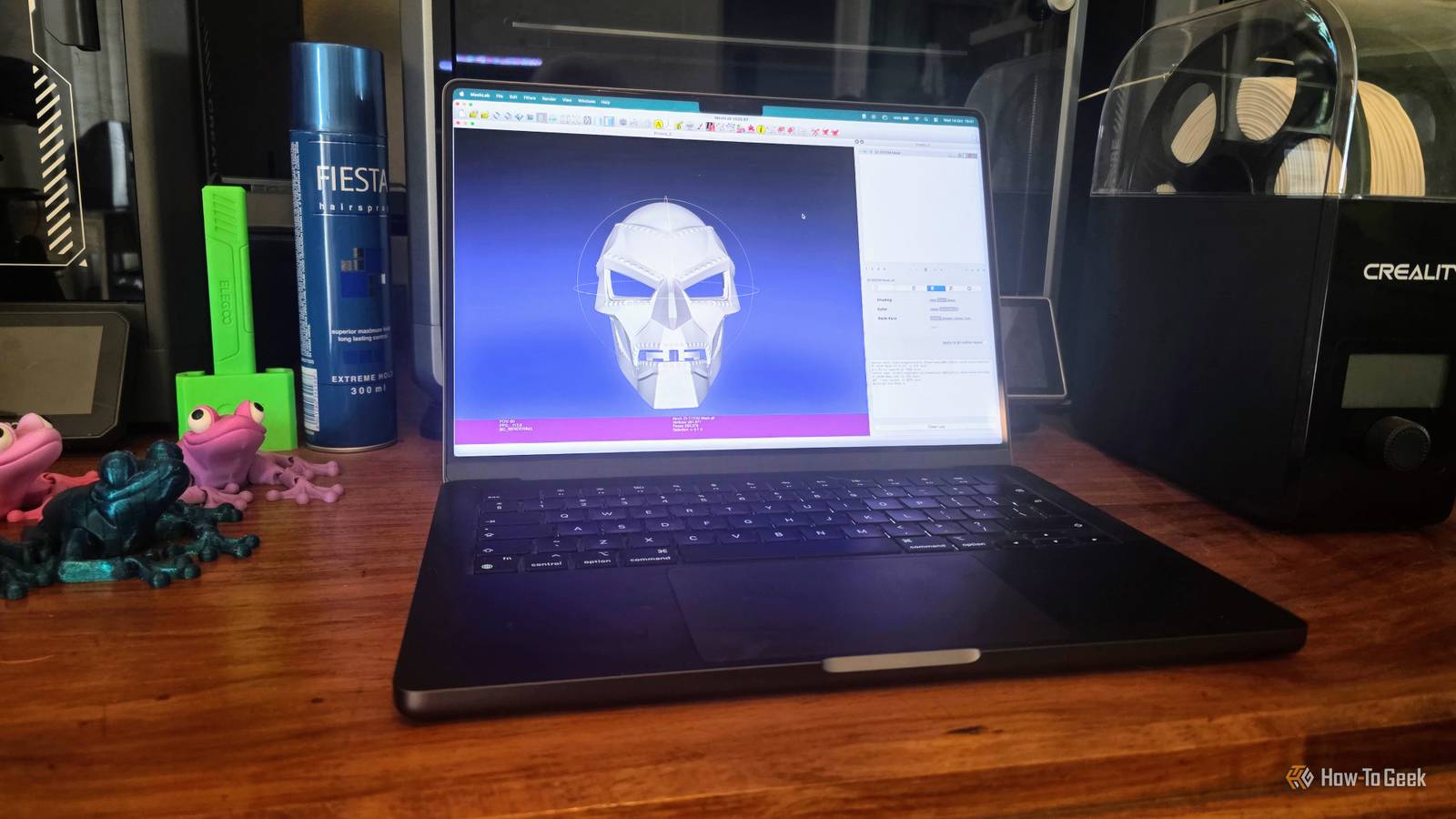
Published Oct 15, 2026, 10:00 AM EDT Sydney Butler is a technology writer with over 20 years of experience as a freelance PC technician and system builder and over a decade as a professional writer. He's worked for more than a decade in user education. On How-To Geek, he writes commerce content, guides, opinions, and specializes in editing hardware and cutting edge technology articles. Sydney started working as a freelance computer technician around the age of 13, before which he was in charge of running the computer center for his school. (He also ran LAN gaming tournaments when the teachers weren't looking!) His interests include VR, PC, Mac, gaming, 3D printing, consumer electronics, the web, and privacy. He holds a Master of Arts degree in Research Psychology with a minor in media and technology studies. His masters dissertation examined the potential for social media to spread misinformation. Outside of How-To Geek, he hosts the Online Tech Tips YouTube Channel, and writes for Online Tech Tips, Switching to Mac, and Helpdesk Geek. Sydney also writes for Expert Reviews UK. He also has bylines at 9to5Mac, 9to5Google, 9to5Toys, Tom's Hardware, MakeTechEasier, and Laptop Mag. Sign in to your How-To Geek account There are lots of ways to get a 3D model to print on your 3D printer. You can model it yourself, or use a 3D scanner to turn real-world objects into data that can be converted into a printable format. Most people, however, will likely download a model someone else has created from 3D printing websites. Regardless of how that model made its way into your slicer, there's always a chance some hidden imperfection in the data will cause your print to fail. Slicers like Cura and PrusaSlicer can deal with some of these issues, but if they can't handle them, then MeshLab is exactly the tool you need to fix those pernicious problems. Your STL can look fine and still have broken geometry More than meets the eye A 3D model in STL format describes a model's surface using triangles (polygons), so to your eye, the model can look perfectly fine in a preview. However, invisible imperfections can exist that don't affect the virtual world in computer memory but can spell disaster when you try to turn that data into a physical object. The important question here is whether the surface created by the triangles defines the volume correctly. Some faces can be duplicated, others may intersect where they shouldn't, or they may be connected in a way that makes printing impossible. In slicer software, you'll often see a warning that a model is "non-manifold" and you can read about the different problems in Prusa's guide on repairing corrupt 3D models. Your slicer’s automatic repair has limits Sometimes it needs a little help Both the slicers I've mentioned and any slicer worth using have some form of automatic repair. Basic mesh issues no longer require a separate program to fix. For example, PrusaSlicer's automatic repair will probably fix most issues, but Prusa's documentation recommends using a specialized third-party program like MeshLab to manually and precisely fix issues that can cause models to fail in some ways. MeshLab lets you repair the actual mesh A hands-on fix MeshLab can be a little disorienting at first, but when you're looking for issues in a model, the first thing you do after opening the file is use Filters -> Quality Measures and Computation -> Computer Topological Measures. This will give you a report in the dialog output on the bottom-right of the window. In the above example, you can see the 3D model has non-manifold faces. This step lets us both see what went wrong and gives us something to compare the model to after the fixes are applied. Once you know what problems have been found, you want to go to Filters -> Cleaning and Repairing to see the selection of tools at your disposal to address the issues your model has. Remove Duplicate Vertices joins vertices with identical coordinates. Remove Duplicate Faces gets rid of repeated triangles, while Remove Zero Area Faces removes collapsed triangles. For remaining topology problems, Repair non-Manifold Edges can remove faces or split vertices. Repair non-Manifold Vertices by splitting addresses problematic connections at individual vertices. I do recommend you look up each one online to see exactly what it does and how it works. MeshLab's official documentation lists all the filters and what they do, but it is a little impenetrable, so it's a good idea to find a third-party demo or guide. There are also many great hands-on mesh repair and cleaning guides on YouTube that are worth watching before you attempt it yourself. While many filters will do a good job of automatically finding and fixing small issues, a complex job like cleaning laser scan data requires much more prep work. Check the sliced layers before calling the file fixed After every repair, rerun the diagnostic to see whether the number of issues has decreased or whether you've made things worse and need to step back. Export the mesh as a separate STL using File -> Export Mesh As so that you have separate iterations, and then slice it again. Hopefully any issues your slicer found before are now gone. Also inspect the preview carefully for any obvious defects. Remember that some filters have thresholds that, if you set them too high or too low, can "fix" parts of the model that were actually fine and won't show up as an automatically detected problem. The final proof is in the print, though you may want to make a draft-quality print with sparse infill to avoid wasting material if the model still isn't right.
MeshLab fixes unprintable STL files that PrusaSlicer and Cura refuse to slice correctly
Full Article
Original Source
Read the full article at Howtogeek →KhanList aggregates and links to publicly available news content. We do not host full articles from third-party sources. Always verify important information with original sources.