
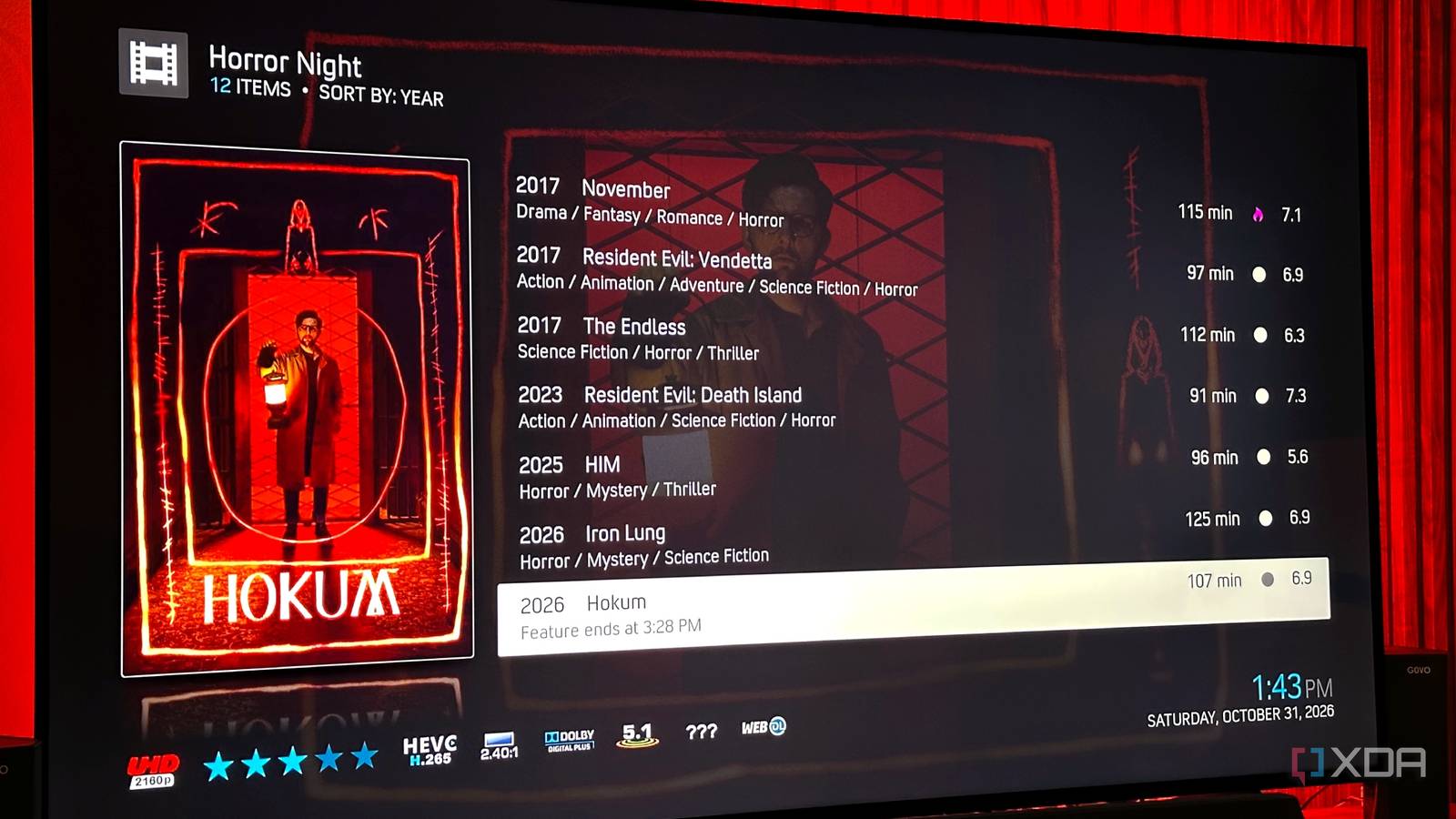
Published Nov 2, 2026, 11:31 AM EST Gaming has been Samarveer’s greatest passion, and the Literature graduate in him takes immense joy in dissecting games for their themes, messages, and impact. Samarveer holds a deep appreciation of gaming, and considers the platform to be the most immersive and impactful across all media. He can be found engaging with gaming communities online, always ready to debate the finer points of ray tracing or itching to write an 8-page collegiate thesis on any game that impacts him emotionally. We know anyone who catches the self-hosting bug keeps going down the rabbit hole, exploring new tools and utilities to host their software and finding new things to self-host, right? However, something less discussed is how people also look forward to expanding their entire media library once they begin self-hosting. The problem arises, though, when keeping an ever-growing collection becomes a nightmare to organize. Your file system insists on giving each movie a permanent home, but any movie could easily qualify for several collections all at once. Thankfully, Kodi has a rather clever feature that lets you rethink how your library is organized without touching the files themselves. Once you understand what it can do, you might never look at your media collection the same way again. Folders are great until your collection outgrows them There's a reason most of us organize our media libraries into separate folders for movies, TV shows, and everything else. It's simple, predictable, and works perfectly well, but only until you want to organize that same collection by anything other than its file type. Now, you could create more folders for genres, release decades, or unwatched movies, but you'd have to duplicate media and waste storage. The bigger problem is that conventional folder structures force you to make organizational decisions that don't always reflect how you consume media. If Blade Runner is in Movies/Sci-Fi, for example, then it won't be there in Movies/80s, or Movies/Must Rewatch. The ideal solution, then, is a way to create multiple views of the same collection without physically moving anything. Thankfully, Kodi's smart playlists do exactly that, and using them has genuinely changed how I organize my media (because, frankly, it does all the work for me). Setting up a smart playlist in Kodi fixes that problem Unlimited collections, no file-moving, at the cost of some elbow grease Kodi's smart playlists solve this problem by letting you create dynamic collections based on rules rather than physical file locations. Instead of manually sorting movies into additional folders, you can tell Kodi to group them by genre, release year, play count, or other library properties. In essence, your files stay exactly where they are, while Kodi handles the organizational heavy lifting. Full disclosure: creating a smart playlist in Kodi was genuinely straightforward. However, navigating its interface with my TV remote isn't what I'd call a good time. Thankfully, I paired a Bluetooth keyboard to my Google TV for this session, which made the process a lot easier on my sanity and patience reserves. Some third-party skins tuck the Playlists shortcut elsewhere, or even hide it. The feature is skin-independent, though, so your playlists remain safe. This guide uses Kodi's default Estuary skin so the menu paths match. From the Kodi home screen, go to Videos > Playlists > New Smart Playlist. Now, select Movies as the content type, and give your playlist a name. I named mine "Horror Night," what with early winter sunsets coming on. For the next step, select "New rule..." The Smart playlist rule window should open up. Under "Match items where," select Title, and switch it to Genre. Then, select Contains and switch it to Is. Lastly, select Browse to open the Browse for Genre window, and select Horror (or another genre of your choice). You can select multiple genres in this window. Selecting multiple genres is an "or" situation — the playlist will include any movie that has any of the genres you selected. Press OK to set the rule. Now, before you click OK again to create the new smart playlist, you can play around with a few other nifty options. The smart playlist creation window also lets you limit the number of items in a playlist, which you should leave alone unless you're explicitly making a top-10 or top-20 playlist. You can choose to order the contents of the smart playlist by year, title, rating, duration, or date added, among several other options. Leave the Group by option at default, and then click OK to create the new playlist. The best part is that these playlists aren't static lists that you'd have to maintain yourself. If you add another qualifying movie to your library, it will simply appear in the appropriate collection, depending on the rules you set. Stacking rules is how smart playlists become powerful A second rule is how it gets interesting A single filter is useful, but combining conditions is where Kodi's smart playlists really shine. To modify your existing playlist, highlight it, open the context menu, and select Edit. You can also just do it while creating the playlist by adding another rule right next to the existing one. For instance, if you wanted to add another condition for unwatched horror movies, you could easily do that. Select the New rule option, then choose Playcount as the field, keep the operator set to is, and enter 0 as the value. Kodi uses this counter to track playback, so zero identifies movies you haven't watched yet. Adding that second condition also introduces an important choice: whether the playlist should match all rules or any one of them. Selecting all requires a movie to satisfy both conditions, giving you a collection of unwatched horror films. Choosing one, on the other hand, would include every horror movie alongside anything else you haven't watched, which rather defeats the purpose. Once you understand the distinction, you can build increasingly specific collections without creating a folder labyrinth. Your playlist automatically reflects changes to your viewing history, and the same movie can appear in multiple collections simultaneously. That's the beauty of the whole system: Kodi changes how you access your library without requiring you to reorganize the files themselves. Garbage in means garbage out No good thing comes without effort, especially when we're talking about self-hosted media. Kodi's smart playlists are only as reliable as the information in your media library. You could have the most elaborate collections with multiple rules running your playlists, but if the metadata behind them is incorrect or even missing (for those niche foreign movies), certain movies will just refuse to show up in the smart playlist. This is especially true if you've manually imported movies or use unconventional file-naming rules. Kodi relies heavily on its indexed library information to evaluate the playlist rules you set, and it can't infer details that were never identified correctly in the first place. That's why it's very important to make sure your metadata is in order before you go overboard with custom collections using smart playlists. Make sure Kodi identifies your movies correctly, and refresh missing information where needed. Test all your rules against a handful of known titles just to ensure your metadata is sound. Once that is out of the way, Kodi's smart playlists become a genuinely powerful way to organize your library. Your media library deserves a little more flexibility Kodi has plenty of features that fly under the radar, and smart playlists are a perfect example of how a relatively simple tool can fundamentally change your experience. You don't need another media server, a complicated plugin setup, or an entirely new storage arrangement to make your collection feel more personal. Once you do start experimenting with Kodi's less obvious features, you might discover that the software you already use has far more room to grow than you ever gave it credit for. Kodi Kodi isn't really a media server as such, but it's a great way to access video files stored on your network. Thanks to plugins, too, you can use it with Plex, Jellyfin, or Emby.
Kodi's smart playlists let you rethink your library without moving the files
Full Article
Original Source
Read the full article at Xda-developers →KhanList aggregates and links to publicly available news content. We do not host full articles from third-party sources. Always verify important information with original sources.