
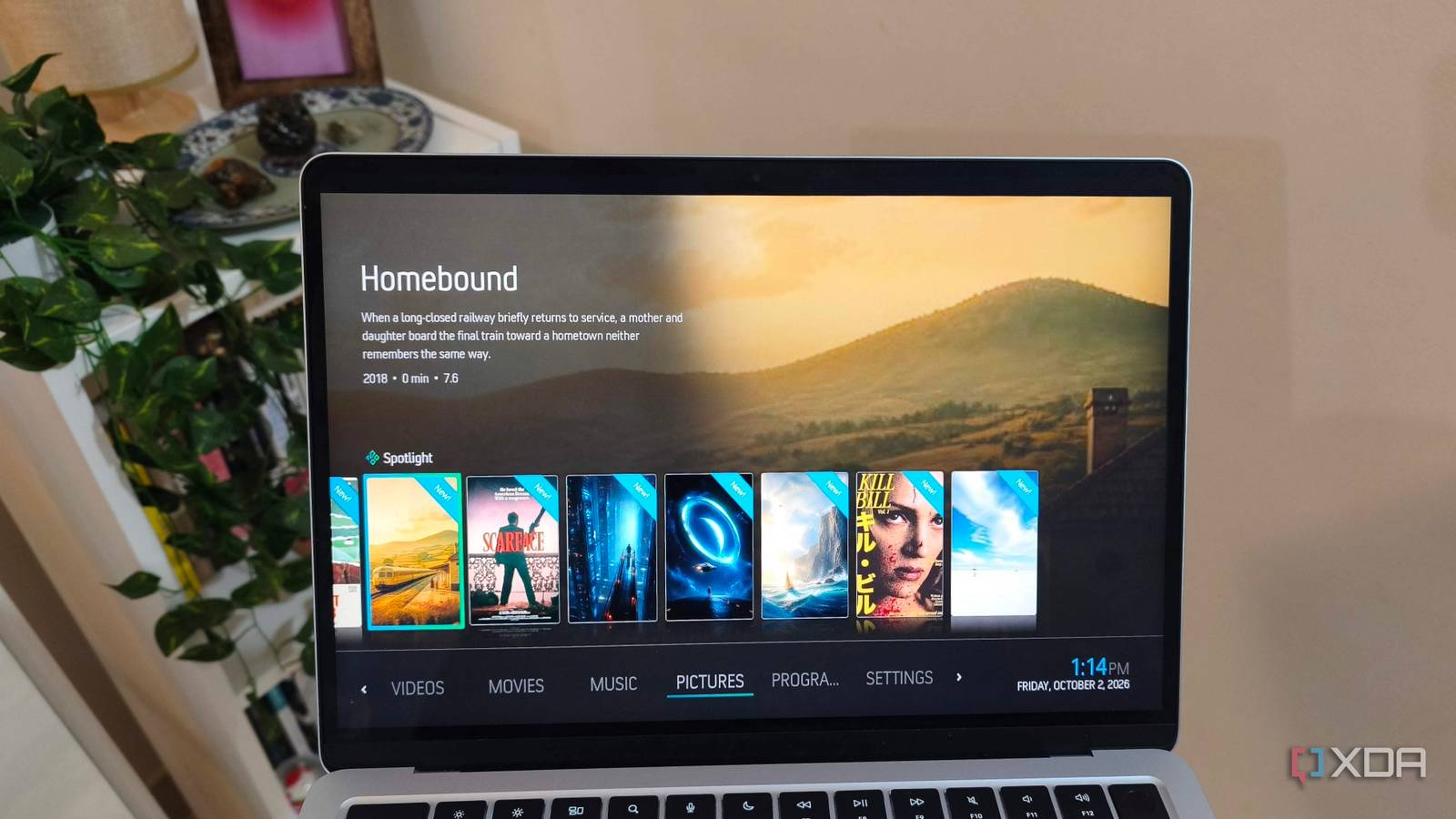
Published Oct 4, 2026, 3:01 PM EDT Anurag is an experienced journalist and author who’s been covering tech for the past 5 years, with a focus on Windows, Android, and Apple. He’s written for sites like Android Police, Neowin, Dexerto, and MakeTechEasier. Anurag’s always pumped about tech and loves getting his hands on the latest gadgets. When he's not procrastinating, you’ll probably find him catching the newest movies in theaters or scrolling through Twitter from his bed. Kodi is one of the oldest media centers, predating the rise of streaming services and self-hosted solutions like Plex, Jellyfin, and Emby. However, it remains useful more than two decades after its debut, and for good reason. Kodi still offers features you won’t find in modern streaming apps, even in 2026. Even when other apps offer similar features, Kodi implements them better. I’ve tried every streaming app out there and have been a regular user of Plex and Jellyfin, yet I still keep coming back to Kodi because of these features. Kodi can build a proper movie and TV library from the files you already have on a hard drive or NAS. For example, a NAS can share folders over SMB or NFS without running another media service. If your files are on a USB drive connected to the playback device, you don't even need a network connection. You can just point it at a folder, tell it whether that folder contains movies or TV shows, and let it fetch the artwork and descriptions. It fetches movies with posters and cast information, and organizes TV shows into seasons and episodes. Kodi even tracks what you've watched and where you left off. In contrast, Plex and Jellyfin require their server software to scan your collection and make it available in their apps. I like having that option because even a small collection benefits from a proper browsing interface. I often have friends come over with a drive containing a few favorite movies that we all want to watch together, and having them show up inside a proper interface makes things much nicer. Once Kodi has stored all the artwork and metadata locally, you can also keep browsing and watching even if your internet goes down. If the files are on a NAS, you just need the NAS and your local network to stay up. Kodi lets you make the interface your own You don't have to settle for Estuary I prefer how Kodi looks on a TV, and its 10-foot interface makes it easier for me to use from the sofa. The menus, text, and navigation are designed around a remote. Plex and Jellyfin have TV apps too, but Kodi gives you considerably more freedom to choose how that interface works. You can use installable skins to change the layout, artwork presentation, menus, and playback controls. My personal favorite is Arctic: Zephyr - Reloaded, for example, which gives Kodi a cleaner, more minimal look and is available through its add-on repository. You don't have to stick with the default Estuary interface if its layout doesn't work for you. With a compatible skin, you can also put your own collections directly on Kodi's home screen. For example, I can add a smart playlist of unwatched thrillers as a menu item, then use widgets for recently added movies or the next episodes of shows I'm watching. Jellyfin does support custom CSS on its web clients, but those changes don't apply across every TV app. Kodi's skin system works directly inside the interface I'm using on the TV, which makes the customization much more useful. The way a skin looks is obviously a personal preference, but being able to change the layout this much is a real advantage. Kodi is better to watch through Better playback with fewer button presses You can keep Plex or Jellyfin managing your collection and use Kodi to watch it on the TV. Jellyfin for Kodi and PlexKodiConnect bring your server's library into Kodi, so you can use its navigation and playback without rebuilding your collection from scratch. Jellyfin's integration can store library metadata in Kodi's local database, which reduces delays when browsing. Kodi also seems to handle playback better. There have been plenty of instances where a file that stutters or has audio issues in a native app plays just fine through Kodi. I often had trouble playing high-bitrate movie remuxes with TrueHD audio in the native Plex app, but the same files played smoothly through the Plex add-on for Kodi. You also get more control during playback. I can map remote buttons to toggle subtitles, switch audio tracks, or jump backward by a specific amount, and Kodi even lets you correct subtitle timing without leaving the video. You get more control over quiet dialogue Hear speech without turning everything up I watch a lot of movies through TV speakers, and quiet dialogue mixed with much louder music or effects is one of the most annoying problems I run into. If I raise the volume enough to hear a conversation properly, the next action scene is suddenly way too loud. Kodi has a setting that helps with this called Downmix: Center Mix Level. Most dialogue in a surround mix sits in the center channel. When I play a 5.1 soundtrack through stereo speakers, Kodi can downmix that audio and let me increase how much of the center channel reaches the left and right speakers. That makes dialogue easier for me to hear without having to raise the overall volume as much. I can also change the setting during playback. You do need to disable passthrough so Kodi can handle the decoding, and the output channel count has to be lower than the soundtrack's channel count. Plex now has Boost Dialog for Plex Pass users on supported apps, but Kodi offers a similar feature for free. I would rather not pay for Plex, especially since the platform has kept raising its prices and the lifetime plan now costs roughly three times what it used to.
Kodi is ancient by streaming standards, and it still does 4 things no modern app has figured out
Full Article
Original Source
Read the full article at Xda-developers →KhanList aggregates and links to publicly available news content. We do not host full articles from third-party sources. Always verify important information with original sources.