
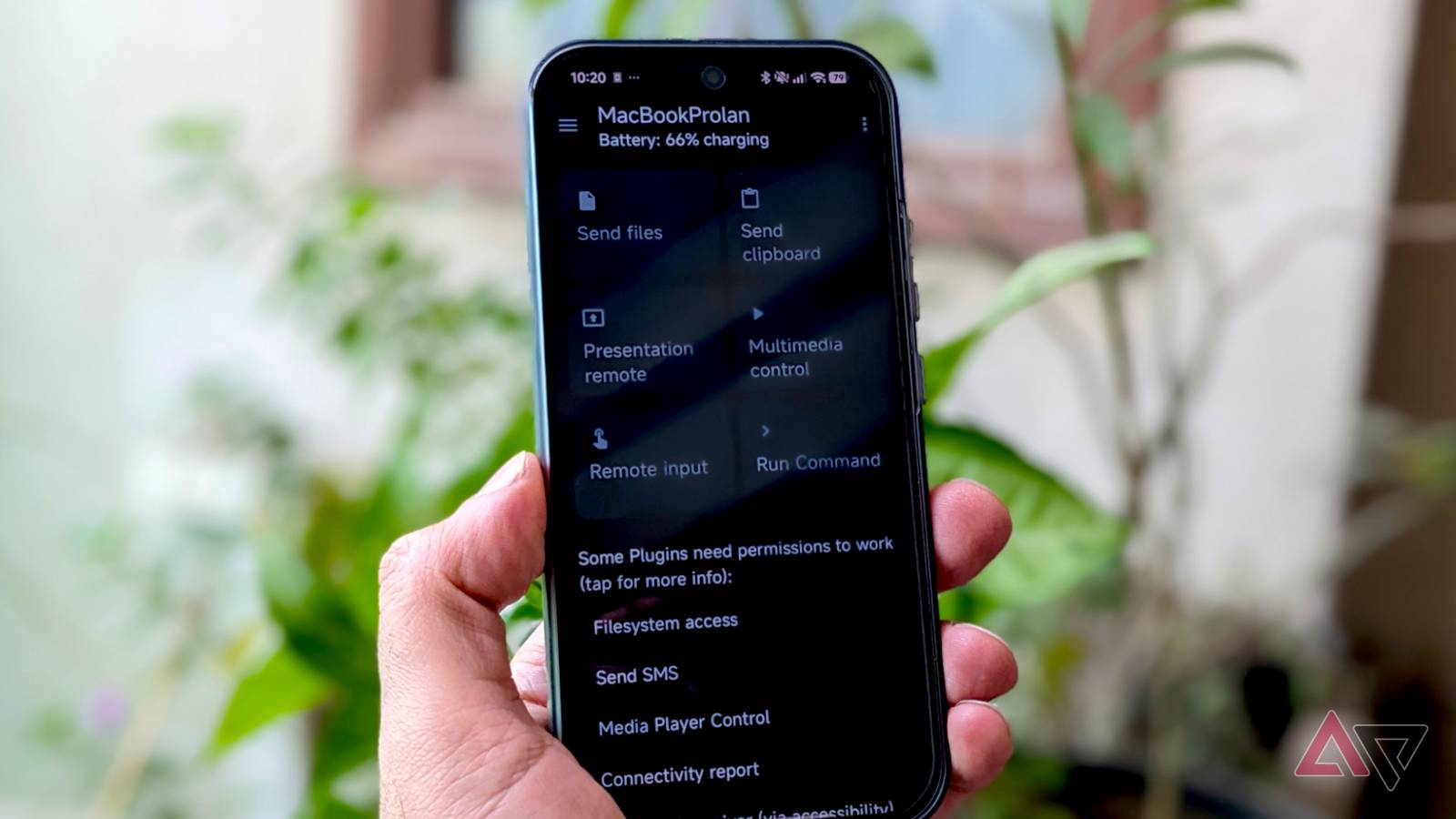
Published Nov 27, 2026, 3:00 PM EST Akshay Bhalla was the former game guides editor for Screen Rant and the technology editor at MensXP. Akshay has covered consumer tech and games for over a decade. He currently writes about Android apps, Gemini, Google Services, Android Auto, Smartphone features, and hardware at Android Police. When he isn’t writing about tech, he's often found reviewing games for Gadgets Now. You can reach Akshay at bhallanator @ proton dot me. When I first saw the new Googlebook launch, I instantly loved some features that I wished I had on my Apple MacBook and even my Windows PC. I wanted a seamless workstation where I could transfer links, control media playback, and use a bunch of other features that would make my life easier. But instead of investing in a laptop to get these new software features, I started hunting for an app that could do the same things. That's when I discovered KDE Connect and realized I didn't need a new laptop at all. How KDE Connect transforms my PC and laptop into a capable Googlebook A simple app helped me save money Sharing links, text, or even controlling my PC or laptop from my phone can be jarring on a busy workday. Emailing or WhatsApping yourself countless links can get annoying over time. The same goes for transferring images from my phone: I either upload them to or use a physical USB cable to transfer them to my laptop. Because Googlebook laptops use Quick Share and Quick Connect for these tasks, I wanted to replicate that on my MacBook and Windows PC without investing in a new laptop. KDE Connect solved all these problems because it's an open source app that lets me do everything I mentioned over my local network. The app doesn't require an account, and it is the closest thing to Chromebook- or Googlebook-style Android integration. With the app, I bypassed all the ecosystem lock-in friction I didn't even know I had. Setting up KDE Connect is also seamless. To set up KDE Connect, I followed the steps below: Install KDE Connect on both target devices. Connect both devices to the same home network. Open KDE Connect on both devices, select the target device (devices appear automatically), and request pairing. Accept the pairing notification on the other device, and you're all set up. Note: KDE Connect works with Android, Windows, macOS, iOS, and Linux. The setup process is the same across all platforms. After I set up KDE Connect on both devices, I started using it right away in my daily workflow. I often need to share links, files, and images between my phone and my laptop, and because none of my other devices were compatible with Quick Share, it worked as a great alternative. What's also neat is that KDE Connect can display my phone's notifications on my MacBook and PC. It might not be much, but on a busy day, reaching for the phone can break my flow. But with KDE Connect, I can glance at these notifications and keep working while staying aware of anything important I can return to later. Every KDE Connect feature that I use transforms my PC and MacBook into a Googlebook laptop These features were hard to ignore Credit: Lucas Gouveia / Android Police The feature I use most with KDE Connect is the ability to share my clipboard between my phone and laptop. I use this with my iPhone and MacBook quite often, but because my Xiaomi 17 is my work phone, KDE Connect bridged that gap. Sharing meeting notes, URLs from my phone, and even text message notes became seamless and fast. I could use Google Keep to transfer links and texts between devices, but KDE Connect requires no extra steps. Wireless file sharing Sharing documents, images, and other types of files between my Android phone and MacBook or PC wasn't really possible until KDE Connect came into my life. Because both devices are on the same network, I can drag and drop files between them instantly. Earlier, I relied on USB cables, cloud uploads, or even messaging apps like WhatsApp to transfer images and files. But with KDE Connect, that friction disappeared, and my laptop became a seamless workstation that worked with my Android phone. Notification sync and replies I mentioned earlier that with KDE Connect I can see my phone's notifications right on my desktop. This isn't revolutionary, but being able to read and reply to these notifications via KDE Connect changed everything for my workflow. I no longer pick up my phone to reply to text messages, and KDE Connect has definitely reduced my habit of reaching for my phone. Control my laptop from my phone I don't use this feature much, but there have been instances where I needed to control my computer while I was away from the laptop. Sometimes I need to be with my child and can't really be on the laptop to work. But sometimes I need to access my laptop remotely from another room and control it. KDE Connect lets me use the phone as a touchpad and a keyboard for my PC or MacBook. I've even used this feature while sitting on the couch to use my desktop PC or while giving presentations. Other features worth mentioning For brevity, I'll mention a few of the features I love using in KDE Connect. These quality-of-life features are just a few ways to create a seamless workstation that works with your PC and Android phone. Here are some of my favorites: Ring to find the phone. Lock the screen or shut down the computer via commands. Run custom scripts for other actions. Check the phone's battery level. Use a presentation remote with pointer. Use two-way media remote control: pause, skip, play, and adjust volume from the phone or PC. KDE Connect is by far the most robust app I've used, but I wish it had one key feature. Unlike Microsoft Phone Link or NectarLink, KDE Connect can't do full-screen mirroring of my phone on my desktop. It's not really a dealbreaker, but it would be a great feature to have, because other apps already offer it. KDE Connect is a free, lightweight, open source app that turns any Windows PC or MacBook into a productive workstation. It lets you emulate the Chromebook or Googlebook experience without switching platforms. I highly recommend trying KDE Connect and seeing if it helps your workflow the way it did for me. After I got used to the seamless integration, my old workflow felt antiquated.
KDE Connect made my PC and MacBook feel like a Googlebook with my Android phone
Full Article
Original Source
Read the full article at Androidpolice →KhanList aggregates and links to publicly available news content. We do not host full articles from third-party sources. Always verify important information with original sources.