
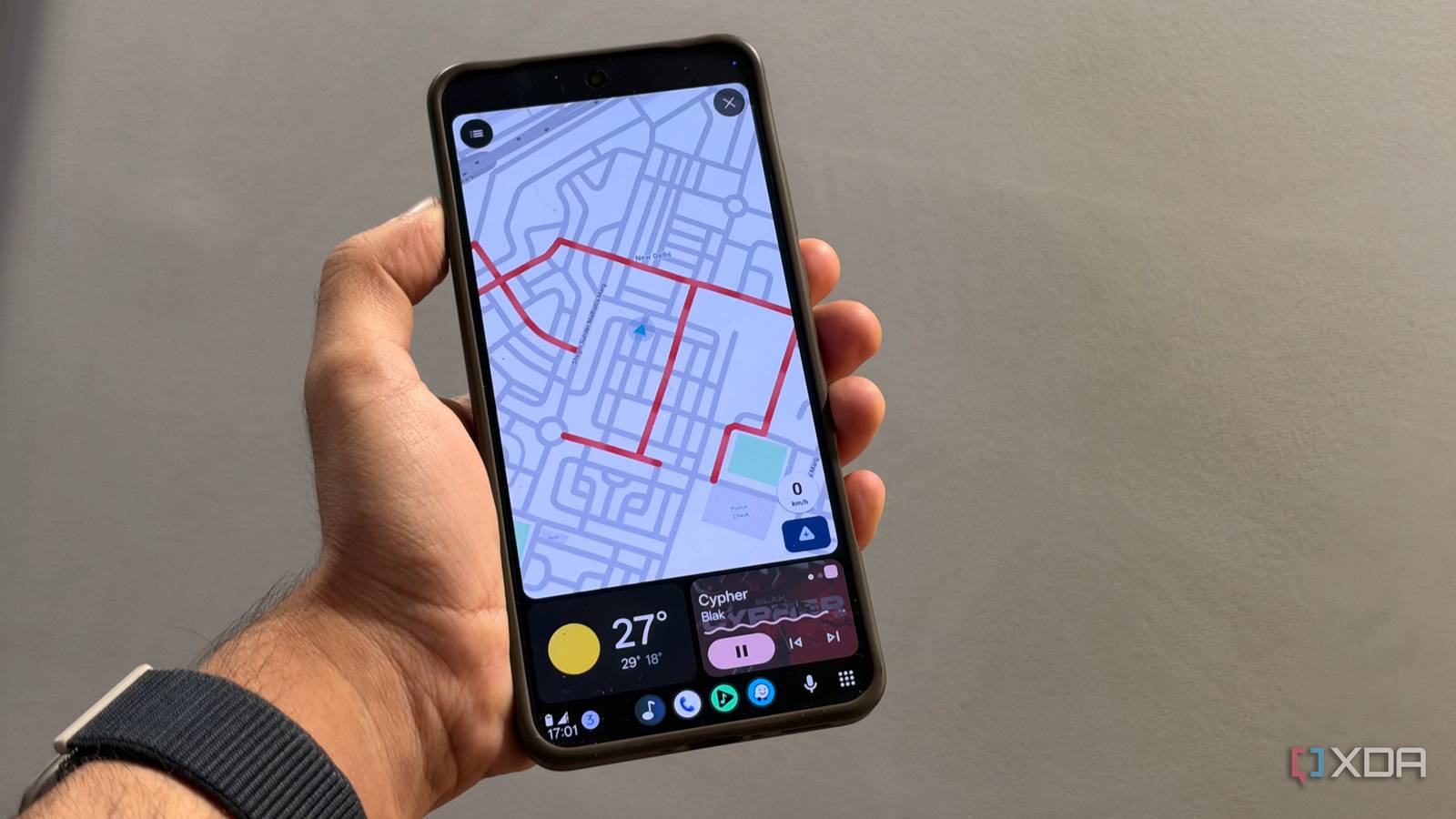
Published Nov 3, 2026, 11:30 AM EST Dhruv Bhutani has been writing about consumer technology since 2008, offering deep insights into the personal technology landscape through features and opinion pieces. He writes for XDA-Developers, where he focuses on topics like productivity, networking, self-hosting, and more. Over the years, his work has also appeared in leading publications such as Android Police, Android Authority, CNET, PCMag, and more. Outside of his professional work, Dhruv is an avid fan of horror media spanning films and literature, enjoys fitness activities, collects vinyl records, and plays the guitar. Not every car has a built-in infotainment system, and that usually means missing out on conveniences like Android Auto. I drive an older car without a built-in screen, and my go-to is my phone with Google Maps on a mount. However, I've always wanted a way to turn my phone into an Android Auto-style display complete with navigation, music, and calls in a driving-friendly interface. Google used to offer this with Android Auto for phone screens, but then killed the feature altogether. Now, an open-source app called PhoneAuto brings it back, letting me run Android Auto directly on my phone, giving me the same experience as an in-car infotainment system without needing to retrofit anything. PhoneAuto gives me the full Android Auto experience on my phone Navigation, calls, streaming, and more My biggest concern when using a phone for in-car navigation isn't Google Maps. That's easy enough, since the app works perfectly well on its own to get me from one place to another. What doesn't translate that well to an in-car experience is everything else associated with Android Auto. Whether it's changing a playlist, skipping tracks, checking incoming messages, or more, all of these involve switching to a different app, and that's far from convenient when you're trying to pay attention to the road ahead. Nor is it particularly safe or legal. Android Auto solves this by bringing compatible apps together into an interface designed around driving. PhoneAuto puts that same interface on your phone's display. Once you've started a session, you have full-fledged Android Auto running on your phone, giving you access to navigation through Google Maps or Waze, music apps, calls, and messages. You can switch between them using the standard Android Auto app bar or open the app grid to find what you need. It's a familiar experience, and you even get Google Assistant and Gemini support, making voice-command interactions a cinch. It solves my biggest problem with phone-based navigation. Launchers try to replicate the Android Auto experience on a smartphone, but they just can't match the fluidity and purpose-built look and feel of the original. I wanted Android Auto on my phone, and this app delivers. Moreover, this system has an underrated benefit. Unlike just using any Android Auto-style app, the actual Android Auto keeps my screen awake during long hours of driving. This goes a long way toward making sure I don't have to wake my screen periodically. PhoneAuto also supports both portrait and landscape layouts, so you also get a bit of flexibility in arrangement. For example, in my car, I usually prefer a vertical orientation as it fits better on the AC mount, but you've got options. Getting PhoneAuto up and running is surprisingly easy A quick trip into Android Auto's settings is all it takes So, how difficult is it to get PhoneAuto up and running? Turns out, not very much at all. It isn't a conventional app that you can grab from the Play Store, and you'll need to download the APK from the GitHub link. In addition, it requires some configuration. For example, you'll need to enable developer mode for Android Auto. That's easy enough to do. Go to Settings on your phone. Search for Android Auto. Scroll down and keep tapping Version. This toggles on developer mode and unlocks the options in the overflow menu at the top right. Now tap the three-button menu at the top right, and select Start head unit server. That's it. Go back to PhoneAuto and select Start Android Auto, and it'll pop you right into the Android Auto interface. The app uses Android Auto's built-in head unit server functionality to run the car interface on the phone. That's important to remember because, if you switch off the head unit server, the app won't run, and you'll have to dive into the Android Auto settings to activate it again. So yeah, the app isn't quite as seamless as it could be, but the trade-offs aren't too bad for activating a feature that Google no longer offers natively. All it takes is a few steps to activate the server if it's switched off. Or you can do what I do and leave it on. Compared to the alternative, which would be to buy a dedicated Android Auto head unit, this is a pretty reasonable tradeoff. PhoneAuto brings back my favorite navigation feature I understand Google's reasoning for pushing Android Auto onto a dedicated infotainment system, but it was an option that didn't really detract from that dedicated experience and, if anything, was a nice addition. Not every car has Android Auto built in, and not every car can be retrofitted with it. PhoneAuto fills that gap and brings back the interface that I want. Moreover, it isn't an emulation of the interface. Instead, you get full-blown Android Auto, and the app just gives you a way to launch it on your phone again. Add to that the ability to swap between portrait and landscape orientations, and you've got everything you need. PhoneAuto
I've wanted Android Auto back on my phone's screen for years, and this app finally makes it possible
Full Article
Original Source
Read the full article at Xda-developers →KhanList aggregates and links to publicly available news content. We do not host full articles from third-party sources. Always verify important information with original sources.