
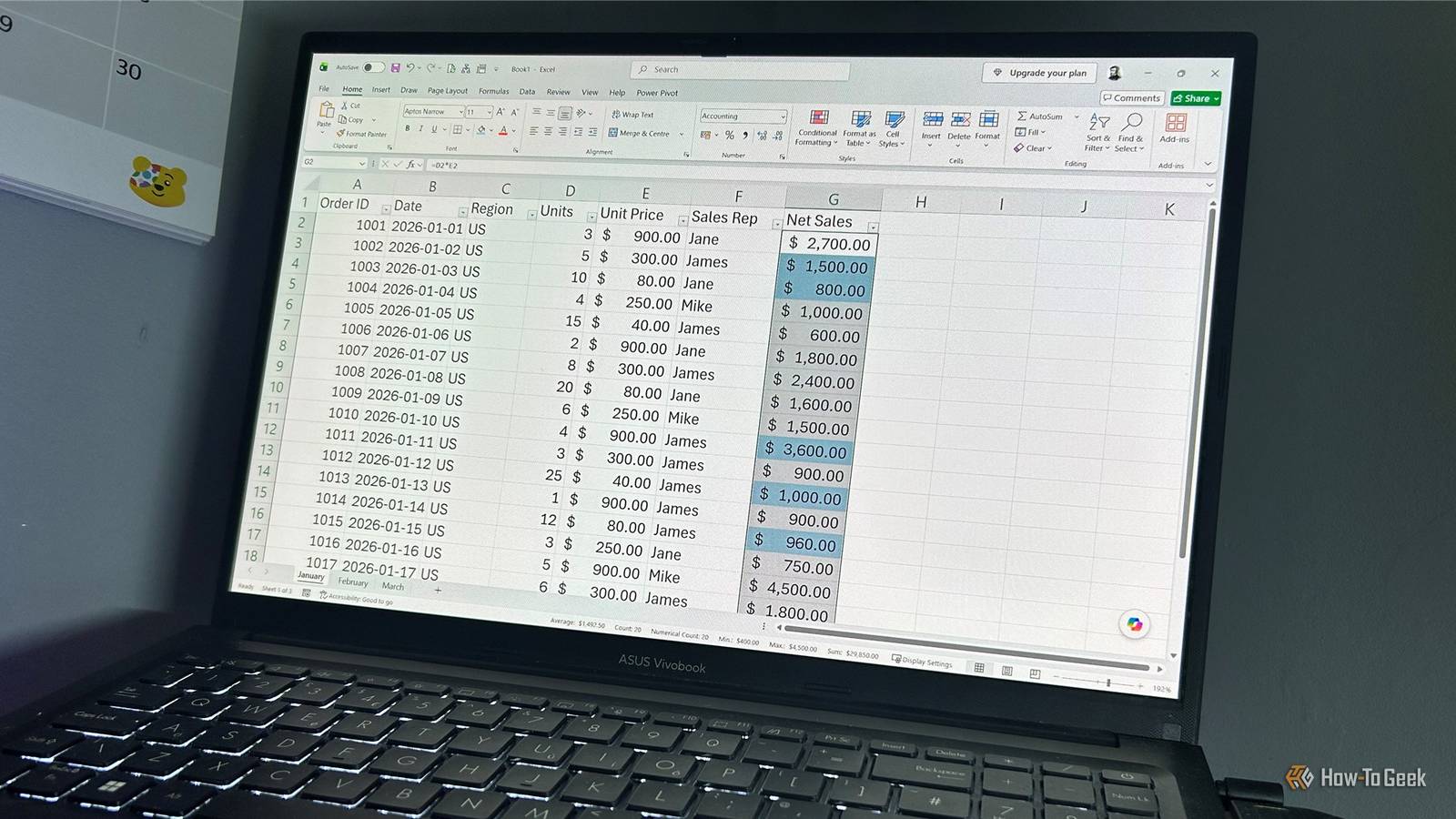
Published Aug 25, 2026, 7:30 AM EDT Tony Phillips is an experienced Microsoft Office user with a dual-honors degree in Linguistics and Hispanic Studies. Prior to starting with How-to Geek in January 2024, he worked as a document producer, data manager, and content creator for over ten years, and loves making spreadsheets and documents in his spare time. Tony is also an academic proofreader, experienced in reading, editing, and formatting over 3 million words of personal statements, resumes, reference letters, research proposals, and dissertations. Before joining How-To Geek, Tony formatted and wrote documents for legal firms, including contracts, Wills, and Powers of Attorney. Tony is obsessed with Microsoft Office! He will find any reason to create a spreadsheet, exploring ways to add complex formulas and discover new ways to make data tick. He also takes pride in producing Word documents that look the part. He has worked as a data manager in a secondary school in the UK and has years of experience in the classroom with Microsoft PowerPoint. He loves to encounter problems in Microsoft Office and use his expertise and legal-level training to find solutions. Outside of the Microsoft world, Tony is a keen dog owner and lover, football fan, astrophotographer, gardener, and golfer. One way to become more efficient in Excel is to learn keyboard shortcuts. The problem is that there are so many that trying to remember them all is pretty much impossible. That's why I narrow my shortcuts down to a select few that really help with my workflow—and Ctrl+Enter is one of those. You might already know that this shortcut lets you commit a value or formula without moving to the next cell, but it has some even more useful tricks up its sleeve. In all my examples below, I'm using a sales report stored in a regular range, not an Excel table. Tables are excellent for many jobs, but sometimes I want a more personalized layout or control over individual cells. That's when knowing a few tricks for working with regular ranges can pay off. This article refers to Excel for Microsoft 365 on Windows. Keyboard shortcuts and the availability of other tools may vary across versions. More control over bulk edits In my sales report, several orders are assigned to Sarah. But Sarah has now left, and Jane is taking over her work, so I need to change the sales rep for those orders. I could use Find and Replace to change Sarah to Jane in the Sales Rep column, but filtering gives me more control over exactly which records I change. I can first narrow the report down to the specific records I want to change, then update only those visible cells. To do this, I: Right-click a cell containing Sarah's name. Click Filter > Filter by Selected Cell's Value. Select the Sales Rep cells in the filtered range. Press Alt+; to select the visible cells. Type Jane. Press Ctrl+Enter to apply this change to all the selected cells. Using Alt+; is crucial in this workflow. Without it, the hidden cells are still part of the selection, so if I type Jane and press Ctrl+Enter, Excel will change those cells too. Because I selected only the visible cells with Alt+;, when I clear the filter, I can see that the other rows are untouched. Fill formulas without overwriting existing formatting Keep the layout, change the content My next job is to populate the empty Net Sales column with a formula: Units x Unit Price. There's a problem, though: management has highlighted some cells in blue because those orders need closer attention. One way to do this would be to type the formula in the first cell, right-click-drag the fill handle down the column, and select Fill Without Formatting. But I prefer the Ctrl+Enter method because it feels more direct. I select the range I want to fill, enter the formula, and commit it without thinking about how Excel copies the cell. So here's what I need to do: Select all the cells in the Net Sales column. Enter the formula in the active cell. Press Ctrl+Enter. Excel applied the formula to every selected cell while preserving the existing formatting. It also adjusts the relative references for each row. Fill missing values throughout a grouped report Turn a convenience layout into proper data In my report, the first five orders are North, the next five are South, then East, then West. But only the first row of each group contains those regional names. Although this makes the report easy to read, sorting the report can separate the regional labels from the orders they belong to. So, I want every region stored in its own cell. My favorite way to do this is to combine Ctrl+Enter with Go To Special: Select the Region range. Press Ctrl+G to open the Go To dialog. Click Special. Select Blanks, then click OK. Now that every blank cell is selected, I can type = and press the Up Arrow. The active cell now references the Region cell immediately above it. Finally, I press Ctrl+Enter, and Excel adjusts the relative reference for each selected blank. This means the previously blank cells are now populated with the region from directly above each one. I'm not quite finished, though. Those formulas still reference the cells above, and I don't want my data depending on that relationship if I sort it later. So I copy the completed Region range and press Ctrl+Shift+V to paste it as values. Now every order has its own region, and the data is safe to rearrange. Repair missing formulas without disturbing existing cells Fill the gaps, don't rebuild the column Suppose I've returned to my spreadsheet after a couple of days and noticed that someone has deleted a few formulas from the Net Sales column. I could fill the entire column again, but that's potentially risky. I wouldn't want to assume that every formula in that column is identical, because someone may have deliberately entered an exception somewhere. Overwriting the whole column could wipe out that exception. Instead, Ctrl+Enter gives me a safer way to repair the damage: Select the Net Sales range. Select all the blanks via Go To Special (Ctrl+G > Special > Blanks). Now that only the cells where the formula has disappeared are selected, I can type the correct formula into the active cell and press Ctrl+Enter. Apply the same change across multiple worksheets Make one edit instead of lots My workbook also has two more worksheets: one for February and one for March. Importantly for this workflow, they're all identically structured, with the same columns and the same number of rows. When worksheets are grouped, Excel applies my selection to the same cell addresses across all sheets. I've decided that Region isn't useful for this version of my report. Instead, I want every order to be labeled "US." Because the three worksheets contain the same type of data, I can make that change across all of them at once. Click the January tab, hold Shift, and click March, so that all three worksheets are grouped together. Select the Region range in the January worksheet. Type US. Press Ctrl+Enter. As well as updating the Region range in January, Excel updates those same cells in my February and March worksheets too. With that done, there's one more thing I need to do—and it's an important step. The worksheets are still grouped, so any subsequent changes I make to one sheet will be replicated across all of them. To fix this, I need to right-click a sheet tab and click Ungroup Sheets. The best Excel shortcuts are the ones you actually use Ctrl+Enter is one of a select few Excel shortcuts I've kept in my regular workflow because it solves so many little problems without adding much effort. Two others I use pretty much every day are Ctrl+H for cleaning up my spreadsheets and Ctrl+1 for formatting options that aren't available on the ribbon. I don't need to remember every Excel shortcut, just the ones that genuinely make my work easier.
I've used Excel for decades, and Ctrl+Enter is still the most useful shortcut I know
Full Article
Original Source
Read the full article at Howtogeek →KhanList aggregates and links to publicly available news content. We do not host full articles from third-party sources. Always verify important information with original sources.