
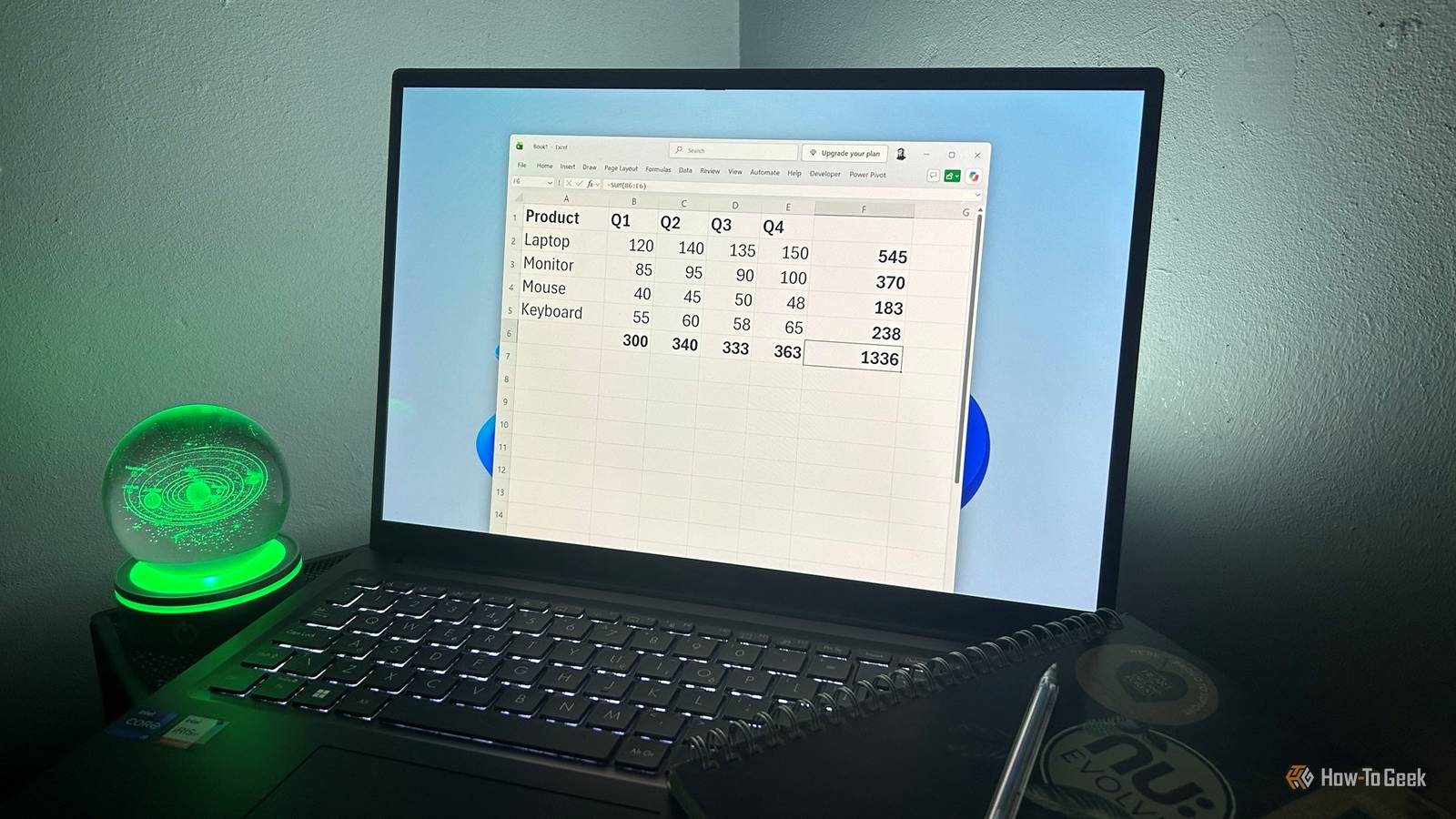
Published Nov 20, 2026, 7:00 AM EST Tony Phillips is a senior author at How-To Geek with over a decade of experience working with documents, data, and digital productivity tools. Holding a dual-honors degree in Linguistics and Hispanic Studies, he combines technical expertise with a passion for making complex topics easy to understand. Before joining How-To Geek in 2024, Tony worked as a document producer, data manager, legal document specialist, and content creator. He has also proofread and edited more than 3 million words of academic and professional writing. While Tony specializes in Microsoft 365, particularly Excel, his interests extend far beyond Office. He enjoys testing software, exploring open-source projects, discovering useful companion apps, and finding ways to customize and optimize Windows. Whether he's building spreadsheets, evaluating new tools, or uncovering hidden features, Tony enjoys helping readers get more from their technology. Outside of tech, he enjoys spending time with his dog, watching football, astrophotography, gardening, and golf. Excel is packed with powerful functions, but some of its biggest time-savers are surprisingly simple. If you're new to Excel, you might not have discovered AutoSum yet. If you've been using spreadsheets for years, you probably know it well. Either way, there's a good chance you haven't explored everything it can do. That's exactly where I found myself. The Alt+= shortcut activates AutoSum, and it's one of the shortcuts I use most often. I originally relied on it because it was quicker than typing SUM formulas. But after years of using it almost without thinking, I started wondering what else it could do. I thought I knew AutoSum. Then I spent an hour deliberately trying to break it. Filters change the rules AutoSum switches formulas My first surprise came when I filtered a dataset before using AutoSum. In an ordinary range, AutoSum inserts a SUM formula. When I applied filters first and then pressed Alt+= beneath the visible records, Excel inserted a SUBTOTAL formula instead. That's useful because SUBTOTAL automatically excludes rows hidden by filters. As I changed the filter, the total updated automatically. I didn't need to rewrite the formula or even know which function to use. Excel made that decision for me. I often keep a normal SUM total nearby as well, which lets me compare the currently visible values against the overall total. I also found a potential gotcha. If you create a SUM total inside a range and then apply filters afterward, the total can appear to vanish. In my testing, Excel treated the row containing the total as part of the filtered range and hid it along with the other filtered rows. The safest approach is to apply filters first, use Alt+= afterward, and keep the total outside the filtered range. Another nice touch: once AutoSum creates a SUBTOTAL formula, it stays that way. Removing the filter doesn't convert it back to SUM, so future filtering continues to work automatically. Excel tables get special treatment One key activates a Total Row Excel tables are already one of my favorite Excel features, so I was curious how AutoSum would handle them. Tables automatically expand as you add data, but I always added totals manually using a Total Row. I'd never thought to press Alt+= directly beneath a table. What happened wasn't what I expected. Instead of inserting another formula, AutoSum enabled the built-in Total Row automatically. After that, it behaved as usual: it updated when I filtered the table, added new rows, and changed existing values. Looking more closely at the generated formula revealed another difference. While AutoSum inserted SUBTOTAL(9,...) in my filtered-range test, the table Total Row used SUBTOTAL(109,...), which excludes manually hidden rows as well as filtered-out rows. Each Total Row cell also includes a drop-down menu that lets you switch between calculations such as Sum, Average, Count, Max, and Min without editing formulas manually. I noticed another interesting behavior here: if a Total Row was already set to Average, pressing Alt+= again changed it back to Sum. In other words, it didn't preserve the existing aggregation. The built-in Total Row wasn't new to me. What surprised me was discovering that Alt+= could create one automatically, saving me a few clicks and taking me straight to a feature I already use regularly. AutoSum has a few blind spots The selected range matters more than you think By this stage, I was starting to think AutoSum could do no wrong. Then I tried breaking it. It turns out AutoSum is smart, but it's still making educated guesses about what you want to calculate. And like any guess, it doesn't always get it right. To see where the cracks might appear, I started introducing gaps and interruptions into my test data. Blank cells were enough to stop AutoSum's range detection. When it encountered one, it stopped there instead of automatically including numbers beyond it. Text cells behaved similarly. A label placed in the middle of a dataset could interrupt the suggested range. One result surprised me, though. Unlike ordinary text labels, numbers formatted as text were still included in AutoSum's suggested range and correctly factored into the final total. I also discovered that AutoSum doesn't automatically treat existing totals as something special. Pressing Alt+= beneath an existing SUM result simply created another calculation based on that total. Selecting the range manually bypassed the range-detection problems I encountered with blanks and text. In one test, I selected a range containing both numbers and text and pressed Alt+=. Instead of trying to identify a smaller range automatically, Excel simply summed the values in the cells I'd selected. Even so, I've gotten into the habit of taking a quick glance at the highlighted range before pressing Enter. It only takes a second and can prevent some surprising results. My favorite AutoSum trick One press, totals everywhere Despite those quirks, the most impressive result appeared when I stopped thinking about AutoSum as a way to create a single total. I learned that the size of your selection determines what Excel calculates: Selecting the data alone created column totals. Including an empty row beneath the data placed those totals in that row. Including an empty column to the right created row totals in that column. Including both an empty row and an empty column produced row totals, column totals, and a grand total in a single step. The last scenario is what you can see in the screenshot above. My data occupied cells B2:E5, so I selected the larger range B2:F6 to include both an empty column on the right and an empty row underneath, and then pressed Alt+=. Excel immediately inserted row totals down the side, column totals across the bottom, and a grand total in the bottom-right corner. Despite using AutoSum for years, I didn't know Excel could do this. There was no copying formulas across rows, no dragging fill handles, and no separate formula for the grand total. Excel built the entire calculation framework automatically. I also found that AutoSum can insert totals into multiple non-adjacent selections at the same time if you select them using Ctrl. It's easy to think of AutoSum as a beginner Excel feature because it's one of the first shortcuts many people learn. After watching it generate an entire set of row totals, column totals, and a grand total in one shot, I'm not so sure that's fair. Alt+=: More than a shortcut I started playing around with Alt+= expecting to confirm that AutoSum was still the fastest way to insert a SUM formula. Instead, I discovered a tool that adapts to what I'm doing. Sometimes it creates a basic total, sometimes it generates filter-aware calculations, sometimes it activates a Table Total Row, and sometimes it builds an entire grid of totals in a single step. For a feature I've used for years, AutoSum still managed to surprise me. It's also a reminder that some of Excel's most useful tools are hiding behind simple keyboard shortcuts.
I've used Alt+= in Excel for years, but I never realized it could do all this
Full Article
Original Source
Read the full article at Howtogeek →KhanList aggregates and links to publicly available news content. We do not host full articles from third-party sources. Always verify important information with original sources.