
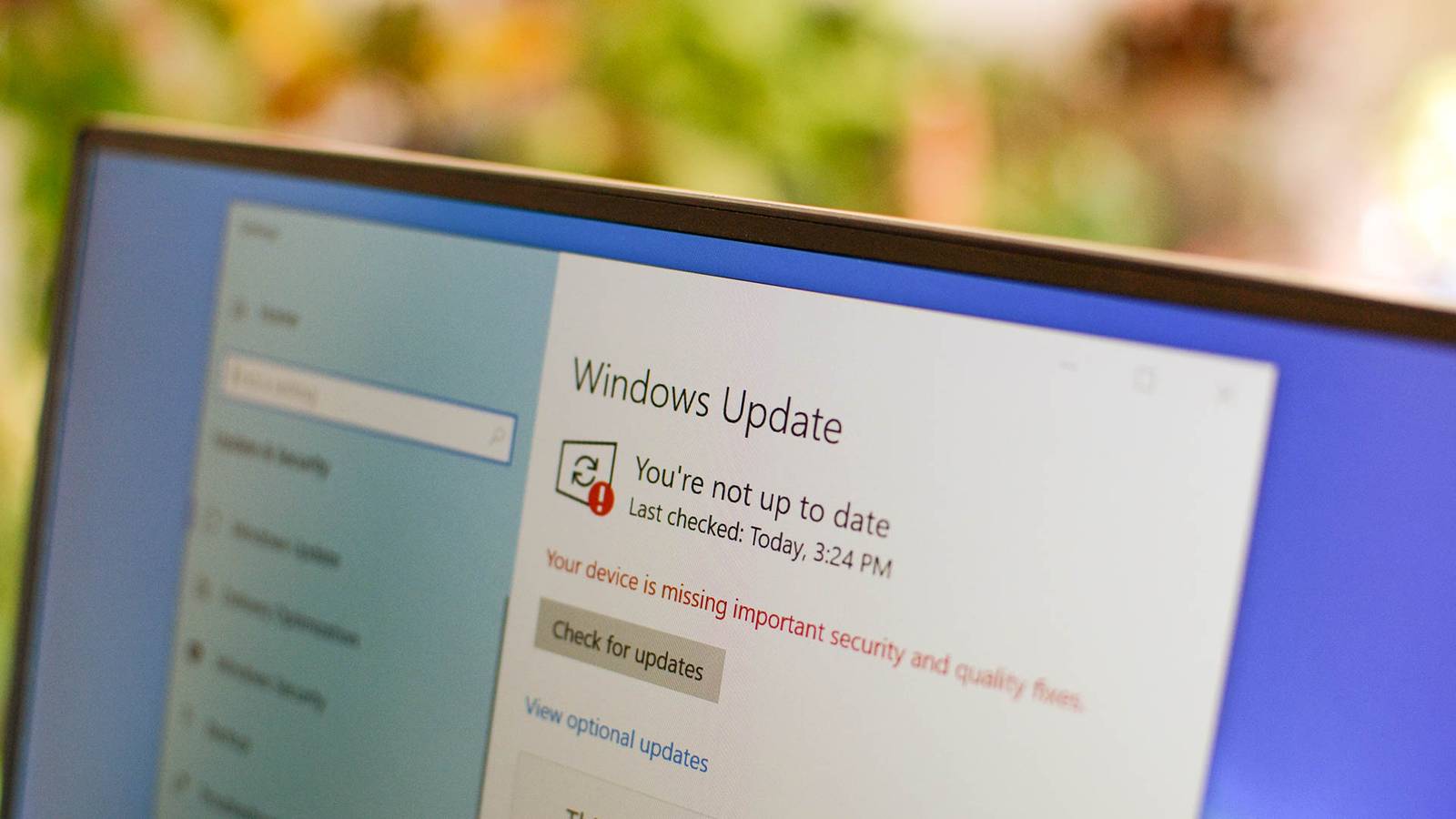
Published Aug 21, 2026, 9:30 AM EDT Aggy is a veteran writer and editor in the technology and gaming space. Having served as a Managing Editor for high-traffic digital publications, alongside being an editor and consultant for over a dozen sites. Aggy's published work spans a wide and respected array of tech and gaming outlets, including WePC, Screen Rant, How-To Geek, Android Police, PC Invasion, and Try Hard Guides. Beyond editorial work, Aggy's direct experience in the tech sphere extends to app development. Aggy has published two games under Tales and is always eager to learn and do more. He also likes working on computers and researching in his spare time. He knows about Windows, Linux, Audio, Video, and much more. Ten years of fixing other people's computers teaches you patterns fast. The same handful of problems show up again and again, and most of them aren't hardware failures or anything dramatic. Those small decisions seem fine at the time, but they snowball. By the time someone calls me for help, I usually assume it was a user error, not some unfixable Windows issue. There are plenty of common culprits I've traced back to those habits people tend to have, but there's usually an easy fix. Skipping your updates slows everything down Ignored updates pile up and cause problems Credit: WindowsCredit: CC Photo Labs/Shutterstock.com Over my many years fixing computers, I've seen a lot of people put off system updates or turn them off completely. I can understand not wanting them because they mess up their workflow due to needing restarts. Also, some of them take a very long time. There's also the issue with third-party updates, and I've seen badly managed driver updates, so that's an understandable fear to have. However, avoiding Windows Updates and skipping those cumulative quality rollups just to dodge a short-term inconvenience is a bad idea. This is generally the first domino that will lead to a very long fix. The longer you wait, the worse it gets. They start to add up in the background, and your computer ends up very slow. When you keep postponing updates, you're also making it harder for your computer to run smoothly. Windows updates its apps too, and that isn't generally something you can skip. So your apps are expecting the latest version of your OS, even if you don't have it. The same happens for your drivers and what they run. The bad part is that these generally make your software better, and not updating will make it run worse because it is losing compatibility. There's so much that can go wrong, so it's smart to just have automatic updates for everything. Full drives make your computer run terribly Running out of drive space hurts performance SSDs and old-school hard disks both need some free space to keep running at a normal speed. However, it is very easy to pack your main drives full of large game folders, downloads, and leftover files from applications you barely use anymore. Once a storage drive gets close to being full, you're going to notice a real drop in performance. A regular hard disk can write changes directly at the sector level, but an SSD's flash controller can only write data at the page level, and it has to erase whole blocks at a time to clear space. When free space gets really tight, the controller ends up stuck in a loop. It reads an entire block into memory, updates the specific pages it needs, erases a whole block on the drive, and then writes the modified version back to the cells. That takes a while to do, and it adds up over time. All you have to do is buy and use USBs or external drives to keep your storage from filling up. Too many startup apps choke your system Startup clutter runs silently in the background One of the worst parts of downloading software is how much it insists it needs to start the minute your computer turns on. This is just a way to keep it from seeming like it takes a while to load. You don't need Steam or the Epic Games Launcher to start up with your computer. Apps like this will run in the background and slow down your PC. To fix this, all you have to do is open your Task Manager with Ctrl, Shift, and Esc. Alternatively, you can just go to Settings, then Apps, and finally Startup. From there, you just need to disable whatever you don't need. As a rule of thumb, disable game launchers, notification tools, hardware assistants, and monitoring utilities that replicate what Windows already does. These steps fix slow and unresponsive computers quickly, and I even fixed a 100% disk running issue this way only a few days ago. Also, make sure to close out any apps you aren't using. This means going into your system tray and actively closing them. Many apps keep running in the background so you can open them more easily or do work. You likely don't need many of these apps, and you'll see the difference when they're all closed. Bad extensions and sneaky downloads wreck your pc Bad software sneaks in and takes over I used to see malware a lot when I was younger. I've fixed computers in plenty of ways when it comes to malware, but I think people are getting better at avoiding it. The obvious way to keep yourself from getting it is not to download bundled software, not to click on pop-ups, and not to install browser add-ons that haven't been verified. Your computer has built-in protection, so anything that promises to be better is likely not going to be better. It's best to avoid anything that promises to fix your PC that is not already installed on your PC. When you actively have something inside your computer, look for programs you never installed, like RAV Endpoint Protection in your system tray. You can also check to see if your mouse cursor starts moving across the screen by itself, actually fighting you and clicking "cancel" whenever you try to open Task Manager to stop the process. All you have to do is turn off your internet on your PC, uninstall anything you shouldn't have, and use Task Manager to kill those processes. This is why having restore points on is important, because you could just go back to a restore point from there. Broken drivers mess up your hardware Outdated drivers cause crashes and bad performance One of the most common reasons for system instability is driver issues. It is so easily fixable, but the thing is that not everyone has great internet, or maybe they have settings in place that block automatic updates, or just have issues. Drivers are the software pieces that control how your hardware works and let the Windows kernel talk to things like your graphics card, network adapter, or sound controller. When these files get corrupted after an update or just fall out of date, you get a bunch of issues. You might see random blue screens, lose audio, have Wi-Fi that keeps dropping, or get bad performance in games. You can fix this quickly. Right-click the Start Menu and pick Device Manager. That shows you all your hardware. If a driver is missing or broken, Windows will mark the device with a yellow triangle or list it as an "Unknown Device." If you open the properties for that device, you'll usually see an error code. You can roll back the driver or reinstall it if you have the driver installation files or media. After that, everything usually runs well. Sometimes, the solution is simple None of this requires a technician or a new machine. Most of it takes ten minutes, and it's worth it because of how much better the PC runs after. This won't fix everything; there are times when a computer is just too old and needs upgrades or to be replaced. Still, I've brought computers back from genuinely bad states just by working through this list.
I've spent 10 years fixing Windows PCs: These are the most common problems I run into
Full Article
Original Source
Read the full article at Howtogeek →KhanList aggregates and links to publicly available news content. We do not host full articles from third-party sources. Always verify important information with original sources.