
Published Oct 7, 2026, 11:00 AM EDT Adam has a degree in Engineering and has a life-long interest in technology. He has been writing for over a decade for various print and online publications, with a focus on consumer tech. He joined How-To Geek in 2024 while working at Pocket-lint. As well as being a long-term fan of Apple products, he also has a strong interest in smart home tech, running a Home Assistant server at home to automate all his smart home devices. He believes that the ideal smart home should work with minimal interaction from the user, with automations running as if by magic rather than requiring you to push buttons on a control panel. You can find more of his work on Muck Rack. Even older Kindles are surprisingly capable, but Amazon's stock firmware limits what you can do. I've jailbroken several Kindles in my time and unlocked a ton of useful features. These are the apps and plugins I always install first. KOReader is always my first install It's the best reason to jailbreak a Kindle Plenty of apps and plugins can make a Kindle do impressive things, but ultimately, a Kindle has one core purpose: reading books. That's why KOReader is always the first thing I install on any jailbroken Kindle. KOReader is a free, open-source document viewer that can run on a jailbroken Kindle. It doesn't replace the stock Amazon reader but runs alongside it. You can still use the Kindle's native reader, but once you've tried KOReader, you probably won't want to. That's because KOReader can do far more. It supports a much wider range of formats, including EPUB, MOBI, TXT, DOC, and CBT/CBZ comic formats, though it doesn't support KFX or DRM-protected books. It also has far superior PDF support that makes reading PDFs on your Kindle way better than with the stock reader. Another thing that makes KOReader so great is its high customizability, thanks to a huge range of community-developed plugins. These plugins add even more features and capabilities. Storefront makes installing plugins a breeze I don't need to keep plugging my Kindle into my computer KOReader has a huge range of plugins, but installing them isn't always that easy. You need to connect your Kindle to a computer with a USB cable, then install the plugins in the right location before you can use them. It's not challenging to do, but it's not particularly convenient. That's why Storefront is always the first plugin that I install. It's an on-device browser for the KOReader community plugins, patches, fonts, and more. You need to install Storefront over USB, but once you have, you can browse available plugins directly on your Kindle. You can then select and install a plugin over Wi-Fi without connecting your Kindle to a computer. You can access the README files on the Kindle, so you can see what each plugin does before you install it. Storefront also lets you choose which versions of a plugin to install, and you can even use it to update plugins you've already installed. It's one of the easiest ways to set up your jailbroken Kindle with all the plugins that you want to use. Bookshelf makes KOReader feel more like an eReader KOReader's file browser is functional but ugly I love KOReader, but it's far from perfect. It's incredibly powerful, but it's not the most user-friendly app. You can access books through a file browser, and while there is a cover view for selecting books, it's a fairly basic grid of covers. Bookshelf is a plugin that's intended to make browsing your KOReader library feel more focused on the books themselves. The main view shows bookshelves, with your library displayed as books on the shelves, along with some potted plants, though you can set up alternative views. Bookshelf also lets you organize and browse books by author, genre, series, and more. Your shelves can have their own filters and sorting rules, so you can get the exact view you want. On my older non-touch Kindles, I couldn't perform the initial folder selection using the physical controls, so I had to manually set KOReader's home folder. Once I did, I could browse the library and select books using the Kindle's five-way controller. Bookends lets me design my own reading screen I decide what information I see and where it goes The standard version of KOReader already lets you see useful information about the book that you're currently reading. You can see a status bar showing your progress, your current and total page count, overall reading percentage, pages left in the chapter, and more. Bookends adds a few more options. You can display the projected finish date based on your reading pace, a reading session time, the average time per page, and more. These additional stats are useful, but Bookends' real benefit is giving you more control over how that information is displayed. You get six independently configurable positions to display information: top left, top center, top right, bottom left, bottom center, and bottom right. You can show different information in each location or combine multiple pieces of information in a single location. This means you can display the information you want in the locations you want. Since the data is always visible while you read, you can take everything in at a glance. You can also save layouts as presets, and switch between them or even automatically use different presets based on file type. KOAssistant gives me AI-powered features on my Kindle It provides some incredibly useful tools I was very skeptical about adding AI to my Kindle. One of the benefits of eReaders is that they offer far fewer distractions than smartphones do, and using an AI plugin feels like adding more distractions rather than removing them. However, the KOAssistant plugin is actually incredibly useful. A stock Kindle can provide dictionary definitions and some reference information, but KOAssistant can do much more. It can send selected text to an LLM and ask it to explain it, summarize it, analyze it, or even translate it. One of the most useful tools is the recap feature, which can provide a spoiler-free summary of the book up to the current point if you haven't read it for a while and have forgotten what happened. You don't need to type out your own prompts, either. Useful shortcuts include ELI5, which you can use to explain a passage or concept in simple terms. The X-Ray feature can break down characters, locations, themes, and more. The processing happens off the device, so you can use it even on older Kindles. Jailbreaking a Kindle is only the beginning When you jailbreak a Kindle, installing a reader app such as KOReader is only the start of the journey. Thanks to the wide range of plugins, you can set up your Kindle to do far more than the stock version ever could.
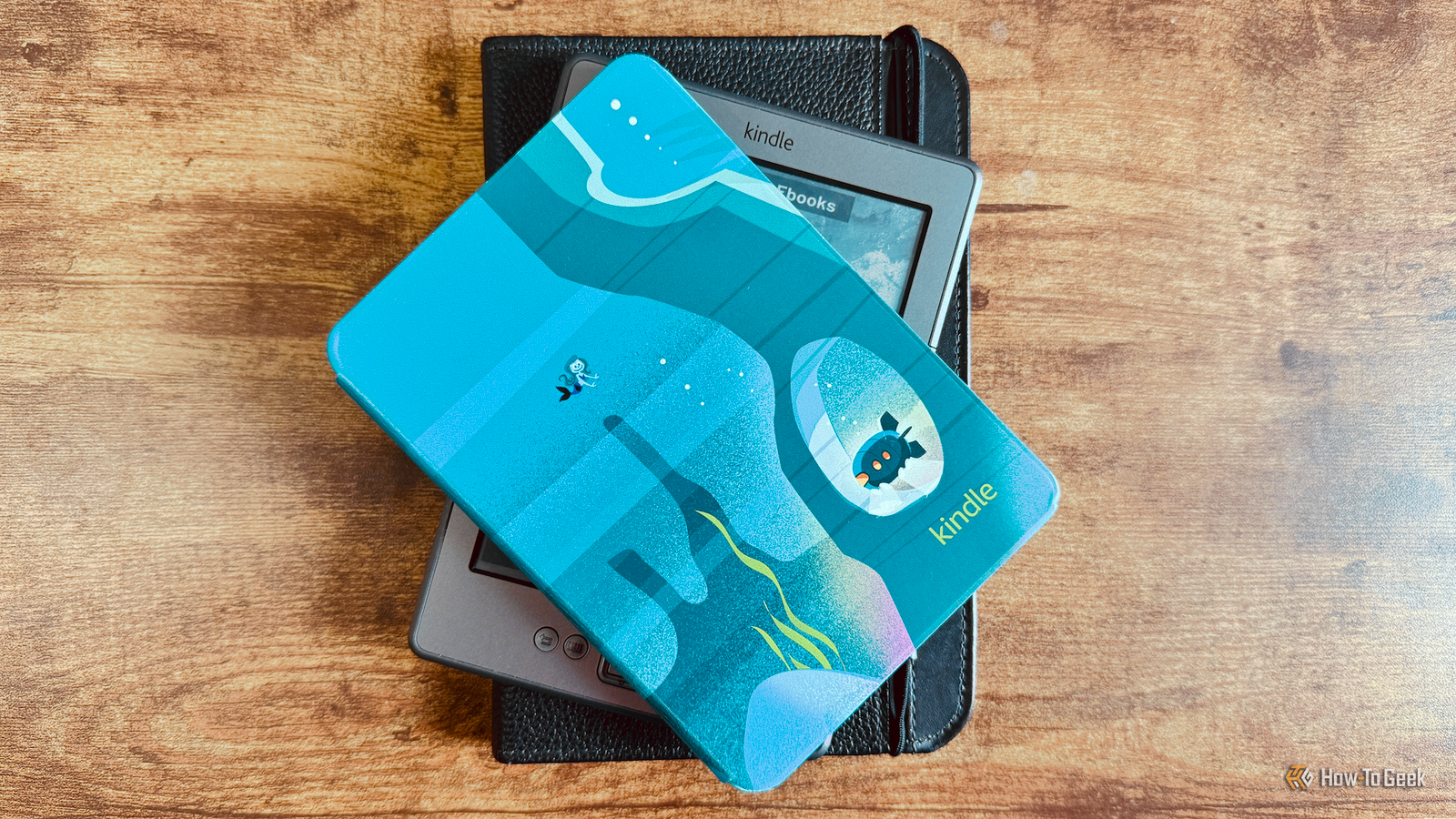
I've jailbroken 3 Kindles—these are the essential apps and plugins I always sideload first
Full Article
Original Source
Read the full article at Howtogeek →KhanList aggregates and links to publicly available news content. We do not host full articles from third-party sources. Always verify important information with original sources.