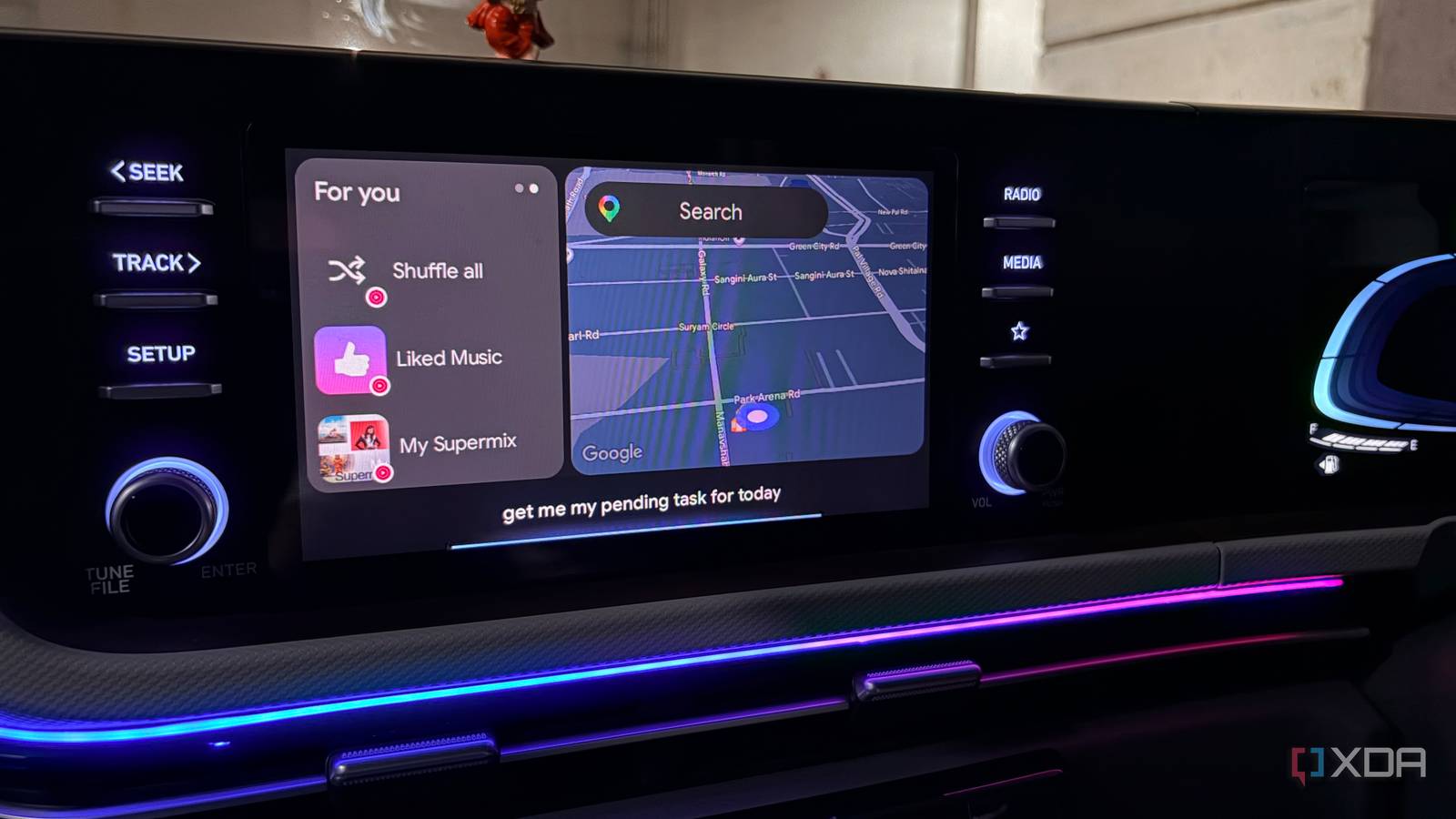
Published Jul 25, 2026, 3:00 PM EDT Parth, a seasoned tech writer, wields the keyboard (or pen) with finesse to unravel the intricacies of both Windows and Mac operating systems. He has covered evergreen content on mobile devices and computers for multiple publications over the last six years. You can find his work on AndroidPolice, GuidingTech and TechWiser. Whether it’s demystifying system updates, deciphering error codes, or exploring hidden features, Parth’s prose guides readers through the binary maze. When not immersed in tech jargon, you’ll find him sipping chai, pondering the next software review, and occasionally indulging in a friendly debate about mechanical keyboards. I have been using Android Auto for more than a year, so I thought I already knew every useful setting and shortcut it had to offer. I was wrong. A few of its most helpful features were buried inside menus I had barely explored, while others were hiding in plain sight on the dashboard. Once I finally enabled them, Android Auto became faster, cleaner, and far more useful during everyday drives. These are the settings I wish I had discovered much sooner. I disabled automatic music playback My drives now begin in silence Automatic music playback sounded convenient while I paid attention to how I actually start most drives. I usually pull out of a tight parking spot, reverse slowly through my garage, or exchange a few words with my partner before getting on the road. The last thing I want in those moments is Android Auto suddenly blasting the song, podcast, or video I left playing earlier. I prefer to set up Google Maps first, get the car out safely, and settle into the drive. Once I reach a comfortable speed, I manually start my music. I headed to the Android Auto settings on my phone and disabled the behavior. It made my starts calmer, less distracting, and much more predictable. I managed my tasks using an AI assistant Ideas no longer vanish mid-drive Some of my best reminders arrive at the worst possible time: while I am driving and can’t safely reach for my phone. Android Auto lets me capture those thoughts immediately using Google Assistant or Gemini, since both can work with Google Tasks. I can quickly say, "Remind me to pay the electricity bill tonight," or "Add car insurance renewal to my tasks," and continue driving without breaking my focus. Gemini makes this even more useful because I am not limited to adding one basic reminder at a time. I can ask it to create an entire checklist, such as "Create a checklist for essential travel items for next week to Japan," and it can turn a vague thought into an organized list. I can also ask it to add follow-up tasks, review what is due, or retrieve something I saved earlier. It feels like having a hands-free task manager on the dashboard, and it has saved me from forgetting countless ideas that would otherwise disappear before I reach my destination. Changed the default USB behavior One hidden toggle fixed wired connections For the longest time, I assumed plugging my phone into the car was enough for Android Auto to launch correctly. However, my phone occasionally treated the connection as a regular charging cable instead of establishing the data connection required by Android Auto. Rather than changing the USB preference manually every time, I changed the default behavior to File Transfer/Android Auto. The setting is hidden inside Developer options. I opened Settings > About phone, found the Build number, and tapped it seven times to unlock the Developer options menu. I then returned to Settings, opened Developer options, selected Default USB configuration, and changed it from charging only to File Transfer/Android Auto. My phone still receives power from the car, but it no longer treats charging as the connection’s only purpose. Android Auto now launches as soon as I plug in the cable, and I do not have to unlock my phone or change its USB mode before every drive. It’s a minor hidden adjustment, but it made my wired Android Auto setup feel much more reliable and predictable. Playing music with voice prompts I stopped hunting for song titles I rarely touch the music controls on Android Auto anymore because both Google Assistant and Gemini can handle playback with simple voice commands. With Google Assistant, I can ask it to play a specific song, artist, album, or playlist on YouTube Music, and it usually starts playing within seconds. It’s straightforward, reliable, and far safer than scrolling through menus while driving. Gemini takes the experience a step further because it understands less precise requests. I can say something vague like, ‘Play that song from the 2025 Oscars ceremony,’ and it can often figure out what I am referring to without needing the exact title or artist. I can also describe a mood, occasion, or type of music instead of remembering a playlist name. Overlooked features worth enabling today Android Auto did not suddenly become better after a major update. I simply started using the settings and voice features that had been there all along. Disabling automatic playback made the beginning of every drive calmer, changing the USB behavior improved wired reliability, and voice commands helped me manage music and tasks without touching the screen. After more than a year, these small discoveries have made Android Auto feel cleaner, safer, and far more useful. I only wish I had found them sooner.
I've been using Android Auto for over a year, and I wish I knew about these 4 settings sooner
Full Article
Original Source
Read the full article at Xda-developers →KhanList aggregates and links to publicly available news content. We do not host full articles from third-party sources. Always verify important information with original sources.