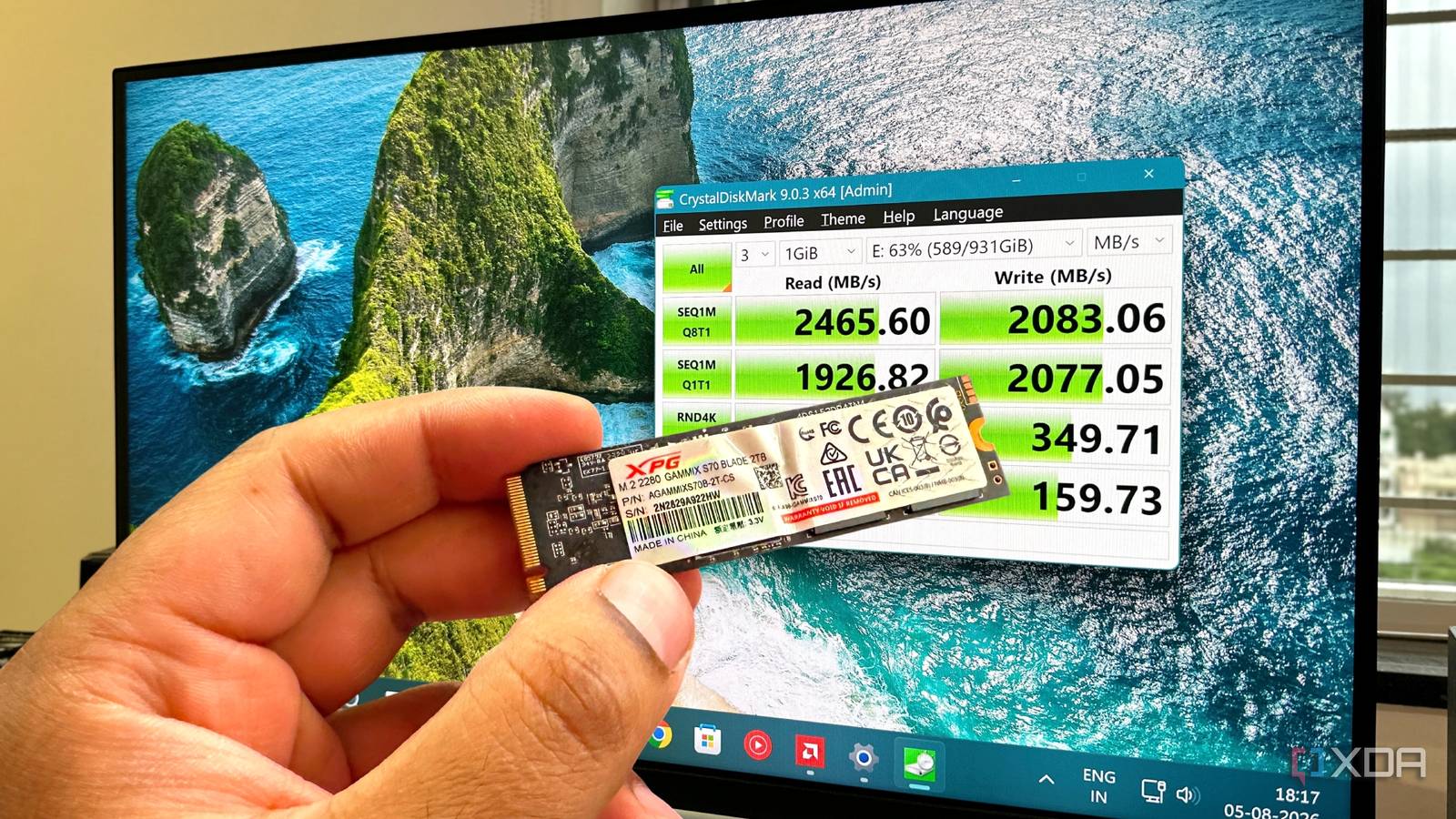
Published Aug 6, 2026, 12:00 PM EDT Gaming has been Samarveer’s greatest passion, and the Literature graduate in him takes immense joy in dissecting games for their themes, messages, and impact. Samarveer holds a deep appreciation of gaming, and considers the platform to be the most immersive and impactful across all media. He can be found engaging with gaming communities online, always ready to debate the finer points of ray tracing or itching to write an 8-page collegiate thesis on any game that impacts him emotionally. Summary Check which M.2 slot is CPU-wired—wrong slot can bottleneck Gen4/5 SSDs. Don’t force the SSD; align it and keep heatsink/thermal pad—small oversights cause years of trouble. Run post-install checks: initialize, confirm PCIe lanes/gen, and benchmark with CrystalDiskMark. On the face of it, installing an SSD feels almost laughably simple. All you have to do is slide it into the slot, tighten a tiny screw, boot into Windows, and you're done... right? Over the years, and after accumulating two dead SSDs and plenty of frustrating troubleshooting sessions, I've realized just how many installation mistakes can end up chipping away at an SSD's lifespan. Any mistakes involving SSDs can turn into rather expensive lessons, considering the egregious prices memory is selling for today. Others are tiny oversights that almost everyone makes at least once. Either way, they're easy to avoid once you know what to look for, and they'll save you from unnecessary headaches the next time you crack open your PC. Installing your SSD in the wrong place can leave performance on the table Not every M.2 slot is created equal When I built my current PC, I assumed every M.2 slot on the motherboard was essentially identical. An SSD fits, Windows recognizes it, games load, and life goes on. However, on many motherboards, the top M.2 slot is wired directly to the CPU, while the remaining slots are left to share their bandwidth with the chipset, the SATA ports, and other PCIe devices. As such, making the mistake of picking the most convenient slot might leave an expensive Gen 4 or Gen 5 SSD performing below its potential. When you start running out of storage and add more drives, this sort of problem can get even sneakier. If you end up filling enough M.2 slots on your motherboard, the chipset will start redistributing PCIe lanes, leaving your SSD running at fewer lanes, or even a lower PCIe generation. In fact, you might not even notice this in everyday use, but running CrystalDiskMark would end up revealing the truth. Now, every time I install a new SSD, I make it a habit to sanity-check the installation by spending two minutes with my motherboard's manual before reaching for the screwdriver. It does deduct a few cool points, but that's still better than using the new SSD for months and then discovering that it's been bottlenecked since day one. Tiny installation oversights can quietly damage your SSD These mistakes seem harmless until they aren't I've become almost embarrassingly obsessive whenever I install a new SSD, and that's because I've learned the hard way that the smallest oversights usually have the longest-lasting consequences. Forgetting to peel the protective film off a motherboard's thermal pad, skipping the heatsink because "it's only a quick install," or forcing the drive into place are all mistakes that take seconds to make and years to regret. One lesson I've adopted religiously is to let the hardware tell me where it wants to go. An M.2 SSD should slide into the slot with almost no effort before being secured with a screw or retention clip. If you're wrestling with it, something is probably misaligned. Tightening the screw isn't supposed to force the drive into place. All it will achieve is keep an already-seated SSD from moving. If you're wrestling with your SSD's screw or retention clip, something is misaligned. Abort. I also never throw away thermal pads or motherboard heatsinks anymore. Modern NVMe drives can run surprisingly hot under sustained workloads, and those tiny pieces of foam and aluminum exist for a reason. They're part of the cooling solution, not decorative packaging. As such, it's always a good idea to treat SSD installation less like assembling IKEA furniture and more like fitting a camera lens, so to speak. Slow down, don't force anything, handle it gingerly, and pay attention to the tiny details. Don't assume your SSD is working just because Windows boots Five minutes of verification can save hours of troubleshooting For the longest time, I had one incredibly flawed habit: if Windows detected my new SSD, I considered the job finished. I'd format the drive, copy over a few games, and move on without giving it another thought. I'd never even paused to ask if the drive was actually performing the way the manufacturer promised or if I'd ended up accidentally handicapping it during installation. Now, every new SSD gets what I jokingly call its "post-install health check." I verify that Windows has initialized it correctly, confirm it's running at the expected PCIe generation with all four lanes available, and even throw in a quick CrystalDiskMark benchmark, sanity-checking it against other results for the same drive on the internet. Use CrystalDiskMark to benchmark SSD performance, and CrystalDiskInfo to monitor its health, temperature, and overall condition. Even if something looks off, I don't immediately blame the SSD now. More often than not, the culprit is a BIOS setting or some lane-sharing limitation, meaning that the drive itself is treated as innocent until proven guilty. That's ultimately the lesson these expensive mistakes taught me. Installing an SSD takes minutes, but verifying that it's actually running the way you paid for takes even less. Those few extra clicks are infinitely cheaper than spending weeks wondering why your flagship storage somehow feels painfully average. XPG GAMMIX S70 Blade 2TB The 2TB version of XPG's GAMMIX S70 Blade SSD is lightning-fast with speeds of up to 7,000MB/s. If you're on the hunt for a drive to store your OS, games, and then some, we'd recommend upgrading your PC today. Good habits are always cheaper than a new SSD An SSD failing at the wrong time is so much more than just an expensive inconvenience. It always comes with the sinking feeling that you might never see your photos, work files, game saves, or years of memories ever again. Hardware you're certain you installed correctly can also lead to hours spent troubleshooting, and when bad becomes worse, replacing the drive is only part of the bill. Your time, patience, and peace of mind are the bigger casualties. A few extra minutes of care today can add years to an SSD's life tomorrow – treat your storage with the same respect you'd give your CPU or graphics card, and there's every chance it'll outlive the rest of your PC without ever giving you a reason to think about it again.
Installing an SSD should be foolproof, but these five-minute oversights will destroy it
Full Article
Original Source
Read the full article at Xda-developers →KhanList aggregates and links to publicly available news content. We do not host full articles from third-party sources. Always verify important information with original sources.