
Published Oct 9, 2026, 8:00 PM EDT Abhinav pivoted from a career in banking to pursue his first love in writing. Even while working full-time, he continued contributing as an editor-at-large, a role he has held for more than 7 years. A lifelong tech enthusiast who has built three gaming and productivity powerhouse PCs since 2018, his passion for technology keeps him closely following the semiconductor industry, from NVIDIA and AMD to ARM. His MSc dissertation explored how artificial intelligence will reshape the future of work, reflecting his curiosity about the wider social impact of emerging technologies. For every AI feature of questionable utility that Microsoft advertises relentlessly, there's a useful one hiding in the OS in plain sight. Many of these tools aid productivity or everyday troubleshooting, and some let you forgo paying for utilities that do the same job outright. Quick Assist is one of such useful features that comes pre-installed on Windows 11 Home and Pro. It connects to Windows 10 machines, and the only setup you need to use it is a Microsoft account on the helper's end. The person on the other side only needs a six-digit code. Here's why I think Microsoft should be talking about it more instead of letting users discover it by accident. What is Quick Assist on Windows 11? And what can you do with it? Quick Assist is Microsoft's built-in app for sharing a Windows device with someone else over a remote connection, and it allows them to view the screen, annotate it, and even assume full control for complex troubleshooting tasks. As you'd expect, it's popular amongst IT support technicians, but there's nothing keeping regular users on the OS from using it, provided they're on Windows 11 or Windows 10. Since Windows 11 version 22H2, it has been pre-installed on Windows machines, and Windows 10 users can get it from the Microsoft Store. Besides the app itself, what the helper would need to use this feature is a Microsoft account. The one sharing their desktop doesn't need to sign in to any account at all, and just needs internet access. The connection itself runs over the Remote Desktop Protocol and is encrypted with TLS 1.2. In case you were wondering, Microsoft can't access the session or see actions or keystrokes, neither does retain data about either the host or the helper for longer than three days, as per their documentation. How does Quick Assist work? And what devices are supported? Starting a Quick Assist session is as straightforward as it gets, and I'd even argue that it's the simplest way to share your desktop with another user. You can simply search for "Quick Assist" on Search or use the combination Ctrl + Win + Q to launch the app. The next step depends on whether you're the one doing the helping or are being helped. The person doing the helping clicks "Help someone" on the app to generate a time-limited six-digit code, which they pass on by phone or by message. The person on the other end, then, has to type in the code and allow screen sharing before anything shows up on the helper's screen. Once that's done, there's all there is to it. The helper can request control, and the sharer gets another prompt to either allow or deny. Nothing happens without the sharer's consent, and they can pull control back any time with "Cancel control." In the session, the helper also gets access to a few useful tools like a pointer, annotation tools, and a chat window for typed messages. On the device front, Quick Assist works on both Windows 11 and Windows 10 as I mentioned, but what's interesting is that the two can talk to each other in either direction. This means the helper and the sharer can be on either versions of Windows and the app will still work the same, which I find useful, because for this reason, I've been able to help out my sister who for some reason just refuses to get Windows 11 on her laptop, and keeps running into an issue or another due to the fact. Besides the obvious documented use-case, there's nothing stopping you from sharing one of your device's desktop with another as well. For example, I can use my laptop to access my desktop in the other room by entering the six-digit code once, and it functions just like a remote desktop app that way. There are many use-cases for them, and they come for free on your OS While Quick Assist handles the "help a friend" use-case, I've used it to double as a makeshift remote desktop between my own computers. For anything more involved, Windows also offers two other tools that do the job bettter, and both of them save you money otherwise spent on a third-party app. Remote Desktop would be the one that most people would have heard of, and unlike Quick Assist, it's purpose-built for connecting to your own machines. The only catch is that it's limited to Windows 11 Pro and higher editions when it comes to hosting an RDP session, so if you want to reach your gaming PC from a laptop or jump into a Windows VM in Hyper-V, the host needs to be on Pro edition. The client side, however, works on any edition, so a Home machine can connect to a Pro host, just not the other way round. Then, there's Windows Remote Assistant (msra.exe), which is the legacy option that predates Quick Assist by over a decade. The one real advantage it offers is that neither party needs a Microsoft account to use it. You can launch it from Run, send an invitation file, and the person on the other end can just connect with a password you've set. These are the tools I want Microsoft to boast about, not Copilot Remote desktop utilities are dime-a-dozen on third-party app stores and online, but for most simple troubleshooting tasks or accessing one PC's desktop from the other, Windows' built-in utilities can do the job just fine, and Quick Assist, alongside the rest of Windows remote tools, come with your OS for free. Even if your workflow rarely requires it, it's always good to know that you've got native options on your PC sitting just one click away.
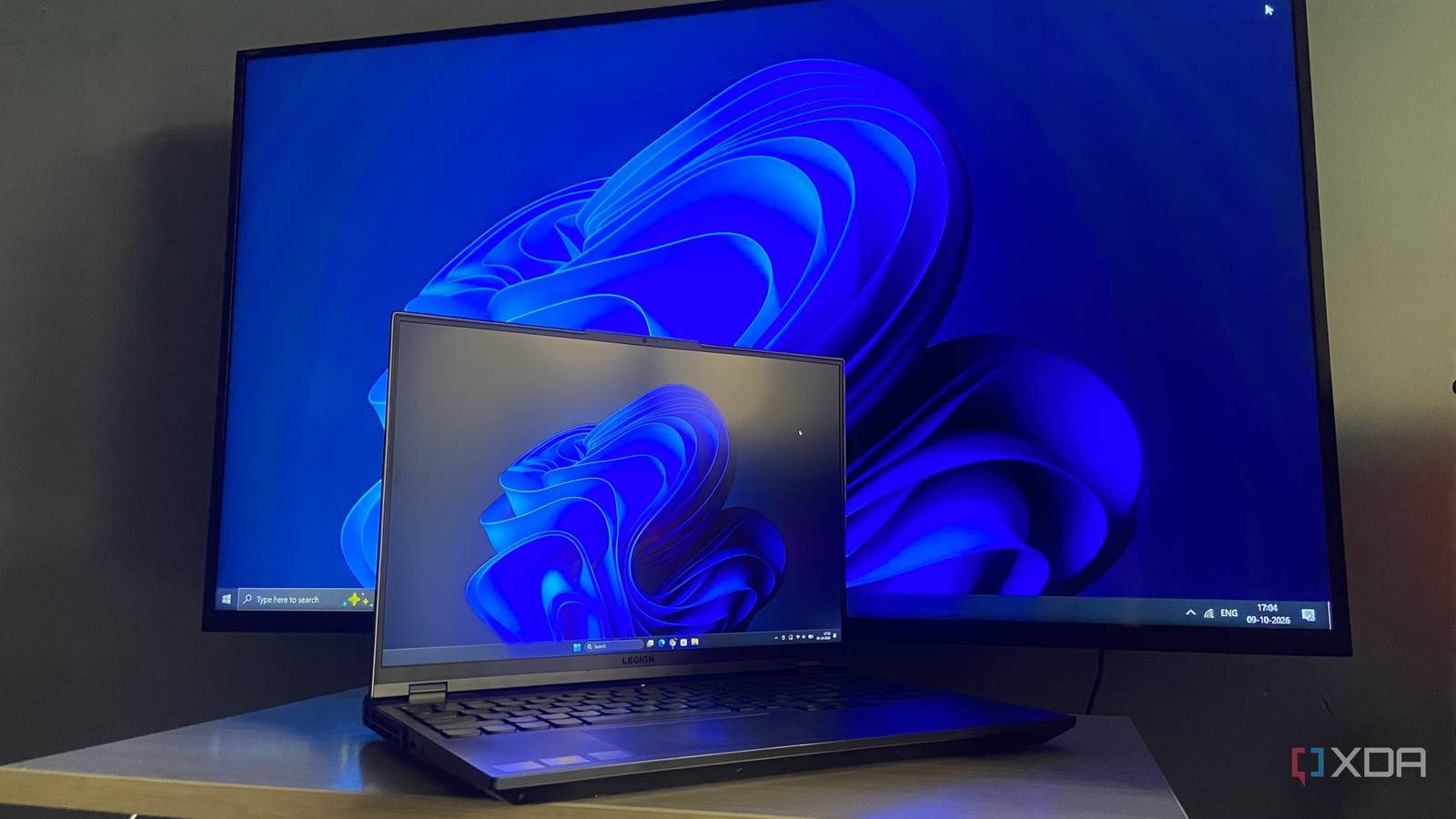
I was ready to pay for a remote desktop app, but Windows 11 already ships one for free
Full Article
Original Source
Read the full article at Xda-developers →KhanList aggregates and links to publicly available news content. We do not host full articles from third-party sources. Always verify important information with original sources.