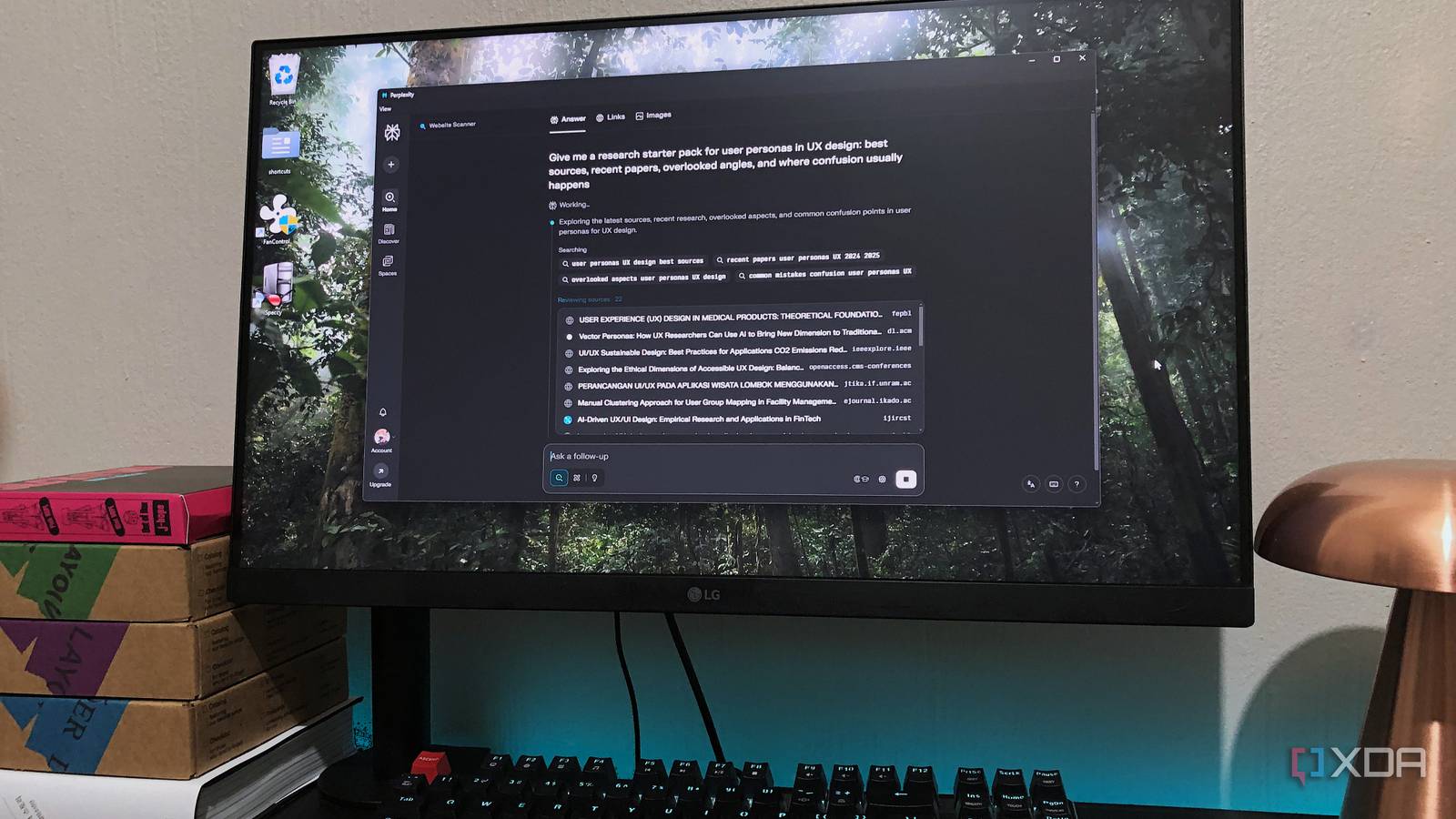
Published Jul 17, 2026, 6:00 PM EDT Based in rural Minnesota, Brian Burgess worked in IT for 10 years before finding his passion for writing about consumer technology. Brian earned his degree in computer and network technology in 2000. He held various IT positions, including help desk support, router installations for IBM, database administration, and other associate network administration roles. He's been a personal technology journalist for 18 years and has written thousands of articles about Microsoft products and services, Android, iOS, streaming, and more. He has written for notable tech sites including XDA, InformationWeek, How-To Geek, Byte, groovyPost, and others. When he is away from the keyboard, you will hear him playing guitar, working outdoors, and watching Star Trek. There are many tips and tricks people use to improve workflow efficiency and increase productivity. From using power user apps to automating workflows with PowerToys on Windows, there are plenty of ways to increase productivity. The newer trend that I have avoided for years is AI tools like Claude or Perplexity. However, paying for upgraded plans can lead to subscription fatigue — much like with streaming services. Claude has been the "go-to" for power users thanks to its Claude Code functionality. But since I already have Perplexity Pro, I am using it to improve my workflow productivity. I've been using it to help with my Windows PC and Mac, and this is how it is changing the way I get things done. Set up the Perplexity apps Connectors are key While doing research in Perplexity via a browser works fine, getting the PC and Mac desktop apps is important. Running Perplexity Computer via the app provides better integration with local files, folders, and apps. It also provides a more responsive experience by avoiding tab overload. My browser typically has more than 30 tabs open at once. Long sessions in Perplexity Computer bog down the browser. It also feels faster by reducing latency with caching and prefetching on the computer. I'm able to use it for research in my browser and on Perplexity Computer, in its own instance, for best performance. The first thing I set up was the connectors I needed for my workflow. There are more than 400 connectors, from Microsoft services like Outlook and OneDrive to team collaboration with Slack to sales and marketing services, and more. I set up the connectors right away because they require signing in to my accounts. Since I have a lot of 2FA set up with them, it takes a while to get everything set up and working properly. Luckily, once you add a connector on one machine, it syncs with the other. I mainly focus on productivity and collaboration workflows, such as Gmail with Calendar, Slack, and Asana. I can set them up on my Mac, and they sync to my PC, and vice versa, which is helpful for building my computer to get things done. The service connector I added to one machine is ready to go on both platforms. Perplexity Perplexity is an AI browser that provides context-aware and sourced answers to prompts. Workflows are a time-saver Many are available There are some helpful built-in workflows in Perplexity Computer that help me complete tasks in the background, such as light photo editing or message refining. The workflows are prebuilt and handle multiple steps without requiring micromanagement or prompting. The workflow I select runs in the background while I work on other tasks. Like doing manual prompting, when a workflow is finished, a notification appears. The workflows not only help me save time by eliminating the need to constantly prompt, but also handle tasks from beginning to end. Plus, there are workflows for many industries, like content creation, creatives, marketing, billing, and more. There are personal ones I can use too, like for finances and health. By using workflows, I save about 60 minutes per week, which works for me. Perplexity Computer on Mac versus PC There are key differences There are some things on Mac that I wish were available on Windows. For instance, the Perplexity app runs as a native agent on macOS, giving it true read-write access to local files and folders. I can search my file library and use apps like Finder. Messages and Mail. On my Mac Mini, it's a good digital assistant for managing files and folders and handling other tasks I ask it to do. It can simply do more on Mac locally than on my PC. It's also worth noting that on macOS, I can press both Command keys to open a floating Perplexity bar for easy access wherever I am in my workflow. On Windows, it does a great job of helping me manage tasks in cloud-based services. However, it doesn't offer the OS-level automation available on macOS. Still, since there are many cloud products like OneDrive, Outlook, and Office, once I get the connectors set up, I can use them to help manage tasks across those services. For instance, I use it to help with my Outlook inbox by keeping it out of the cluttered mess it is, since it can give me information from my inbox. Perplexity Computer does help with workflows with both OSes I have saved time by using Perplexity Computer as an assistant on both Mac and PC. However, I would like to see it have the ability to access my files and folders at the system level on Windows, as it can on macOS. Since most of the data syncs across my Perplexity-running machines, I can see what I was doing on both platforms. I found that there are pros and cons to running Perplexity Computer on Mac and PC. I like that macOS allows system-level access to files, folders, apps, and cloud services. Even though there isn't system access on Windows, I still have access to the major cloud-based platforms, which helps with my workflow.
I used Perplexity Computer to run my Mac and PC workflows — here’s what actually changed
Full Article
Original Source
Read the full article at Xda-developers →KhanList aggregates and links to publicly available news content. We do not host full articles from third-party sources. Always verify important information with original sources.