
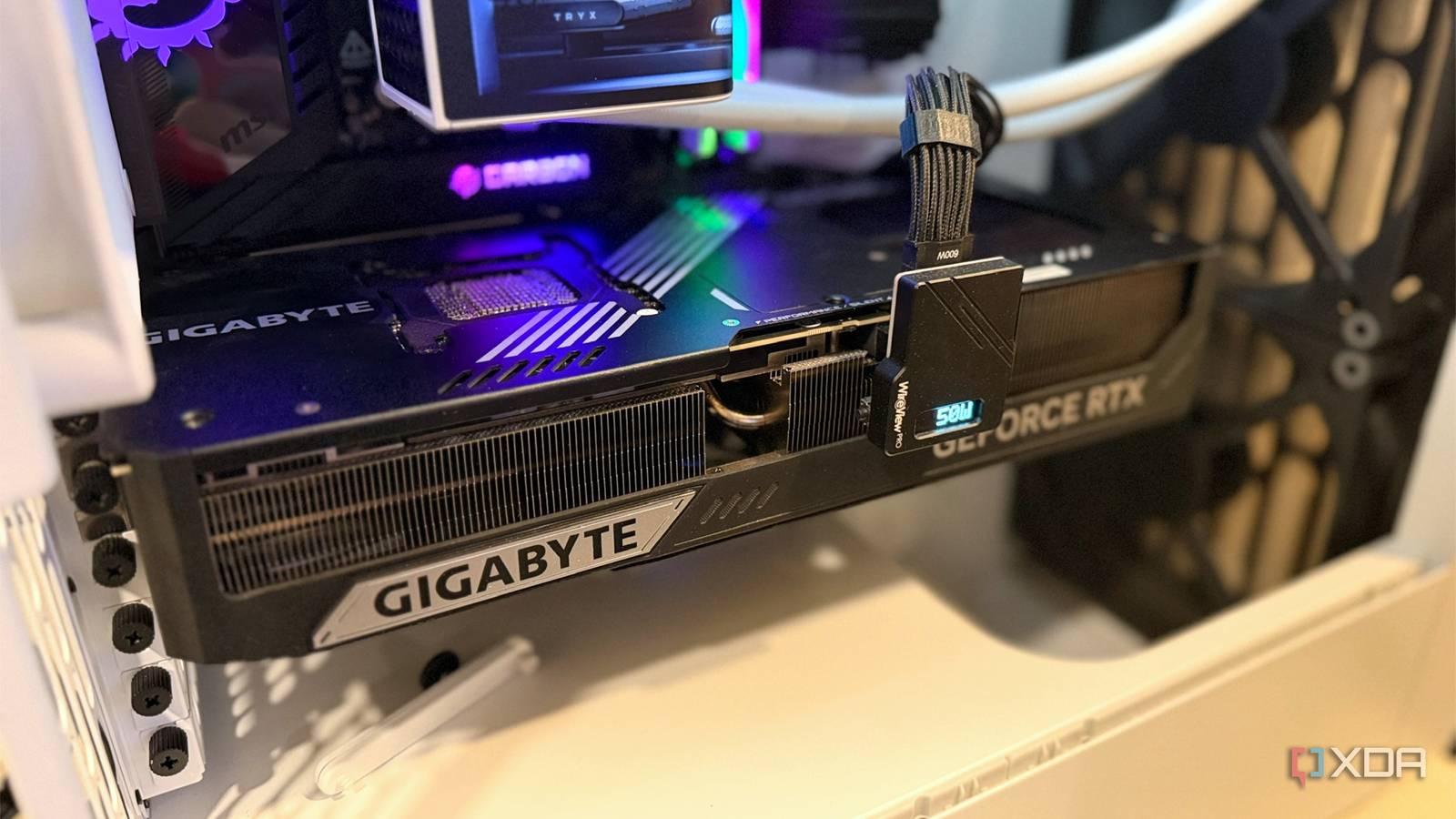
Published Aug 15, 2026, 12:00 PM EDT Maker, meme-r, and unabashed geek, Joe has been writing about technology since starting his career in 2018 at KnowTechie. He's covered everything from Apple to apps and crowdfunding and loves getting to the bottom of complicated topics. In that time, he's also written for SlashGear and numerous corporate clients before finding his home at XDA in the spring of 2023. He was the kid who took apart every toy to see how it worked, even if it didn't exactly go back together afterward. That's given him a solid background for explaining how complex systems work together, and he promises he's gotten better at the putting things back together stage since then. My Nvidia GeForce RTX 5090 has 32GB of GDDR7 memory, and it's honestly wasted on 90% of what I use my PC for. I’ve been finding new ways to use that GPU's potential lately, because it’s only using 3.4 GB most of the time, so it has plenty of resources to share. It’s idle, while DDR5 prices skyrocket and my WSL2 environment complains about memory every time I bring up containers, builds, and tricky LLM work that breaks on Windows. Why shouldn’t the fastest memory in my PC be used for something more important than drawing my desktop? And that’s what nbd-vram was designed to do. This small open-source tool was designed for hybrid-graphics laptops with soldered RAM and no upgrade path, which is a great use case for a discrete GPU that only runs when you’re gaming. But does it work in WSL2, where I run a lot of my Linux? Spoiler: Yes, but with a few provisos that make it less useful on a desktop than the devices it was designed to help. What does ndb-vram actually do? Use your GPU as swap space, because why not Nvidia blocks the simple path to using VRAM as swap, at least on consumer GPUs. The ability to map VRAM directly so the CPU can address it is a P2P API that only works on Quadro, RTX Pro, and datacenter cards. That’s a problem, because there aren’t that many laptops with professional Nvidia chips in them, so nbd-vram does something tricky and amusingly simple. It runs a small daemon that allocates VRAM via the CUDA driver API, which works on all Nvidia chips. Then it serves that allocation as a network block device over a Unix socket. It’s a datacenter trick for using fast storage over the network, but running on your device. The Linux kernel’s NBD driver connects to it, creates a /dev/nbd0 block device, and the system then uses it like any other high-priority swap space. It’s fantastically resourceful. Swap data masquerading as network traffic to sidestep Nvidia’s API blocks and get into VRAM. It works on any CUDA-capable GeForce, with no awkward kernel module to build or maintain. nbd-vram Nbd-vram is a fun utility to use your Nvidia GPU's VRAM as swap space on Linux. I expected this to be the painful part If using WSL2 over the last year has taught me anything, it’s that expecting things to work as they would on a bare-metal Linux box is often futile. Users have been asking for NBD support in WSL since 2020, and everything that mentions nbd-vram has been for Linux installations. But since WSL 2.5, kernel modules ship with the kernel, and the NBD driver is in the current WSL2 6.18 kernel. On my machine running Windows 11 Pro Insider 26H2 with WSL 2.9.4, a simple sudo modprobe nbd was enough to test what I needed, removing the biggest thing I would have had to hack on. What replaced it was a WSL quirk that took some troubleshooting to figure out, but turned out to be a simple fix. The first run of the smoke test hung silently, forever, right after it said it had loaded the CUDA library. The nbd-vram daemon locks all its memory with mlockall before initializing CUDA, including every memory address it will map later. That works on Linux laptops because it stops the kernel from paging out the process that’s serving swap, but WSL2 has a gotcha. The paravirtualization of GPU resources is handled via /dev/dxg, and locking CUDA’s enormous virtual address reservation during that handshake never happens. The fix was in the project’s code; using VRAM_NO_MLOCK=1 as a dev flag skips the lock, and the first run after that allocated 7,168 MB of VRAM as swap in seconds. The flag also disables one of the two anti-deadlock safeguards on the daemon, so this is a quick fix for testing, not a long-term solution. The only real issue of the night was a git clone that somehow created an nbd-vram.c file with no main() in it, which made me think something had corrupted my computer. It hadn’t; something glitched during the original git clone, and a fresh clone fixed it. Task Manager proved it was working I was worried going into this that Windows would have taken over with WDDM and backed the “VRAM” allocation with the shared system RAM that I was trying to save. So I had Task Manager open to see what happened during the daemon’s startup, and the 7.5GB of VRAM jumped into view. Then it was time for the smoke test, which writes one megabyte of data, reads it back, then activates the entire allocation as swap at priority 1500. That’s above the 12 GB of disk-backed swap WSL2 gives you by default, so any swap would go into VRAM first. Then I put 3.5 GB of a live, memory-starved process into the swap and watched the counters climb as the VHD swap sat at zero. My benchmarks tell a different story than the project’s README The latency numbers change drastically when not on a laptop The project’s headline number is dramatic: a 34x lower-latency response from VRAM swap compared to NVMe on the author’s laptop. We’re talking microseconds compared to milliseconds here, so the lag goes from perceptible to imperceptible. The reason is simple: laptop NVMe drives enter power-saving sleep between sporadic accesses, and that’s where the gap comes from. They have to wake back up every time. On my desktop, my NVMe never sleeps, and the “disk” inside WSL2 is actually a VHDX file that Windows caches on the host, where it has abundant RAM. So, for my testing, the average was 331.5 microseconds for the VRAM device, compared to 307.7 microseconds for the VHDX-backed file. The VRAM cache does win in terms of consistency, though, as the WSL2 drive was 880 microseconds in the worst run. Virtualization removed the rest of the gains I expected the VRAM to zoom ahead with some concurrency testing, because the daemon runs one worker thread per CPU core, and the author had already measured 312,000 IOPS on a laptop. I thought my desktop silicon would handily beat that, but I didn’t factor in the cost of GPU paravirtualization. Under a heavy parallel load, asynchronous 4K random reads, sixteen NBD loads, and eight jobs, the VRAM device managed 46,900 IOPS while the VHDX path hit 425,000 IOPS (host caching does the heavy lifting here). The VRAM path has to go through a round trip through the virtualization layer, which adds 330 microseconds each time. Sixteen connections completing one operation per 330 microseconds is 48,000 IOPS, so I lost a little bit to other overhead as well. The ceiling isn’t bandwidth; I measured 1.8 GB/s compared to the project author’s 1.9 GB/s. It’s my choice to run in a virtualized Linux environment, and running this on a bare-metal laptop will always win in that scenario. Should you use your GPU’s VRAM as swap space? On a soldered-RAM laptop with a hybrid-GPU configuration, this is a no-brainer. It gives you a super-fast swap to relieve memory pressure, and it’s essentially free performance because that GPU VRAM isn’t being used unless you’re gaming or using accelerated programs. It’s less of an impressive boost on WSL2, but the fact that it works at all is incredible, and I can put my swap file (and Chrome cache) on there without wearing out my SSD in the process.
I used my Nvidia GPU's VRAM as system swap, and it freed me from buying more memory
Full Article
Original Source
Read the full article at Xda-developers →KhanList aggregates and links to publicly available news content. We do not host full articles from third-party sources. Always verify important information with original sources.