
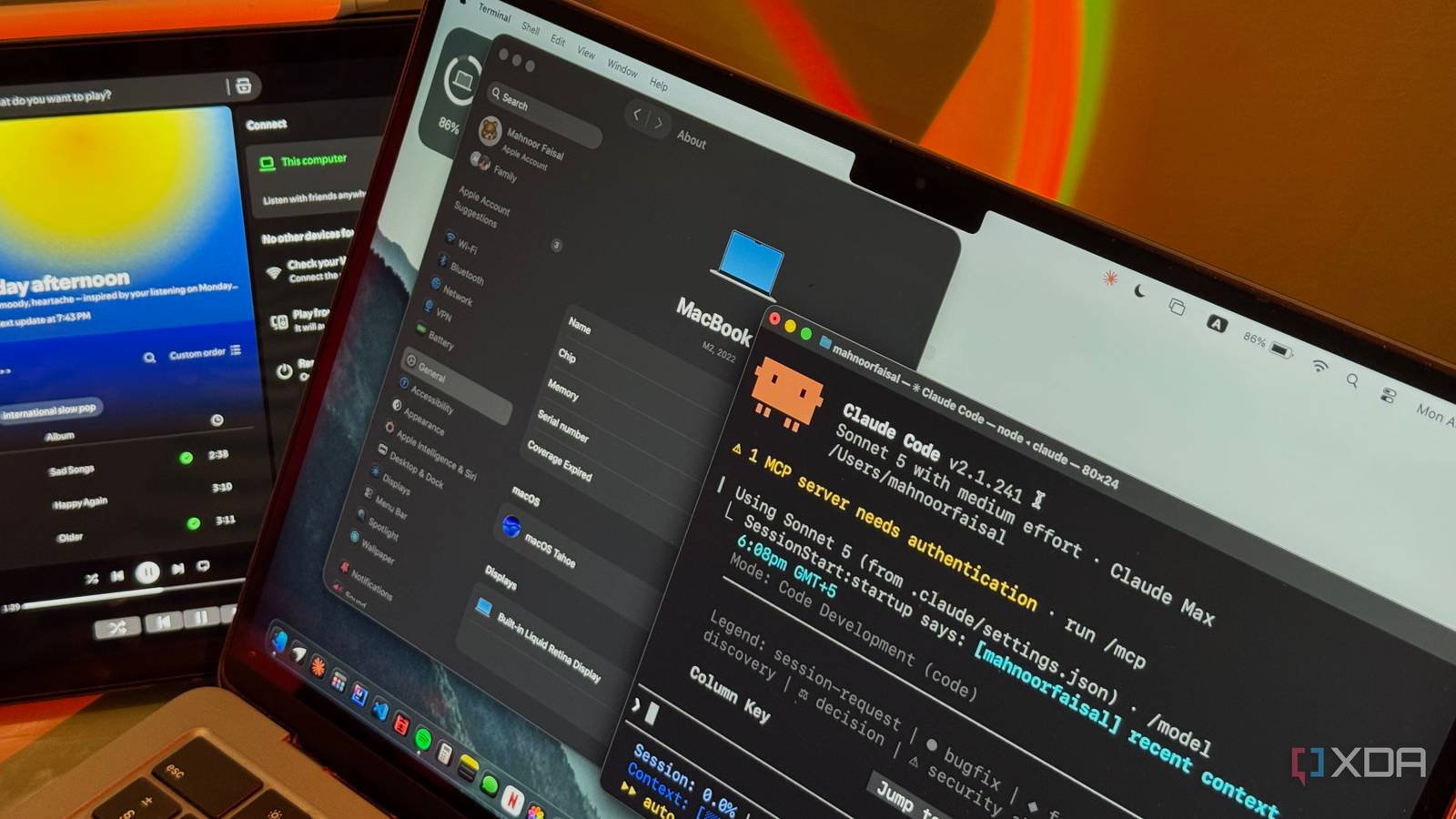
Most people just use Claude Code, for, well, coding. That makes complete sense, though. The tool's name has Code in it, it's meant to be used within the terminal, and Anthropic primarily pitches it as an agentic coding tool. Ultimately, using it for anything beyond that isn't really the first thing that comes to mind. However, the entire reason why Claude Code got so much hype is because it can move beyond simply telling you what to do and actually take action on your behalf. Since it runs in the terminal, it can inspect files, execute commands, create scripts, modify configurations, and generally interact with far more of your computer than a traditional chatbot can. Once I started looking at it that way, limiting it to my coding projects suddenly felt like a bit of a waste. So, I decided to see what would happen if I pointed Claude Code at my Mac instead of a codebase. I had Claude audit what was slowing my Mac down Turns out, four years of neglect adds up Before I let Claude Code start changing anything on my Mac, I figured it made sense to first find out what actually needed changing. So, I started by asking it to perform a comprehensive performance and efficiency audit of my system. I opened the terminal, launched Claude Code, and gave it a fairly extensive list of things I wanted it to investigate, ranging from CPU and memory usage to background services, login items, disk usage, browser processes, and developer-tool clutter. I also set some pretty strict boundaries from the start. Claude could run read-only diagnostic commands, but it wasn't allowed to delete anything, kill a process, change a configuration, or use sudo without asking me first. More importantly, I specifically told it not to assume that something was hurting performance just because it looked large or unusual. For every issue it flagged, I wanted to see the evidence from my Mac, what the process or file actually was, and how much of an impact it was realistically having. From there, Claude Code went surprisingly deep. It checked CPU and memory usage, swap, login items, background services, LaunchAgents and Daemons, disk usage, caches, browser processes, Docker and developer tools, Spotlight activity, and even duplicate installers sitting around in my Downloads folder. Given I've had this MacBook for 4 years now, I use it 24/7, and I don't particularly spend time looking after it, my Mac was unsurprisingly not in perfect shape. The biggest problem was my nearly full drive 256GB disappears very quickly The biggest problem Claude found was also probably the least surprising one: I was running dangerously low on storage. It found that I had just around 6GB of free space left on my MacBook. My Downloads folder alone had grown to around 12GB, and sure enough, a good chunk of that was completely unnecessary. Claude found duplicate installers for apps like ChatGPT, Docker, VS Code, and Codex, alongside other large files I'd downloaded once and then completely forgotten about. Claude also found 35GB tied up in developer and package-manager caches. My uv cache alone was around 12GB, Hugging Face was taking up another 3.7GB, npm and pnpm had accumulated a few more gigabytes between them, and Docker Desktop had a 7.6GB virtual machine sitting around even though Docker wasn't running at the time. Given that I had a 256GB MacBook, you can imagine how quickly all of this storage bloat added up. At this stage, you might wonder why I couldn't just go to the Storage section in System Settings and figure out what was taking up all that space myself. And technically, I could. But that page only really shows broad categories like Applications, Documents, macOS, and System Data, which isn't always enough to tell you what specifically is eating through your drive. That's where Claude Code was much more useful. Instead of just telling me that "System Data" was huge, it could dig into the folders behind it and point out things like my 12GB uv cache, old package-manager files, and Docker data. More importantly, it could explain what each of those files actually did and whether clearing them would be sensible, rather than leaving me to poke around unfamiliar system folders and hope I wasn't deleting something important. Of course, finding all of this junk was only half the problem. I still needed to actually get rid of it. I've previously used Claude Cowork to do exactly that and managed to reclaim nearly 60GB from this same MacBook, so I already knew how useful giving Claude access to your files could be when it comes to cleaning up storage. This time, though, storage was just one part of a much bigger cleanup. My 8GB of RAM was doing way too much heavy lifting Those 8GB were fighting for their lives Yes, I know, getting a MacBook with 8GB of RAM isn't the smartest decision. However, in my defense, I bought this thing four years ago, and I wasn't exactly planning for a future where I'd routinely have an IDE, Docker, Slack, Spotify, Claude Code, and dozens of browser tabs fighting over the same 8GB. The audit made it pretty obvious that those 8GB were struggling to keep up. At the time Claude checked, macOS was already using around 2.9GB of swap, which meant it was having to lean on my SSD once physical memory got tight. Claude specifically pointed to the combination of Zen, Docker, Slack, Spotify, Claude, and IntelliJ as the kind of workload that was putting pressure on such a limited amount of RAM. Through this audit, I also realized that my browser was an absolute memory hog. Zen was occupying around 1.7GB of RAM across 44 processes, which worked out to roughly 23% of my Mac's physical memory all on its own. To be fair, Claude didn't find anything particularly abnormal about Zen itself. Around 30 of those processes belonged to individual tabs, which is normal behavior for a Firefox-based browser. I simply had a lot of tabs open. The more concerning part was what macOS was having to do to keep everything running. Claude found around 3GB of compressed memory and between 5.5GB and 6.6GB of swap in use. It then monitored the system for a few minutes to figure out whether that swap was just leftover from an earlier workload, and found that data was still actively being moved between memory and my SSD. Interestingly, a lot of the apps I would've immediately blamed weren't even contributing at the time. Docker, IntelliJ, VS Code, Notion, Discord, and several others weren't running at all, while none of the eight apps configured as login items were currently active either. Zen was by far the largest application-level memory consumer, followed rather distantly by Claude itself at around 357MB, Spotify at 132MB, and Slack at 110MB. Unfortunately, this wasn't something Claude Code could magically fix for me. There was no rogue process consuming several gigabytes that I could simply kill. The biggest improvement I could make was also the most obvious one: switch to another browser or stop keeping so many Zen tabs open at once and quit apps like Slack and Spotify when I wasn't actually using them. I used Claude Code to automate the parts of my OS that annoyed me Tiny annoyances are still annoyances At a certain point, I realized the most useful thing Claude Code could do wasn't just tell me what was wrong with my Mac. It was helping me do something about the small, repetitive annoyances that had been quietly building up over time. A lot of the issues the audit surfaced weren't really one-time problems. My Downloads folder wasn't messy because of one bad day. Instead, it was messy because I constantly download installers, press kits, images, and random files, then never go back and deal with them. My Mac didn't end up low on storage overnight either. The clutter had simply been accumulating in the background while I ignored it! So, rather than treating Claude Code like a glorified diagnostic tool, I started using it to build small automations around the things that annoy me most. Instead of manually checking where my storage had gone every few weeks, I could have it create scripts that surface the biggest storage offenders for me. Instead of digging through folders myself, I could have it help me sort recurring clutter into something more manageable. And instead of opening Activity Monitor every time my Mac started feeling sluggish, I could have it give me a lightweight health check that pulled together the information I actually cared about! One of the first things I had it make was essentially a one-command version of the audit I'd just spent all that time doing. I wanted to be able to type a simple command whenever my Mac felt unusually slow and immediately see things like my available storage, memory pressure, swap usage, and the processes consuming the most CPU and RAM. I also realized there were plenty of things I do almost every day that could be reduced to a single command. For instance, getting ready to work usually involves opening the same collection of apps, launching my browser, pulling up Slack, opening my development tools, and getting everything set up the way I like it. So, I had Claude Code help me put together a Work Mode script that could handle much of that setup for me. Instead of manually opening the same apps every time I sat down to work, I could run one command and have my usual environment ready to go. Ultimately, Claude Code is at its most powerful when you begin pushing it far beyond what it was technically built for. Once you stop thinking of it purely as a coding tool and start treating it like an agent that can interact with your entire computer, there’s a lot more you can get out of it.
I used Claude Code to improve my operating system, and here's how it made me more efficient
Full Article
Original Source
Read the full article at Xda-developers →KhanList aggregates and links to publicly available news content. We do not host full articles from third-party sources. Always verify important information with original sources.