
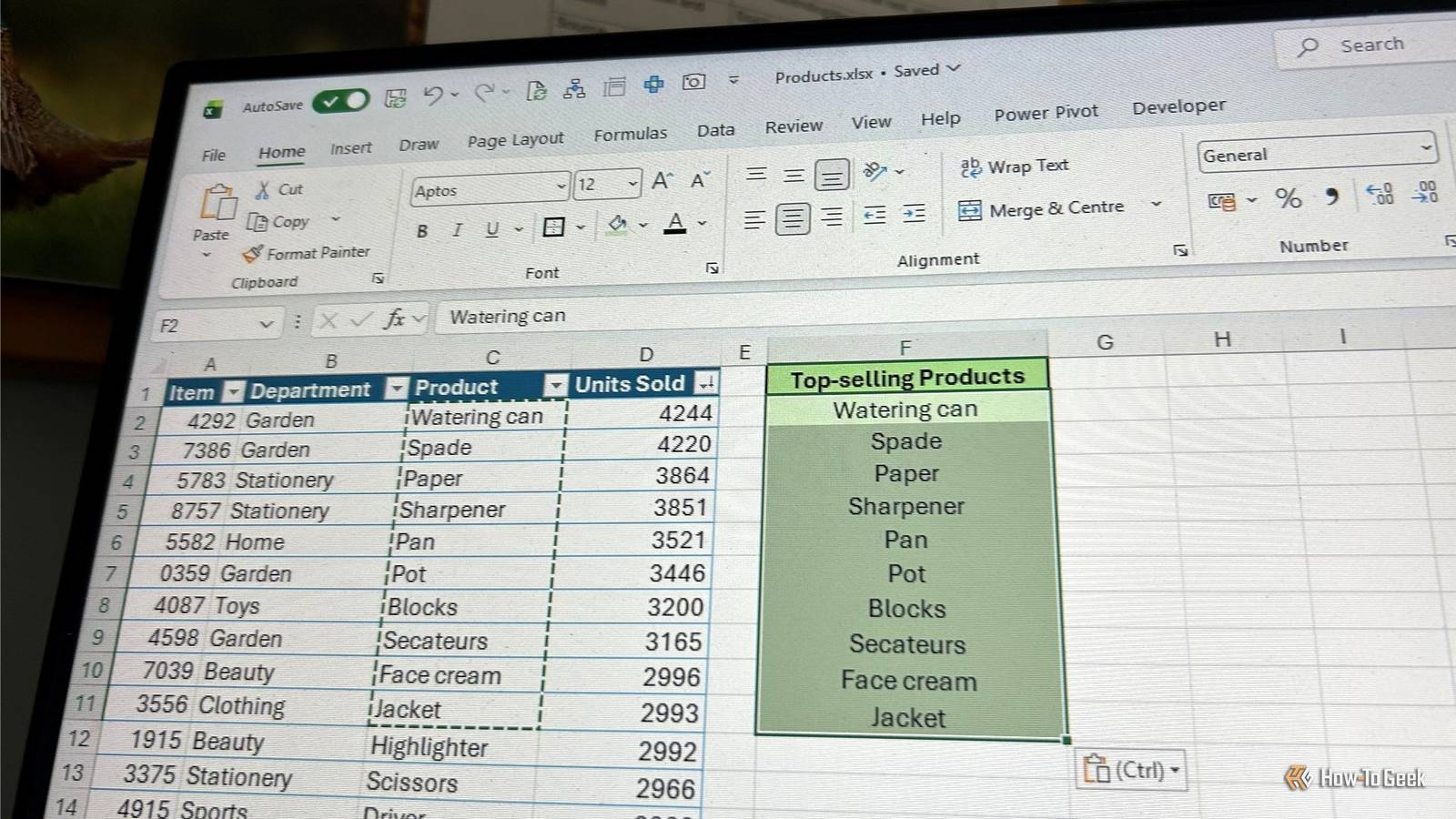
Published Sep 15, 2026, 2:00 PM EDT Tony Phillips is an experienced Microsoft Office user with a dual-honors degree in Linguistics and Hispanic Studies. Prior to starting with How-to Geek in January 2024, he worked as a document producer, data manager, and content creator for over ten years, and loves making spreadsheets and documents in his spare time. Tony is also an academic proofreader, experienced in reading, editing, and formatting over 3 million words of personal statements, resumes, reference letters, research proposals, and dissertations. Before joining How-To Geek, Tony formatted and wrote documents for legal firms, including contracts, Wills, and Powers of Attorney. Tony is obsessed with Microsoft Office! He will find any reason to create a spreadsheet, exploring ways to add complex formulas and discover new ways to make data tick. He also takes pride in producing Word documents that look the part. He has worked as a data manager in a secondary school in the UK and has years of experience in the classroom with Microsoft PowerPoint. He loves to encounter problems in Microsoft Office and use his expertise and legal-level training to find solutions. Outside of the Microsoft world, Tony is a keen dog owner and lover, football fan, astrophotographer, gardener, and golfer. I write about Excel shortcuts a lot, and I've picked up plenty over the years. Some are useful only in very specific situations. Others become so familiar that I don't even think about pressing them anymore. Since Microsoft introduced Ctrl+Shift+V to Excel in 2022, it's become one of those shortcuts for me. Ctrl+Shift+V fixes several Excel pasting problems at once No post-Ctrl+V clean-up required I've lost count of how many times I've copied something in Excel, pressed Ctrl+V, and immediately thought, "That's not what I wanted." That's because Ctrl+V can bring a lot more with it than the thing I was actually trying to copy: formulas, formatting, data validation, comments, and other cell attributes. With Ctrl+Shift+V, I can take the result and leave much of the source behind. It's especially handy when I've already spent time getting the destination looking right. I'll have a report with the exact number formats, colors, and borders I want. Then, when I paste something into it, the source formatting barges in and rearranges everything. Ctrl+Shift+V can paste the values without bringing the extra cell contents along. I also use it when I've finished calculating something and have reached the point where I want only the value. If a cell contains =H2-I2 and displays $9,237.80, I might have no reason to keep that formula once the figure has made its way into a finished report. Ctrl+Shift+V turns that result into a good old-fashioned hard-coded value. It's also useful when I need to move a spilled result in an Excel table. This is also where it saves me from a whole load of Excel baggage. Maybe the source cells have conditional formatting I don't want, or data validation that made perfect sense in the original worksheet but has no business following my data into its new home. Pasting the values means I'm taking the results rather than dragging all that stuff along with them. External links are another reason I sometimes reach for Ctrl+Shift+V. If I've built a report using formulas that pull information from another workbook, those formulas can become a headache when I send the file to someone who doesn't have the source workbook. Pasting the results as values removes those external formula dependencies, so the numbers travel with the report instead of relying on another workbook being available. Ctrl+Shift+V replaces several older ways to paste values But it depends on which version of Excel you have If you're using Excel for Microsoft 365 on Windows or Excel for the web, you can start using Ctrl+Shift+V right away. However, if you're using an older perpetual version of Excel, you'll need to rely on other methods. The right-click menu is probably the easiest alternative. If my hand is already on the mouse, there's nothing wrong with right-clicking, finding the paste option I want, and clicking it. But if I've just pressed Ctrl+C and my fingers are already on the keyboard, moving my hand over to the mouse feels like an unnecessary detour. The ribbon works in much the same way. I actually quite like the visual Paste menu, because I can hover over the various icons and see previews of what they do. Once I know I want to paste values, though, I don't need to go hunting through the ribbon for the right button. I could also use Alt > H > V > V to access the same option, but Ctrl+Shift+V gets me there in three keystrokes. Then there's Ctrl+Alt+V, which opens Paste Special. This is one of those Excel shortcuts I don't want to lose because it's also where I can paste formulas or formats, transpose data, skip blanks, perform calculations, and more. That's great when I need one of those options, but if I'm simply trying to paste a value without its formula, opening a dialog feels like bringing a toolbox to change a light bulb. I've also used the right-click-and-drag method. Select the cells, drag them somewhere else with the right-click button pressed, and when you release it, you get options ranging from copying as values or formatting to shifting cells out of the way. It's a handy little trick, because I can move the data and choose how I want it copied at the same time. But again, for pasting values, it's a long-winded way to get there. That's really why Ctrl+Shift+V has stuck with me: I don't have to stop and think about it. Copy, move to the destination (or stay in the same place if you're overwriting the copied data), press Ctrl+Shift+V, and carry on working. The little shortcuts that add up Ctrl+Shift+V might be one of the simplest Excel shortcuts I use, but it has probably saved me more time than any other. That said, it's not the only one I turn to every day. Here are some others that have also earned a permanent place in my workflow: Ctrl+1: Opens the Format Cells dialog, giving me quick access to virtually every formatting option I need. Ctrl+H: Opens Find and Replace, which I use to clean up and edit large datasets. Alt+;: Selects only the visible cells in a range, which is invaluable when I'm working with filtered or hidden data. Ctrl+Enter: Lets me quickly make the same entry across a selection, and I've found plenty of other uses for it, from filling formulas to repairing missing data.
I use Excel all day, every day—the simple Ctrl+Shift+V shortcut saves me the most time
Full Article
Original Source
Read the full article at Howtogeek →KhanList aggregates and links to publicly available news content. We do not host full articles from third-party sources. Always verify important information with original sources.