
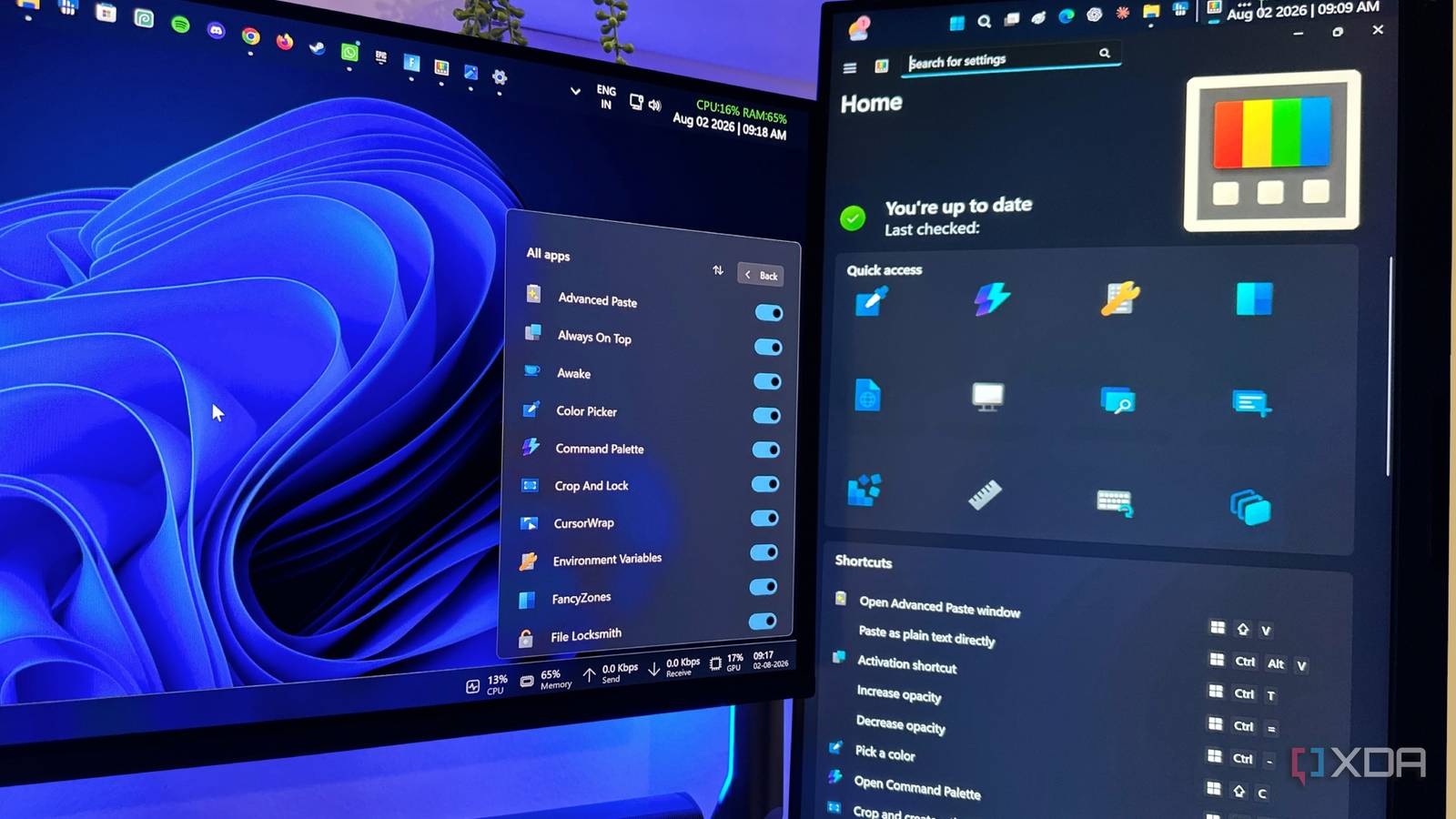
Published Aug 12, 2026, 9:00 AM EDT Gaming has been Samarveer’s greatest passion, and the Literature graduate in him takes immense joy in dissecting games for their themes, messages, and impact. Samarveer holds a deep appreciation of gaming, and considers the platform to be the most immersive and impactful across all media. He can be found engaging with gaming communities online, always ready to debate the finer points of ray tracing or itching to write an 8-page collegiate thesis on any game that impacts him emotionally. I've said it before, and I'll say it again — PowerToys will always be one of the first applications I install on every fresh Windows setup. Somehow, I still catch myself discovering new utilities I overlooked every time I spend time in the PowerToys window. This collection of extremely handy utilities has now genuinely evolved into a toolbox capable of replacing several standalone apps I'd accumulated over the years. Every replacement has meant one less installer and one less background process running on my PC. That realization sent me on an uninstalling spree. Some of these utilities have been part of my workflow for years, but PowerToys now does their jobs just as well, if not better. Desktop Color Picker Pro is gone from my PC PowerToys Color Picker made it completely redundant Pixie sat on every Windows installation I've owned for years now. It's been part of my one-two punch with Photopea on every Windows device, helping me edit and ready up all my images every single day. Over the years, Pixie Color Picker has helped me match UI elements, grab accent colors, or even pick the exact brand colors I need for screenshots, all of which earned it a permanent place in my toolbox. Turns out, PowerToys can do everything Pixie can, and all I need to do was enable Color Picker and use it with Win + Shift + C. Now, whenever I need a color value, I press the shortcut, hover over the pixel, and click. The color picker instantly copies HEX, RGB, or whichever format I've configured to my clipboard. In fact, that's just three formats out of the sixteen formats that PowerToys' Color Picker utility offers you when you hover your cursor over a color on the screen. It's pretty effortless, and even though it did hurt just a little to see Pixie go away after years together, I've still been pretty happy using PowerToys' Color Picker, especially since there's no separate application to launch every time I need to edit my images. Bulk Rename Utility no longer earns a place on my PC PowerRename handles almost every batch rename I need Bulk Rename Utility is an undeniably powerful tool, but every time I opened it after taking a bunch of screenshots and organizing them, I couldn't shake the feeling that I was stepping into Windows XP-era software. I've only ever needed a handful of its features anyway, so once I realized PowerRename could handle the same jobs inside File Explorer, I couldn't find many reasons to keep another application. Getting started couldn't be easier, either. In PowerToys, I just enabled PowerRename, and that resulted in PowerRename being added to the context menu every time I right-clicked on any file or folder in File Explorer. It lets you comfortably search and replace text, change letter casing, add numbering, rename file extensions, or even use regular expressions, all while watching the live preview update before committing the changes. Of course, since it's a PowerToys utility, the biggest win for me here is that I get to stay inside File Explorer the entire time. I no longer have to interrupt my workflow by opening a separate utility to rename dozens of files every single day. PowerRename feels like something Windows should have shipped with, years ago, which, frankly, applies to almost every PowerToys utility. I stopped launching Wox the day I embraced PowerToys Run Command Palette sealed the deal Wox is a pretty nifty utility to have on your PC, since it makes launching apps and searching for files a lot quicker and more accurate than the Start menu ever could. However, PowerToys Run eventually evolved to the point where it can now do everything I used Wox for. Add to that the newer Command Palette, and my decision to uninstall Wox and rely on PowerToys only became stronger. The PowerToys Command Palette lets you open apps, search files, run system commands, calculate math, manage Windows services, and control other PowerToys features from a single text interface. After enabling PowerToys Run in the PowerToys dashboard, I left the default Alt + Space shortcut exactly as it was. A quick keyboard shortcut now lets me launch applications, open folders, solve calculations, convert units, and search through my system settings, all without ever having to take my hands off the keyboard. For anything advanced, I always have the Command Palette, which expands that experience with richer actions and an interface built for power users. The result? No more juggling multiple launchers, since now I can rely on the one that is actively evolving alongside Windows. It's faster, better integrated, and one less third-party app I have to keep updated. The built-in Image Resizer has been a godsend PowerToys made quick image resizing effortless The Image Resizer in PowerToys hasn't really replaced an "app" on my PC, but it has certainly removed a bookmark in my web browser that I've had for years — the PhotoStack web app. I've used it to resize my images for years now, but it has always come with a degree of effort — organizing every image into a single folder, uploading it to PhotoStack, setting the resize limits, and then downloading a zipped file to then extract and replace the old images with. With Image Resizer baked into PowerToys, all I have to do is right-click the images inside the folder, set my 1440p preset, and I get resized copies within seconds. It's instantaneous compared to the web-browser method of PhotoStack. It's a small convenience that saves surprising amounts of time. Whether I'm preparing images for an article, compressing photos for email, or creating web-friendly versions, everything happens exactly where my files already live. Tinkle Tray didn't last long on my new OLED monitor Power Display gave Windows the brightness slider it should've had After I bought my first-ever OLED monitor in the Alienware AW2726DM, I came face-to-face with one of Windows 11's most baffling omissions. It is downright insane that in 2026, Windows 11 still does not offer a simple on-screen brightness and contrast slider for external monitors when practically every smartphone, tablet, laptop, and TV on the planet has one. I initially went with the Tinkle Tray app to fill that gap, only to discover later that PowerToys' Power Display module solved the exact same problem. After enabling Power Display in PowerToys, I added the brightness control to its flyout and have been using it to adjust my monitor's brightness without fumbling through the monitor's awkward OSD buttons. It's also the quickest way to dim my OLED for late-night work, or crank it back up during the day. PowerToys is a gift that keeps on giving The philosophy behind PowerToys is something I've really come to appreciate. Microsoft has clearly created a space where genuinely useful ideas can evolve rapidly without waiting for the next major Windows release. It's easy to install PowerToys and make it a permanent part of my workflow, which is precisely what I've done. This superb suite of built-in tools won't overwhelm beginners at all, nor does it pretend to reinvent Windows. What it does do, however, is fill in the gaps that have existed for years, often with better execution than dedicated third-party apps.
I uninstalled 6 apps after PowerToys finally did their jobs better
Full Article
Original Source
Read the full article at Xda-developers →KhanList aggregates and links to publicly available news content. We do not host full articles from third-party sources. Always verify important information with original sources.