
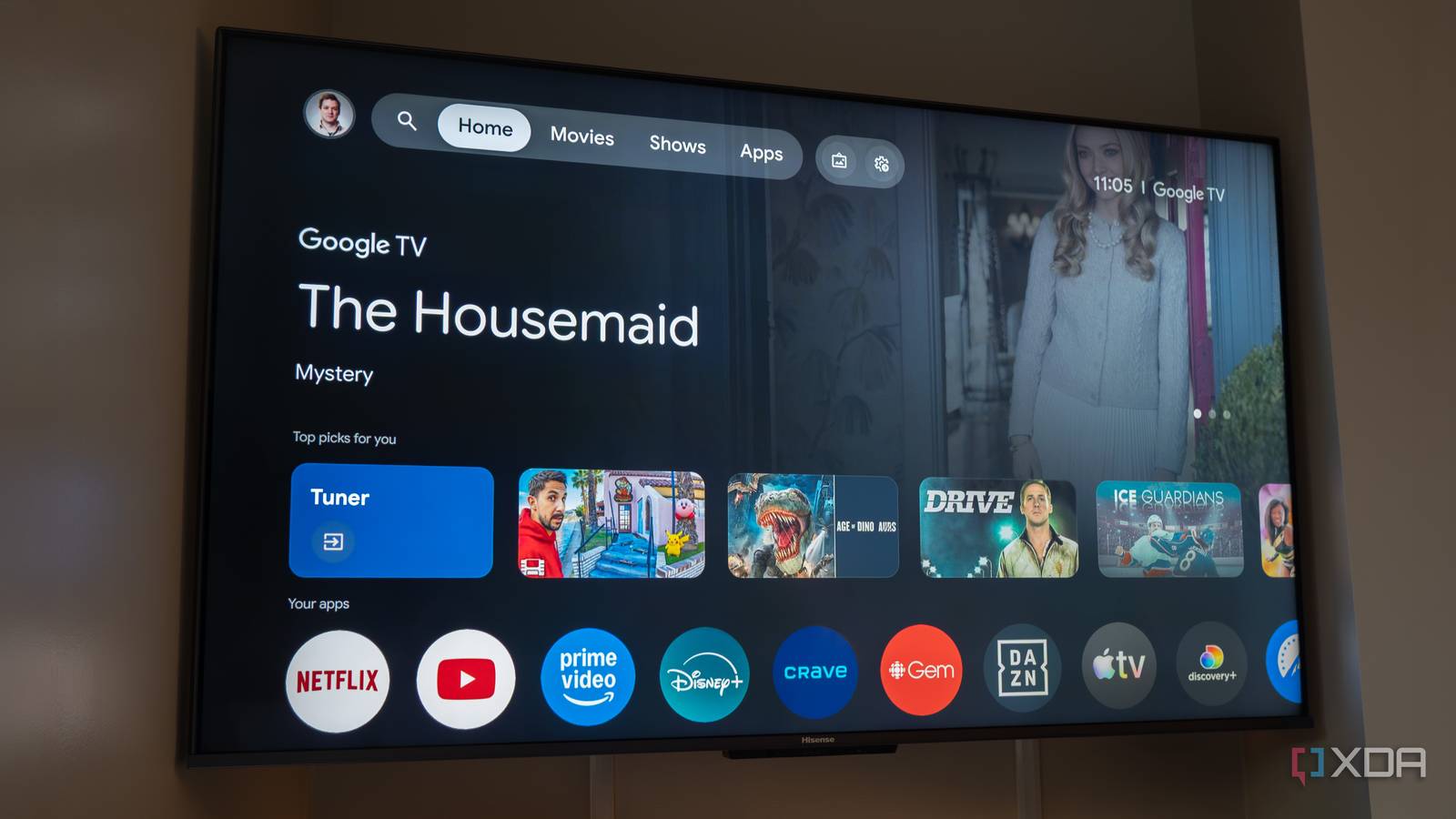
Published Sep 17, 2026, 6:00 PM EDT With over five years of experience in the tech industry, Kazim excels at simplifying complex topics, making them accessible to tech enthusiasts and general readers alike. He has extensively covered the Windows ecosystem, from Windows 7 to Windows 11. When he’s not writing, you’ll find Kazim planning weekend getaways or diving into tech verticals beyond his expertise. I have got a fairly old smart TV, not the archaic kind, but it's about 4-5 years old. And over time, I noticed it slowed down a bit, as is the case with any device. Even our smartphones and computers slow down after a few years. For the longest time, I ignored it because I just assumed that TVs have less powerful processors and don't always age as gracefully. While part of that is true, I recently discovered that turning off a few settings and adjusting others can noticeably improve performance. Remember, the goal is to minimize background activity — things that are non-essential but still consume a significant share of the system's resources. This means that you can go beyond what the list covers — it's not comprehensive by any means — as long as you understand the upsides and downsides of the change. Automatic Content Recognition It's good for privacy too Automatic Content Recognition, or ACR, is something very few people actually know about, but once they do, they instantly disable it, and not just for performance gains. ACR, as the name suggests, is a feature that monitors what's happening on the screen, the kind of content you are watching, in real time. The data is then shared with the manufacturer, who can use it in multiple ways, whether to serve targeted ads or sell it to third parties. That's why disabling ACR also helps protect your privacy. Not every manufacturer labels the feature the same way. For instance, Samsung TVs call it Viewing Information Services, while Sony TVs label it Samba Interactive TV. You'll usually find the option to turn off ACR under Advertising or Privacy settings. Also, if you are using a streaming stick like Roku or Fire TV Stick, make sure to disable any similar settings there as well. Motion Smoothing It's not for everyone, but it's still worth considering Motion smoothing is another feature I disabled on my smart TV. It adds extra frames to the content to make things look smoother. Motion smoothing comes into play because the content you usually watch is filmed at a lower frame rate (24-30fps) than your TV's refresh rate (60–120 fps or higher), and it tries to match that. That's some extra effort your TV is putting in for something not everyone necessarily benefits from. Disabling motion smoothing is simple, though, since every manufacturer labels the feature differently. For instance, it can be called TruMotion, Auto Motion Plus, or Action Smoothing, but you'll usually find it under the Picture or Display settings. Motion smoothing can help when you are watching sports, but for movies and shows, you are generally better off without it. Autoplay and animations Minimize unnecessary activity as much as you can Two other things that actively consume resources in the background without providing any real benefit are autoplay and animations. Autoplay refers to automatic audio and video previews and adds little value to the overall experience. On the contrary, the feature can sometimes make your experience less than pleasant. On Fire TV, you will find autoplay in Preferences under Featured Content, while on Google TV, it's within the Accounts and Profile settings. The same goes for animations. You get little value from them, and on older TVs or models with less powerful processors, animations can slow things down. To turn off animations on an Android TV, first enable Developer Options. From here, you disable them under Transition Animation Scale. Energy saver The increase in power consumption is barely noticeable This is something worth looking into if your TV feels somewhat slow or laggy, or the picture quality doesn't seem as vibrant. As the name suggests, Energy Saver is a feature designed to lower your TV's power consumption, and it does so by adjusting the picture quality, or the brightness and contrast, to be precise. Disabling Energy Saver may or may not directly impact performance on every TV, but you should still disable it. Modern TVs don't consume as much electricity as you might think, so the feature is redundant. If you really want to save money on power bills, set up energy automations in Home Assistant. Clear cache You should do it periodically Though not a setting, this is by far the most effective way to improve the performance of an old TV or even speed up an old Fire TV Stick. For those of you who don't know, apps create a cache to improve loading times and speed things up. But as the cache size grows, your TV has less free storage. The cache can also get cluttered or corrupted, which can trigger slowdowns and errors. I clear my smart TV's cache and each app's cache every few months. That's because this is not a one-time thing; the apps rebuild the cache over time. You shouldn't overdo it either, as it will prove counterproductive. With the right settings in place, you can defer the upgrade If you have been planning to ditch your old TV and upgrade to a new one, I recommend reconfiguring its settings and disabling any non-essential features that are eating up resources. It won't make your TV as fast as it was when new, but with minimal background processes, it will feel faster. The best part is that none of it drastically affects the picture quality.
I turned off a few key settings, and my old TV suddenly felt almost new again
Full Article
Original Source
Read the full article at Xda-developers →KhanList aggregates and links to publicly available news content. We do not host full articles from third-party sources. Always verify important information with original sources.