
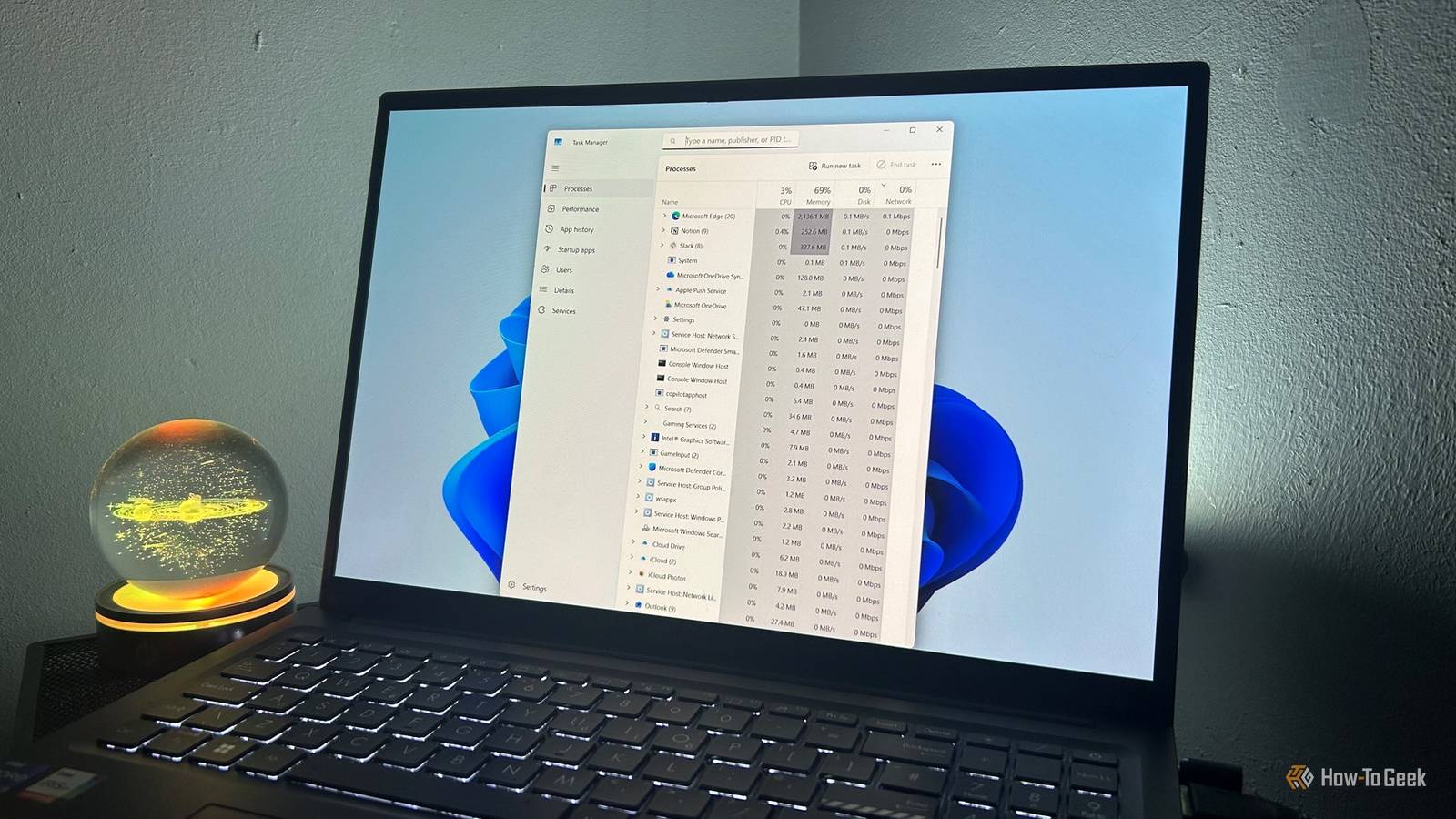
Published Nov 18, 2026, 8:00 PM EST Tony Phillips is a senior author at How-To Geek with over a decade of experience working with documents, data, and digital productivity tools. Holding a dual-honors degree in Linguistics and Hispanic Studies, he combines technical expertise with a passion for making complex topics easy to understand. Before joining How-To Geek in 2024, Tony worked as a document producer, data manager, legal document specialist, and content creator. He has also proofread and edited more than 3 million words of academic and professional writing. While Tony specializes in Microsoft 365, particularly Excel, his interests extend far beyond Office. He enjoys testing software, exploring open-source projects, discovering useful companion apps, and finding ways to customize and optimize Windows. Whether he's building spreadsheets, evaluating new tools, or uncovering hidden features, Tony enjoys helping readers get more from their technology. Outside of tech, he enjoys spending time with his dog, watching football, astrophotography, gardening, and golf. Windows 11 doesn't feel bloated in the obvious ways older versions sometimes did, but that doesn't mean it isn't busy. Over time, I started noticing how many features I simply ignored. Most ran quietly behind the scenes, so it wasn't always obvious whether they were helping, hurting, or doing anything at all. Instead of looking for registry tweaks or running debloating tools, I opened Task Manager and the Startup page to investigate five features I rarely used or didn't need: three in Windows 11 and two in Microsoft Edge. Closing Widgets didn't stop its background process Widgets is one of those Windows 11 features I don't actively dislike. I just never use it. I don't check its news feed, look at the weather cards, or follow the stock updates and recommendations it displays. Despite that, it's enabled by default and readily accessible from the taskbar. Curious about what it was doing in the background, I opened the Widgets board, checked Task Manager, and saw that Windows Widgets was consuming several hundred megabytes of memory on my laptop. What surprised me more was that closing the panel didn't immediately stop the process. The interface vanished, but its process lingered in memory. I ended the task manually, and the process disappeared. When I opened Widgets again, it returned. This wasn't proof that Widgets constantly consumes that amount of memory when I'm not using it, but it did show me that its process can remain in memory after I've closed the panel. That alone was enough to make me question why I was keeping a feature I never use. To turn off Widgets, go to Settings > Personalization > Taskbar and switch off Widgets under Taskbar items. After I did that, its process no longer appeared in Task Manager. It only returned when I deliberately opened Widgets again. Phone Link I unpaired my phone, but Phone Link kept running Microsoft has invested heavily in making Windows work as an extension of your smartphone. Phone Link lets you access messages, photos, notifications, and calls from your PC. I actually connected my phone to it in the past, but soon stopped using it because having notifications, messages, and other alerts following me onto my desktop was more distracting than useful. Once I unpaired my phone, I assumed I'd moved on from the feature entirely. But I was wrong. Phone Link was still sitting in memory when I checked Task Manager, using roughly 67MB of RAM. The memory usage wasn't even the main issue, though. Phone Link was also enabled in my startup apps. In other words, Windows was loading it automatically, regardless of whether I intended to connect my phone that day. To stop it launching when Windows starts, open Settings > Apps > Startup and switch off Phone Link. This stops its automatic startup; you can still open the app manually if you change your mind. Mobile Devices A second phone integration feature I didn't know existed Phone Link wasn't the only phone-related component I found running. While investigating startup items and Task Manager, I discovered Microsoft's Mobile Devices integration running separately from Phone Link. Digging into the settings showed that it forms part of Windows 11's broader mobile-device integration features. It's separate from Phone Link itself, even though both are designed to help Windows interact with phones and other mobile devices. Mobile Devices was using around 23MB of memory on my laptop and was also enabled at startup. I don't use this integration either, so I saw no reason to have it starting automatically. To stop it launching automatically, go to Settings > Apps > Startup and switch off Mobile Devices. Edge Start-up boost I don't need Edge loading before I open it Edge is my primary browser, so this isn't about disliking Microsoft's browser or wanting to replace it. It's about deciding when I want it to use my laptop's resources. Edge has a feature called Start-up boost, which keeps certain browser processes ready in the background so the browser can launch more quickly when you open it. When I checked Edge's settings, I found that it was enabled. I understand why Microsoft offers this. If you open Edge frequently, having some of its components ready can make the browser feel more responsive. However, I'd rather let Edge launch on demand than keep browser processes running in the background when I'm not using it. Disabling Start-up boost means Edge may take a little longer to launch, particularly after signing in or restarting Windows. That's a trade-off I'm happy to make. I use Edge quite a lot, but I don't need it preparing itself in the background when I'm doing something else. To change this, open Edge, go to Settings > System and performance > Start-up boost, and switch off Start-up boost. Edge background extensions Closing Edge should mean closing Edge Start-up boost wasn't the only Edge setting I found enabled. In the same System and performance section, I also discovered Continue running background extensions and apps when Microsoft Edge is closed. Although the two settings are related, they serve different purposes. Start-up boost keeps core browser processes ready for a faster launch, while the background-apps setting allows supported extensions and apps to continue running after you've closed the browser. That can be useful if you rely on extensions or browser-based services that need to keep working when Edge isn't open. I don't have any such requirements, though. When I close my browser, I want it to stop doing unnecessary work in the background. I switched off the setting, too. Switching this off prevents supported extensions and apps from continuing to run in the background after you close Edge. You'll find it in Edge > Settings > System and performance > Background mode. Find Continue running background extensions and apps when Microsoft Edge is closed and switch it off. What I left alone was just as important Some of the biggest resource users I found never made this list. I left OneDrive alone because I rely on it to sync files across my laptop and phone, while Copilot wasn't using meaningful resources until I opened it. That was a useful reminder that a busy Task Manager doesn't necessarily mean Windows is wasting resources. I just needed to stop a few features I no longer need from starting up in the first place. I haven't transformed my laptop overnight, but after trimming those unnecessary startup items and background processes, Windows feels a little more responsive when I first sign in and a little less busy day to day.
I turned off 5 Windows 11 features I didn't need, and my laptop feels more responsive
Full Article
Original Source
Read the full article at Howtogeek →KhanList aggregates and links to publicly available news content. We do not host full articles from third-party sources. Always verify important information with original sources.