
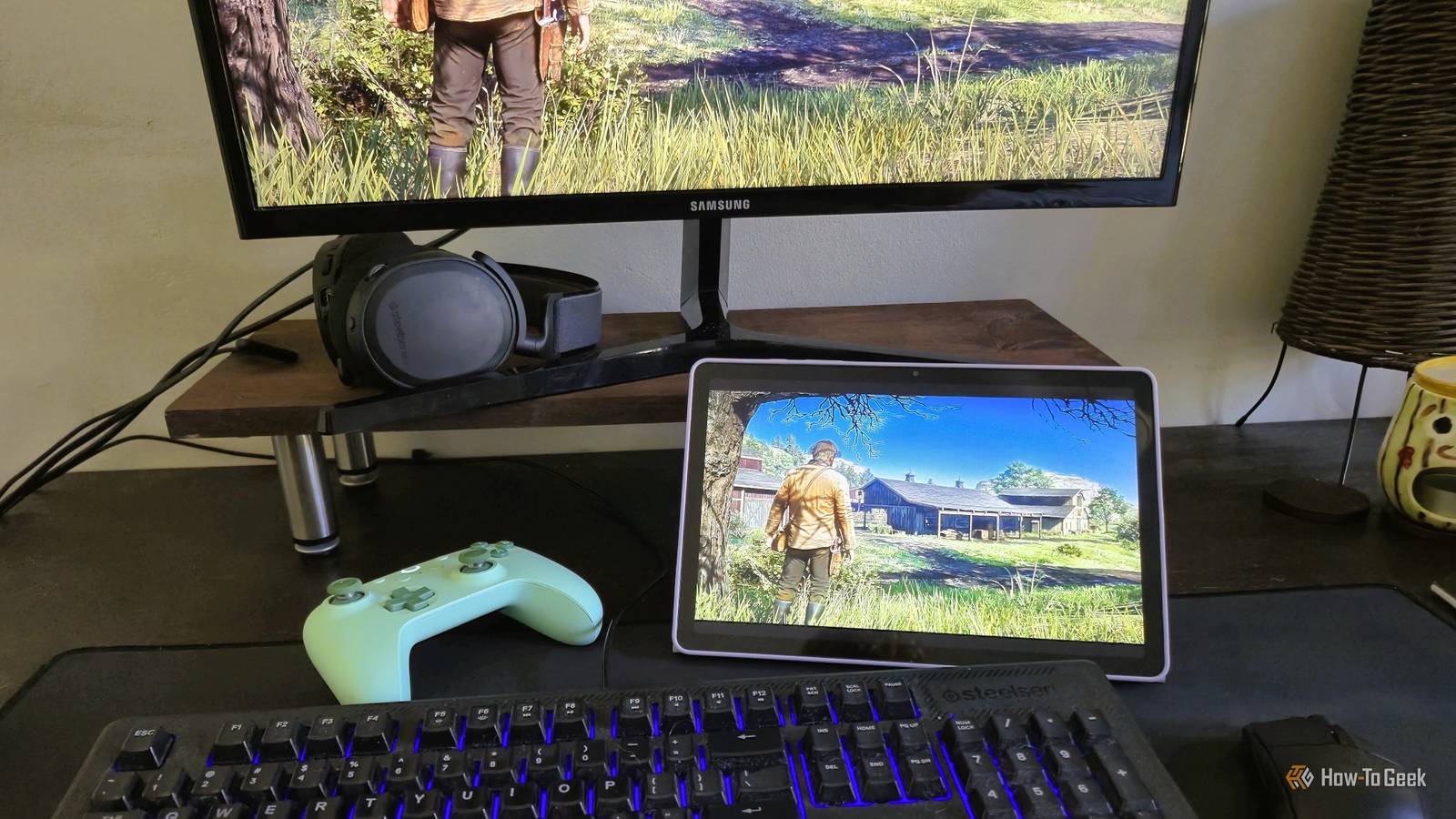
Published Nov 20, 2026, 9:00 AM EST Tyler is an journalist and content contributor at How-To Geek with over three years of experience covering the automotive and tech industries. His work focuses on delivering clear, well-researched, and engaging content that helps readers better understand the vehicles they drive and the technology that they use everyday. Before entering automotive media, he spent five years as an academic editor, developing a strong foundation in research methodology, factual accuracy, and structured analysis. This background informs his journalistic approach today, ensuring that every article balances technical insight with accessibility for a broad audience. When my laptop died on me, it felt like a waste of money to buy a new one. I mainly worked on my desktop PC at home, and I didn't use it all that often. I still needed something portable that would allow me to work on the move when I did need to, though. My solution was to give Samsung DeX a go. I was really impressed with how well it worked, but it had some clear constraints that got in the way. Through some research, I found a way to elevate my DeX setup and use the powerful hardware in my PC at home. Using purely free tools, I found a reliable, secure way to connect the two, combining DeX and my PC to create a portable all-in-one machine. I replaced my laptop, gained extra functionality, and didn't have to spend a cent. I replaced my laptop with a tablet and Samsung DeX It did almost everything Earlier this month, I decided that my old laptop was getting old and slow, and that it wasn't really working for me anymore. Since I do a lot of my work from home on my PC, I was a bit loath to fork out money on a brand-new one. That's when an old Samsung feature popped back into my mind. I had a Galaxy tablet lying around and wanted to explore just how good the Samsung DeX experience was. With the addition of a cheap USB-C dock, I was ready to go. I was really impressed with just how well DeX operated. It handled all of my daily productivity tasks with ease, and I had access to most of the applications I needed to get work done. Since I was using a Galaxy tablet, I didn't need an external display, which meant this setup essentially cost me nothing. It is worth noting, though, that if you want to use DeX on your phone, you are going to need an external display to make things work. Portable displays are at least quite a bit cheaper than a decent laptop. While it did most things really well, there were a couple of downsides. Some apps didn't exactly work well with the DeX layout, or with mouse and keyboard controls. More importantly, I was quite limited by the performance of my tablet. Aiming to solve both of these problems, I found another app that helped me bridge the gap. Sunshine and Moonlight took my setup a whole lot further Make your PC do the heavy lifting It turns out that filling the gap that I identified wasn't as difficult as I thought it would be. An open-source project titled Sunshine meant that I could let my much beefier PC handle more demanding tasks. It pairs with an app called Moonlight, which you can download from the Play Store. When paired together, Sunshine acts as the host server, and Moonlight acts as the receiving client. All I had to do was download the Sunshine Windows-specific installer from the GitHub page and follow the launch wizard prompts. After installation, it opened a page in my browser confirming that I was running the latest version of Sunshine. It also prompted me to choose which Windows gamepad drivers I wanted it to use. On my Galaxy tablet, I simply installed the Moonlight Game Streaming app from the Play Store. Once installed, I opened the Moonlight app and saw the option to connect to my PC. I was prompted to enter a short PIN, and then I was ready to go. My screen was immediately projected onto my tablet. The stream totally exceeded my expectations Even more use cases opened up Once set up, I was quite excited to test how well it worked. I started ambitiously and opened Red Dead Redemption 2, and I was immediately blown away. Without any tinkering in the settings menus of Sunshine or Moonlight, I was seeing a crisp and clear image projected onto my Galaxy device. The difference in output was mind-blowingly minimal. I was expecting the latency to be quite bad, but it was more than serviceable. I was able to roam around the Wild West as Arthur Morgan on my trusty steed without any issues, using a standard Bluetooth controller connected to my Galaxy tablet. Turning your tablet into a portable gaming machine, with access to all your game libraries, is one pretty amazing use case for this software, but there are so many other applications. If you do a lot of heavy tasks, like 3D video rendering, video editing, or animation, this setup means you can do all that from your portable tablet or phone. Take precautions if you're going to use this setup on the go Don't expose your streaming port Through Moonlight, you can technically use this setup pretty easily on the move by entering your PC's IP address. However, doing this without any additional security measures opens you up to a host of issues, including having malicious third parties access your streaming port. To protect myself from this, I used a tool called Tailscale. It is a peer-to-peer VPN that uses a mesh architecture. Once downloaded on both of my devices, all I had to do was log in using the same account, and both my tablet and desktop were added to the network. This meant that I didn't have to fiddle with router settings, firewalls, or complex port forwarding. All that I needed to do was add my PC to Moonlight on my tablet using the IP address shown in Tailscale, and I was away. This combination gave me the best of DeX and my PC It's a work in progress, though Combining Samsung DeX, Moonlight, and Sunshine essentially gave me the best of both worlds. For day-to-day work, I could use the DeX environment, which I found straightforward and smooth in most cases. I also had access to all the Android apps I was accustomed to using. When I hit a wall or needed something more demanding than my tablet could handle, I could open a desktop-style Moonlight window and connect to my PC at home. There were a couple of drawbacks. The most obvious limitation is your internet connection. If your internet speed is slow, the experience can get quite frustrating. This is one of the reasons why DeX is an integral part of the setup for me. The integration between DeX and Moonlight also isn't perfect, with certain shortcuts conflicting. My PC also always had to be on and ready for me to connect. Finally, the amount of video decoding my tablet had to do meant its battery drained quite quickly. All of that being said, I was still pretty blown away. While I'm still tinkering with ways to improve and optimize the setup, I still ended up with exactly what I wanted. My tablet featured a built-in desktop environment, and I was able to connect to my PC for any demanding tasks. The performance of Sunshine and Moonlight was immaculate, and in most cases the output was way better than I had expected going into this project. A fantastic combo for working and gaming on the move When I first replaced my laptop with my tablet using Samsung DeX, I thought I'd get away with using it for a few simple tasks on the go, and that would be it. After installing a couple of extra applications, I've ended up with a setup that is functionally better in a lot of ways than my old, aging laptop used to be. I was able to use the powerful hardware in my PC and avoid having to buy a new laptop.
I turned my Samsung Galaxy into a powerful portable PC without spending a dime
Full Article
Original Source
Read the full article at Howtogeek →KhanList aggregates and links to publicly available news content. We do not host full articles from third-party sources. Always verify important information with original sources.