
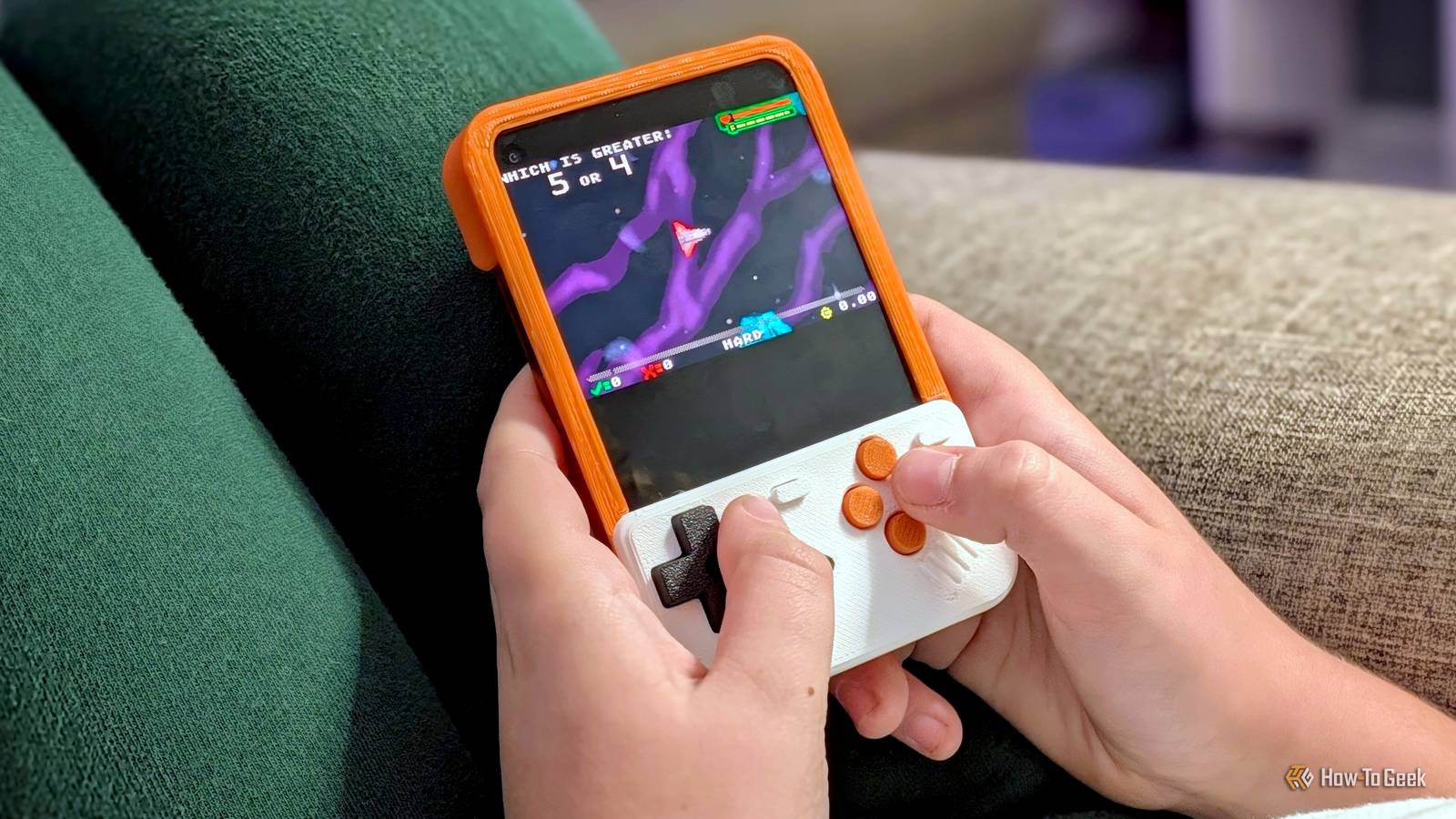
Published Oct 29, 2026, 1:00 PM EDT Joe Fedewa has been writing about technology for over a decade. Android and the rest of the Google ecosystem have been a focus for years, as well as reviewing devices, hosting podcasts, filming videos, and writing tutorials. Joe loves all things technology and is also an avid DIYer and food blogger. He has written thousands of articles, hundreds of tutorials, and dozens of reviews. Before joining How-To Geek, Joe worked at XDA-Developers as Managing Editor and covered news from the Google ecosystem. He got his start in the industry covering Windows Phone on a small blog, and later moved to Phandroid where he covered Android news, reviewed devices, wrote tutorials, created YouTube videos, and hosted a podcast. From smartphones to Bluetooth earbuds to Z-Wave switches, Joe is interested in all kinds of technology. After several years of jailbreaking and heavily modifying an iPod Touch, he moved on to his first smartphone, the HTC DROID Eris. He's been hooked ever since. I've never been a big fan of physical keyboards on phones, but I decided to give one a try earlier this year. The experiment didn't last long. The phone has been collecting dust on my desk for months — until I turned it into a Game Boy. Android phones with physical keyboards are few and far between, but they have passionate followers. That's what led me to finally give one a try. I picked the Unihertz Titan 2 Elite simply because I thought it looked pretty cool. It turns out that was a good decision — not for the keyboard, but for an awesome Game Boy case. Meet the Titan Boy Putting a physical keyboard to good use I won't rehash my full experience with the Titan 2 Elite again. Long story, short: I loved the form factor and having all the buttons for custom shortcuts, but I never could get the hang of actually typing. I'm simply much faster with a virtual keyboard. So, despite giving it a real, honest try, I gave up on the physical keyboard dream. Since then, it's just been sitting on my desk looking cool as ever. When I first got the Titan 2 Elite, I started following the Unihertz subreddit — that's where I found the Titan Boy. Credit: Joe Fedewa / How-To Geek The Titan Boy is a Game Boy-inspired cover specifically for the Titan 2 Elite. Simply snap it on the phone, and the physical keyboard transforms into a gaming controller. There are three different versions available to print. The classic two-button Game Boy layout and a four-button layout designed to fit over the official Unihertz case, plus a two-button version for the phone without a case. Similar accessories exist for slab phones, of course. There are real controllers, like the 8Bitdo FlipPad, and covers with touch switches that press virtual buttons on the screen. The former is the best option, but both make the bottom half of the screen inaccessible. The beauty of using a physical keyboard phone like the Titan 2 Elite is that the display is already small. Printing trial and error Making it harder on myself than it needed to be The designer of Titan Boy — called "Yoshi" on MakerWorld — has done a really nice job. As mentioned, they've provided a few different versions as well as print profiles. The parts are really easy to print, too. You don't need any support, and the prints don't take super long. No glue or fasteners are needed for assembly, either. None of this could prevent me from screwing up, though. I printed the four-button version without fully reading the description. It wasn't until I tried to put it on that I realized it was intended to go over a case (which I do not have). That's when I found the case-less version, but it's only available in the two-button layout. The games I wanted to play need four buttons. I didn't feel like shelling out $30 and waiting for the official case to arrive, so I decided to simply add the extra buttons to the case-less version myself. While I was at it, I made a few design changes as well. I trimmed down the ridge along the display to make it easier to reach things close to the edge, and then printed it in colors to match my orange Titan 2 Elite. Let's play some games! Loading up my favorites Playing games with the controller is remarkably easy, especially if you use RetroArch. It's arguably the best retro gaming emulator for Android. The 3D printing files include a ZIP with configs for a bunch of consoles. You don't have to spend any time customizing the controller to the keyboard. Load up the appropriate config file, and it just works. The first game I played in RetroArch was Donkey Kong Country for the SNES. However, the first game I played with the Titan Boy was my favorite video game of all time: Commander Keen 4. I wrote about my love for this game on its 30th anniversary. It's an MS-DOS game, but you don't need a DOS emulator to play it on Android. The "Commander Genius" app packages all the Keen games (and more) into one package. I simply mapped the movement and action buttons to the Titan Boy. I'm happy to say the Titan Boy works very well. The shape of the buttons mates perfectly with the shape of the Titan 2 Elite's keys. They never slip off, and the tactile feedback is great. Plus, it's easy to set up the phone to be used as a handheld gaming device. I enabled the virtual keyboard for typing and set the "Game Launcher" as the home app. Physical keyboard phones aren't for me, but this awesome 3D print has me very excited about mine again.
I turned my physical keyboard phone into a Game Boy, and now I actually like it
Full Article
Original Source
Read the full article at Howtogeek →KhanList aggregates and links to publicly available news content. We do not host full articles from third-party sources. Always verify important information with original sources.