
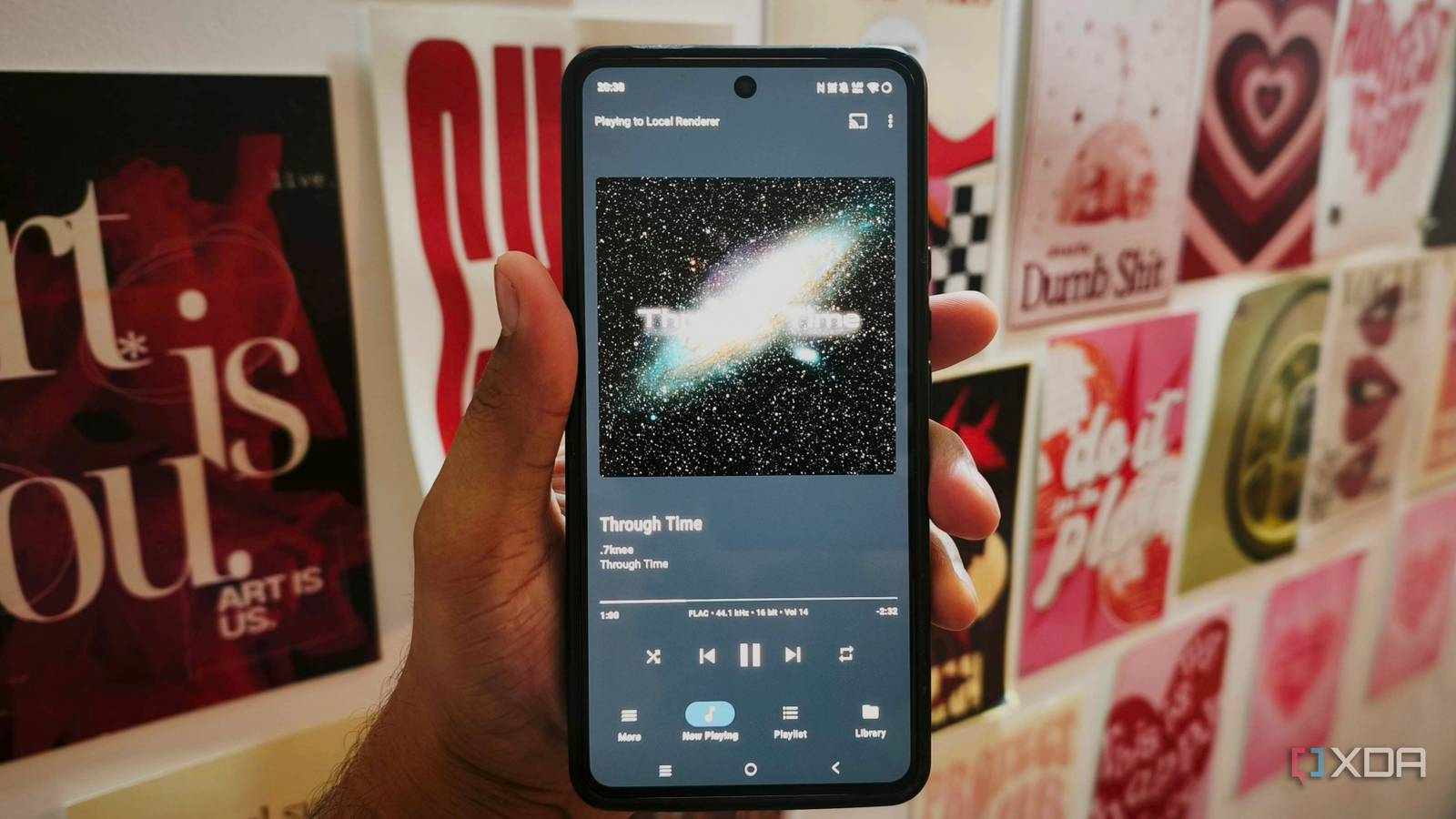
Published Oct 29, 2026, 11:30 AM EDT Anurag is an experienced journalist and author who’s been covering tech for the past 5 years, with a focus on Windows, Android, and Apple. He’s written for sites like Android Police, Neowin, Dexerto, and MakeTechEasier. Anurag’s always pumped about tech and loves getting his hands on the latest gadgets. When he's not procrastinating, you’ll probably find him catching the newest movies in theaters or scrolling through Twitter from his bed. I’ve found more uses for my old Samsung Galaxy phone since I stopped treating it as a spare device. It already runs Jellyfin and handles jobs I would otherwise give to a Raspberry Pi or mini PC, and it’s doing a decent job. I think repurposing old phones should be more common, considering how much capable hardware we leave sitting unused and how expensive storage and other components have become. With that in mind, I’ve also added a music server to mine. My music collection lives on the phone, and I can access it from other devices on the same local network. So far, I don’t have any complaints about this setup. Using BubbleUPnP for the music server The phone already has the hardware I am using BubbleUPnP to turn the phone into a dedicated offline music server. It’s a pretty straightforward app that handles several parts of a networked music setup, including serving files, playing them, and controlling playback on compatible devices. What I need is its built-in DLNA media server, which makes the music stored on my Galaxy available to other devices on the same network. It doesn’t need me to run a Linux environment or terminal commands. You can browse that collection from another Android phone running BubbleUPnP, a computer using VLC, or a compatible TV or network music player. The Galaxy stores and supplies the files, and the receiving device handles playback. You can also use BubbleUPnP on the Galaxy itself to select music and send it to a compatible playback device. These are separate ways of accessing the same collection, so you don’t have to control everything from the phone holding the files. The app supports browsing by artist, album, and folder, along with playlists and a playback queue. Folder browsing is particularly useful if you already organize your collection into album directories. The interface and playback controls you get on another device depend on the app you use there. Getting the library onto my network A few settings keep it running The music files need to live on the Galaxy, so copying your collection over is the first step. The phone’s music folder is a convenient location, and keeping albums in separate folders makes them easier to manage. I’d also check the artist and album tags before transferring a large collection, since those determine how neatly it appears when you browse by metadata. After installing BubbleUPnP, grant it access to your music and check that the files appear in its local library. The sharing controls are under More > Settings > Local and Cloud > UPnP/DLNA media server settings. Enable Remote Browsing, then open Configure Media Allowed On Remote Browsing to choose which devices can access it. Note that despite the word “remote,” this setting also covers browsing from another device on your local network. On another Android phone running BubbleUPnP, open the Library tab and select the Galaxy’s library. Both devices need to be on the same Wi-Fi network. I’d test this with a few albums before transferring everything, checking that the tracks appear in the right order and play correctly. You also need to watch Samsung’s background restrictions. Under Settings > Battery > Background Usage Limits, add BubbleUPnP to Never Sleeping Apps. Some One UI versions put Battery under Device Care or call the list Never Auto Sleeping Apps. Navidrome is another alternative worth considering More features but require a longer setup BubbleUPnP covers what I need for sharing music from the Galaxy, but if you want a more advanced setup that rivals apps like YouTube Music and Spotify, Navidrome is worth considering. It gives you a browser interface to search your music, browse albums, build playlists, and mark favorites. You also get separate user accounts that help keep each person’s playlists and play counts independent, which is useful if several people access the same server. You can also connect compatible Subsonic and OpenSubsonic apps instead of using the browser. The client you choose shapes much of the playback experience, including features like downloading tracks for offline listening. Smart playlists are another reason I’d consider it. You can define rules around ratings, genres, play counts, or when you last played a track. A playlist of highly rated songs you haven’t heard recently adds variety to an existing collection without manually choosing every track. Setting up those rules takes more effort than creating an ordinary playlist, but the selection updates as your listening changes. Running Navidrome on Android takes more work than installing BubbleUPnP. Termux provides a route, with a community-maintained Navidrome package and documented setups available. You then need to configure the music and data directories, start the server, and set it up to keep running in the background. I’m sticking with BubbleUPnP for this setup. BubbleUPnP
I turned my old Samsung Galaxy into a dedicated offline music server and it outperforms my streaming setup
Full Article
Original Source
Read the full article at Xda-developers →KhanList aggregates and links to publicly available news content. We do not host full articles from third-party sources. Always verify important information with original sources.