
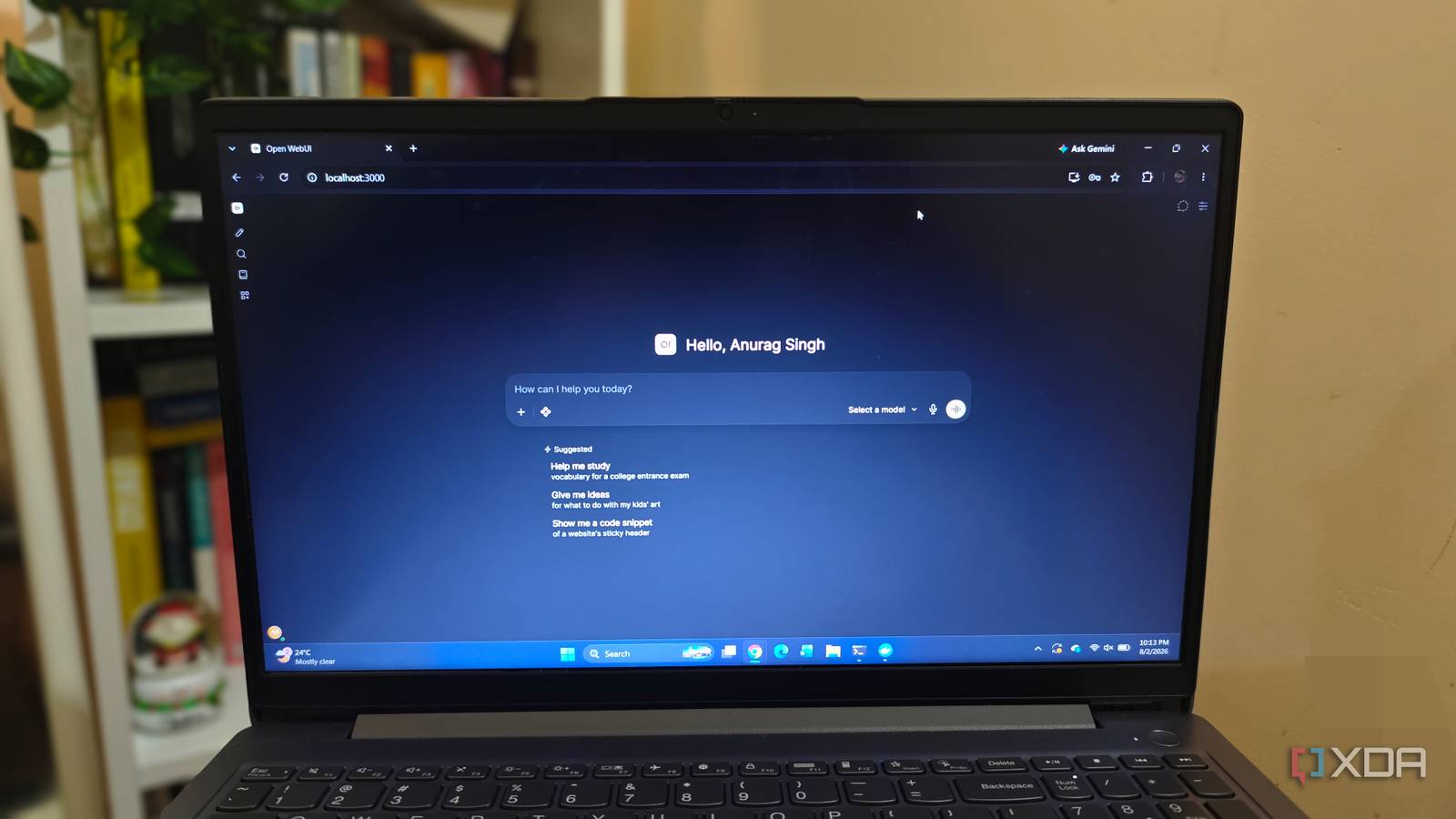
Published Sep 8, 2026, 12:30 PM EDT Anurag is an experienced journalist and author who’s been covering tech for the past 5 years, with a focus on Windows, Android, and Apple. He’s written for sites like Android Police, Neowin, Dexerto, and MakeTechEasier. Anurag’s always pumped about tech and loves getting his hands on the latest gadgets. When he's not procrastinating, you’ll probably find him catching the newest movies in theaters or scrolling through Twitter from his bed. I have an old Lenovo Windows laptop that I no longer use as my main computer. It still works, so I wanted to give it a proper job instead of leaving it unused. My plan is to turn it into a coding agent that stays online around the clock and accepts tasks remotely from my main computer, phone, or tablet. The laptop runs on a Ryzen 5 with 8GB of memory, which limits the size and speed of the models it can handle. I’m not planning to connect it to a paid cloud API either. The AI model will run locally through Ollama. I have used Hermes Backend and Tailscale to keep the laptop available even when I am outside my home. Getting the agent running on Windows You need to install a bunch of tools Windows isn't the best operating system for this setup, but since it was already installed on my laptop, I didn’t want to go through the hassle of adding something like Ubuntu. If you want, you can use any operating system or setup that works better for you. I only installed the software required to run the agent, including Ollama, Codex CLI for the actual agent, and Hermes Agent to handle the backend. You also need to install dependencies such as Git for working with repositories and Node.js for Codex CLI. For the model, I am using Qwen 2.5 Coder. I can’t use a very powerful model because my laptop only has 8 GB of RAM, which limits what I can run. If you have more RAM, you could probably use a more capable model. The model runs just fine on the Ryzen 5 processor, and this setup gives me a completely local environment without requiring an API key. My prompts, project files, and model requests all remain on the laptop. Once you have sorted out the model and inference setup, you need to install the software that will actually interact with the model. You need an agent, so I am using Codex CLI because it includes an OSS mode for working with local models. However, you can use other agents as well. OpenCode works just as well, and so do Aider and Claude Code. I am using Hermes Agent to handle the backend part of the setup. It includes the necessary backend components, so you don’t need to install a separate Hermes package. Hermes also has a Blank Slate option during setup, which gives you a minimal configuration without automatically enabling cloud providers or additional tools. Once that is done, add Ollama as a custom model provider in Hermes, point it to the local Ollama endpoint, and select the model you want to use. Connecting the laptop through Tailscale Tailscale enables remote access The agent will run on my Lenovo, but I also want to access it when I am not connected to my home network. For this, I am using Tailscale, which creates a private network between my devices and lets them communicate without exposing the laptop directly to the internet. Install Tailscale for Windows on the laptop and sign in with your account. Then install Tailscale on the computer, phone, or tablet you want to use to access the agent. As long as every device is signed in to the same Tailscale account, they will appear together inside your private Tailscale network, which is called a tailnet. Tailscale assigns a private IP address to every connected device. I am using the Tailscale IPv4 address assigned to my Lenovo instead of its regular local network address. This address remains the same even when the laptop changes networks, so I don’t have to find a new IP every time. You can view it from the Tailscale app or the Admin Console. Once both devices are connected, the laptop can receive requests through its Tailscale address. Tailscale handles the routing and encrypts the connection between the devices, so I don’t need to configure port forwarding or open the Hermes backend to the public internet. Keeping the agent available 24/7 I am using Windows Task Scheduler to launch it automatically Running Hermes on the laptop works fine as long as the terminal remains open, but I don’t want to start the backend manually every time Windows restarts. I am using Windows Task Scheduler to launch it automatically and keep the agent available without needing to touch the laptop. Hermes includes a Windows gateway installer that registers the gateway with Task Scheduler. You can also create the task manually if you want more control over how it runs. I have set it to start when Windows boots, although starting it when you log in also works. The task needs to launch the Hermes gateway and continue running in the background. Windows also lets you run scheduled tasks whether the user is logged in or not, which is useful here because the agent doesn’t need an open desktop session. You should also remove any time limit that would stop the task after it has been running for a certain number of hours or days. The laptop must stay awake for the agent to remain reachable. I keep it connected to power and prevent Windows from putting it to sleep while plugged in. Tailscale starts with Windows and reconnects to the private network once the laptop is online. With the scheduled task in place, Hermes restarts after a reboot and becomes available through the same Tailscale address. I can leave the Lenovo running at home and send coding tasks to it from another device without opening PowerShell or starting the backend again. This works better on a more powerful machine This setup can work even better if you have something like a Mac mini or a mini PC. Even if you use a budget laptop, you can connect to your mini PC at home and take advantage of all its computing power.
I turned my old laptop into a remote coding agent, and it works on anything I ask it to
Full Article
Original Source
Read the full article at Xda-developers →KhanList aggregates and links to publicly available news content. We do not host full articles from third-party sources. Always verify important information with original sources.