
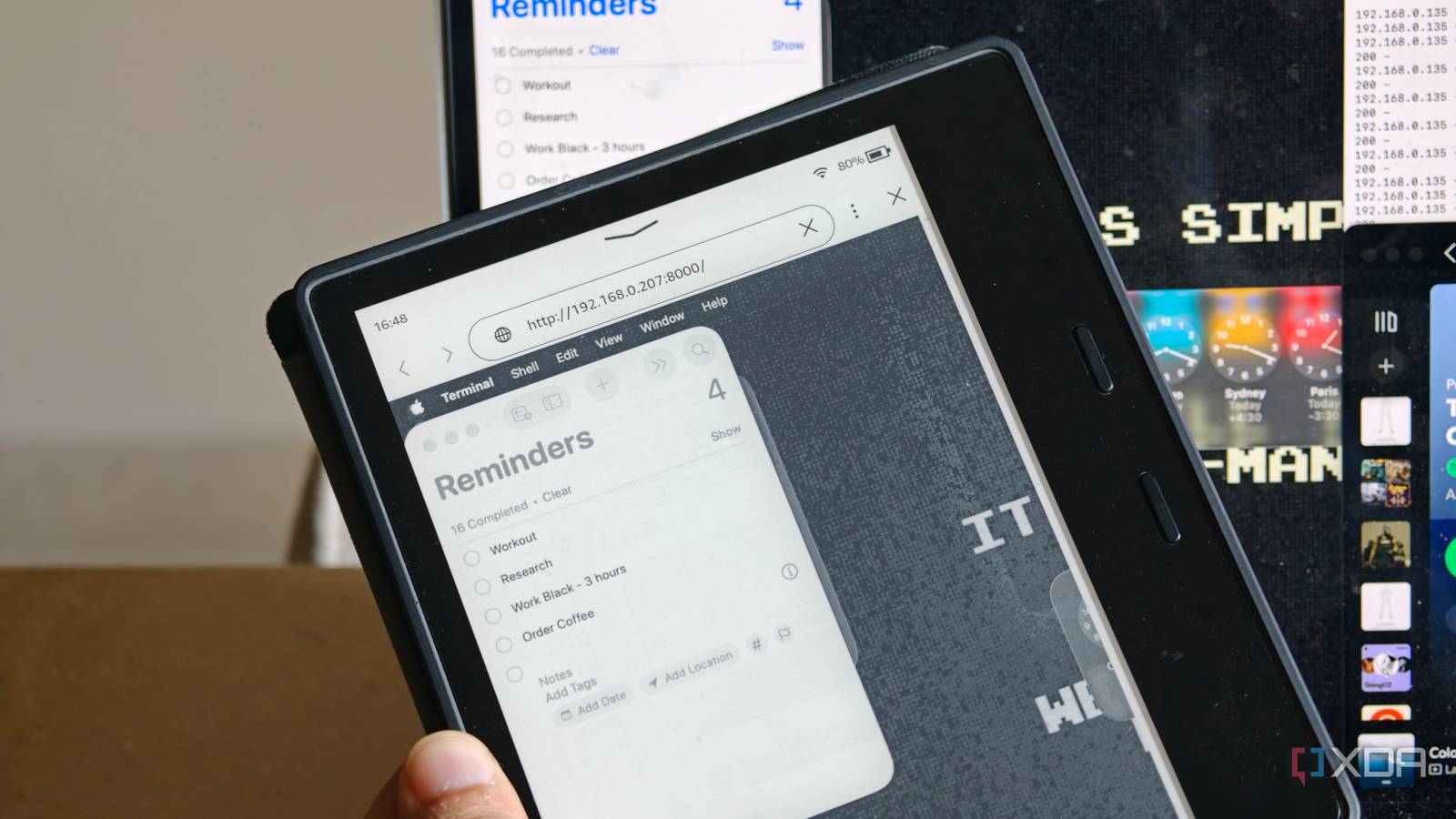
Published Sep 14, 2026, 8:00 AM EDT Dhruv Bhutani has been writing about consumer technology since 2008, offering deep insights into the personal technology landscape through features and opinion pieces. He writes for XDA-Developers, where he focuses on topics like productivity, networking, self-hosting, and more. Over the years, his work has also appeared in leading publications such as Android Police, Android Authority, CNET, PCMag, and more. Outside of his professional work, Dhruv is an avid fan of horror media spanning films and literature, enjoys fitness activities, collects vinyl records, and plays the guitar. I've been intrigued by the possibilities of an e-ink monitor as a second display to keep an eye on to-do lists or music playback. However, even years later, e-ink monitors command sky-high prices. Prices I absolutely was not willing to pay. I have an old Kindle that I barely use anymore. It's perfectly functional, but it's just sitting around as I have newer readers. So, instead of letting it collect dust, I decided to see if it could be used as an e-ink reader. Let me preface this by making it clear that e-ink monitors serve a very specific purpose. An e-ink screen is slow to refresh, grayscale, and not really meant for fast movement, so it can't be used for general-purpose tasks. But for my needs, conceptually, it works just fine. The bigger task is pulling it off. Well, turns out the broader Kindle community has already taken care of that. So, over the weekend, I decided to turn my Kindle into a second monitor. Here's how it went. How I turned my Kindle into a secondary screen A simple Python script grabs a screenshot and serves it over a web server As it turns out, the technical part is actually fairly simple, and you don't even need a jailbroken Kindle to pull it off. The approach I'm taking doesn't try to make my MacBook recognize the Kindle as an actual display. The screen refresh rate is far too slow for that to be of any use. Instead, I wanted a section of my screen displayed on the Kindle so that I could monitor it in real time. So, the Mac takes a screenshot of that section of the screen on schedule, converts it into a compatible image, and serves it up via a small web server locally. I just have to go to the local URL via the Kindle's built-in browser to see the image. It auto-updates on schedule and shows me the section as it is. To pull this off, I run a small Python program on the Mac to handle everything. It captures a small 600 x 700 section of my screen precisely marked out for where I keep my daily to-do list and music player widget. This screenshot is then converted to a grayscale JPEG and served through an HTTP server. The Kindle then connects to the Mac's local IP address and loads the image. This works brilliantly in the Kindle's built-in browser without any tinkering or jailbreaking. The biggest change I had to make to the original script was how the screenshot itself was captured. The original script from a few years ago was written for a much older version of Python and wxPython, and it took a bit of tinkering to make it work with how a modern Mac captures screenshots. Once that was sorted, the rest of the setup just worked. I've also deliberately kept the captured area small. Squeezing my entire desktop onto the Kindle's display serves no purpose as the resolution is simply too low to be useful. Instead, capturing a small area of the screen lets me put up the information I actually want to see. Why a Kindle makes for a surprisingly cool second display E-ink screens are a good fit for passive displays This approach has an advantage. The Kindle doesn't need any special software to pull it off. Be it an older Kindle or a newer model, all are supported. I tested it on a borderline ancient Kindle Oasis, but it works just the same on the latest Kindles. In fact, since the image is broadcast over a local server, you can take any device, even an old smartphone, and use it as a second screen. Coming back to the Kindle, though, I took this approach because e-ink displays are simply too slow to be used as a proper monitor. Scrolling through a screen would be unusable, so would tracking mouse movement. When the goal is to see a to-do list, or monitor stats, or even music playback, just broadcasting that section of the screen as a passive image keeps performance stable. Could I have used a proper monitor? Sure. But the Kindle's monochrome, eye-friendly display means that it doesn't distract me while I'm working. All of that matters in making the decision why I opted for a Kindle as a secondary monitor instead of an actual monitor. Give your Kindle a fresh new job The Kindle isn't the perfect monitor by far. It was never meant to be a monitor at all. But that's hardly the point. If you have a spare Kindle lying around, using it as a monitoring screen makes a lot of sense and helps you get some use out of a device that is otherwise lying idle. All it takes is a small Python script that screenshots your screen on schedule and serves it up over a web server. It's the perfect weekend project for every Kindle owner in my books. Kindle (2022 release) Amazon's latest base model Kindle is now finally available for purchase in the U.S.
I turned my old Kindle into a second monitor, and it's the perfect passive display for my desk
Full Article
Original Source
Read the full article at Xda-developers →KhanList aggregates and links to publicly available news content. We do not host full articles from third-party sources. Always verify important information with original sources.