
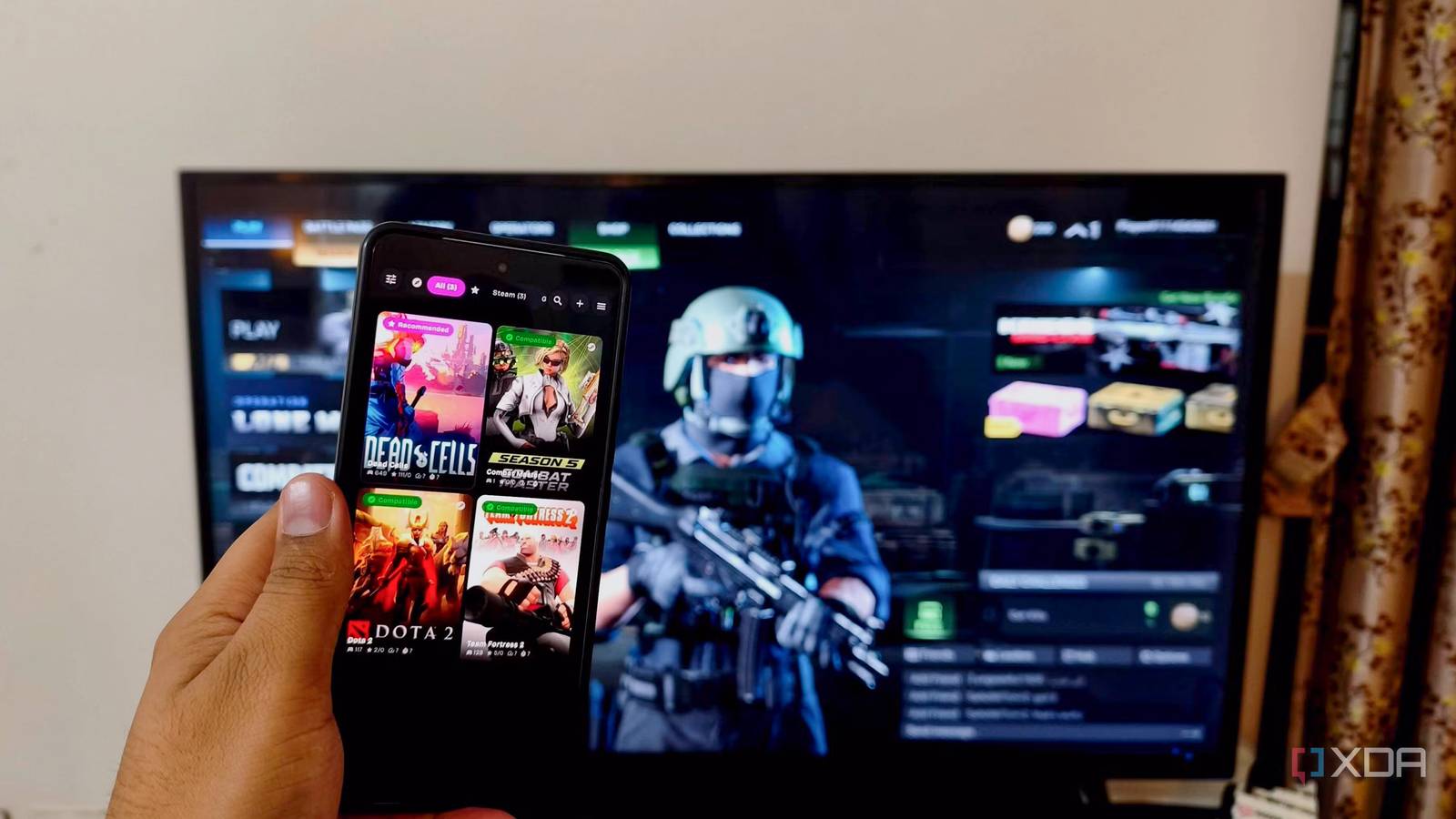
Published Sep 3, 2026, 6:00 PM EDT Anurag is an experienced journalist and author who’s been covering tech for the past 5 years, with a focus on Windows, Android, and Apple. He’s written for sites like Android Police, Neowin, Dexerto, and MakeTechEasier. Anurag’s always pumped about tech and loves getting his hands on the latest gadgets. When he's not procrastinating, you’ll probably find him catching the newest movies in theaters or scrolling through Twitter from his bed. Consumer hardware is getting more expensive by the day due to rising AI demand and the enormous amount of compute it requires. Resources such as RAM are becoming increasingly scarce for consumers, so we have to make the most of the hardware we already have. I've already been trying to make the most of an old laptop I had lying around, turning it into one of the most important devices in my home. I also had an old Samsung Galaxy S21 FE lying around, which is now nearly five years old. I wanted to do something useful with the smartphone and eventually turned it into a gaming beast. "Beast" is a strong word for a mid-premium smartphone, but when I paired the Galaxy S21 FE with Samsung's DeX and Game Native and connected it to a TV, it actually lived up to that description. The Samsung Galaxy gaming setup Never thought I'd write these words Samsung DeX already lets you connect a compatible Galaxy phone to a television and use Android apps through a desktop-style interface. GameNative adds the more interesting part by allowing Windows games from Steam, Epic Games, and GOG to run locally on the phone. GameNative relies on several translation layers before a Windows game can run on Android. It uses Wine or Proton to run Windows applications, and a CPU translator to convert x86 or x64 instructions for the phone's ARM processor. Tools such as DXVK or VKD3D then translate DirectX graphics calls into Vulkan. The Galaxy GPU renders the final image, and DeX displays it on the television. I was able to run the setup comfortably on the Galaxy S21 FE, which means it should also run well on any newer Galaxy S series and Z series phones. The phone also needs a USB-C dock because its single port has to handle HDMI output, power, and wired accessories simultaneously. You are also going to need a 45W or 65W PPS charger and, if you really want to make the most of this setup, an Xbox controller, a PlayStation controller, or another compatible XInput controller. Setting up DeX and getting the performance right This takes some effort For gaming, a wired DeX connection is the better option because wireless DeX adds compression and input delay. I connected a charger to the USB-C dock, ran HDMI from the dock to the TV, and then plugged in the Galaxy S21 FE. I kept DeX at 1920×1080 pixels and 60Hz, since pushing 4K only adds more load and many docks or TVs drop to 30Hz at that resolution. The TV also needs Game Mode enabled, with motion smoothing and other image-processing features turned off to reduce latency. Once DeX is running, the phone's display can stay off. In Game Booster, I used the Performance profile. On supported devices, the optional "Pause USB PD charging when gaming" setting can also help reduce heat by limiting battery charging during gameplay. For GameNative, 1280 × 720 at 30fps is a good starting point for demanding games on the S21 FE. You can push lighter titles to higher resolutions once they are stable. I would only change the renderer, graphics driver, or DirectX wrapper if a game has compatibility or performance issues. LSFG frame generation can make a stable 30 fps output look closer to 60 fps, but it works best as a finishing touch after the game is already running smoothly. How well does it actually run games? It's pretty impressive My Galaxy S21 FE is the Snapdragon 888 model with 8GB of RAM, and the results were better than I expected from a phone this old. It goes without saying that this setup really shines in lighter games. For example, Dead Cells runs extremely well and is almost ideal for something like this because it already works perfectly with a controller and doesn't put much pressure on the hardware. Portal 2 was another surprisingly good experience. Once you're sitting on the couch with the game running through DeX on a television, it doesn't feel like you're playing a Windows game on an old Android phone. However, titles such as The Witcher 3, Cyberpunk 2077, and Red Dead Redemption 2 push the Snapdragon 888 to its limits, so this is where you can lower the resolution and target a stable 30fps. You're obviously not getting the same experience as with a modern gaming PC or console, but the fact that games of this scale can run locally on the S21 FE at all makes the setup impressive. Heat is the biggest issue I encountered – the S21 FE already has a reputation for running hot, and my unit has heated up considerably even during normal use over the years, so gaming only makes things worse. I wouldn't use the S21 FE as a replacement for a gaming PC or console. But for an old phone that was otherwise sitting idle, being able to play Dead Cells, Portal 2, and even experiment with games like Cyberpunk 2077 on a television gives it a remarkably useful second life.
I turned my old Galaxy phone into a gaming PC with Samsung DeX and one hidden feature
Full Article
Original Source
Read the full article at Xda-developers →KhanList aggregates and links to publicly available news content. We do not host full articles from third-party sources. Always verify important information with original sources.