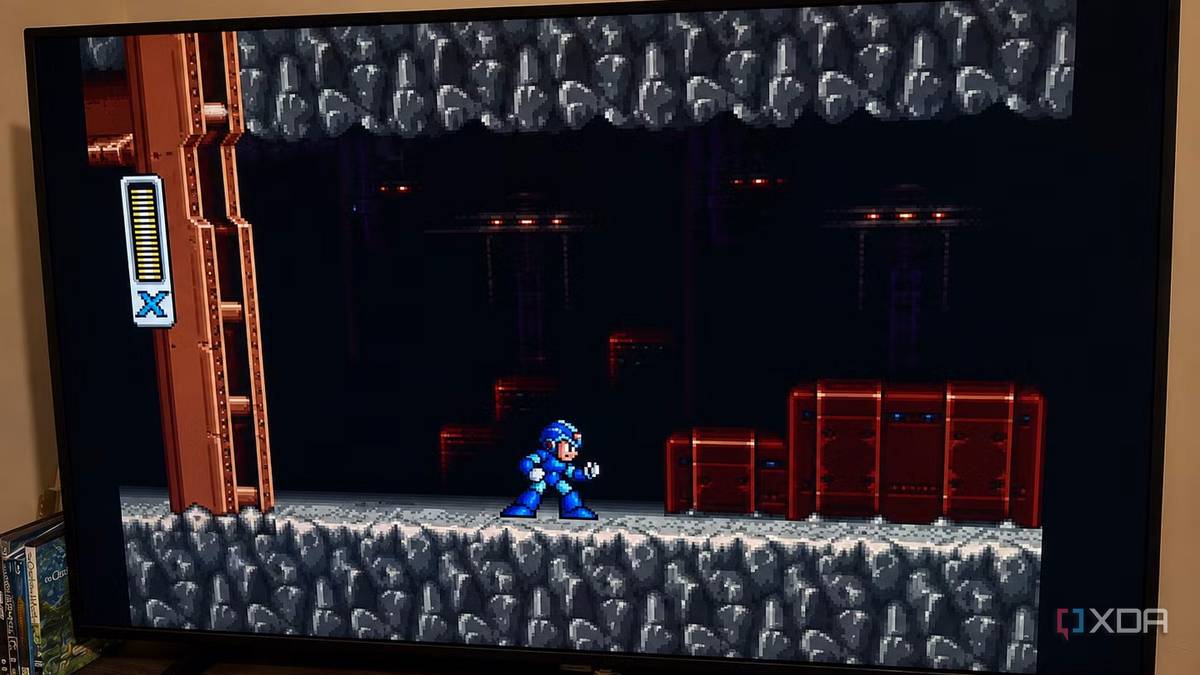
Published Aug 18, 2026, 6:00 PM EDT Patrick is a seasoned writer with more than a decade of experience, specializing in any and all things tech. His work has been featured on platforms like CNET, Yahoo, Xfinity, and many other outlets. When not typing away, he can be found with his nose in a book. My old Fire TV Stick isn't used for much these days, especially since I've turned to Jellyfin for all of my household streaming. It remains plugged in, mostly because it lets me get my Jellyfin content into my bedroom, but I don't think it even has Hulu or Netflix installed anymore. And after toying with turning an old laptop into a retro gaming machine, I wondered if I could find another use for the Fire Stick. Spoiler alert: I did — but it didn't turn out quite the way I expected. After a bit of tinkering, I was able to use my Fire TV Stick as a retro gaming console and play my favorite classics from my bed, and I was able to do it all in under ten minutes. Kind of. Once I figured out the process, the setup took next to no time at all. The trial-and-error part, though? Well, I'm just not going to count it. If you want to do the same thing I did, here's what works (and what to avoid). You can download RetroArch from the Fire TV (Amazon) app store. You shouldn't It's horrendously outdated and barely works When I first set out to do this, I figured the easiest way was by downloading RetoArch from the built-in app store on the Fire TV Stick. It has a surprising number of apps—more than I would have expected, truthfully—and RetroArch was one of the top choices. It only took a few minutes to download, but once I opened it, I found a nasty surprise. RetroArch barely worked. It opened, but that was it. I could navigate the top-level settings, but could open nothing beyond that. I tried everything I could think of. I cleared the cache, enabled Developer Mode on the Fire Stick (to do this, just go to Settings > My Fire TV > About and press the Select button on the remote until it Developer Mode unlocked appears on the screen). Nothing made a difference. I could tell it was processing something in the background, but the app had frozen. So I moved on to my next solution. Steam Link is where the magic happens It's an easier solution that doesn't require jumping through hoops After giving up on RetroArch through the Amazon app store, I spent some more time experimenting and found that the Steam Link app was also available. My PC is a fair distance from my bedroom, and the connection can sometimes be spotty, but I decided to give it a try. To my surprise (and delight), it worked flawlessly. Setup was simple. It didn't require me to log in; it just searched the network for a PC running Steam and then gave me a four-digit code to enter. After a short sprint through the house to input the code, I found I could control not only Steam, but my entire desktop through my Fire Stick. Trying to navigate with the remote is a bit tricky, so I connected an Xbox controller through Bluetooth, and within a few minutes, I was off to the races, playing Mega Man X-2 from the comfort of my bed. There's a third option if you don't have a gaming PC to stream from You can download RetroArch directly, but there's a caveat If you download an app called Downloader (I know, how original) from the Amazon app store, you can go directly to the RetroArch website and download the Android APK. In theory, this version should work correctly and give you the performance the native version does not. I've read plenty of accounts of people finding success with this method, but I tried it for myself to far shoddier results. First of all, the Downloader app is a nightmare to use and navigate, and the number of ad pop-ups made me want to pull my hair out. Second, the Fire TV Stick doesn't have a ton of onboard memory. Most standard models have 8GB of internal storage, while the Fire Stick 4K Max has 16GB. A fair amount of that is taken up by the OS and the necessary, required apps that you can't remove. It doesn't leave much space for ROMs, and even those you can download are restricted in how well they perform. The hardware for the Fire TV Stick can tackle 8- and 16-bit games with ease, but anything beyond that is iffy. With all of that in mind, I found it far easier to stream to the Fire TV Stick from a more appropriate device. Sure, it can be teased to play games with varying levels of success, but the end results just aren't worth the hassle. If you want to play retro games, an old phone is a better choice than a streaming stick Setting up the Fire TV Stick as a retro gaming device is one of those "just because you can do something doesn't mean you should" situations. Yes, it can work, and it's an entertaining-ish way to pass an afternoon, but if you actually want to play your favorite NES games, there are far easier options.
I turned my old Fire TV Stick into the ultimate retro console in ten minutes
Full Article
Original Source
Read the full article at Xda-developers →KhanList aggregates and links to publicly available news content. We do not host full articles from third-party sources. Always verify important information with original sources.