
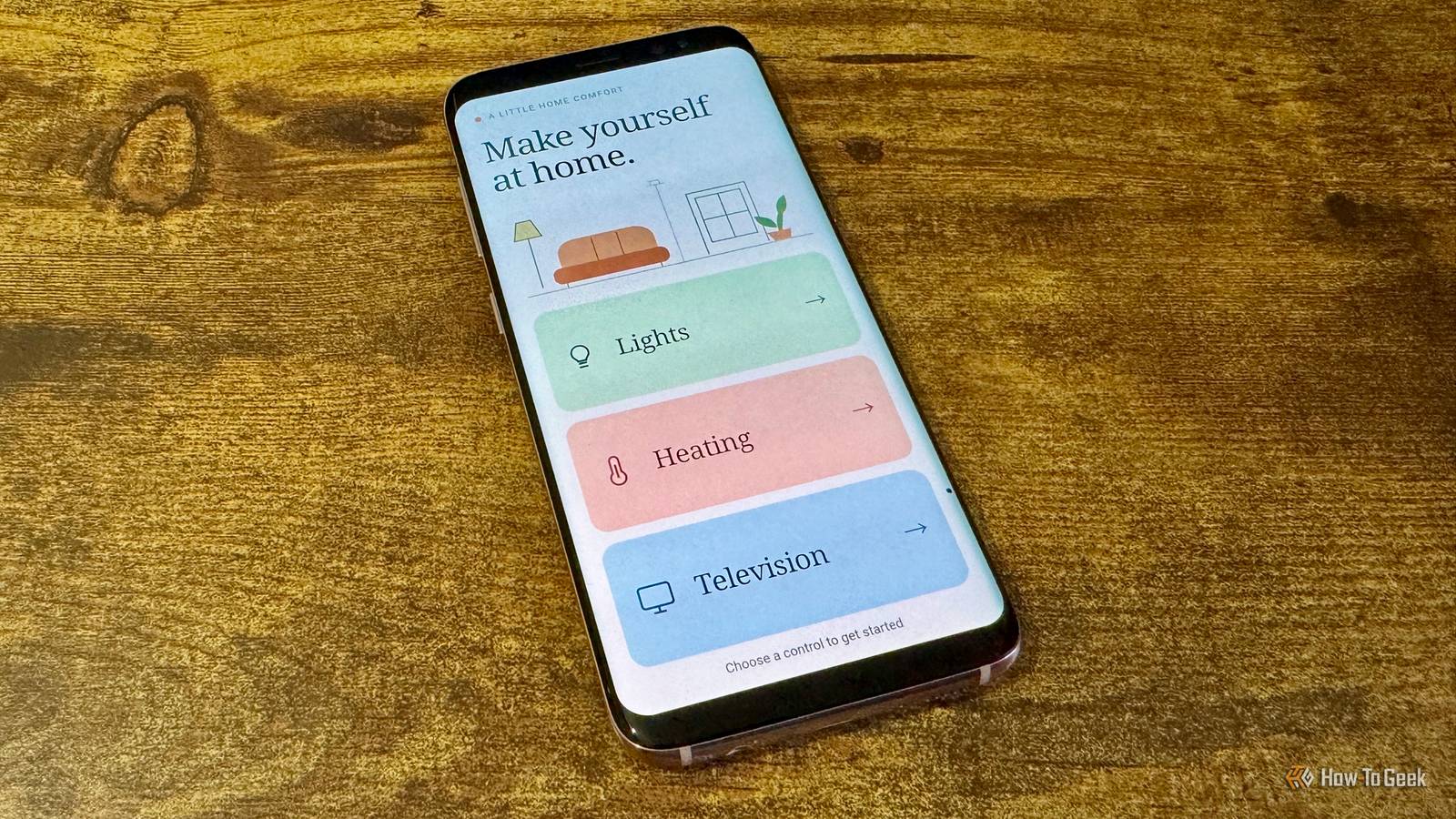
Published Oct 27, 2026, 6:30 AM EDT Adam has a degree in Engineering and has a life-long interest in technology. He has been writing for over a decade for various print and online publications, with a focus on consumer tech. He joined How-To Geek in 2024 while working at Pocket-lint. As well as being a long-term fan of Apple products, he also has a strong interest in smart home tech, running a Home Assistant server at home to automate all his smart home devices. He believes that the ideal smart home should work with minimal interaction from the user, with automations running as if by magic rather than requiring you to push buttons on a control panel. You can find more of his work on Muck Rack. My smart home has a lot of complicated automations, many of which have their own quirks. When guests visit, they just want to be able to do simple things like turning on the lights, watching TV, or turning up the heating. I decided to turn an old Android phone into a dedicated guest remote that's simple enough for anyone to use. Letting guests control your smart home can be tricky No one wants to read a 400-page manual The problem with having a smart home full of complex automations is that they don't always work completely intuitively. My family has had to learn some of the quirks of various automations in order to use them properly. For example, I set up my own universal remote to control all my AV devices from one remote instead of 12. It used to work flawlessly, but a Home Assistant update broke a key part of it. Pressing the power button on the remote used to turn off the TV, but now as soon as that button is pressed, Home Assistant sees it as a request to shut down, and my smart home software turns itself off. I've trained my family to leave that button alone and set up a different button on the remote to control the TV power. However, if a guest is visiting and wants to use the TV, they're almost certain to try using the big red power button on the remote to turn on the TV, which will bring my entire smart home to a grinding halt. I could provide them with detailed instructions on what to do and, more importantly, what not to do, but no one wants to read a manual just to watch Netflix. I needed to find a better way. My old Android phone seemed like an ideal choice for a remote It's simple to use and even technophobes know how to charge it My Wi-Fi remote isn't suitable to leave out for a guest, but it gave me an idea for what I could set up instead. A simple remote is exactly the type of thing that even the least technically-minded people can use. I just needed one that didn't have a button on it that would break my entire smart home. I thought about using a Zigbee remote or some other typical remote control, but the problem was that a standard remote wouldn't make it clear how to do things such as turn on lights, so it would still require its own instruction manual explaining how to use it, which just isn't guest-friendly at all. What I needed was a remote that I could customize and that could also clearly indicate what each control was for. My old Samsung phone seemed like an ideal solution. It can easily be set up to display smart home controls, and almost every human on the planet knows how to use one by tapping a screen. The best part was that it would also be immediately obvious how to charge the device, which certainly isn't the case for my Wi-Fi remote. I built the dashboard using Home Assistant The key was to make it as simple as possible Home Assistant is my smart home software of choice. It's free and open source, works with almost any smart home gadget you can find, and can run completely locally, making it far more private than options such as Alexa and Google Home. Home Assistant lets you create visual dashboards that you can use to control your smart home by tapping virtual buttons or sliding virtual sliders. I decided to build a dedicated dashboard designed purely for guests. The key was to make it as simple as possible. Guests usually only want to be able to do a handful of things. They want to be able to turn the lights on and off, they want to be able to turn the heating up or down, and they want to be able to watch TV. I designed the dashboard to have clear and simple controls that allow them to control lights, adjust the heating, and watch TV or streaming services. Each section is clearly labeled so that anyone can use the remote without having to learn how. Fully Kiosk Browser and app pinning ensure the remote stays visible Guests can't accidentally open other apps The final part of the process was locking the dashboard down. I didn't want people to accidentally close the dashboard and then not be able to get it back up again. There were two things that I used. The first was the Fully Kiosk Browser app. This displays the dashboard in full screen, removing browser controls and other distractions, so that guests can't tap something they shouldn't. The second was Android's built-in app pinning. This keeps the dashboard in place and locks it down so that you can't leave the screen, even if you press the Home, Recents, or Back buttons. You can only exit the dashboard by holding down the Back and Recents buttons and entering the phone's PIN. My guest remote has passed the test I tested the guest remote out with an elderly relative while they were babysitting, and it passed with flying colors. They were able to use the remote to do everything they wanted, and ended up watching a show on Netflix they'd always wanted to see, since they don't have an account of their own. Now all I need to do is remember to hide the Wi-Fi remote before guests visit.
I turned my old Android phone into a remote that guests can understand
Full Article
Original Source
Read the full article at Howtogeek →KhanList aggregates and links to publicly available news content. We do not host full articles from third-party sources. Always verify important information with original sources.