
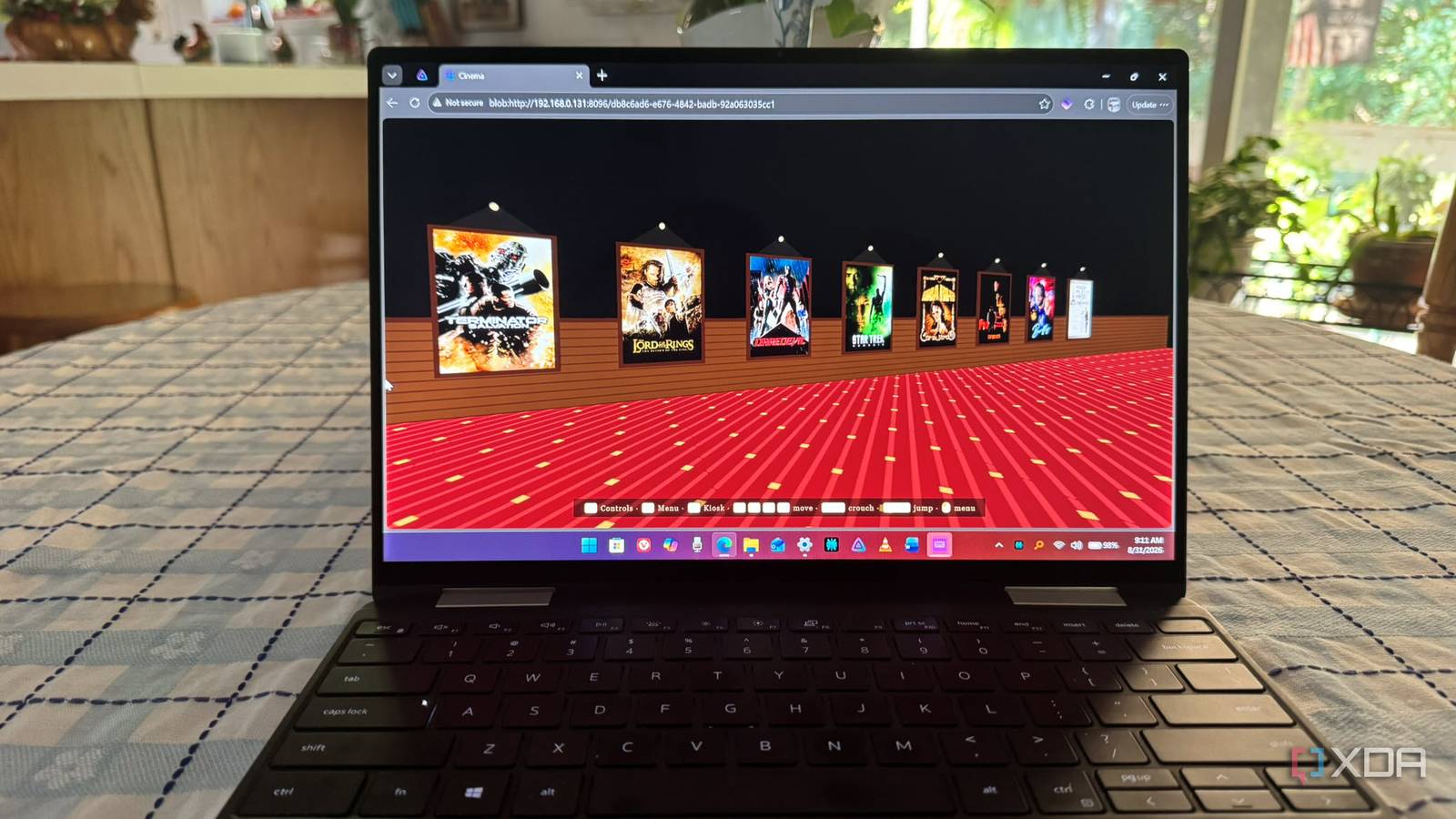
Published Sep 3, 2026, 11:30 AM EDT Based in rural Minnesota, Brian Burgess worked in IT for 10 years before finding his passion for writing about consumer technology. Brian earned his degree in computer and network technology in 2000. He held various IT positions, including help desk support, router installations for IBM, database administration, and other associate network administration roles. He's been a personal technology journalist for 18 years and has written thousands of articles about Microsoft products and services, Android, iOS, streaming, and more. He has written for notable tech sites including XDA, InformationWeek, How-To Geek, Byte, groovyPost, and others. When he is away from the keyboard, you will hear him playing guitar, working outdoors, and watching Star Trek. Having my own movies ready to watch from a self-hosted Jellyfin server is awesome. I can choose customized poster art, backdrops, metadata, and more. One missing piece I didn't think of was a virtual movie theater to enjoy my content. Then I discovered a fun plugin that lets me see my movie collection in a new light. The Jellyfin Cinema Project is a free, easy-to-install plugin that works with the current stable version of Jellyfin and includes several customization options I never get tired of. A virtual theater with Jellyfin Cinema Project A 3D room built from my movie library The third-party Jellyfin Cinema Project virtualizes my movie library and turns it into a 3D theater, with a lobby lined with posters for other movies in my collection. I can customize the look and feel of the experience through the available customization options. Installation is straightforward. I added the plugin through the dashboard, but you can also inject the JavaScript code directly onto the server to get it running. Once installed, a small Cinema button appears in the top-right of the Jellyfin Web header, next to other button controls. The virtual cinema opens and displays posters of the movies in your Jellyfin library. I can use my mouse and keyboard to virtually walk past the movie posters and select one to open a menu that lets me view the trailer, listen to music, or watch the movie. Once I play a movie, the lights dim, and it appears on the front theater screen, where I can watch it and use the keyboard to control playback. I can also leisurely walk past other movie posters while a movie is playing and switch flicks on the fly by selecting a different movie from my library. It's a fun 3D environment that makes watching movies even more enjoyable. It's also a unique way to browse through my movie collection. When I turned to the back wall of the virtual theater, I saw a cool artwork slideshow of extra movie art from my library to view after activating a movie poster. I could also watch clips of whatever movie was playing or view scenes by selecting the trailers option from the poster's menu. Adjust Cinema Project settings Customize your virtual lobby I have had a ton of fun customizing the Jellyfin 3D cinema experience because there are so many options. I can tweak settings while in the 3D environment. I can also go directly into the plugin's settings and manage the look and feel there. You can change how the posters look, menu behavior, and the look of the cinema itself. In the theater, when you come across the kiosk that rises from the floor, you can change the look and feel of the environment from the menu that appears. It lets me search, filter, and sort movies by genre, collection, and more. However, the kiosk is for the experience; you can change its settings by opening the menu with a keyboard shortcut. Still, it's pretty neat and will display a floating title of the movie poster I activate. The possible configurations are virtually endless. In addition to changing controls, I can change display settings, the room theme and size, post effects, how the back wall behaves, and more. The entire experience is part game and part functionality, as it lets me browse my movie collection on my Jellyfin server. It's helpful that there are plenty of settings and configurations I can tweak to get the perfect theater experience. A unique Jellyfin movie experience I'd like to see it on other devices The Cinema Project plugin is a blast to use, and you can even use a game controller to explore the environment and pick movies. One thing to note: when you click the Cinema button, it opens in a new browser tab as a blob URL. You need to keep the original Jellyfin Web tab open in the background. It currently runs only in a web browser, but when I go full screen, it's like playing a game. This means that it doesn't currently work with other Jellyfin clients. However, while it is a blast to play on the web, I'd love to see this on Android TV or another platform so I can experience it all on the big screen. I could experience it on my TV by plugging in my laptop, pointing my browser to my Jellyfin server, and using the keyboard and touchpad or a compatible game controller to walk around the theater and enjoy the 3D action on a large display, but that's not always practical. A fun movie theater experience for your Jellyfin library In the end, this has been an interesting, straightforward experience to set up. It runs directly in a browser, and there's no extra server or Docker container to set up. There are a lot of settings to tweak, which is fun if you enjoy customizing options with your plugins. The Cinema Project is a fantastic way to turn a Jellyfin movie library into a 3D theater environment.
I turned my Jellyfin library into a virtual movie theater with one plugin
Full Article
Original Source
Read the full article at Xda-developers →KhanList aggregates and links to publicly available news content. We do not host full articles from third-party sources. Always verify important information with original sources.