
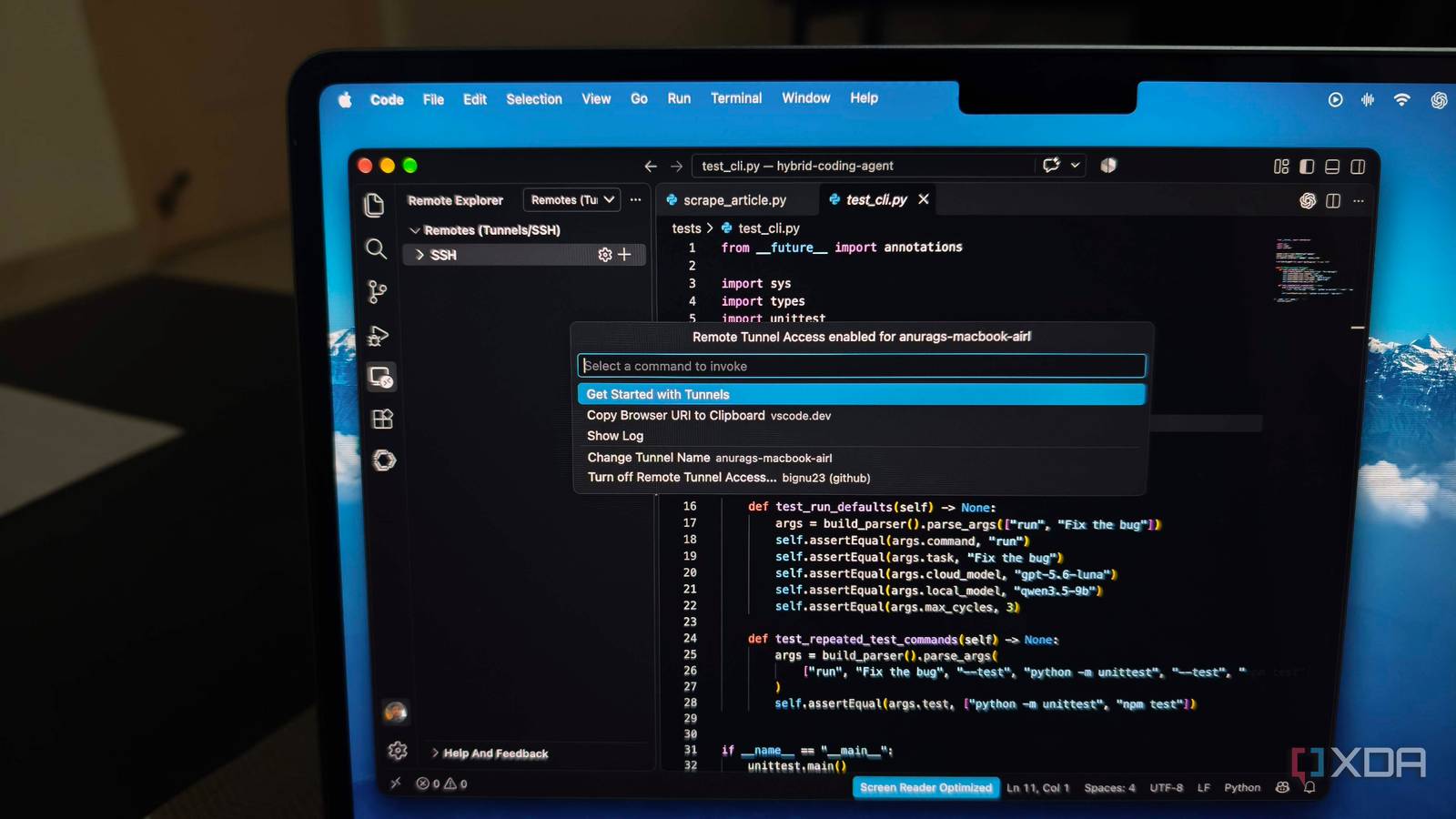
Published Oct 1, 2026, 5:30 PM EDT Anurag is an experienced journalist and author who’s been covering tech for the past 5 years, with a focus on Windows, Android, and Apple. He’s written for sites like Android Police, Neowin, Dexerto, and MakeTechEasier. Anurag’s always pumped about tech and loves getting his hands on the latest gadgets. When he's not procrastinating, you’ll probably find him catching the newest movies in theaters or scrolling through Twitter from his bed. I’ve stuck with VS Code because of its maturity and the features I keep discovering. Its extension ecosystem is hard to match, but there’s more to it than extensions. It has built-in voice-to-text that runs locally on your computer, and Remote SSH lets you use the hardware of a coding server even when you’re working from a budget laptop. More recently, I found Tunnels tucked away in the Accounts menu. It works a lot like Remote SSH, but you can use your desktop as a coding server, then access it from another device through a browser without installing VS Code there. I’ve set it up on my desktop and have been using it frequently. VS Code Tunnels is a godsend feature It’s useful in so many ways Remote Tunnels lets you use one computer’s coding environment from another device. VS Code runs a server on the computer you want to access and connects it to a browser or another VS Code installation through a secure tunnel. Your files stay on that computer, and it handles terminal commands, debugging, and extensions that run against the project. You’re working on the remote machine without streaming its entire desktop. The browser access makes this especially useful. You can use VS Code web for light editing but it cannot run a project on your desktop. However, once you connect it through a tunnel, you can use your desktop’s development environment from a budget laptop or even a tablet. You also don’t need to make the desktop reachable from the internet, open ports, or set up an SSH server. This is especially helpful when you’re traveling. Developer friends have told me VS Code Tunnels lets them travel with a lighter, less powerful machine and connect to their home computer without dealing with firewall configuration. I’ve even traveled with just an iPad, without having to move my files off my PC. You can leave your code and hardware on your desktop and still access them through a browser, which is a godsend. I can get to my desktop from a browser That alone makes this worthwhile The option is easy to miss. On the desktop you want to access remotely, open VS Code’s Accounts menu and select Turn on Remote Tunnel Access. After you sign in, VS Code gives you a vscode.dev link for that machine. You can also start a tunnel with code tunnel from the command line, but the Accounts menu is the simpler route when VS Code is already open. The main caveat is that your computer has to stay on, and VS Code has to keep running for the tunnel to remain available. That’s manageable with a desktop PC, whether it’s a Mac mini or a custom build. It’s less convenient with a laptop, which you’d need to leave running and plugged in for long periods. If your coding setup is already on a desktop, you can leave the tunnel available and connect whenever you need it. Once you have enabled the feature, open the tunnel link on another device, sign in with the account used to set up access, and you get a VS Code window in the browser connected to your desktop. You can open folders, edit files, and use a terminal running on the remote machine. Commands and supported extensions run there too. Tunnels is easier to live with than Remote SSH Tunnels requires much less setup I’ve used Remote SSH plenty, and it works well for servers I already have access to. Setting up a new machine takes more work. It needs an SSH server, login credentials, and a way for my laptop to reach it. If that machine is at home and I’m elsewhere, I also need to sort out access to my home network. With my desktop, I turned on Tunnels from VS Code’s Accounts menu and signed in. Now I can connect to it through the same account, whether I’m using VS Code on another computer or opening vscode.dev in a browser. I don’t have to set up SSH on the desktop or configure each device I might use to reach it. Of course, comparing the two isn’t exactly apples to apples. Remote SSH is geared more toward enterprise environments, where anyone with the necessary credentials can connect to a server from virtually anywhere. For accessing my desktop, however, Tunnels is more convenient because I can enable it directly in VS Code and return to my coding setup from another device. VS Code is still my daily driver There have been times when I’ve ditched VS Code and used another IDE for a while. For example, I recently switched to Cursor and also tried Zed, while giving IDEs like Antigravity and others a shot. But I keep coming back to VS Code because there simply isn’t another IDE I find as reliable. I’ll admit that it isn’t the fastest, and I don’t appreciate the telemetry Microsoft has added, but all in all, it’s still the platform I would use as my daily driver.
I turned my desktop into a remote coding server using VS Code's hidden tunnel feature
Full Article
Original Source
Read the full article at Xda-developers →KhanList aggregates and links to publicly available news content. We do not host full articles from third-party sources. Always verify important information with original sources.