
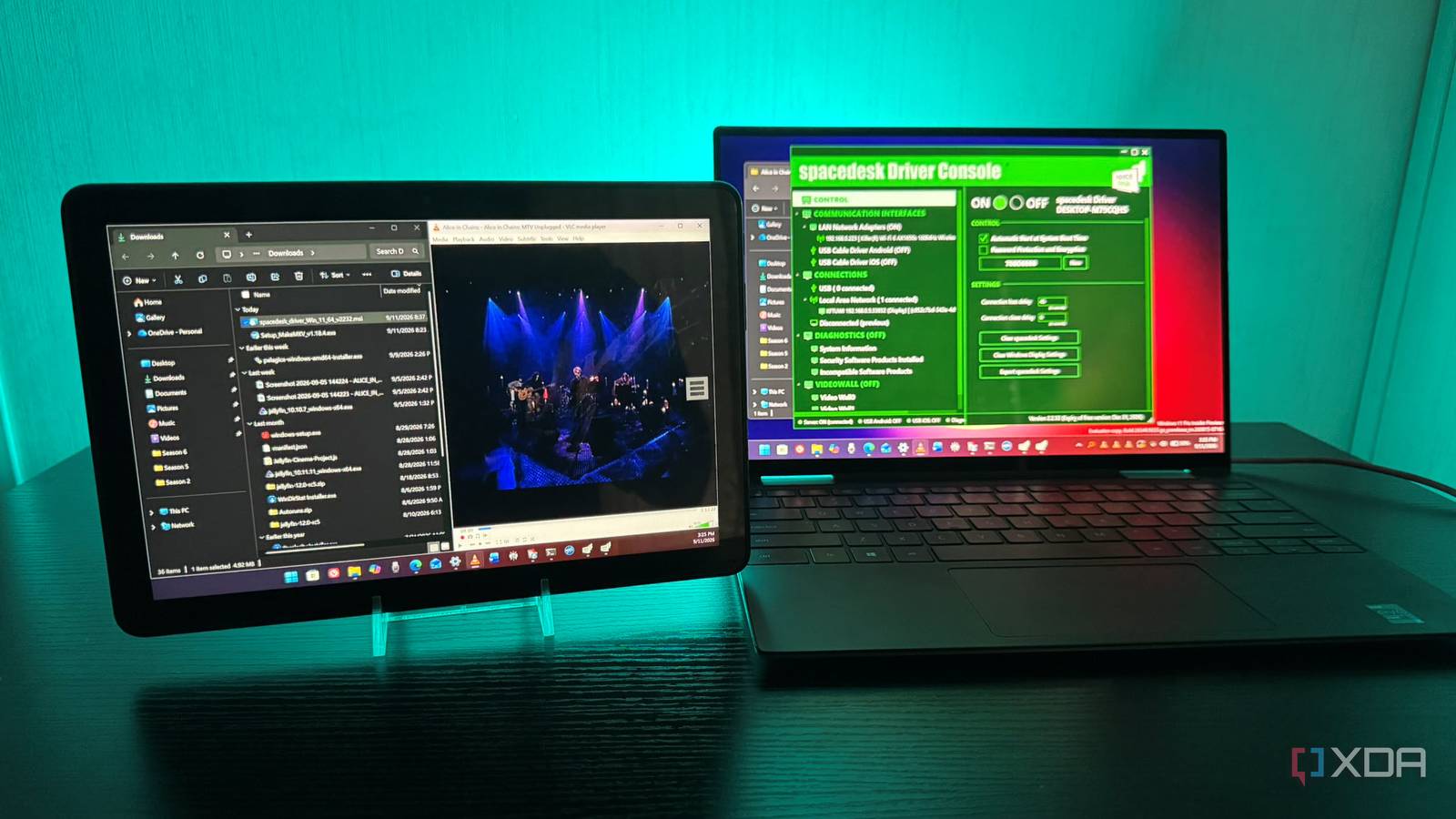
Published Sep 18, 2026, 1:00 PM EDT Based in rural Minnesota, Brian Burgess worked in IT for 10 years before finding his passion for writing about consumer technology. Brian earned his degree in computer and network technology in 2000. He held various IT positions, including help desk support, router installations for IBM, database administration, and other associate network administration roles. He's been a personal technology journalist for 18 years and has written thousands of articles about Microsoft products and services, Android, iOS, streaming, and more. He has written for notable tech sites including XDA, InformationWeek, How-To Geek, Byte, groovyPost, and others. When he is away from the keyboard, you will hear him playing guitar, working outdoors, and watching Star Trek. When Amazon first announced the Kindle Fire tablet line, I was curious to see how a cheap tablet would fare against the iPad. Needless to say, it didn't. Still, I gave the 13th-gen Fire HD 10 a second chance when it was released. Not much is happening with it either, and for seven years it has been collecting dust. I had actually forgotten about it. I found the tablet in my hoard of devices and thought I would see if I could turn it into something useful, like a second monitor for my Windows laptop. My journey took some twists and turns, but I finally landed on the best way to make it a tangible option. Building a second monitor Getting my old Kindle Fire Tablet ready for duty You can't simply plug the Kindle Fire HD 10 into a PC with an HDMI-to-USB-A or USB-C cable without extra software. Several apps can do this, like DuetDisplay, SuperDisplay, or Deskreen. After some research, I went with Spacedesk to connect the tablet wirelessly. But to start, the tablet hadn't held a charge in years, so I dug out the old charging cable and plugged it in. It took a full day to charge, but I wanted it fully charged since I didn't know how things would go. I realized the data and settings on the Fire HD were old, and I wanted a fresh start, so I reset it to factory settings. I didn't want anything to conflict with the software I was installing. I also enabled developer settings and allowed apps from unknown sources, not because I needed to for this specific project, but because I always do on Android-based devices. Getting software together Apps and settings need adjusting I started by installing Spacedesk Driver on my Windows machine since it's the go-to software for most of the Fire HD owners I spoke to. The software is also available for macOS, so you can try this with a Fire HD and your Mac. Installation is straightforward; just allow it through the Windows Firewall when prompted. Once that is installed and running, the next thing I needed to do was install the Spacedesk Viewer app on my Fire HD tablet. I found it in the Amazon Appstore under the name "Spacedesk Display Screen Cast." It's simply called Spacedesk in the Google Play Store, but it's the same app. If I wanted to be picky about a name or version number, I could have sideloaded the Spacedesk Viewer APK, but I just needed it to work so I could have my second monitor. I made sure Spacedesk Driver was running on my machine. The console offers several options when it's open, from requiring a password and encryption to running diagnostics, clearing Windows display settings, exporting Spacedesk settings, and more. I launched the app on the Fire HD 10, and it recognized the two computers where I'd installed the Spacedesk Driver app. I tapped my laptop, and it connected in seconds. Using the Fire Tablet as a monitor Physical placement and tying up loose ends Once it was connected, there was very little lag, but viewing a complete Windows desktop on such a small display isn't feasible. A 10-inch screen can make things hard to see, so I went into Windows Display settings, found the tablet acting as a monitor, and changed the resolution and bumped the scaling to 150%, since anything higher was too much. I also locked the tablet in landscape mode, so the virtual screen doesn't rotate unexpectedly. Now I have a second monitor, and I can control the desktop with a tap or a swipe. Spacedesk Viewer My newly repurposed Fire tablet was working as I had hoped. The next obstacle was finding the right placement of the Fire HD tablet next to my monitor. I used to have a stand designed specifically for the Fire HD 10. It let me turn the tablet into an Echo-like device I could place in the kitchen or another room for easy access. Since I no longer have it (or can't find it anyway), I used a small picture frame to prop it up next to my laptop screen on my desk. Since I usually use my laptop at home with the Fire HD as a second monitor, on the same network and close to my router, I find a wireless connection easiest. I am not a fan of dealing with wires if I don't have to. However, you can also hardwire them with a USB cable. This is a good reason to enable Developer Options, which are required along with USB debugging on the Fire tablet when using a physical connection. A handy use for an old device Overall, I am glad I thought about bringing the Kindle Fire HD tablet back from the dead. It really makes a great second monitor when I use my laptop. I keep my main work on the laptop's main display and put media playing in VLC or an open email inbox on the Fire's screen. Spacedesk does a good job, and if I ever need to hardwire the screens together, I can — with different settings.
I turned my 7-year-old Kindle Fire into a second monitor, and it’s useful again
Full Article
Original Source
Read the full article at Xda-developers →KhanList aggregates and links to publicly available news content. We do not host full articles from third-party sources. Always verify important information with original sources.