
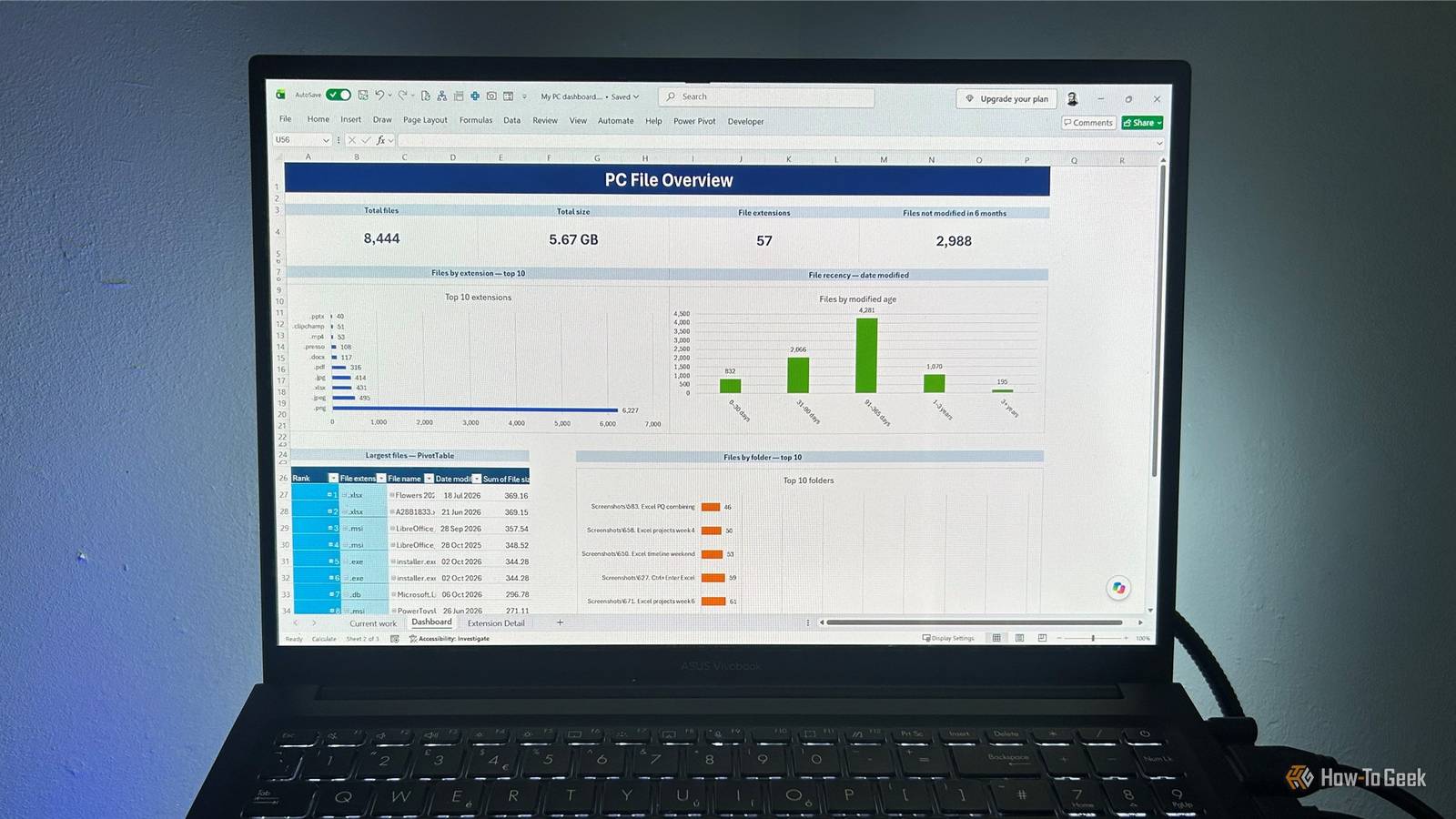
Published Oct 7, 2026, 7:00 AM EDT Tony Phillips is an experienced Microsoft Office user with a dual-honors degree in Linguistics and Hispanic Studies. Prior to starting with How-to Geek in January 2024, he worked as a document producer, data manager, and content creator for over ten years, and loves making spreadsheets and documents in his spare time. Tony is also an academic proofreader, experienced in reading, editing, and formatting over 3 million words of personal statements, resumes, reference letters, research proposals, and dissertations. Before joining How-To Geek, Tony formatted and wrote documents for legal firms, including contracts, Wills, and Powers of Attorney. Tony is obsessed with Microsoft Office! He will find any reason to create a spreadsheet, exploring ways to add complex formulas and discover new ways to make data tick. He also takes pride in producing Word documents that look the part. He has worked as a data manager in a secondary school in the UK and has years of experience in the classroom with Microsoft PowerPoint. He loves to encounter problems in Microsoft Office and use his expertise and legal-level training to find solutions. Outside of the Microsoft world, Tony is a keen dog owner and lover, football fan, astrophotographer, gardener, and golfer. You might not think of Excel as a tool for managing your PC. I didn't either. But after years of accumulating files, I used it to build an inventory of everything in my Windows user folder, and suddenly I could see my computer in a way I never had before. Once that information is in Excel, I can filter it, combine different criteria, build dashboards, and follow whatever rabbit hole I happen to find. Excel for Microsoft 365 on Mac also supports Power Query's local folder connection, although the steps and available options may differ from the Windows examples shown below. I turned my PC's files into an Excel dataset Power Query does the heavy lifting Power Query doesn't always get the credit it deserves. I've been guilty of thinking of it mainly as a way to clean up data before bringing it into Excel. This project reminded me that it can do much more than that. I used Power Query's From Folder connection to point Excel at my Windows user folder. After clicking Transform Data, this gave me a clean list of every file in that folder and all the nested folders beneath it, without listing the folders themselves. If you're dealing with many files, pulling everything into Excel can make the workbook quite heavy, so a frequently used or project-specific folder may make more sense than a complete inventory. Power Query gave me the basic information I needed, including each file's name, extension, dates, size, and full folder path. The inventory even picked up the workbook I was using to build the dashboard, making it feel nicely tangible. I removed the binary Content column, then clicked the Expand icon at the top of the Attributes column to extract the file size. I also gave files without extensions a useful label using Transform > Replace Values so they wouldn't appear as a blank category in my charts. I then loaded the cleaned-up results into an Excel table. The benefit here is that this isn't a one-time export. I added a test file, refreshed the query, and watched it appear in the inventory. After I deleted the file and refreshed again, it disappeared from the table. That means I can use the workbook as a refreshable view of my files. I turned the inventory into a dashboard Copilot gives me the big picture I've tested Copilot many times in recent months, and I've found that it's pretty good at creating dashboards, even from a complex dataset like this. That said, Copilot is by no means the only way to get there. I've built perfectly capable Excel dashboards using only PivotTables and PivotCharts. If you do use Copilot, give it a fairly precise specification. Also, I've found that getting Copilot to analyze the data first can result in a dashboard based too specifically on what stands out in the current dataset. Because I wanted a dashboard I could refresh as my file inventory changes, I tend to avoid that approach. Here's the prompt I used. If needed, tweak it to match your intended setup: Create a compact Excel dashboard from the underlying file inventory table. Include cards for total files, total size, number of unique file extensions, and files not modified in 6 months. Add a chart showing the number of files in each file-age band based on Date modified, and charts for files by extension and the top 10 folders by file count. Add a PivotTable showing the 10 largest files with rank, file extension, file name, file size, and date modified. Base every dashboard element on the underlying file inventory table rather than analyzing the current data to decide what the dashboard should contain. The dashboard gave me an overview of what's actually on my PC. The extensions chart immediately showed that a huge proportion of my files don't have an extension, while file types such as R, PNG, JS, LOG, and XML also appeared surprisingly often—a reminder that a Windows file collection contains far more than the Word documents, spreadsheets, and PDFs. The largest-files PivotTable surfaced everything from Excel workbooks and installers to executables and database files, while the folder chart showed where most files are concentrated. Some of the busiest locations turn out to be application and cache folders, which gives me another way of thinking about what's actually on my system. Now that I had a snapshot, I wanted to start investigating the underlying files themselves. The table is where I can really investigate my PC Excel lets me ask questions of my files This is the part that made the project click for me. First, I went back to the underlying inventory and looked at Date modified. Sorting the column from oldest to newest revealed files with timestamps going back to 2019. I then copied the folder path from one of those rows, pasted it into the File Explorer address bar, and saw what was sitting there. I didn't have to remember which folder contained it or work my way through nested directories hoping to stumble across the right location. I also followed up on other things that caught my eye. For example, I noticed that the two largest files in my inventory were both Excel workbooks, so I wanted to see what other large XLSX files were taking up more space than I realized. I sorted the table by file size, then used Text Filters > Ends With on the Extension column to show only XLSX files. I found 13 files larger than 1MB, including two around 369MB and another two around 43MB. That's the kind of thing I could easily overlook while browsing my folders in File Explorer. While the inventory is great for analyzing my files, it also doubles as a searchable index I can use when I need to find something. For example, if I'm trying to find a particular How-To Geek document, I can filter the Name column to show files containing "geek." I can also simply press Ctrl+F and search the inventory for a keyword. And that's only the beginning. Because the files are now data, I can add slicers and combine different fields to find things like large files that haven't been accessed in years, old PDFs in a certain folder, the file types taking up the most space, or files created during a particular period. If I wanted to take this further, I could create PivotTables from the same inventory, complete with a timeline for Date modified. More importantly, I can come back to the same workbook whenever I want, refresh the inventory, and investigate whatever catches my eye at the time. Excel can reach far beyond its grid Connecting Power Query to my PC showed me just how far Excel can reach beyond the data I normally put into it. The same From Folder connection can also work at a much more focused level, combining like-for-like weekly Excel reports from the same folder into one complete dataset. That's why it's worth digging around in Excel's Get Data drop-down. You might find a way to use Excel for something you hadn't considered before.
I turned Excel into a portal for everything on my PC and finally made sense of my files
Full Article
Original Source
Read the full article at Howtogeek →KhanList aggregates and links to publicly available news content. We do not host full articles from third-party sources. Always verify important information with original sources.