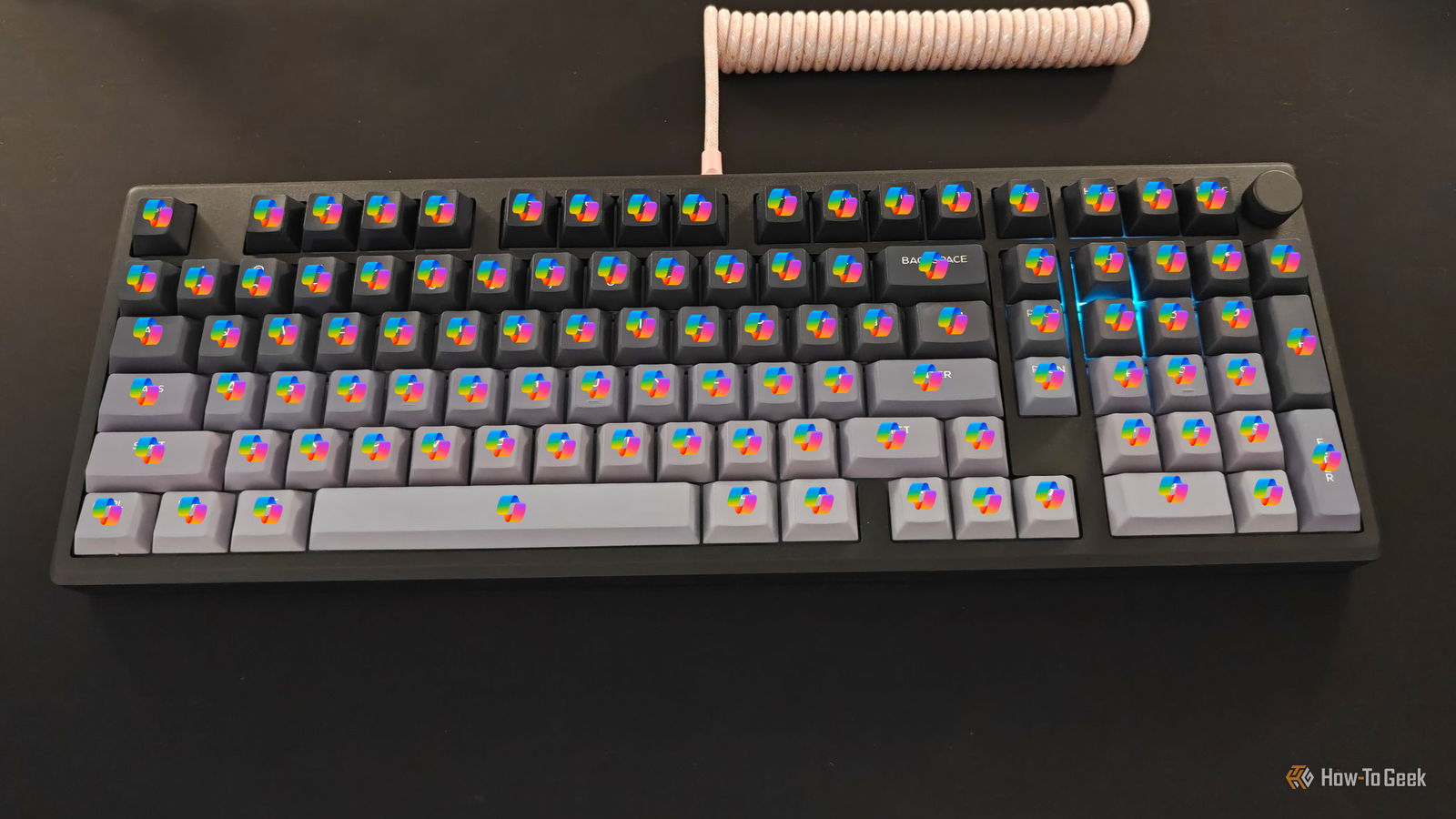
Published Aug 12, 2026, 3:30 PM EDT Ismar is a Senior Author at How-To Geek. He previously worked as a writer, editor, and general manager at a content agency before joining the team in 2023. He began his writing career in 2021 after completing a BA in English Language and Literature. Beyond How-To Geek, Ismar has contributed to Red Stag Fulfillment and Authority Hacker. He has also worked on various SEO projects to help clients improve their search visibility. Ismar has been around Windows PCs since the age of three, so friends and family naturally chose him as the resident tech support. His projects often involve tinkering, such as disassembling mechanical keyboards and gaming mice to mod his beloved gear. He also enjoys pushing hardware to the max through overclocking while staying on a reasonable budget. An avid gamer, Ismar has logged thousands of hours across various genres, including first-person shooters, RPGs, racing games, and roguelites. When he is not at his desk, he is probably exploring other people’s phones to discover their quirks and features or experimenting with the latest AI tools. In his free time, Ismar enjoys spending time with his wife, working out at the gym, playing guitar and bass, cooking gourmet meals, and traveling. Above all else, he’s a proud cat owner. A couple of years ago, Microsoft introduced a new specification that allowed laptops and desktops to brand themselves as "AI PCs" or "Copilot+ PCs." One of the requirements to meet the specification was having a dedicated physical Copilot key. Looking at my own custom gaming PC and mechanical keyboard, I thought: why not take it a step further and turn the entire keyboard into one giant Copilot key? That way, I'd be living on the absolute bleeding edge of modern computing. I'd have nothing but Copilot, everywhere, all at once. And that's exactly what I did. How I turned my keyboard into a giant Copilot key It was easier than I thought The first thing I had to do to make this experiment work was rebind every key on my keyboard to launch Copilot. There are a few third-party apps that can do this, but I found it easiest to use the popular QMK/VIA firmware that my Epomaker Galaxy100 Lite supports. I already had VIA installed, so I plugged in my keyboard and launched the app. I went to the Macros section and recorded a macro that automatically presses Windows+C, the standard hotkey for launching Copilot. Next, I went back to Keymap and proceeded to rebind every single key to the newly created macro using my mouse. Just like that, every key on my keyboard became a Copilot key. And when I opened the Copilot app for the first time in my life, I immediately noticed a problem: there wasn't a dedicated speech-to-text dictation feature, only the option to talk directly to Copilot. So, the first thing I did was ask Copilot how to add voice dictation to the app so I could communicate with the AI tool more easily and copy and paste its outputs. Copilot pointed me toward the Windows Settings app, where I found the Voice Access accessibility feature—and this turned out to be absolutely essential for the experiment. It let me talk freely into my microphone to type quickly, leaving Copilot to clean up all those filler words and, hopefully, turn my rambling into something that actually resembled written text. It's also worth pointing out that, besides my microphone, my mouse was essential to making this experiment work. Without it, I'd have been completely stuck—I wouldn't even have been able to copy and paste text or send messages to Copilot, since I no longer had an Enter key to press or any other functional keyboard input. The mouse was my lifeline in this setup. My muscle memory kept failing me I miss my keyboard The first thing I realized was just how much I relied on muscle memory for both my day-to-day work and general computer navigation. Since I was relying on a lot of copying and pasting to make this work, I kept subconsciously hitting Ctrl+C and Ctrl+V, only to bring Copilot to the forefront each time. But the real struggle was losing even the most basic navigation keys and shortcuts, like Enter, Backspace, and Alt+Tab. As someone who leans heavily on the keyboard for everything from navigation and shortcuts to actual typing, this almost felt like losing a limb. Just like that, all those deeply ingrained habits became useless in favor of the almighty Copilot key. It wasn't a complete disaster, though, as I quickly discovered that Voice Access could press the buttons I needed for me. I could literally say "press Backspace" or "press Enter," and it would carry out the command. Soon after, I learned that I could also delete or rewrite entire sections simply by selecting the text before saying the command or dictating the new text. This also meant that every time I wanted to delete a letter or break up a paragraph, I had to spell it out verbally. It wasn't as quick as using my keyboard, but it was better than having to ask Copilot to handle these mundane tasks for me. But I suppose this was the price I had to pay for the privilege of turning my entire keyboard into a Copilot key. The silver lining was that no matter which key I smashed, trusty old Copilot would pop up instantly. Thanks, Microsoft! My typical workday turned into a nightmare At least I didn't have to worry about typos At first, I thought talking freely into Copilot could come with its own unique advantages. I could unload my brain directly into AI, ramble in detail without much effort, and let the tool sort through the mess. The method helped capture fleeting ideas without having to worry about structure. But in reality, Copilot polished my words into generic blog-style text that stripped away my personality. It completely rewrote what I dictated into almost completely sterile prose, so the text I normally write in a conversational style ended up feeling bone dry. I'm not going to sugarcoat it: living this way for a full workday was brutal. My usual workflow involves a mix of fast typing, quick shortcuts, and frequent app switching. Because now every key on my keyboard was Copilot, I had no choice but to rely on dictation and Microsoft's AI tool, slowing me down to a crawl. Even simple tasks like deleting a letter, starting a new paragraph, or adding a period involved saying the commands aloud. I was lucky enough to limit myself to writing only this article and communicating with my colleagues via Slack, but I can't imagine trying to produce detailed instructions or format text this way—it would be a nightmare. Adding photos to an article, writing alt text, renaming files, and resizing images all became way too much work, even if I technically had Copilot to help. I also noticed that dictation often missed brand names, forcing me to correct them manually, letter by letter, whenever Copilot couldn't provide the necessary fix. I genuinely can't overstate how much this experiment slowed me down. Everything got so much harder without a keyboard: resizing images, taking screenshots, adding links, searching for photos in our gallery, and so on. As a writer, I'm used to typing, revising, and reshaping sentences quickly. Voice dictation and copying and pasting Copilot's responses using just my mouse made that process painfully slow, and I was never fully satisfied with the output. Copilot might have helped organize my notes, but it dragged down the actual writing process. A dedicated Copilot key is one thing, but I couldn't wait for this nightmare to be over After fighting my keyboard throughout this experiment, I was more than happy to restore it to the default layout. While Copilot did help me unload ideas onto the page and gave my carpal tunnel syndrome a short break, I wasn't really happy with how things went or how the article turned out—I basically ended up rewriting the entire thing. What I learned is that Copilot works best as a companion, not a replacement. A single dedicated Copilot (or any AI tool, for that matter) key makes sense—as long as you can disable it when you don’t need it or even rebind it to something more useful. But turning every key into Copilot was more of a gimmick than a productivity hack, as it made even simple tasks incredibly exhausting. As a one-day experiment, it was quirky and fun, but to be honest, even one Copilot key is plenty.
I turned every key on my keyboard into a Copilot button and survived a full workday
Full Article
Original Source
Read the full article at Howtogeek →KhanList aggregates and links to publicly available news content. We do not host full articles from third-party sources. Always verify important information with original sources.