
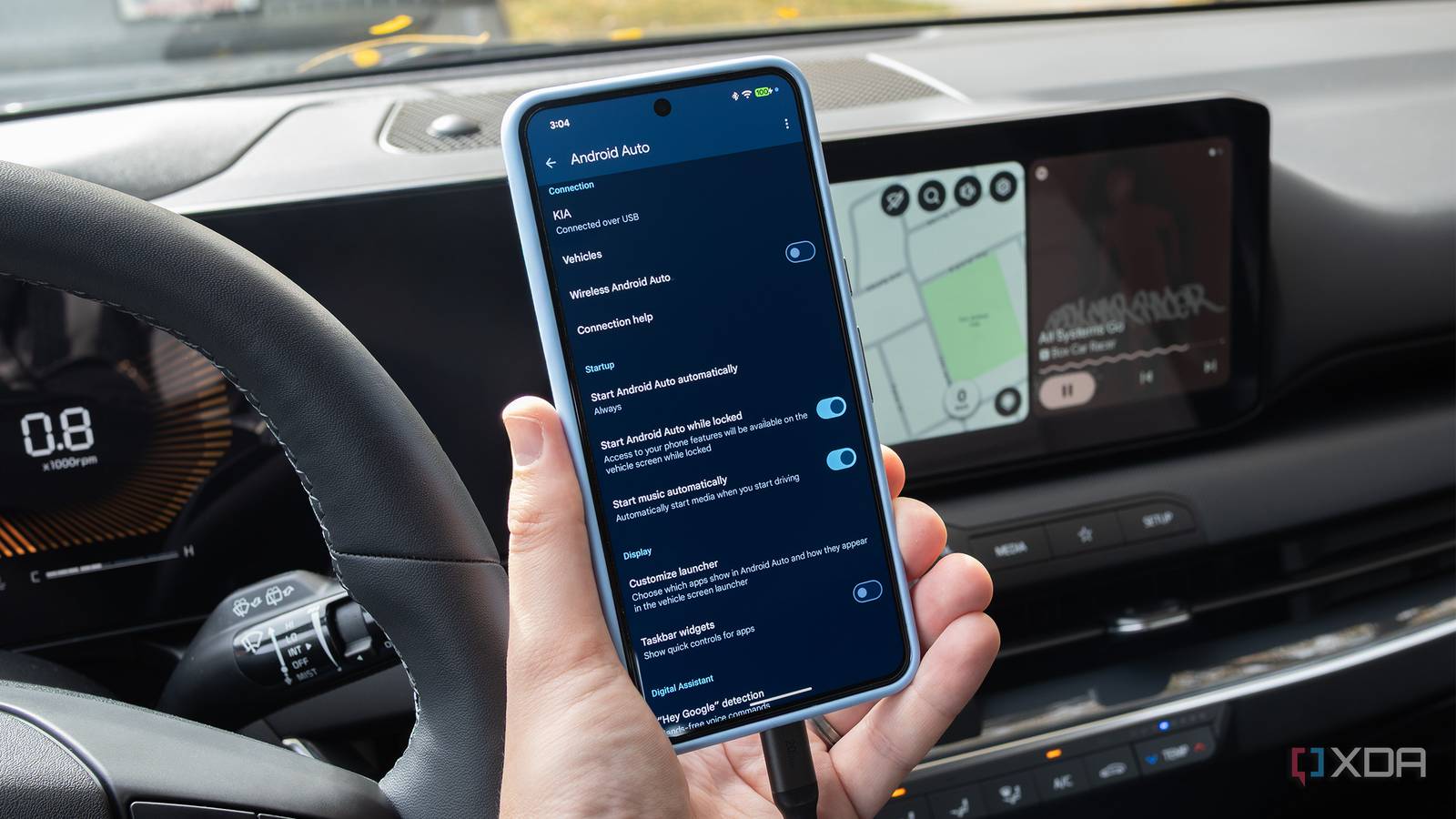
Published Oct 3, 2026, 8:30 AM EDT Patrick O'Rourke is XDA's News Editor and Entertainment Segment Lead. Previously, he was Pocket-lint's Editor-in-Chief, the Editor-in-Chief of Canadian tech publication MobileSyrup, and earlier in his career, he worked as the technology editor at the Financial Post and Postmedia. He's based in Toronto. Over the past 15 years, he's written thousands of articles. Patrick has also interviewed dozens of tech industry executives and covered GDC, E3, Gamescom, WWDC, Apple keynotes, Samsung Unpacked events and more. Patrick has a BA in journalism from Toronto Metropolitan University. My daily smartphone is an iPhone 18 Pro right now (I'm working on my review), so I don't always have my Pixel 11 Pro on me. Because of this, I often get in my car to pick up my son from daycare, only to realize I've left Google's flagship Pixel sitting on my desk, forcing me to resort to CarPlay. It's not that I dislike Apple's CarPlay in-car infotainment platform; it's just that I write about Android Auto a lot for work, and I often use my hour-long daycare drive to try out new apps and features. After I forgot to bring along my Pixel 11 Pro a few days in a row, I decided it was time for a change. The nature and privilege of my job mean I have countless phones lying around, so I figured it made sense to leave an older Android device in my vehicle as a dedicated Android Auto device. That way, I won't have to worry about forgetting my Pixel 11 Pro at home or performance issues from having too many apps open while using the in-car platform. I ended up dusting off my Pixel 8 Pro The three-year-old phone is more than powerful enough to handle Android Auto Of all the Android devices I have, I picked the Pixel 8 Pro because it's just over three years old. Of course, I could have used a way older device, going all the way back to the five-year-old Pixel 6 Pro or the four-year-old Galaxy S22 Ultra, which I also have buried in a drawer. However, since I have the still-very-modern Pixel 8 Pro sitting around, it ended up being my best option (you can always use a much older Android device if you need to). After dusting off the phone, the first thing I needed to do was update it to Android 17, which took far longer than I expected. For some reason, the entire process took about three hours, with the download running extremely slowly and the installation taking quite a while. After that, I configured Android Auto the same way I do on every device, including my Pixel 11 Pro. This means that I removed several apps from Android Auto's launcher by navigating to Settings > Connected Devices > Connection Preferences > Android Auto > Customize Launcher. As always, I stick with apps I actually use, like Spotify and Waze. The simpler my Android Auto app setup is, the better. Next, I turned on Start Music Automatically (this setting is also under the Android Auto settings menu) since I prefer tunes to start playing as soon as I get into my car. I also turned off all messaging features except Show Message Notifications, and shifted the layout so navigation apps appear closer to the driver by going to Change Layout > Navigation Closer to Driver. Lastly, I set Start Android Auto Automatically to Always on my phone and in my car, and also turned on Start Android Auto While Locked. These settings are straightforward, but they're key to a streamlined Android Auto experience and easy to overlook when you're setting up a new device with the in-car platform. What does using a dedicated Android Auto phone really change? It's all about convenience In most cases, I keep my Pixel 8 Pro turned on and in my car's center console. This means I need to remember to charge it every few days, but since I'm not using the phone for much else, that hasn't been a big problem. Since my Kia K4 Hatchback doesn't have built-in navigation, I rely heavily on Waze and Google Maps to figure out where I'm headed. Now, as soon as I get into my car, Android Auto instantly boots up when my K4 connects to the Pixel 8 Pro because I leave it plugged in and set the phone to connect to my iPhone 18 Pro's data hotspot automatically. To prevent my car from constantly trying to connect to the Pixel 8 Pro, I turned off wireless Android Auto at the operating system level. To do that, I needed to turn on Android Auto's Developer Settings first by following the steps below: Open the Settings app on your Android phone. Navigate to Connected Devices (the second option), then Connection Preferences. Tap on Android Auto. Scroll down and tap Version until Developer Settings are enabled (you'll see a notification that you have only three taps left when you're close). After these steps, Android Auto's Developer Settings should appear when you tap the Three-line button. Next, tick off Wireless Android Auto to turn the feature off. My Pixel 8 Pro's battery only charges when the car is running, since my vehicle turns off its USB ports when it isn't running; there's no real risk of damaging the smartphone's battery. In a way, it's almost like having Android Auto built directly into my car now, and at times, I forget the phone is even there. I get into my car, turn it on, and Android Auto starts instantly. I don't have to worry about having my phone on me, its battery life, or whether I have too many background apps running. I'm good to go as soon as I get in my car, and that worry-free convenience is hard to beat.
I turned an old phone into a permanent Android Auto device, and my main phone never connects to the car anymore
Full Article
Original Source
Read the full article at Xda-developers →KhanList aggregates and links to publicly available news content. We do not host full articles from third-party sources. Always verify important information with original sources.