
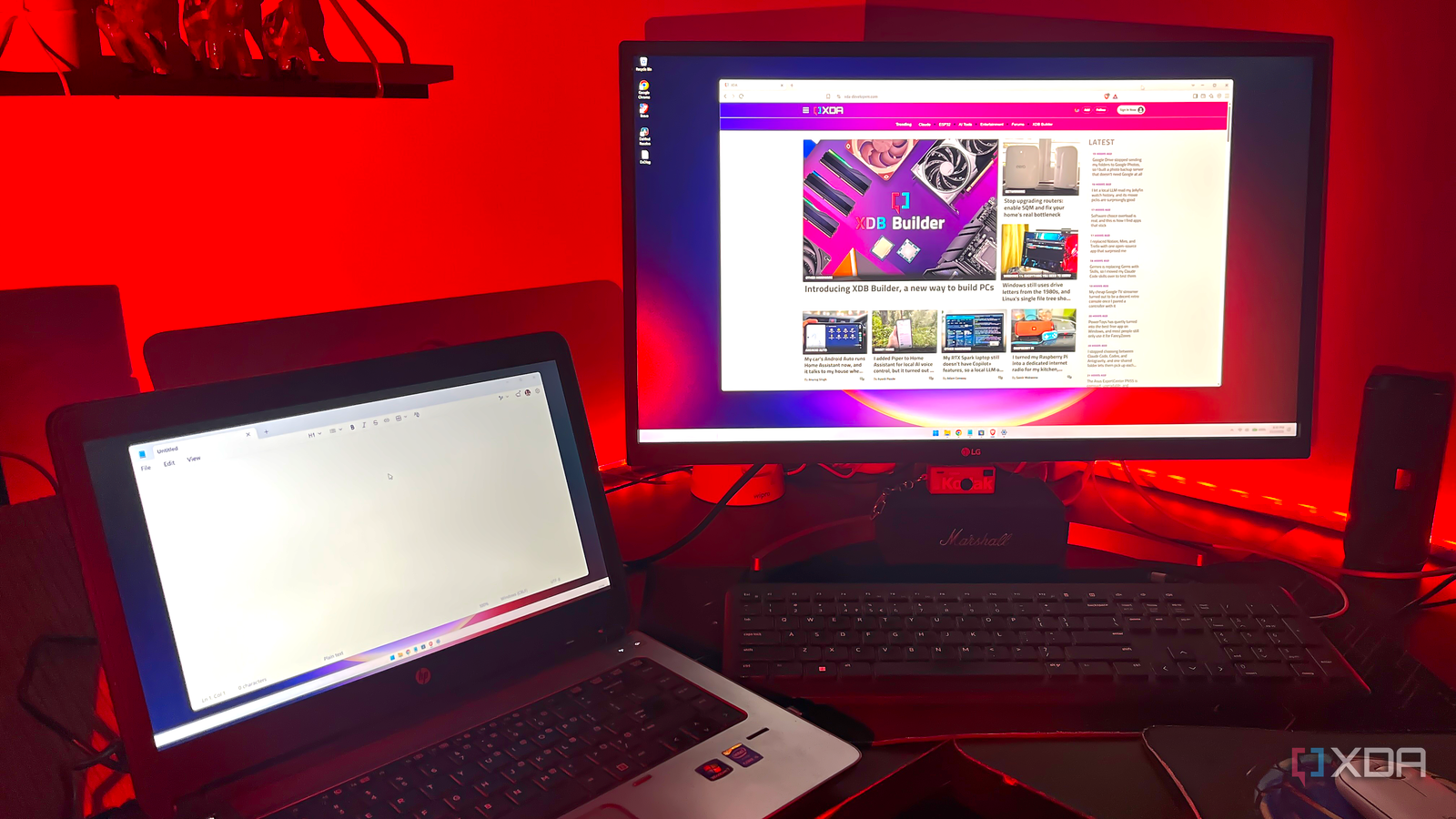
Published Nov 4, 2026, 4:31 PM EST With over five years of experience in the tech industry, Kazim excels at simplifying complex topics, making them accessible to tech enthusiasts and general readers alike. He has extensively covered the Windows ecosystem, from Windows 7 to Windows 11. When he’s not writing, you’ll find Kazim planning weekend getaways or diving into tech verticals beyond his expertise. If you have an old laptop lying around collecting dust, it doesn't have to. You can reuse an old laptop in several ways, but my favorite is repurposing it as a secondary display. For years, I only relied on the built-in display, but once I tried a dedicated monitor, there was no going back. I even got a portable monitor for trips. But an old laptop works perfectly too, sometimes even better, and there are two reasons for that. First, it's incredibly simple and anyone, literally anyone, can do it. You don't need any third-party apps or additional hardware. Everything you need is built natively into Windows. And second, this doesn't require any major changes. This means the laptop can serve as a second screen during the day and a reliable streaming solution at night. A second screen boosts productivity I have always been a fan of multi-display setups As I said earlier, when I first tried a multi-monitor setup, I quickly realized what I was missing out on. While a single display isn't all that bad when you have a handful of active programs or tasks to monitor, a second monitor makes multitasking a breeze. For instance, I can have the browser and other critical applications I am actively using on one display, and the ones that don't need as much attention, like the screenshot tool I use for articles, on another. It makes the overall experience so much more streamlined and clutter-free. For this reason, I have got an external display for almost every situation. There's a dedicated 27-inch monitor on my workstation, a smaller, portable monitor for when I am traveling, and the old laptop that I use occasionally. The only reason it doesn't find as much application is that it's bulkier. But if I hadn't already purchased two external displays, it certainly would have been an integral part of my workflow because it's so easy to set everything up. It's easier than you think You don't even need a third-party app If you ask me, the best part of using your old laptop as a second screen is how easy the setup is, even though everything is wireless. Yes, we won't use an HDMI cable because laptop HDMI ports are designed for output, not input. And we won't be relying on any third-party apps either. Windows has everything you need. Here's some more good news: both systems don't need to be running the same Windows iteration. For example, my old laptop has Windows 10 while my PC runs Windows 11. So, even if your old laptop doesn't support Windows 11, this works well. As for the setup, open Settings on your old laptop, navigate to System, then into Optional features, search for Wireless Display, tick the checkbox for it, and click Install. Once that's done, go to Projecting to this PC under System settings, and click the Launch the Connect/Wireless Display app to project to this PC option (it may say Connect or Wireless Display, depending on whether your old laptop runs Windows 10 or 11). The screen should show a "ready for you to connect wirelessly message." On your main computer, open Settings -> System -> Projecting to this PC. Follow the link to install the Wireless Display optional feature, then return to configure projection and open the receiving app. Once your old laptop appears on the list, click the entry, and your system should instantly duplicate the display across both screens. If you have never tried a multi-display setup, I would recommend switching the projection setting from "Duplicate" to "Extend." This way, you can actually drag apps between displays. Additionally, go to the Display settings and click Identify (or Windows + K) to see how both screens, your PC and the old laptop, are numbered. Once you know that, drag the displays above to rearrange them as you see fit. Personally, I like arranging them the same way the displays are physically present, i.e., if my old laptop is placed to the left of my monitor, that's where it will be in the arrangement. The setup may not be as flawless But it's free I must say, Windows does a pretty good job. The setup doesn't feel slow, at least for the average user. But you can't really expect it to replace a dedicated monitor. A monitor is certainly the better choice. And with a monitor, you are likely to get better image quality and lower latency than a fairly old laptop. But Windows does this for free, provided you have an old laptop lying around that supports Miracast. And it's also more convenient. A new monitor, on the other hand, will cost you decent money. So, if adding a second screen is all you need, using your old laptop, or simply any other Windows laptop, is a viable option. Reusing old tech is a smart choice At a time when electronic waste generation is at an all-time high, reusing or repurposing old tech is, in my opinion, the need of the hour. Most of us have things lying around that still work perfectly, but we no longer use them as much. So rather than letting them collect dust, like your old laptop, it's time to put them to good use. And as you can see, it's not always that complicated. This one, for instance, is pretty simple and doesn't take more than a few minutes. If you have a knack for it, you can repurpose old PC components in several waysand make them useful again. In the end, it's all about being a little creative and smart.
I turned an old laptop into a second screen for my PC without needing to take it apart
Full Article
Original Source
Read the full article at Xda-developers →KhanList aggregates and links to publicly available news content. We do not host full articles from third-party sources. Always verify important information with original sources.