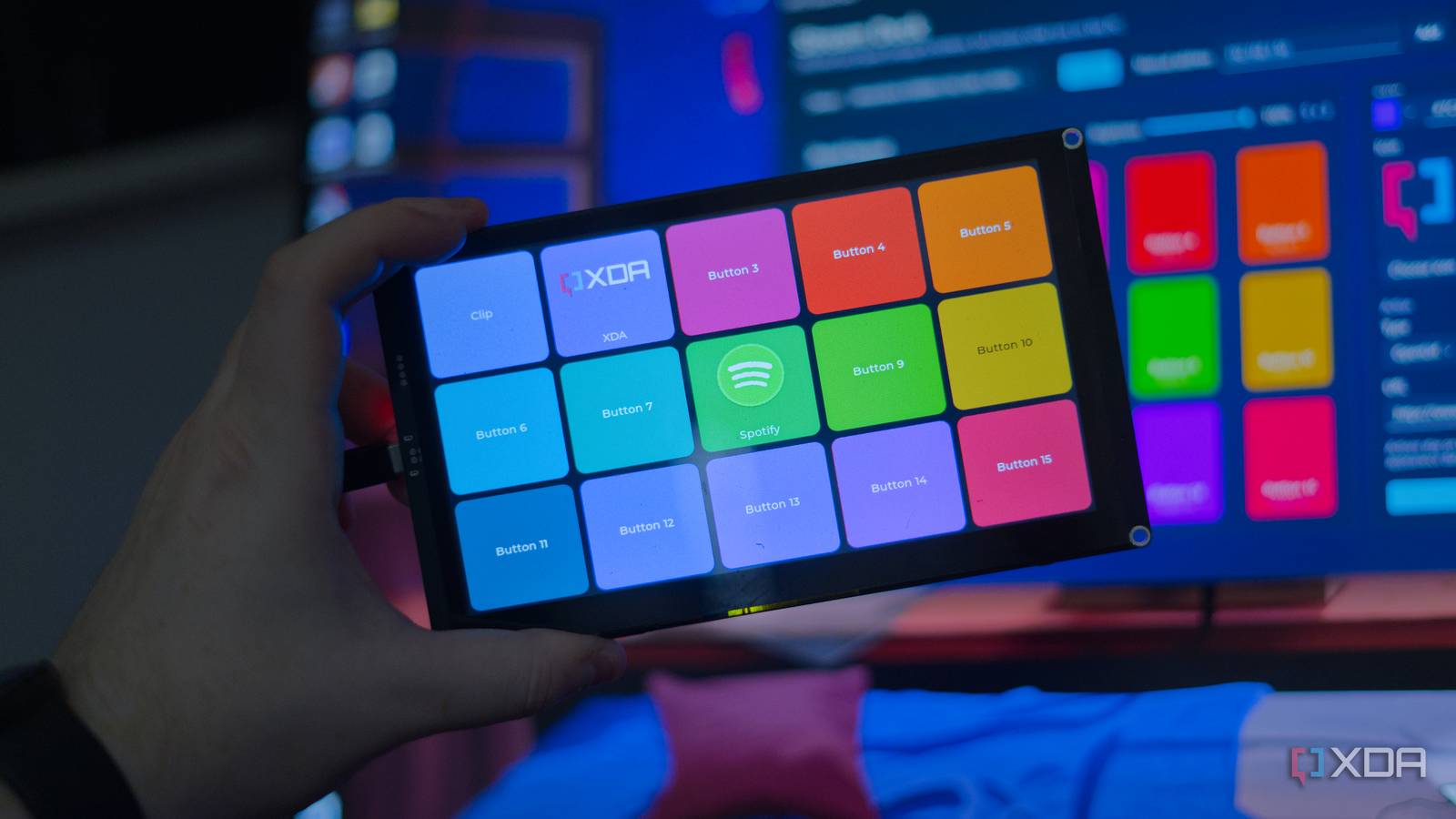
An Elgato Stream Deck with 15 keys will run you around $150, and for that, you get a small panel of tiny buttons that does more or less what Elgato's software lets it do. It's a good product, and plenty of people happily pay for it, but the keys are small, the screen you're working with is limited, and you're tied to the ecosystem Elgato built around it. Cheap ESP32 touchscreens have become good enough that I figured I could do better for a fraction of the price, so I did. I took a 7-inch Elecrow CrowPanel Advance, which costs somewhere between $40 and $50, wrote firmware to turn it into a 15-button grid, and paired it with a small Windows app I wrote to handle the actual button presses. The result is a networked Macro Pad with a screen several times larger than Elgato's, for about a third of the money. It isn't a polished commercial product, and I'm not trying to make it into one. The desktop app is Windows-only by design (as building it to be inclusive of macOS and Linux required significantly more hard-coding), the panel itself is deliberately dumb and does nothing on its own, and there are rough edges I'd still like to clean up. Despite all of that, it works out of the box, and it's been sitting on my desk doing its job for a while now. Even better is that it cost me next to nothing compared to the thing it's designed to replace. The CrowPanel Advance is a lot of screen for very little money A 7-inch touchscreen beats a panel of tiny keys The board I used is the Elecrow CrowPanel Advance 7-inch, an ESP32-S3 paired with an 800x480 IPS touchscreen, 8MB of PSRAM, and 16MB of flash. Depending on where you buy it and which options you pick, it lands somewhere around $40 to $50. That alone undercuts a 15-key Stream Deck, and instead of fifteen little caps you get one large, responsive display you can lay out however you like. My firmware renders a fixed grid of five columns by three rows, so fifteen buttons, using LVGL 9.5 for the interface on top of LovyanGFX driving the panel and touch. Each button gets a title, a color, and an optional icon, and the whole grid is drawn with a partial buffer in the ESP32's internal RAM while the icons sit in PSRAM. The current build only uses about a third of the available RAM, so there's plenty of headroom left on a screen this size. Getting the panel driving at all took a bit of work, and previous projects I've built with it served as the base of this project. The CrowPanel Advance uses an SC7277 display driver alongside a GT911 touch controller, and that combination can be complex to work with. Thankfully, I had the code to base off of, and once it's up and running, it's a pretty nice screen to look at. The panel stores no actions at all It only knows what a button looks like Nearly every DIY Stream Deck I've come across has the microcontroller pretend to be a keyboard, sending keystrokes over USB or Bluetooth with the macros stored on the device itself. Mine, though, works the other way around. The panel holds nothing but appearance data, so button IDs, titles, colors, icons, and brightness, and when you tap a button, all it does is announce across the network that a particular button was pressed. It never sees a single keyboard shortcut or executable path. Everything that actually does something lives on the computer. The ESP32-S3 can act as a native USB HID device if you want it to, but I went the other way because of what I wanted the buttons to do. A keyboard, real or emulated, can only send keystrokes. It can't launch a specific program by its path or open a URL in your browser, and those actions have to run on the computer. Since I needed something on the PC either way, handing it the button presses too made more sense than splitting the logic across two places. In practice, a press is about as simple as it sounds. I tap a button on the panel, the firmware sends a small message over the network naming that button, and the desktop app looks up whatever I've assigned to it and carries it out. The panel has no idea whether that button opens OBS, mutes my mic, or does nothing at all, and it doesn't need to. Its job starts and finishes at reporting that the button press actually happened. That split ends up making a few things possible. The panel talks over Wi-Fi, so there's no cable tethering it to the machine, and it can sit wherever I want it on the desk. The firmware also stays simple and stable, since it never has to know anything about OBS or my browser or whatever else I'm controlling. All of that messy, computer-specific logic lives in a language far nicer to write it in than embedded C++, and I can change what a button does without ever reflashing the board. The panel advertises itself over mDNS as an _esp32-streamdeck service, so the desktop app can find panels on the network automatically, or connect to one by address if you'd rather do it by hand. Configuration goes back and forth over a small HTTP API, and the button-press events come in over a WebSocket on their own port. Each event carries a protocol version and a sequence number that only ever counts up, and the app throws away oversized messages and ignores malformed JSON instead of letting a bad packet take down the connection. None of it is complicated, but it means switching between panels or dropping off the network doesn't leave anything in a broken state. There's only one downside with this approach, and it's to do with how applications protect themselves on Windows. Because another application, and not a keyboard, is sending the input, keyboard inputs will only work in applications running at the same privilege level. Aside from that, it just works. The Windows app does everything the panel doesn't Total control from your PC The paired application is a .NET app built with Avalonia, and it's what you use to set up what every button actually does. A button can open an HTTP or HTTPS URL, launch an executable or a batch file with arguments, or send a Windows keyboard shortcut. For OBS, for instance, you'd pick a shortcut like Ctrl+Shift+F1, assign the same one inside OBS under its hotkey settings, and the button then triggers whatever OBS has mapped to it. Sending that shortcut goes through the Windows SendInput API, and it turned into one of the more complicated parts of this build. The INPUT structure you hand to it has to include the mouse-input member of its union even though I only ever send keyboard events, because without the largest member present the struct comes out to 32 bytes instead of the 40 that Windows expects, and it will reject the entire call. As mentioned, there's the privilege issue too, as SendInput respects Windows integrity levels. This means that the app and whatever it's sending inputs to needs to be running at the same privilege level. The icons get handled on the PC-side, too, rather than making the ESP32 decode image files. When you assign an image to a button, the app scales it onto a 112x96 canvas, fills the background with the button's color, and converts the result into the RGB565 format the panel expects. It then takes a SHA-256 hash of those bytes, uploads the asset to a temporary file on the panel, and the firmware checks both the size and the hash before it accepts anything and swaps it into place. The panel never has to trust that it received a valid image, because it can prove it did, and any leftover or unreferenced icons get cleaned up so the small filesystem doesn't get filled up. There's a fair bit of defensive design here, because I wanted to ensure that it would just... work. Configurations are saved per device under your local app data, written to a temporary file first and swapped in only once the write succeeds, meaning that a crash mid-save can't corrupt your layout. A config file that does end up damaged falls back to a default 15-button grid rather than stopping the app from starting, and the app checks a panel's API version and grid dimensions before it treats it as compatible, so it won't push a layout to a board that can't display it. What it's like to use day to day It saves time In daily use, it does exactly what I set out to build. I glance at a big, bright grid of labelled buttons, I tap one, and the thing I wanted to happen happens on my PC a moment later. The network round-trip is quick enough that I've never once felt it, and having a full 7-inch touchscreen instead of a cramped row of keys changes how much I can fit on it at once. The limitations are real and mostly by design. It's Windows-only, because I didn't want to maintain keyboard injection across three operating systems for a personal project, and restricting it that way kept the app smaller and simpler. The bigger catch is that the panel does nothing unless the desktop app is running, which is the direct trade-off for keeping all the smarts on the computer. Disconnect it from that app and you have a nice display showing buttons that don't do anything. That last point is what I want to approach next, and it's made possible by the ESP32-S3. Since the chip can act as a USB HID device, I could have the panel fire keyboard shortcuts directly, so the shortcut buttons would keep working even with the app closed. The launch-a-program and open-a-URL actions would still need the app, since a keyboard can't do those on its own, so what I'd end up with is a hybrid. Simple shortcuts work standalone, and the richer actions go through the app when it's there, which degrades far more gracefully than the all-or-nothing setup I have today. For now, I've got a 15-button Stream Deck alternative with a screen that's a lot better than Elgato's offering, built from a board that costs a third of what the real thing does, running software I can change whenever I like. The firmware and the Windows app are both up on GitHub if you want to build your own or pull it apart to see how it works. It took more effort than buying a Stream Deck off the shelf would have, but I'd do it again in a heartbeat.
I turned a $45 ESP32 touchscreen into a Stream Deck, and one big screen beats Elgato's fifteen tiny keys
Full Article
Original Source
Read the full article at Xda-developers →KhanList aggregates and links to publicly available news content. We do not host full articles from third-party sources. Always verify important information with original sources.