
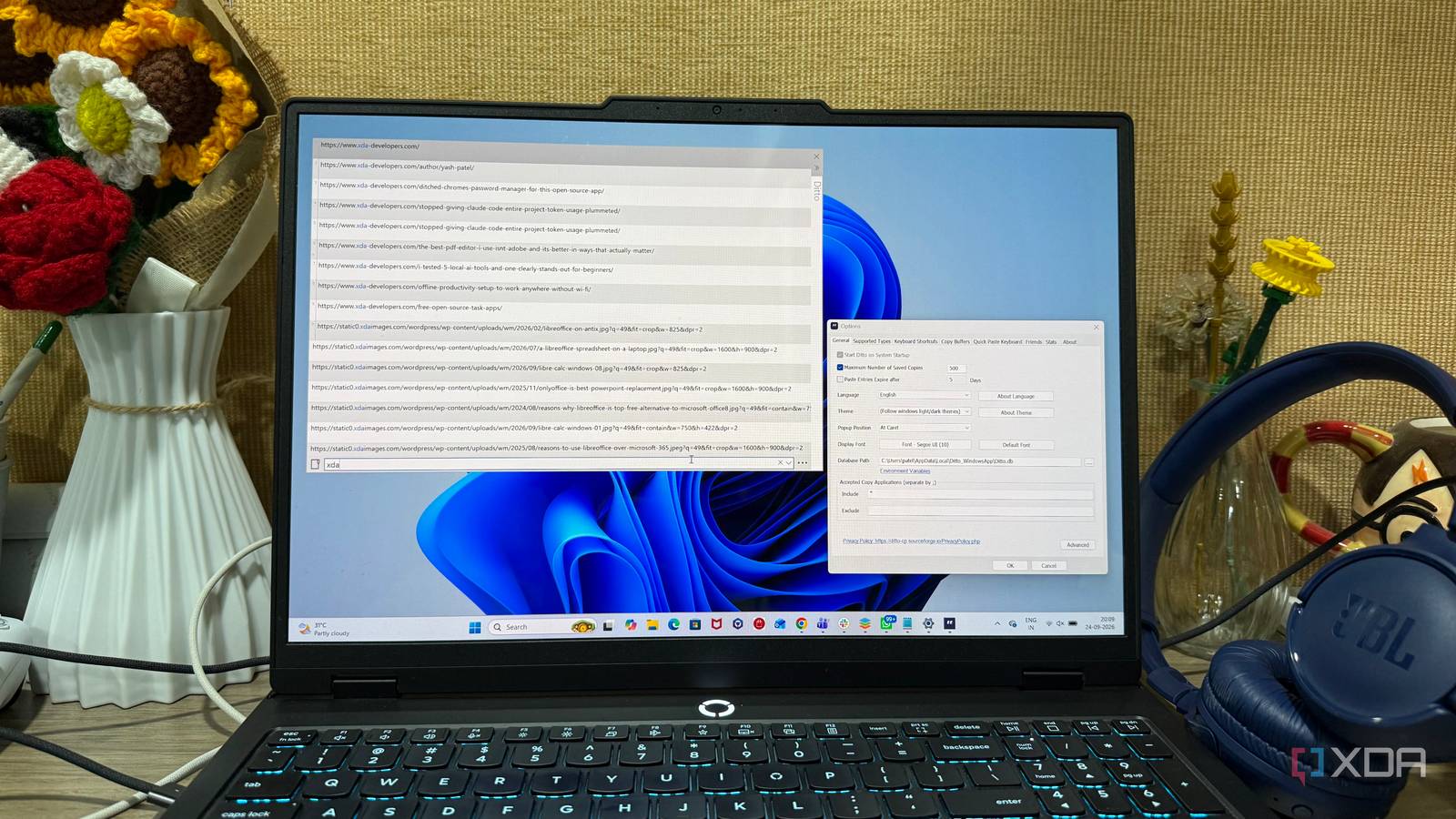
Published Sep 27, 2026, 5:30 PM EDT Beginning his professional journey in the tech industry in 2018, Yash spent over three years as a Software Engineer. After that, he shifted his focus to empowering readers through informative and engaging content on his tech blog – DiGiTAL BiRYANi. He has also published tech articles for MakeTechEasier. He loves to explore new tech gadgets and platforms. When he is not writing, you’ll find him exploring food. He is known as Digital Chef Yash among his readers because of his love for Technology and Food. I hit Ctrl + C and Ctrl + V more times in a day than I realize. Windows' Win + V shortcut makes it easy to access my clipboard history, but it only keeps the latest 25 items. That limit started becoming frustrating when I was working with dozens of snippets, links, screenshots, and pieces of text throughout the day. I didn't want to keep copying something just because I had pushed it out of my clipboard history. So I decided to try a few open-source alternatives and use them during my normal work. I wasn't interested in picking the tool with the longest feature list. I wanted something that could handle my everyday clipboard needs without getting in my way. After testing four options, one of them finally stuck. Ditto Simple enough to become invisible Ditto was the first clipboard manager I tried, and it felt like something Windows should have included by default. I didn't have to rethink how I copy and paste things. I installed it, left the default settings mostly alone, and started using it alongside my usual workflow. What stood out was how quickly I could bring up previous clipboard entries. Instead of copying something again because I had already overwritten it, I could simply open Ditto and pick the item I needed. That sounds like a small change, but it became useful surprisingly often. I also liked that Ditto doesn't try to turn clipboard management into a complicated productivity system. There are plenty of options available if I want to customize how it behaves, but I can mostly ignore them. The interface isn't flashy either, which I actually prefer for something I use several times throughout the day. After a few days, Ditto stopped feeling like an extra application and started feeling like part of Windows itself. ClipCascade The Docker-powered clipboard experiment Credit: ClipCascade took a slightly different approach from Ditto, and that was the first thing I noticed while using it. The interface felt focused on keeping my clipboard activity accessible without making it feel like another application I had to constantly manage. I liked that I could keep it running quietly in the background and access it when I needed it. The layout was simple enough that I didn't have to spend time figuring out where everything was. For a tool that sits there waiting for me to copy something, that simplicity matters. I installed ClipCascade using Docker, though, and that made the experience feel less natural for my everyday Windows workflow. It worked, but I had to think about the setup more than I wanted to. I also didn't develop the same familiarity with it that I had with Ditto. Those small differences added up, and I eventually moved on. Edge Drop The clipboard with a clever shelf Edge Drop was probably the most visually different clipboard manager I tried. Instead of opening a traditional clipboard window, I could move my mouse to the edge of the screen and bring up a shelf containing everything I had copied. That small change made it feel quite different from the usual clipboard history approach. I liked the way it handled different types of content. Text, links, images, screenshots, and files appeared as separate cards, so I could quickly pick the item I wanted. The drag-and-drop feature was also useful. I could grab something from the shelf and drop it directly into another application instead of copying and pasting it again. The automatic grouping was another nice touch when I copied several items together. It kept the shelf from becoming too messy while I was working. I liked the idea behind Edge Drop, but the shelf-based workflow wasn't something I naturally reached for every time. After using it for a while, I found myself returning to the more straightforward interaction I had with Ditto. CopyQ Feature-rich, but not for me CopyQ was the most feature-packed clipboard manager I tried, and I noticed that almost immediately. It gives me far more control over how I manage copied content than I expected from a clipboard tool. There are tabs, commands, shortcuts, and plenty of settings that let me change how it behaves. I liked having that level of control, especially when I wanted to organize different types of copied content separately. CopyQ also lets me edit clipboard entries, which came in handy when I copied text that needed a quick change before using it somewhere else. The problem was that I didn't really need all of this for my everyday work. I could spend time configuring CopyQ to behave exactly the way I wanted, but that wasn't something I wanted to do with a clipboard manager. I just wanted to copy something, find it again when I needed it, and get back to work. My choice is simple After trying all four, I ended up keeping Ditto on my Windows PC. The others had their own strengths, and I can see why someone might prefer them for a specific workflow. But I wasn't looking for a clipboard manager that gave me another system to learn or maintain. I wanted something that stayed out of my way and made copying and pasting less frustrating. Ditto fit that role without making me change how I already work. I didn't need to keep adjusting settings or think about the application itself. I could simply use it and get on with my work. Ditto Ditto is a simple clipboard manager for Windows that adds a lot more functionality, including the ability to remember copied files and retain items indefinitely.
I tried replacing default Windows clipboard with 4 open source tools, and only one stuck
Full Article
Original Source
Read the full article at Xda-developers →KhanList aggregates and links to publicly available news content. We do not host full articles from third-party sources. Always verify important information with original sources.