
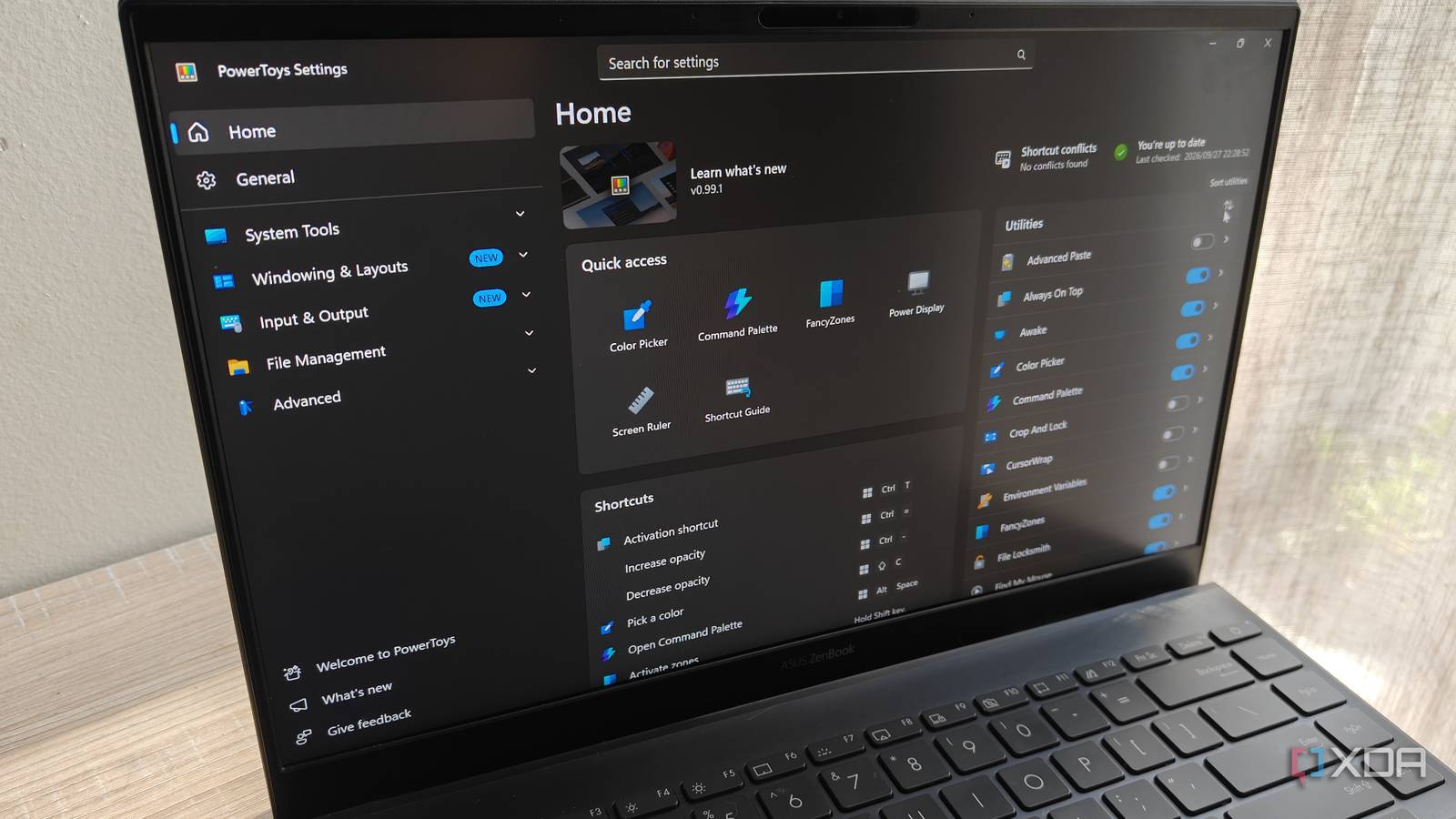
Published Oct 6, 2026, 10:00 AM EDT Megan is a Software Writer at XDA Developers who has been writing about consumer technology since 2016. With a postgraduate degree in New Media journalism, she has always been passionate about diving deep into topics and writing about them in a way that makes them easier to understand for everyday consumers. She runs her own blog called Tech Valkyrie and has contributed to Tom's Guide and Android Authority. She also worked at MakeUseOf as a Lead Editor. In her spare time she plays video games and geeks out about the latest tech. There's no denying that PowerToys is great software for expanding the capabilities of your Windows PC, but it can be difficult to discover each utility and integrate them into your workflow. In a way, it's suffering from success — there's so much packed in that it's easy to overlook smaller tools that add powerful features. So I activated every PowerToys utility on my PC for a week to see how it would change my experience. While some tools went underutilized, I also discovered new ones that have become an essential part of my Windows setup. Command Palette became my system monitor It also provides nifty quick access to apps and commands I was initially interested in Command Palette as a way to launch my apps and run commands from a central hub. I have the Windows search bar, but find it cluttered, even after disabling some of the unnecessary items on the interface. Command Palette provided an alternative, located at the top of my screen. From here, I could run commands and quick app actions without leaving the toolbar. For example, when I access the calculator, I can perform the calculation by typing the equation right into the same search bar. This is great for simple formulas that you just want a quick calculation for. But the Command Palette also includes a system monitor on the right that shows CPU, memory, and GPU usage, as well as network speeds. This lets me monitor my system resources without opening Task Manager. Now, I only resort to opening the tool when a process has gone awry, and I need to force it to close. Power Display changed the way I manage my screen's brightness It should really be a built-in feature Power Display is a utility that should be built into Windows. While you can easily adjust the brightness of laptop displays in the display settings, you can't do the same for displays attached to a PC tower. For these displays, you need to manually change the brightness using the monitor's settings and buttons. Power Display doesn't work with every screen, but it works with my main display. This means that when I need to adjust its brightness, I can easily use a slider instead of struggling with my monitor's physical buttons and annoying menu. The utility also lets you set profiles that adjust the warmth and contrast of your displays, with the exact features depending on your monitor's compatibility. For me, this has definitely become one of the most useful PowerToys utilities I use. Peek became the easy way to preview files No more juggling between apps I often find myself opening files just to quickly check their contents. This might be double-checking something in an image, making sure a PDF has the correct values, or looking at a specific element in a screenshot. Usually, this process involves completely opening the file in compatible software. I end up switching between apps and windows, which can disrupt my workflow. However, with Peek, you don't have to open multiple applications. You can quickly preview different items in a special Peek window, from PDFs to images, and even Office documents or videos. This speeds up your workflow when you're just quickly checking documents. What appealed to me the most is that it works with the tool I used to replace File Explorer, meaning I don't need to switch back to Windows' file management tool to use it. Some utilities didn't fit into my workflow A few tools sounded great on paper, but once I enabled and tried them, I didn't really find myself using them much. This has a lot to do with my workflow, rather than the usefulness of the tools themselves. For example, Color Picker is a really nifty tool when your work involves design and creating images or other visual work. However, my work involves mostly writing, so I didn't find myself really using the tool even though I had it enabled. Keyboard Manager, which allows you to remap your keyboard keys, similarly fell away after I enabled it. My keyboard comes with a few shortcuts already enabled which I've learned to use over time, so remapping them just seems counterintuitive. I also have a dedicated volume knob on my keyboard that takes care of this use case. Image Resizer was another tool I thought I'd use more. But for my articles, cropping to a specific aspect ratio is more important than a specific image size. So I didn't end up really using the tool all that much. Finally, I thought I might use Workspaces to quickly launch a series of apps at specific positions on my screen. Then I realized that my current workflow involves just launching my browser, which already remembers where I placed my tabs. Most of my work happens in web apps, so I didn't end up needing separate workspaces for my daily productivity flow. Try out PowerToys utilities; you might discover your next favorite There are plenty of other utilities I haven't mentioned here that are still worth checking out. Quick Accent and ZoomIt aren't utilities I use frequently, but when I do need them, they prove incredibly useful. Likewise, I haven't found the perfect use for FancyZones just yet, but I plan to keep experimenting with the feature. If you've tried PowerToys but haven't really explored all its features, I recommend enabling the ones you've skipped for a week or so. You might find the perfect tool for a niche use that suits you. Or you may find a powerful utility like Power Display that completely changes the way you manage certain parts of your Windows experience. Microsoft PowerToys is a collection of free, open-source tools that can improve Windows productivity.
I tried every PowerToys utility for a week, and a handful actually changed how I use Windows
Full Article
Original Source
Read the full article at Xda-developers →KhanList aggregates and links to publicly available news content. We do not host full articles from third-party sources. Always verify important information with original sources.