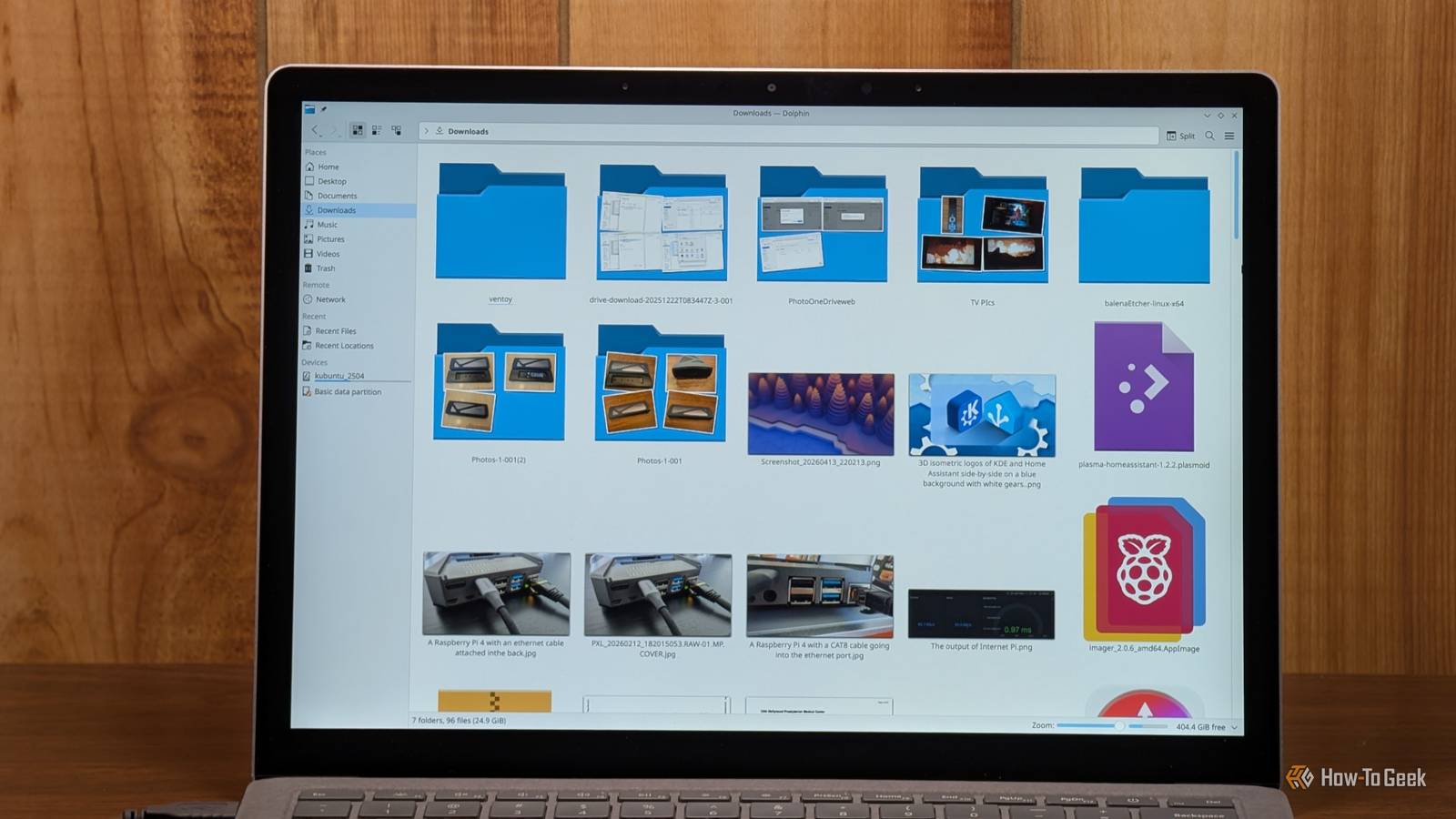
Published Jul 18, 2026, 10:00 AM EDT Nick Lewis is an editor at How-To Geek. He has been using computers for 20 years --- tinkering with everything from the UI to the Windows registry to device firmware. Before How-To Geek, he used Python and C++ as a freelance programmer. In college, Nick made extensive use of Fortran while pursuing a physics degree. Nick's love of tinkering with computers extends beyond work. He has been running video game servers from home for more than 10 years using Windows, Ubuntu, or Raspberry Pi OS. He also uses Proxmox to self-host a variety of services, including a Jellyfin Media Server, an Airsonic music server, a handful of game servers, NextCloud, and two Windows virtual machines. He enjoys DIY projects, especially if they involve technology. He regularly repairs and repurposes old computers and hardware for whatever new project is at hand. He has designed crossovers for homemade speakers all the way from the basic design to the PCB. Nick enjoys the outdoors. When he isn't working on a computer or DIY project, he is most likely to be found camping, backpacking, or canoeing. I bounce between Linux programs like a bad habit. I'm constantly trying new applications, suites of programs, and replacements—especially when I'm trying to find something that "just feels right." In my search for the perfect file manager, I've used GNOME Files (Nautlius), Thunar, PCManFM, Nemo, Krusader, and more. Some felt a bit too minimalist or lightweight, and I found myself reaching for options that just weren't there. That is fine for an ultralight system, but it is a problem for my daily driver. On the other end of the spectrum, a few options left me dazzled like a deer in the headlights because they're remarkably feature dense for a File Manager. After running the File Manager gauntlet, I finally settled with Dolphin, which is KDE's file manager. Dolphin feels natural coming from Windows Explorer I didn't fight to retrain my habits Credit: Hannah Stryker / How-To Geek Dolphin serves as the default file manager for the KDE Plasma desktop, and has been in that role since 2024 when it replaced Konquerer. At first glance, it looks fairly different from Windows Explorer, but most of the essentials are pretty similar. The Places sidebar provides the same functionality as the shortcuts pane found in Explorer and Finder, giving you quick access to home, recent files, and mounted drives complete with space-usage bars. The breadcrumb path bar allows for quick clicks up the directory tree, but it turns into an editable text path if you want to type or paste a specific location—exactly like the address bar in Windows Explorer. Other common behaviors, like double-click to open, drag-and-drop to move files, and most of the shortcuts are also the same. It also has multiple view modes, including Icons, Compact, and Details, which roughly mirror the options you'll find in Windows. I tend to set it on Details and leave it there. Dolphin has great features without feeling too bloated Nothing gets in the way One of my favorite features is Dolphin's split view, which allows you to place two folders side-by-side within one window. It makes it trivial to drag-and-drop files from one to the other, or compare the contents of one folder to another. Windows offers something similar with snap layouts, but it tends to take up more screen space because it requires two separate Windows. When combined with tabs and a few filters, I actually prefer it to any other file manager on any other operating system when I need to get things done. Remote and network files are as accessible as local ones Dolphin also plays well with remote directories. It has native support for FTP, SFTP, and SMB, and those locations appear right in the sidebar, so you don't have to go through the process of manually connecting each time you want to transfer a file. Of course, your file manager isn't the only way to do this—there are dozens of apps—but there is something extremely convenient about the way that Dolphin approaches it. It certainly beats opening up WinSCP every time I need to move something to or from my self-hosted servers. There are a few time savers Dolphin also features an embedded terminal panel, which is synchronized with your current folder. So, if you're in /home/subdir/folderA and you open the terminal panel, your terminal will be open to that path. If you type cd in the Terminal, both the terminal and the file view will However, my favorite feature is the embedded terminal panel. It stays synced to your current folder; if you cd in the terminal, the file view follows, and vice versa. It isn't something that forces itself into your visual field just using the app either, you have to open it. That gives terminal aficionados and enthusiasts a convenient way to access it without cluttering things up for people that prefer a pure GUI. You also get an information panel with metadata and previews for audio and video files. If you need more, you can add plugins for Git integration or Nextcloud sync, or create your own custom right-click Actions. Some other quality-of-life features that jumped out at me include quick batch renaming (something that requires Powertoys on Windows) and the ability to browse archives (ZIP, 7z, TAR, etc) as if they were ordinary folders. When indexing is enabled, I've found it is faster than the Windows search. Dolphin doesn't trade usability for friendliness There are plenty of great file managers out there, but I've found that Dolphin is the one that best walks the line between capability and user-friendliness. I never find myself annoyed by too much stuff on the screen or wishing for a feature that didn't exist. It is also intuitive enough that it won't be a major problem if you're used to Windows or macOS, either. You don't have to use Plasma Desktop to run it; Dolphin can be installed on almost any Linux distro so long as you grab the dependencies first.
I tried every major file manager on Linux and only this one felt right
Full Article
Original Source
Read the full article at Howtogeek →KhanList aggregates and links to publicly available news content. We do not host full articles from third-party sources. Always verify important information with original sources.