
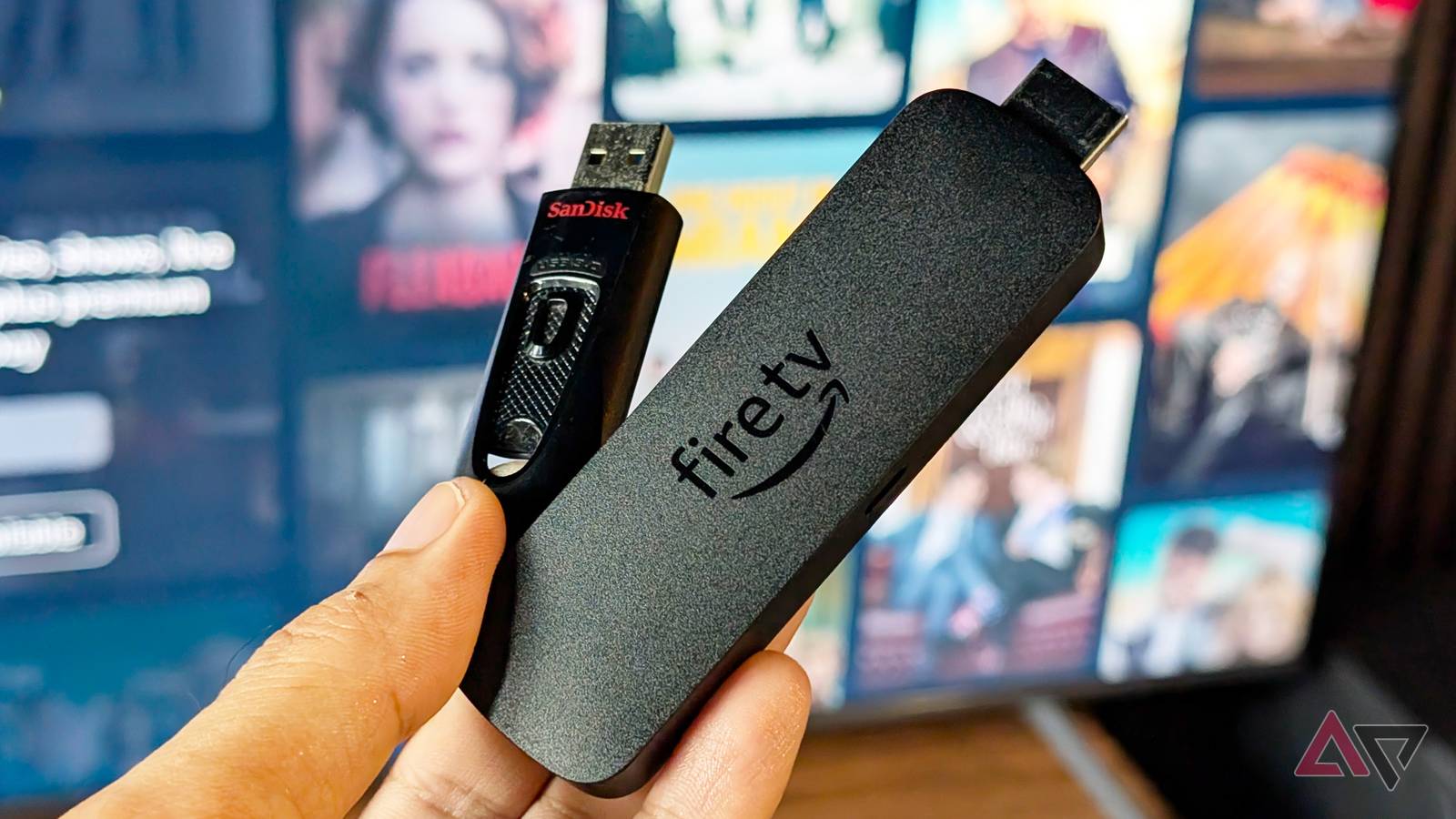
Published Nov 14, 2026, 7:00 AM EST Jade Bryan is a Feature Author at Android Police with over a decade of tech reviews and news reporting experience, stretching back to the Symbian era and the early days of Android. He covers the breadth of the mobile industry, specializing in operating system deep-dives, app testing, and hardware analysis. In his spare time, you can find him tinkering with his Android devices and wearables, seeking ways tech can improve daily life. He also enjoys playing MMORPGs, traveling, or feeding stray cats and dogs. Most Fire TV Sticks come with 8GB of storage. That may sound manageable, but it's easy to fill up, especially if you're like me and have a voracious appetite for apps and games. I used to purge apps when I needed extra storage space on my Fire Stick, but that's hardly ideal when many of my favorite apps are in rotation. Clearing the app cache is an effective fallback, but it can get tedious when you're constantly flying through menus to do it for every app. To find a better fix, I tested plugging a USB drive into my Fire TV Stick and compared it with clearing the cache and even uninstalling apps. After trying both methods, I found out which one works best and which approach you should rely on. Clearing app cache is a quick way to reclaim space But it's never a permanent fix I've raved before about how clearing cache and uninstalling apps are some of the most effective ways to reclaim storage space on my Fire TV Stick. In my previous testing, I saved up to 2GB of space, depending on how many apps were installed and how often I opened them. That's a substantial amount, especially on Fire Stick models permanently stuck with 8GB of onboard memory. But there's a catch: neither solution is a one-time fix. Cached data quickly builds up and inevitably triggers the dreaded low storage alert. Meanwhile, deleting apps means reinstalling them later if I want to use them again. Both might buy you peace of mind for a few months, but it becomes an exhausting chore if you keep hitting that low storage warning. A more definitive solution to the low storage alert Manually remove idle apps and save up to 2GB Uninstalling apps altogether is a more effective way to reclaim storage on a Fire TV Stick than simply clearing cache files. Think of it as spring-cleaning for your Fire TV device. It takes a bit more effort upfront, but you can do it in a single sweep rather than turning it into a recurring task. I headed into the Fire TV Stick's settings menu and looked for apps and games I hadn't opened in weeks or even months. To my surprise, there were more than I expected. The same goes for forgotten APK installation files and forgotten video downloads quietly taking up valuable storage in the background. In my case, I discovered more than 1GB of unnecessary installation files that had accumulated over time without me noticing. Removing them and the untouched videos freed up gigabytes of space. I used third-party file manager apps from the Amazon Appstore to scan the directory and manually delete these files. Depending on your usage habits, you can free up 2GB or more, which can be more effective than aggressive app cache clearing. As effective as it is, it has quirks, and the biggest is that it remains a temporary fix, as your free storage will inevitably deplete again after a few months — though longer than after clearing cache. That's where a USB drive comes in handy as a long-term remedy. I added 16GB to my Fire TV Stick storage for $5 Using external flash storage as a secondary drive While Amazon doesn't exactly advertise it, expanding your Fire TV Stick's storage is one of the oldest tricks in the book for keeping low-storage warnings at bay. The catch is that Fire TV Sticks don't include a microSD card slot or a dedicated USB-A port for easily connecting external drives. Instead, you will need to invest in a USB OTG splitter cable or a microUSB-to-Type-C adapter to take advantage of this upgrade. In my case, I bought the microUSB adapter for $5 and used my existing USB hub to power my Fire TV Stick while connecting a SanDisk 16GB flash drive. You can also opt for an OTG Y-splitter, which may cost less than the adapter. Still, either setup provides a surprisingly simple and affordable workaround to expand your Fire Stick's storage, especially compared with the recurring hassle of clearing cache files and uninstalling apps. At first, it seems like the perfect, permanent fix to my storage woes. However, one major bottleneck remains before you rush out to buy one of these connectors. Expanding Fire TV Stick storage has its quirks A practical trade-off that is easy to overlook Unlike the built-in storage of your Fire TV Stick, any USB stick you plug into your device is treated as external storage rather than internal storage. That means you can't simply set it as the default destination for app and game installations. Some newer Fire TV models offer workarounds, but they require developer modifications and complex ADB commands (yes, you might need a rocket science degree), which I won't recommend for casual users. However, you can still maximize the USB expansion in a few practical ways. One of the easiest is offloading miscellaneous files from the onboard storage, such as sideloaded APK installers and chunky movies, onto the connected USB stick. In my case, I freed up about 10GB by transferring these files to the connected USB stick. However, there's another drawback to keep in mind. Fire TV Sticks will only read FAT32-formatted USB drives and won't recognize NTFS drives. This restriction also means you can't consume files that exceed FAT32's file-size limit, since larger video files typically require NTFS formatting. Still, that's a minor trade-off I am willing to accept, as most of the space occupied on my Fire TV Stick was taken up by movies and leftover APK installation packages. A semi-permanent fix for Amazon Fire TV Stick storage woes If you ask me which method is most effective for recovering significant usable space on a Fire TV Stick, it's always uninstalling unused apps and clearing out junk files. Clearing the app cache takes the least effort and delivers immediate results, but the space you recover varies, is minimal at best, and is only temporary. But when paired with a USB drive, you can free up more space for your apps and games by offloading videos and other files to external storage.
I tried a cache purge and plugging a USB stick into my 8GB Fire Stick; only one freed up gigabytes
Full Article
Original Source
Read the full article at Androidpolice →KhanList aggregates and links to publicly available news content. We do not host full articles from third-party sources. Always verify important information with original sources.