
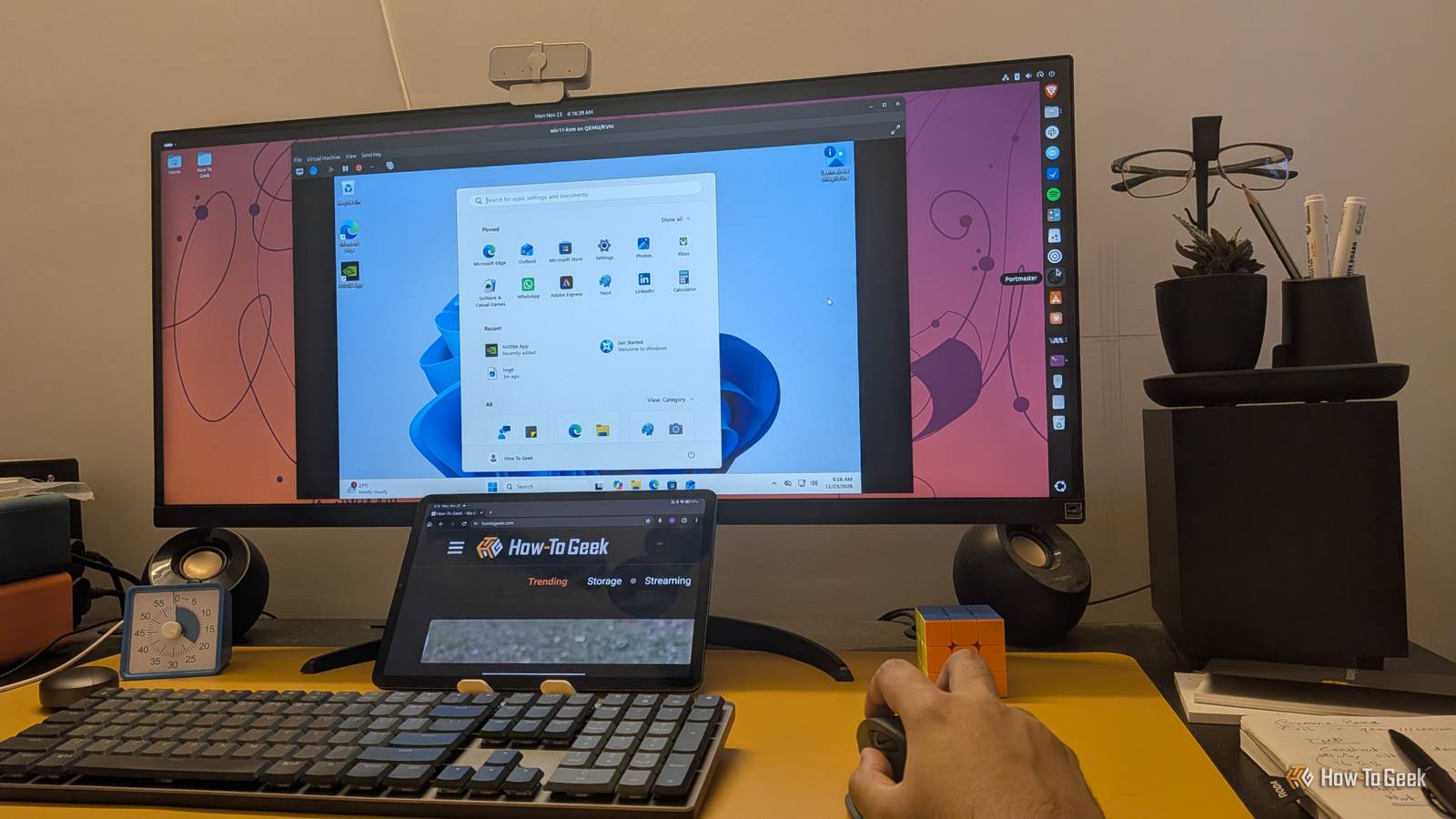
Published Nov 26, 2026, 4:00 PM EST Dibakar Ghosh is a tech journalist at How-To Geek with over a decade of experience using and writing about open-source software, Linux, Android, AI, and personal productivity. He writes about software, operating systems, and tools that help people get more from the technology they already use. Do you love using Linux but constantly find yourself reaching for an app or piece of software that's exclusive to Windows? Have you tried dual-booting Linux and Windows but found that switching between operating systems too frequently is hampering your productivity? Well, the answer to all your problems might be running a Windows virtual machine (VM) on your Linux PC. I've tested five of the most popular ways to virtualize Windows on Linux. Here's my experience with each method and which one I'd recommend if you actually want a usable experience and need to get some work done. These 3 Windows virtualization methods aren't solving any problems All of these are good — just not for virtualizing Windows on Linux There are several ways to virtualize Windows on Linux, each with its own set of pros and cons. However, with some of these methods, the cons outweigh the pros. Here are three virtualization methods I'd recommend skipping if you're looking to run a Windows VM on Linux. I tested every method using the same Windows 11 ISO, so the differences mainly came down to the virtualization tool rather than the installation media. I'm also primarily evaluating these tools based on two criteria — the setup difficulty and the overall experience of running a Windows VM. Quickemu Quickemu is my go-to tool for virtualizing other Linux distros, so naturally, it was also my first choice when I decided to create a Windows 11 VM. Its main appeal is that it streamlines the virtualization process by downloading the ISO for you and automatically configuring the virtual machine. However, when I tried it with Windows, it failed to download the ISO automatically, so I had to download it manually. What's more, the installation process kept running into problems and throwing random error codes. I eventually decided to give up on Quickemu. I probably could've fixed whatever was causing the issue. However, the main reason to use Quickemu is its quick and streamlined setup process. If I have to get my hands dirty anyway, it just makes sense to use a different virtualization method instead. GNOME Boxes GNOME Boxes is a bit like Quickemu in that it streamlines the entire virtualization process. In fact, some might even consider it the more intuitive tool since it comes with a graphical interface. Boxes is also designed to help you download the necessary ISO directly from the app, but Windows wasn't included in its catalog. Fortunately, I'd already downloaded the ISO while testing Quickemu, so this wasn't an issue. The installation process went smoothly. The only hiccup I encountered was the lack of a TPM chip, but I was able to add a virtual TPM chip using a quick terminal command, so it wasn't much of an inconvenience. My main problem was the overall speed and performance. Windows 11 running in a virtual machine through Boxes was simply too slow for me to consider getting any actual work done on it. VirtualBox Most of you might already be familiar with VirtualBox — it's one of the most popular ways to virtualize Linux on Windows. But when it comes to running Windows inside Linux, it's a completely different story. I encountered one error message after another and spent nearly two hours digging through logs and fixing seemingly random problems. Eventually, I did get Windows 11 up and running. The experience was smoother than what I got with GNOME Boxes, but it still wasn't smooth enough. Navigating the interface involved noticeable lag and stuttering, and given all the hassle I had to go through, it just wasn't worth it. QEMU/KVM (virt-manager) is the only one worth the hassle Two words: GPU passthrough In my experience, the best performance you can get from a Windows VM on Linux comes from using QEMU and KVM managed through virt-manager. You get granular control over everything, from virtual hardware to drivers, and as a result, the performance is genuinely impressive. Granted, the setup is more technically demanding, but it's still easier than the troubleshooting nightmare I went through with VirtualBox. However, the main appeal of using QEMU/KVM, is that you can pass your GPU directly through to the virtual machine. This lets you run GPU-intensive applications inside the Windows VM with direct access to a physical GPU. It was the only method I tested that gave me the performance I wanted for games or Adobe apps while using Linux as my host operating system. The way I see it, Linux is more than capable of handling almost all day-to-day workloads. The few things that might still require Windows include applications from Adobe and certain DRM-protected games — all of which are GPU-intensive workloads. Now, GPU passthrough makes running these applications and games in a Windows VM possible, which is why QEMU/KVM is the only virtualization method that makes sense to me — and to anyone who shares my sensibilities. That said, GPU passthrough requires your system to have two GPUs — one for Linux and another for the Windows VM. For example, in my setup, I pass my RTX 3060 through to the Windows VM, while Linux uses the integrated graphics on my Ryzen 5 5600G. If your processor doesn't have integrated graphics, and you only have one graphics card, this particular setup isn't practical. Technically, you can pass through your only GPU to the Windows VM. However, doing so would leave your Linux host without a display, making it an impractical configuration for most desktop users. Dockur/Windows makes some sense as a lightweight VM The quickest Windows VM I’ve setup Dockur Windows is a cool project that lets you run a Windows VM inside a Docker container. I first came across it while using Omarchy, and I really liked the idea. It offers a streamlined setup process, where the only real technical hurdle is getting Docker installed. However, if you already have Docker or Podman running, you can simply grab the Compose file from the project's GitHub page, start it, and let it take care of everything else automatically, including installing Windows. Since Dockur runs Windows inside a Docker container, you can access the VM through a web browser — you're not limited to an app running on your machine. This means you can technically access the virtual machine from any device connected to your local network, or even from outside your network using a secure mesh VPN like Tailscale. As for overall performance, it isn't as smooth as I'd like and can feel somewhat choppy. I'd put it somewhere between GNOME Boxes and VirtualBox. However, considering how easy it is to set up, along with the fact that you can access your Windows machine from your phone, it opens up some interesting use cases and makes Dockur worth considering. All that said, I still stand by dual-booting It's worth remembering that when you're using a virtual machine, you're essentially running two operating systems at the same time. As such, for a VM-based workflow to make sense, you need a beefy machine with enough resources to run both systems comfortably. If you have to shut down everything you're doing on Linux just to free up resources for the Windows VM, it just makes more sense to have a dual-boot setup instead. This way, you can use Linux as your primary operating system and switch to Windows whenever you need to run Windows-exclusive software.
I tried 5 popular ways to run Windows on Linux, and only one is worth the hassle
Full Article
Original Source
Read the full article at Howtogeek →KhanList aggregates and links to publicly available news content. We do not host full articles from third-party sources. Always verify important information with original sources.