
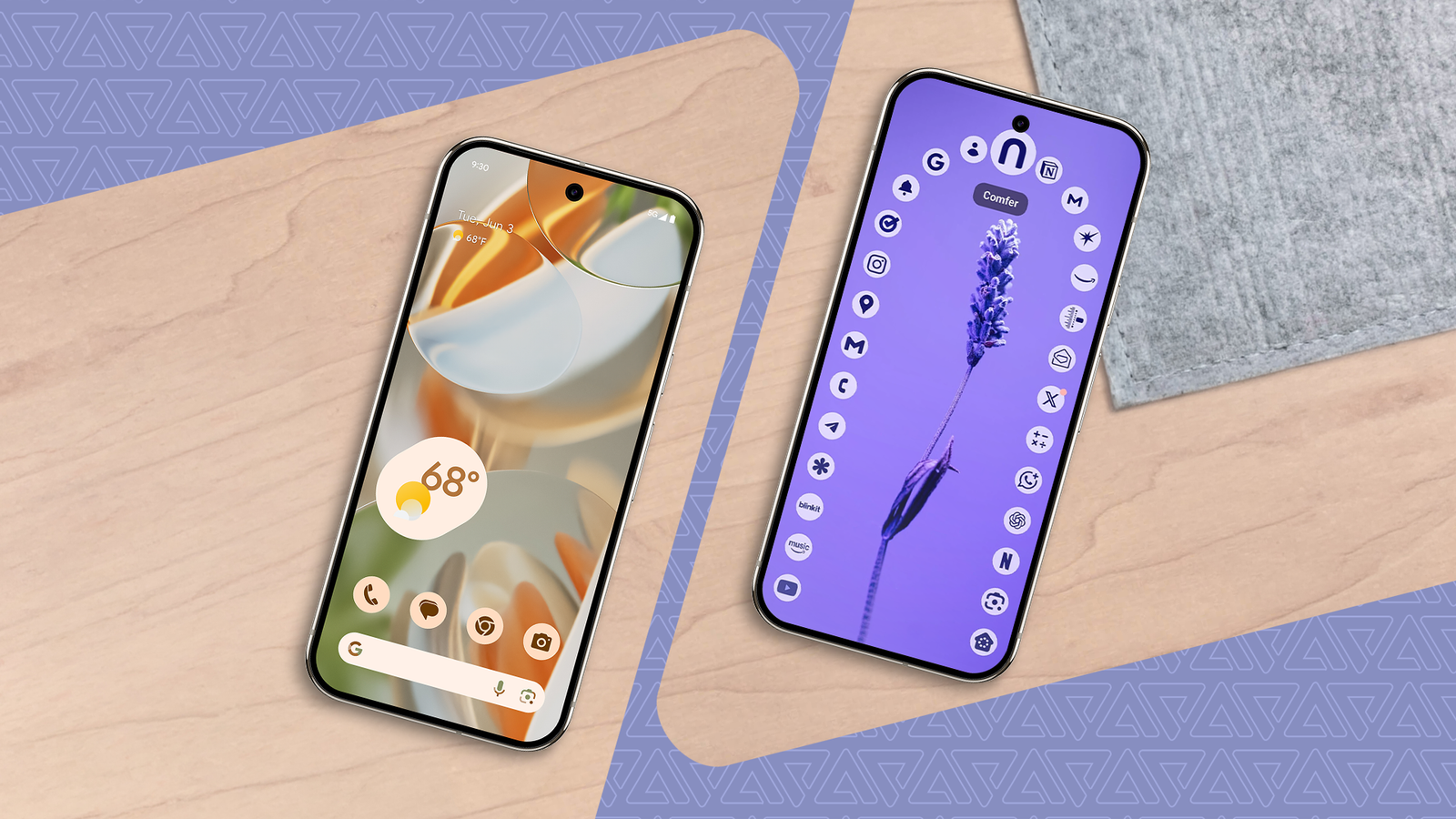
Published Sep 5, 2026, 8:00 AM EDT Jon Gilbert is a Features Writer for Android Police. I've covered Android since 2021, focusing on writing features and guides about Android apps and features that directly affect users. I've attended CES to uncover powerful hardware that isn't dominated by Google like the Mudita Kompakt. I trawl through Android news daily, hunting for stories that have real-world consequences. I hold a BA in History & Classics. No matter what Android phone you buy, whether it's a Google Pixel 10a or a Samsung Galaxy Z Fold 8, it will work great out of the box. Every Android phone ships with the essential apps you need to get started, and from that point it's all about personalization. But sometimes I feel like using a different Android phone without buying a new device. With this combination of a fresh launcher and specialized apps, I made my Pixel phone unrecognizable in the best way. Comfer is the freshest launcher on the Play Store But there are plenty of alternatives The obvious trick to changing how an Android phone feels is to install a new launcher. Plenty of options are out there, from fan favorites like Niagara Launcher to unique newcomers like Octipi Launcher. However, the only one that's stuck with me over the years is Comfer Launcher. Completely free, this launcher was the first that felt like it could have shipped from a major Android manufacturer. It was a particularly good find for me, as it retained the Pixel Launcher 'feel' while eliminating the annoyances of Google's official launcher. One reason I recommend Comfer over alternative launchers is that it doesn't hide features behind paywalls. Niagara is often the first launcher recommended, but its awkward paywall puts me off. Side Dock is a better Edge Panel experience for any Android phone Shortcuts and utilities at my fingertips Whenever I pick up a Samsung phone, I try to use Edge Panels. In theory, it's the perfect shortcut to my favorite apps, but in reality, it fails to impress. Like most Samsung features, Edge Panels is packed with functionality but awkward to use. Enter Side Dock. This Edge Panel look-alike cuts out the noise to deliver a simple, feature-packed floating window filled with useful shortcuts. I've been using it on my Pixel 10 Pro for months now, and it quickly became the best shortcut app I've ever installed. Originally built for the Nothing phone community, it fits seamlessly alongside any other launcher. Side Dock is free to download, but costs $2.49 to unlock all its features. Buzzkill transformed my notifications Total control, and remarkably easy to use Launchers, floating windows, and other customization apps are great for transforming the front of the Android experience, but what about the stuff that goes on behind the scenes? Transforming what you don't see is crucial to creating a fresh Android experience, and the best app to install here is Buzzkill. Credit: Lucas Gouveia / Android Police Buzzkill lets me create rules that make Android's notification categories feel pitiful in comparison. I also use it to mute Slack notifications out of hours, or to batch notifications from Instagram so that I'm not drip-feed Reels all day. It's a beautiful app. Buzzkill requires a $3.99 up-front payment, but there are no more ads or in-app purchases. Skip the launcher with App Search It's remarkable how an app can replace a utility nobody thinks about One of my most consistent issues with my Pixel phone is that it tries to do too much. Notably, the search bar. I don't want a search bar with Lens, microphone, and AI Search shortcuts that can also search the web. I want a search function that instantly finds the apps I want and opens them. That's it. App Search is a highly customizable search app for Android that can open the app you're looking for after a couple of key presses. It's faster and simpler than the Pixel Launcher's default search tool, and it's completely free. Tasker is the final word in Android automation Truly unlimited potential I discussed Buzzkill earlier in this article, but it only works for notifications. When I want to automate any other part of my Android phone, I turn to Tasker. Through Tasker, I can automate pretty much every task I perform on my Android phone. Let's say I leave work, and my phone disconnects from my work's Wi-Fi network. I can use Tasker to run an automation to turn on my heating. I can use it to download new podcast episodes when I connect my phone to Android Auto. I can use it to save a location after parking. Or, let's say I want to change my wallpaper to match the current weather or be notified if it's going to rain in the next hour. Tasker can do it. The only catch with Tasker is its steep learning curve. But its new AI task creation tools help newcomers get started. Tasker is $4.49, but comes with a free seven-day trial. Transforming Android is cheaper than you think I've bought, downloaded, and tested more apps than those on this list, but these form the core of my "custom" Android experience. For exactly $10.97, you can also transform how any Android phone looks and acts. So if you, like me, get tired of the same software after a few months, you can transform it for less than your lunch.
I transformed my Pixel into a completely different Android phone for under $11
Full Article
Original Source
Read the full article at Androidpolice →KhanList aggregates and links to publicly available news content. We do not host full articles from third-party sources. Always verify important information with original sources.