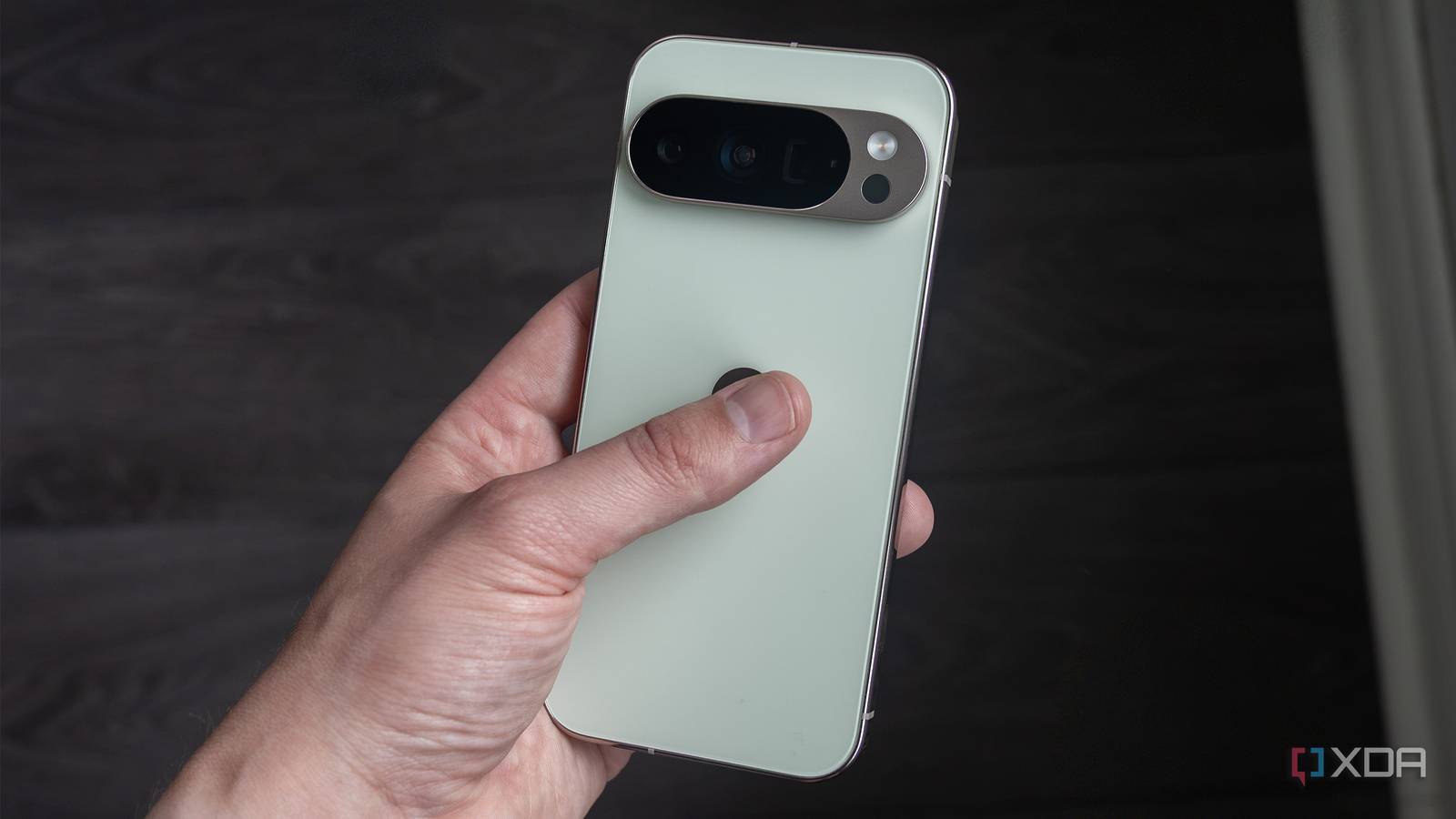
Published Jul 22, 2026, 9:00 AM EDT Patrick O'Rourke is XDA's News Editor and Entertainment Segment Lead. Previously, he was Pocket-lint's Editor-in-Chief, the Editor-in-Chief of Canadian tech publication MobileSyrup, and earlier in his career, he worked as the technology editor at the Financial Post and Postmedia. He's based in Toronto. Over the past 15 years, he's written thousands of articles. Patrick has also interviewed dozens of tech industry executives and covered GDC, E3, Gamescom, WWDC, Apple keynotes, Samsung Unpacked events and more. Patrick has a BA in journalism from Toronto Metropolitan University. I use my Pixel 10 Pro's flashlight a lot, whether it's for quietly sneaking into my bedroom after my partner has gone to sleep because I've stayed up too late gaming, navigating my way to the bathroom in the dark, or just trying not to fall down the stairs if I need to head to my house's basement at night. Until recently, I unlocked my Pixel, swiped down from the top to access the Quick Settings Panel, and then tapped Flashlight. I always make sure the Flashlight panel is in the top-left corner so it's easy to access at a moment's notice, and I don't end up fiddling around with the phone when all I want to do is shed a little light on the situation in front of me. Then one day while aimlessly scrolling on Reddit, I came across the Pixel's Gestures option, which allowed me to turn on Quick Tap to tap twice on the back of my smartphone to quickly turn on/off the Pixel 10 Pro's flashlight. I've heard of Quick Tap before, but I always assumed it was more of an unreliable gimmick than a feature that's actually useful. Thankfully, I was very wrong. I knew Pixel Gestures existed, but I didn't expect Quick Tap to work this well Building up the double-tap muscle memory is taking me some time, though. Turning on Quick Tap on my Pixel 10 Pro is a pretty straightforward process that only takes a couple of steps. All I needed to do was follow the steps below: Open the Settings app on your Pixel. Now, navigate to System (it's located near the top). Look for Gestures (you should see the option near the center of your screen). Next, select Quick Tap To Start Actions. Toggle on Quick Tap. You then have several different interaction options for the feature. In this case, I used Toggle Flashlight (it's towards the bottom of the page). Now, whenever I double-tap on the back of my Pixel 10 Pro, the flashlight constantly turns on. If you're like me and use a case, the double tap isn't detected roughly one in five times, which can get a bit frustrating sometimes. I find that taking the phone out of its case solves this problem, with Quick Tap's Toggle Flashlight option working nearly every time I double-tap on the back of the smartphone. Quick Tap's responsiveness isn't exactly awful with the official Pixel 10 Pro case I use, but I can see it becoming an annoyance with thicker, more rugged cases. The most notable challenge I've encountered so far is building the muscle memory to remember to double-tap the back of the smartphone instead of swiping down to access the Quick Settings Panel. Old habits die hard, I guess. I'd say after a week of using Quick Tap, I remember to do it in roughly 80% of situations, but there have been a few times when I'm half asleep and trying to safely walk down the stairs to my kitchen, where I've accidentally resorted to swiping down to turn on the flashlight. I imagine that the longer I use Quick Tap and the more I continue to use the Pixel 10 Pro as my primary smartphone, the more natural it will feel to double-tap the back of the device to launch its flashlight app. While I'm using Quick Tap with the Pixel 10 Pro, the Gesture is compatible with the Pixel 4a and up. Google first added Quick Tap alongside Android 13. Quick Tap can be used for more than turning on your flashlight You can even set it to open any app In my case, turning on the Pixel 10 Pro's flashlight is the Quick Tap option that makes the most sense, but there are other Gesture actions available, too. For example, you can set Quick Tap to Play or Pause Media, Access Your Digital Assistant, Take a Screenshot, See Recent Apps, Access Your Digital Assistant, and even open any app you want, which can be very useful if you use a third-party flashlight app instead of Google's default Pixel option. While none of these Quick Tap options really work with how I use my smartphone, I can see them coming in handy for some people, particularly for playing/pausing media if you're listening to music on the go.
I thought this hidden Pixel feature was a gimmick until I finally tried it
Full Article
Original Source
Read the full article at Xda-developers →KhanList aggregates and links to publicly available news content. We do not host full articles from third-party sources. Always verify important information with original sources.