
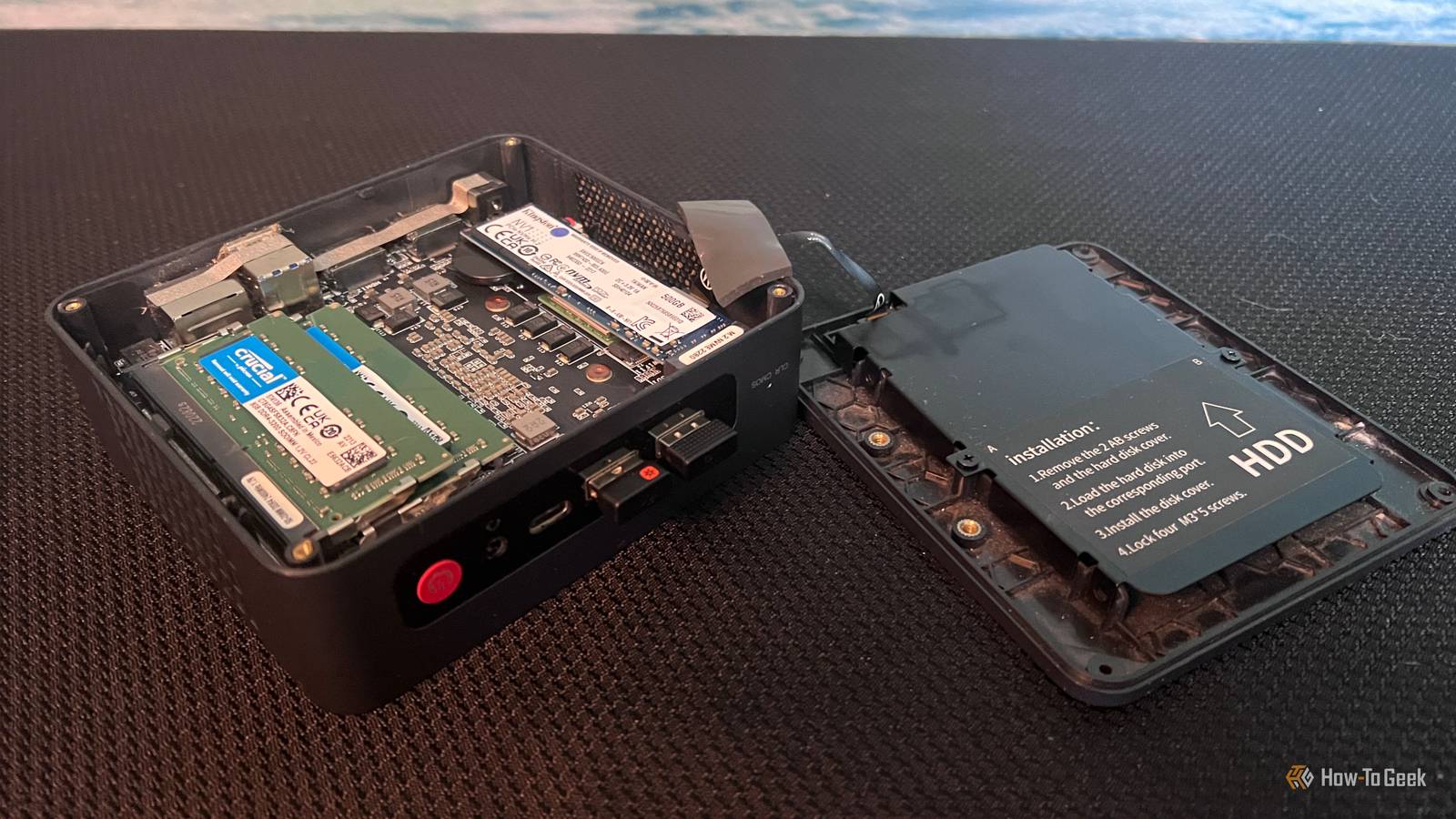
Published Aug 30, 2026, 9:30 AM EDT Rich Hein is a veteran technology journalist with more than two decades covering developer, consumer and enterprise topics. Rich's career has been dedicated to service journalism, connecting readers to content that informs and delights. Previously, Rich was vice president and editor-in-chief for Simpler Media Group, director of audience development for IDG and editor/writer for sites like CIO.com, ComputerWorld, CodeGuru and other tech-centric publications. He's received numerous accolades, including the IDG Summit and Azbee awards and has been covered by Medium for his work in audience development. When not at his desk, Rich lives in Daytona Beach with his wife and three dogs. He enjoys playing guitar, surfing and staying abreast of the latest in tech. Recently, my mini PC started acting up. It would freeze every so often, and Windows just didn't feel as responsive as it normally did. Nothing had completely stopped working, but the system had become unreliable enough that I knew something was wrong. I went through Windows first and checked for any obvious problems, but nothing stood out. That made me start looking at the hardware, and the SSD quickly became my main focus. I was pretty sure from the symptoms that it was going bad. With SSD and RAM prices where they are right now, I wasn't looking forward to replacing it unless I had to. Rather than assume the drive was dying and replace it, which is what I'd normally do, I decided to check it first. I worked through a few simple tests to see whether the SSD was actually showing signs of failure or whether I needed to start looking somewhere else. Check SMART data for actual warning signs CrystalDiskInfo didn't show a smoking gun I started with CrystalDiskInfo. It's one of the quickest ways to look at an SSD's SMART data and see whether the drive is reporting anything that points to a real hardware problem. I was looking for critical warnings, media errors, or anything else that suggested the SSD was starting to fail. In my case, there was no smoking gun. The drive health looked normal, and there weren't any obvious SMART warnings that explained the freezing I had been seeing. That didn't completely clear the SSD, but it gave me a good reason to keep testing before I spent money on a replacement. See whether your SSD is really slowing down CrystalDiskMark gave me another clean result Next, I moved to CrystalDiskMark to see whether the drive was actually performing worse than it should. CrystalDiskInfo had already told me there weren't any obvious health warnings, but I also wanted to know whether the SSD's performance had dropped enough to explain what I was seeing in Windows. CrystalDiskMark measures sequential and random read and write speeds, so it gave me a better idea of how the drive was behaving under load. I wasn't treating the benchmark as a health test. I was just looking for a major slowdown that might explain what I was seeing in Windows. The results were in the range I expected for the drive, and there wasn't a major slowdown that pointed to the SSD as the source of the freezing and sluggish behavior. That was another check that the SSD had passed, but I still wasn't ready to rule it out completely. CrystalDiskMark writes data to the SSD while it runs, so I wouldn't keep running the test over and over. A few runs aren't going to hurt a healthy drive, but repeated benchmarks add unnecessary writes over time. I also closed any resource-intensive apps before testing, so background disk activity wouldn't throw off the results. Rule out file system corruption CHKDSK didn't find anything wrong My next step was to rule out file system corruption. I opened PowerShell as an administrator and ran the following command: chkdsk C: /scan The /scan option checks the file system while Windows is still running, so I could look for errors without taking the drive offline. If corruption was behind the freezes or other strange behavior, CHKDSK should have given me something to investigate. Instead, the scan came back clean. There were no file system errors that explained what I had been seeing, which matched the results from CrystalDiskInfo and CrystalDiskMark. I was glad the drive still looked healthy, but I also still had the same problem to track down. Make sure the SSD itself is actually the cause of the problem Two changes, one working PC Credit: Rich Hein/HowToGeek With the diagnostic checks out of the way, I opened up the mini PC and took a closer look at the SSD itself. I reseated the drive to make sure it was making a solid connection, then checked it for anything that suggested heat was involved. Nothing looked unusual, and the drive didn't feel excessively hot. At that point, I was ready to stop blaming the SSD. Something was still wrong, though. I had a GFCI outlet that had been tripping, and I eventually realized the mini PC was on the same circuit. I replaced the faulty outlet. When it was all said and done, the problem was gone. I can't say for certain which of those two changes fixed it, but I no longer had any reason to think the SSD was failing. The tests had all come back clean, and once the connection and power issue were addressed, my PC problems were over. I'm glad I checked before replacing anything The SSD never gave me a real reason to replace it, and that ended up saving me from buying a drive I didn't need. A few quick checks were enough to show that the obvious suspect wasn't actually the problem, and in this case, looking beyond the SSD is what led me to the actual fix.
I thought my mini PC's SSD was dying, but 3 simple tests saved me from buying a replacement
Full Article
Original Source
Read the full article at Howtogeek →KhanList aggregates and links to publicly available news content. We do not host full articles from third-party sources. Always verify important information with original sources.