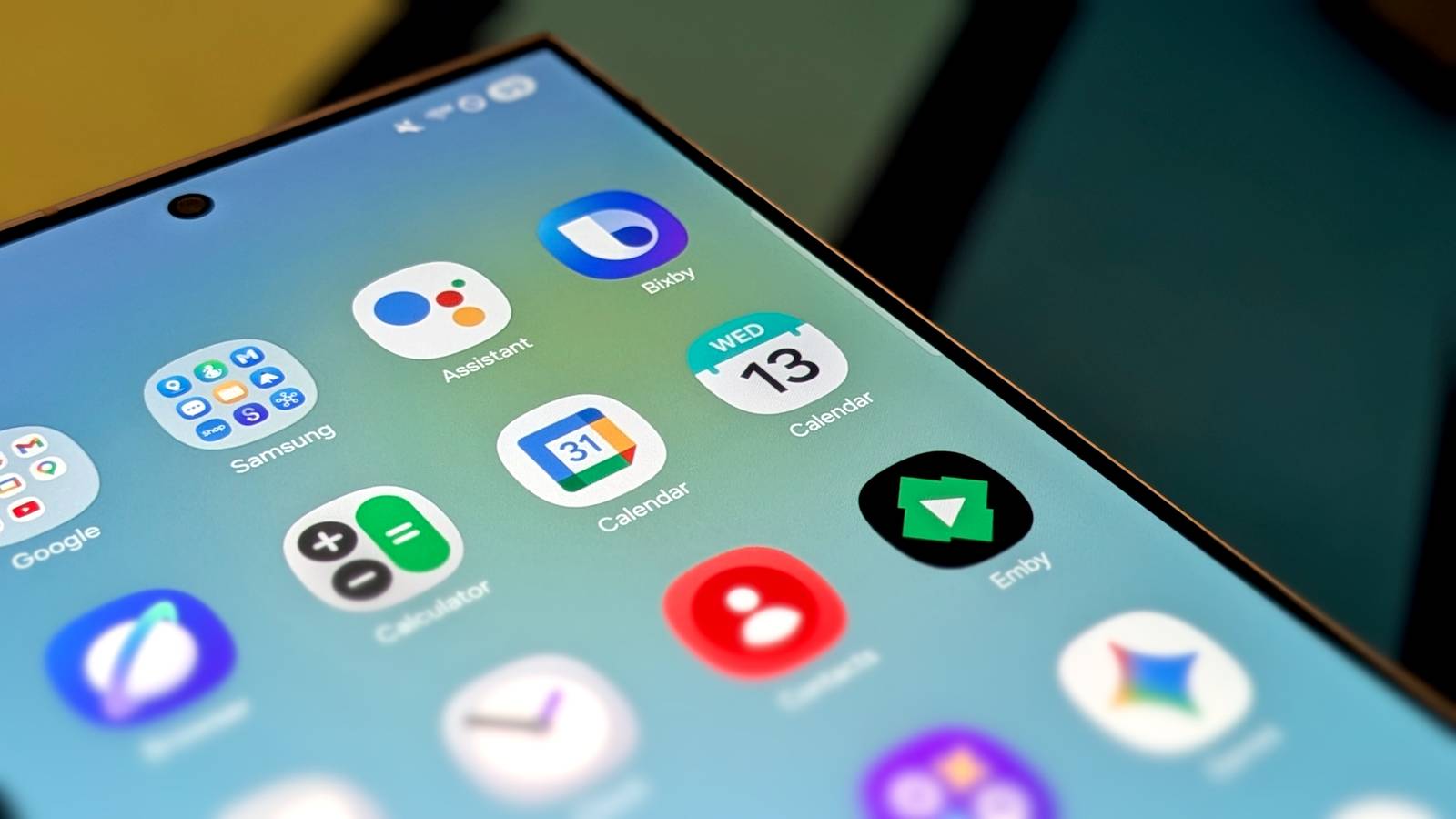
Published Aug 7, 2026, 11:00 AM EDT Viraj Gawde is a Tech Journalist with bylines at Travel+Leisure India & South Asia, Android Headlines, 91Mobiles, Croma Unboxed, etc. He has written thousands of news pieces, how-to guides, product comparisons, listicles, and op-eds on consumer tech. Currently, Viraj is obsessed with the fast-evolving world of artificial intelligence and how it is reshaping the way we work, create, and use tech. As a curious generalist, Viraj's work extends into a wide range of subjects, formats, and storytelling styles. When away from desk, he is a finance, sports, and travel geek with a constant curiosity for new experiences. For years, I only used Google Calendar for the bare minimum—adding events, getting reminders, and moving on. It got the job done, but I would still end up forgetting errands and juggling separate apps for tasks and reminders. So I decided to figure out why Google Calendar is often referred to as a productivity powerhouse, and I immediately realized how much I’d been missing. The Google Calendar app on smartphones quietly ships with features that solve real scheduling headaches. The web version also has additional helpful features that don’t get carried over to mobile but can sync across devices. Together, they organized my time, protected my focus, and even handled a few tasks automatically. These are the ones that completely changed how I use Google Calendar now. Gmail fills your calendar for you Goodbye to manual work One of the biggest advantages of Google Calendar is how tightly it is integrated with Gmail. Instead of manually entering every booking, Calendar can spot confirmation emails in my inbox and automatically create calendar entries for me. Flights, hotel stays, restaurant reservations, and movie tickets simply appear in my calendar. It means one less thing to remember, and everything stays in place. Android and iPhone users can enable this functionality from Settings > Events from Gmail > Show events. Do note that “Smart features and personalization” needs to be enabled in your Google account. You can check this by opening your Google account > Data and privacy > Smart features in Google products. On the web, this lives in Gmail's own settings under the General tab. Get notified when it’s time to leave Traffic-aware reminders you didn’t ask for When you create an offline event filled with the location address, Google Calendar can notify you when it’s time to leave based on the current traffic conditions. Rather than simply reminding you about the appointment, it also reminds you when you should start moving. This is a small but most practical feature hidden inside event details. It has saved me from being late more than once. The feature relies on Google Maps for travel estimates, so you’ll need Maps notifications and location permissions enabled. In Google Maps app, you can head to Settings > Notifications > Getting Around > Time to leave. Create multiple calendars You can also subscribe to pre-built calendars Keeping personal events, work meetings, and errands in a single calendar can become overwhelming quickly. Creating separate calendars for different parts of my life was the first thing that I changed while using Google Calendar. I keep one for professional events, another for personal life, and a third for errands and tasks. This makes my schedule much easier to scan at a glance. Pairing separate calendars with color coding for different event types tells me whether I’m looking at a work day, personal day, or both at a glance. Creating multiple calendars is only supported on the browser version. However, once they’re set up, they sync automatically and show up in the app on your phone. You can create a separate calendar by selecting Settings (cog icon) > Add Calendar > Create a new calendar. Google also offers a list of ready-made calendars like regional holidays for several countries, major sports leagues, and even phases of the moon. Set an event once, repeat it forever No reason to add it manually Some things happen every week, so there’s no reason to recreate them from scratch. I simply let Google Calendar handle repetitive events like weekly team meetings, recurring bill reminders, grocery runs, etc. When creating an event, all you need to do is change the “Does not repeat” to daily, weekly, monthly, or create a custom schedule around specific days. It sounds obvious, but it’s the kind of small habit that saves real time once you stop setting up the same event manually. Task integration Keep meetings and to-do in one place With Google Calendar, I no longer have to use a separate to-do-list app. Tasks live right alongside my events in Google Calendar. So, instead of switching between apps to check both, I see everything I need to get done in the same view as my meetings. Tasks can even be created with a due date, a time, or a repeating schedule, whichever fits. Unfinished tasks stay in your calendar after the scheduled time passes until you mark them complete. On your Android phone, tap the + button, choose Task, and then fill out the required details. iPhone works the same way. Appointment booking Beats guessing at everyone’s schedule I used to spend time exchanging messages like “When are you free?” or “Does Tuesday work for you?” Appointment Schedule on Google Calendar web has eliminated the usual back-and-forth conversation. I can create a booking page that shows my availability, and anyone with the link can pick an open slot. The appointment lands on my calendar along with an automatically generated Google Meet link. I have found it incredibly helpful when scheduling calls with people, and especially in different time zones, because nobody has to ask when everyone is available anymore. To use this feature, select the Booking pages on the left sidebar and fill in the required details like appointment title, meeting duration, availability windows, and buffer time. Second time zone See both clocks without doing the math Credit: Viraj Gawde / How-To Geek Credit: Viraj Gawde / How-To GeekCredit: Viraj Gawde / How-To Geek Credit: Viraj Gawde / How-To Geek If you regularly deal with people in other time zones, Google Calendar can display a second one alongside your home time zone. Instead of mentally converting every meeting time or opening a separate world clock app, I get both times stacked on the left side of my calendar view. This is primarily a web feature and appears only in day and week views. To add a second time zone, go to Settings > General > Time zone and enable Display secondary time zone. Choose your preferred city or region and add a label. None of these Google Calendar features is flashy, and that’s exactly why they’re easier to miss. They transform Google Calendar from a simple schedule into something I actually rely on every day by helping me decide how I spend my time.
I thought Google Calendar was boring until I found these 7 features
Full Article
Original Source
Read the full article at Howtogeek →KhanList aggregates and links to publicly available news content. We do not host full articles from third-party sources. Always verify important information with original sources.