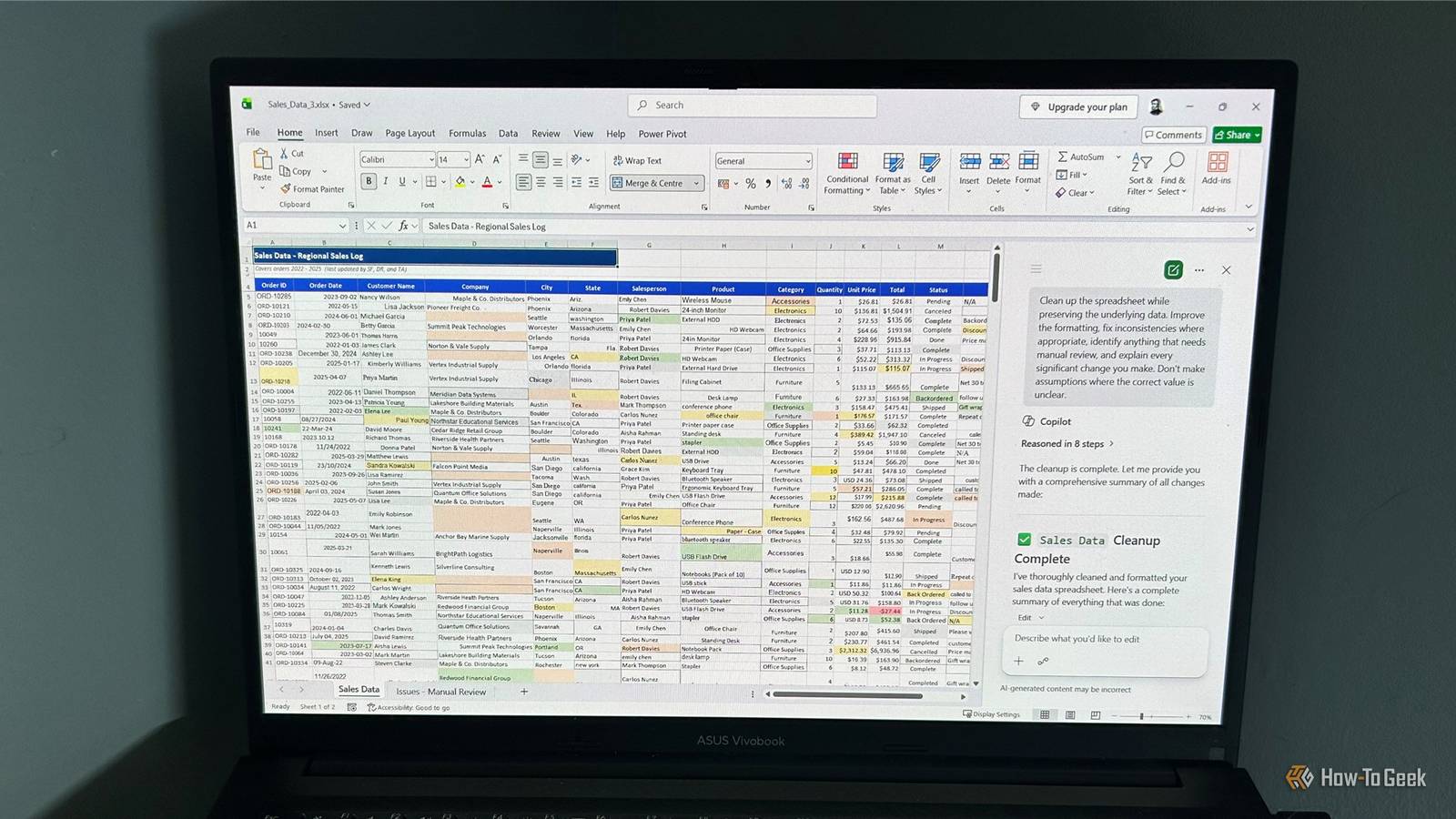
Published Aug 9, 2026, 3:30 PM EDT Tony Phillips is an experienced Microsoft Office user with a dual-honors degree in Linguistics and Hispanic Studies. Prior to starting with How-to Geek in January 2024, he worked as a document producer, data manager, and content creator for over ten years, and loves making spreadsheets and documents in his spare time. Tony is also an academic proofreader, experienced in reading, editing, and formatting over 3 million words of personal statements, resumes, reference letters, research proposals, and dissertations. Before joining How-To Geek, Tony formatted and wrote documents for legal firms, including contracts, Wills, and Powers of Attorney. Tony is obsessed with Microsoft Office! He will find any reason to create a spreadsheet, exploring ways to add complex formulas and discover new ways to make data tick. He also takes pride in producing Word documents that look the part. He has worked as a data manager in a secondary school in the UK and has years of experience in the classroom with Microsoft PowerPoint. He loves to encounter problems in Microsoft Office and use his expertise and legal-level training to find solutions. Outside of the Microsoft world, Tony is a keen dog owner and lover, football fan, astrophotographer, gardener, and golfer. Cleaning up a messy Excel spreadsheet can easily take longer than building it in the first place. I wondered whether Copilot could take care of the tedious work for me, so I gave it a deliberately chaotic workbook and a simple prompt. But instead of simply fixing problems, much of its effort went into deciding which ones it shouldn't touch. I kept my prompt deliberately simple A good assistant shouldn't need pages of instructions Rather than spending ages crafting the perfect AI prompt, I wanted to see how far Microsoft's AI had really come. After all, Copilot is integrated directly into Excel. Unlike standalone AI tools, it already has access to the workbook, so I wanted to see how much it could understand without me explaining where the data lives or describing every column. There's another reason I kept the prompt brief. One of the biggest criticisms of AI assistants is that you can spend so long refining prompts that you could've finished the job yourself. If cleaning a spreadsheet requires multiple rounds of prompting, clarifying, and correcting, much of the promised time savings disappears. So I simply asked Copilot: Clean up the spreadsheet while preserving the underlying data. Improve the formatting, fix inconsistencies where appropriate, identify anything that needs manual review, and explain every significant change you make. Don't make assumptions where the correct value is unclear. The workbook contained hundreds of rows of deliberately messy data, including inconsistent formatting, spelling variations, impossible dates, random fonts and colors, blank rows, and several suspicious values. Microsoft recommends using structured tables for the best results, but I wanted to see how Copilot handled a genuinely messy workbook. The review sheet was the most valuable part The investigation was more impressive than the edits After analyzing the workbook, checking dates, looking for calculation problems, and verifying ambiguous values before making changes, Copilot declared the cleanup "complete." The new "Issues - Manual Review" worksheet was the highlight of the test. I'd asked it to "identify anything that needs manual review," so I expected a brief summary. Instead, Copilot created an entire worksheet documenting problems needing human attention and grouped them into sensible categories. More importantly, it explained why each item had been flagged. For example, impossible dates included explanations like "Month 13 does not exist" or "April only has 30 days." Calculation mismatches showed both the recorded total and the value Copilot expected based on the quantity and unit price. And for ambiguous dates, it offered possible interpretations, not blind guesses. That kind of detail would save time during a manual review. Despite the vague instruction, it created a surprisingly thorough audit of the workbook and explained its reasoning when it chose not to make changes. The spreadsheet itself still needed plenty of work Many obvious problems were left behind The first thing I thought when I saw the "cleaned" spreadsheet was how much still looked unchanged. Yes, Freeze Panes had been applied, whitespace had been removed from hundreds of cells, and number formats had been improved. But many of the most obvious formatting problems remained. Random fonts and font sizes were still scattered throughout the workbook, and existing cell fill colors were untouched, making Copilot's own conditional formatting much harder to interpret. It also claimed to have standardized date formatting, but many were still inconsistent. This was one of the areas where I expected more, especially because formatting cleanup is relatively straightforward. While I intentionally didn't give Copilot detailed formatting instructions, I expected it to recognize obvious inconsistencies. Currency formatting improved for numeric values, but cells containing text such as "USD 12.00" were simply flagged instead of converted. Even relatively minor decisions, like centering some columns while left-aligning others, felt arbitrary rather than genuinely improving readability. In several places, Copilot also seemed to prioritize the wrong jobs. The header row already looked perfectly presentable, yet it spent time redesigning it while leaving much messier formatting elsewhere in the workbook untouched. Copilot knew when not to guess Sometimes it was a little too careful One thing Copilot consistently did well was resisting the temptation to make risky assumptions. It deliberately refused to standardize status values like "Complete," "Completed," and "Done," explaining that they might represent different business states. It also left mixed order ID formats alone because both appeared valid. Those decisions made sense, but others felt unnecessarily cautious. It avoided capitalizing state names because it said doing so required domain knowledge, even though converting "arizona" to "Arizona" is unlikely to change the meaning of the data. It also avoided correcting inconsistent capitalization in customer names, despite many of the changes being fairly obvious. The same caution appeared with ambiguous dates. Copilot correctly flagged values like "08/01/2025," since they could reasonably represent either January 8 or August 1 depending on regional settings, but it also flagged "13/05/2023," even though "13" can't be a month. In that case, it probably could've corrected the value automatically. Its conservative approach reduced the risk of mistakes, but it also meant leaving behind several jobs it probably should've handled. Would I use Excel Copilot again? Not for spreadsheet cleanup This test answered most of the questions I set out to answer. Did my simple prompt hold Copilot back? Maybe—but that's part of the point. Copilot understood enough to produce an impressively thorough review sheet, yet it still fell short on the actual cleanup. A longer, more prescriptive prompt might have produced better results, but that's not a fair trade-off if writing the prompt starts taking as long as fixing the spreadsheet myself. Was it faster than Excel's built-in tools? Not really. Features like Find and Replace, Power Query, and standard formatting tools would still be my first choice for many of the problems in this workbook. Did I trust the results? Only after checking them manually. The review sheet was genuinely useful, but some strange decisions in the cleaned worksheet raised a bit of a red flag. As a spreadsheet reviewer, Copilot showed real promise. As a spreadsheet cleaner, I think it still has some way to go. If I inherited a messy workbook tomorrow, I wouldn't get Copilot to fix it. Instead, I'd probably ask it to audit the workbook first, then use Excel's own tools to make the fixes manually. Copilot isn't a one-size-fits-all tool This test didn't convince me that Copilot is the right tool for cleaning spreadsheets, but that doesn't mean I'd write it off completely. I've already found that it's surprisingly capable when tackling more creative and analytical tasks, from creating dashboards and reports to suggesting complex formulas I would actually keep. For now, though, I'd still reach for Excel's built-in cleanup tools before asking Copilot to fix another messy workbook.
I thought Copilot would clean up my messy Excel spreadsheet—it had other ideas
Full Article
Original Source
Read the full article at Howtogeek →KhanList aggregates and links to publicly available news content. We do not host full articles from third-party sources. Always verify important information with original sources.