
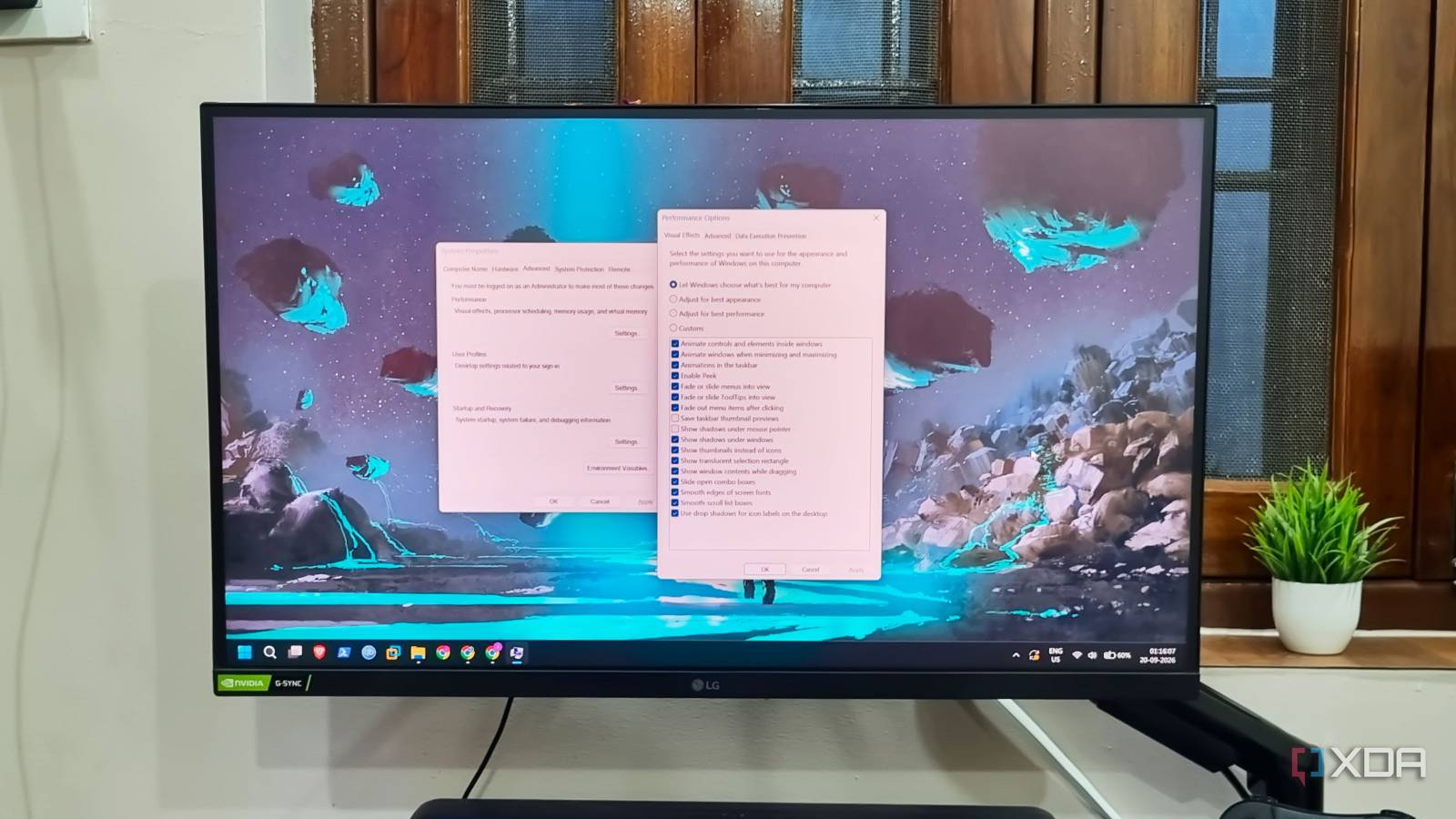
Published Sep 20, 2026, 11:00 AM EDT Abhishek is an author at XDA who covers computing. He has loved computers since he got the Lenovo G570 in 2012. Abhishek holds a master's degree in computer applications and began his writing career in 2018. He loves writing how-to articles, listicles, and informational posts on popular operating systems and web services. He closely follows the Windows Insider program and tests new Insider builds to discover upcoming experimental features and upgrades. His past work includes long-term collaborations with reputed publications like Tom's Hardware, and Windows Latest. When not writing anything, he is busy watching new episodes of One Piece or searching for something binge-worthy. Windows 11 has its fair share of problems, and users don't shy away from complaining about them. Whether it's performance tweaks, settings changes, registry edits, or third-party scripts or tools, there is something to fix every small problem in the OS. However, not all of these tweaks actually have the profound impact most users claim. They sound promising but feel like unnecessary work when you don't see any real results. You'll find plenty of suggestions on Reddit threads, Microsoft community posts, and other forums, where people treat this information as useful knowledge. From wiping registry items to disabling services or visual effects, just to make the PC feel a tad faster. Let's discuss these in detail. Disabling all visual effects Killing UI design Windows 11 has a modern UI redesign, and it looks good for the most part. However, it's a heavy OS for old machines, which tend to lag with its visual elements. The Desktop Window Manager (DWM) handles all the visual effects, animations, and more, so turning everything off doesn't make sense anymore. I remember my Windows 7 era when I used to just launch the System Properties applets and then just uncheck every box, thinking it would make the PC remarkably fast. On the contrary, doing so just kills the overall GUI experience because you now have a weird-looking PC from the 2000s. If your PC cannot handle basic animations and visual effects present in the OS, it has no reason to run the OS at all. Turning off every possible visual effect in Windows 11 makes it look abysmally bad. If you have to resort to this, it's time to switch to a less demanding operating system. Using system cleaners and optimizers Surefire method to wreck the OS Registry cleaners and system optimizers were all the rage a decade ago, but I haven't used them in the last five years. Back then, micromanaging every aspect of the OS, even temporary files and broken registry items, felt like a smart move. However, it's one of the easiest ways to break your system if you don't know the impact of such a decision. CCleaner was a very popular program, but even Microsoft, at one point, dismissed the necessity of such cleaning and optimization tools. All they would do is delete a bunch of caches and try to fix broken registry items. Did it make the system fast? No. Yet, everyone wanted to run the scans as frequently as possible. Websites of such tools point out several flaws with the OS design, but they are nothing but adware disguising themselves as the “true” system fix. You can probably find the majority of temporary files and cache issues with Disk Cleanup. If you care more about such methods, there's an official app called Microsoft PC Manager to free up memory and do a few other tweaks. Altering services state Not all services are unnecessary Microsoft is actively phasing out services that don't serve a purpose in the operating system. However, a few you can safely turn off without risking system stability. But problems arise when you go on a service-killing spree without knowing which one does what. Each system or third-party service exists for a reason, and permanently disabling essential ones can cause unexplained issues. I'm not against disabling Xbox or telemetry services, as most of them don't fulfill a purpose in the OS's operation. But if you turn off services like Windows Update, Firewall, or Defender, you'll compromise system stability. Fortunately, Windows 11 prohibits users from altering some necessary services. Still, check the service's role before forcibly disabling it and using the terminal. Disabling Hibernation Fast Startup is the culprit Hibernation has earned a bad name on Windows, partly because of Fast Startup. When most PCs used an HDD, hibernate mode was the best way to save the system state, including all your open apps and their current progress. HDDs were slow, and this feature helped the PC boot to the saved state faster, since everything was saved to the disk. Windows then added a new concept called Fast Startup, which followed in the footsteps of hibernate but saved kernel-mode drivers and other files that the OS had to load during boot. Because it saved these files, your PC never truly shut down and still booted fast. It can also cause other problems, like glitched driver state, so I suggest disabling it. But turning off hibernation along with Fast Startup is a bad idea. Most users are concerned about the multiple GB writes the SSD has to do to save the hibernation state, and turn off the feature without haste. Yet, I keep hibernation active for some other reasons. SSDs will outlast the other components in your system and have an endurance rating that’s hard to surpass. Massive SSD writes only happen if you manually put your system into Hibernate mode. I sometimes use it for lengthy game installs, video editing, and a few more things, and there’s no replacement for that. Hibernate is a boon for desktops with a UPS or laptops with a severely weak battery. In such cases, you can save the system state and not lose progress. So, disable Fast Startup and keep Hibernate mode active. You'll probably need it a couple of times a month, and that's not a big concern for the SSD. Bickering over small things I hate the idea of bickering over small things and actually making efforts to wreck your system in the name of “tweaks.” Windows 11 is not a dumb operating system, and micromanaging everything will only make things worse. I don’t like the bloatware and telemetry present in it, and I actually turn off or disable most of it. On the other hand, I don’t tussle with services that I don’t know about, turn off useful settings like hibernate, or use third-party cleaners or optimizers. The OS is smart enough to do most of these tasks automatically, and it's unwise to experiment on your main system. Windows 11 Pro A USB installation drive and license key for Windows 11 Pro, with additional features like Hyper-V and Windows Sandbox support.
I tested the Windows 11 tweaks everyone recommends, and almost all of them were a waste of time
Full Article
Original Source
Read the full article at Xda-developers →KhanList aggregates and links to publicly available news content. We do not host full articles from third-party sources. Always verify important information with original sources.