
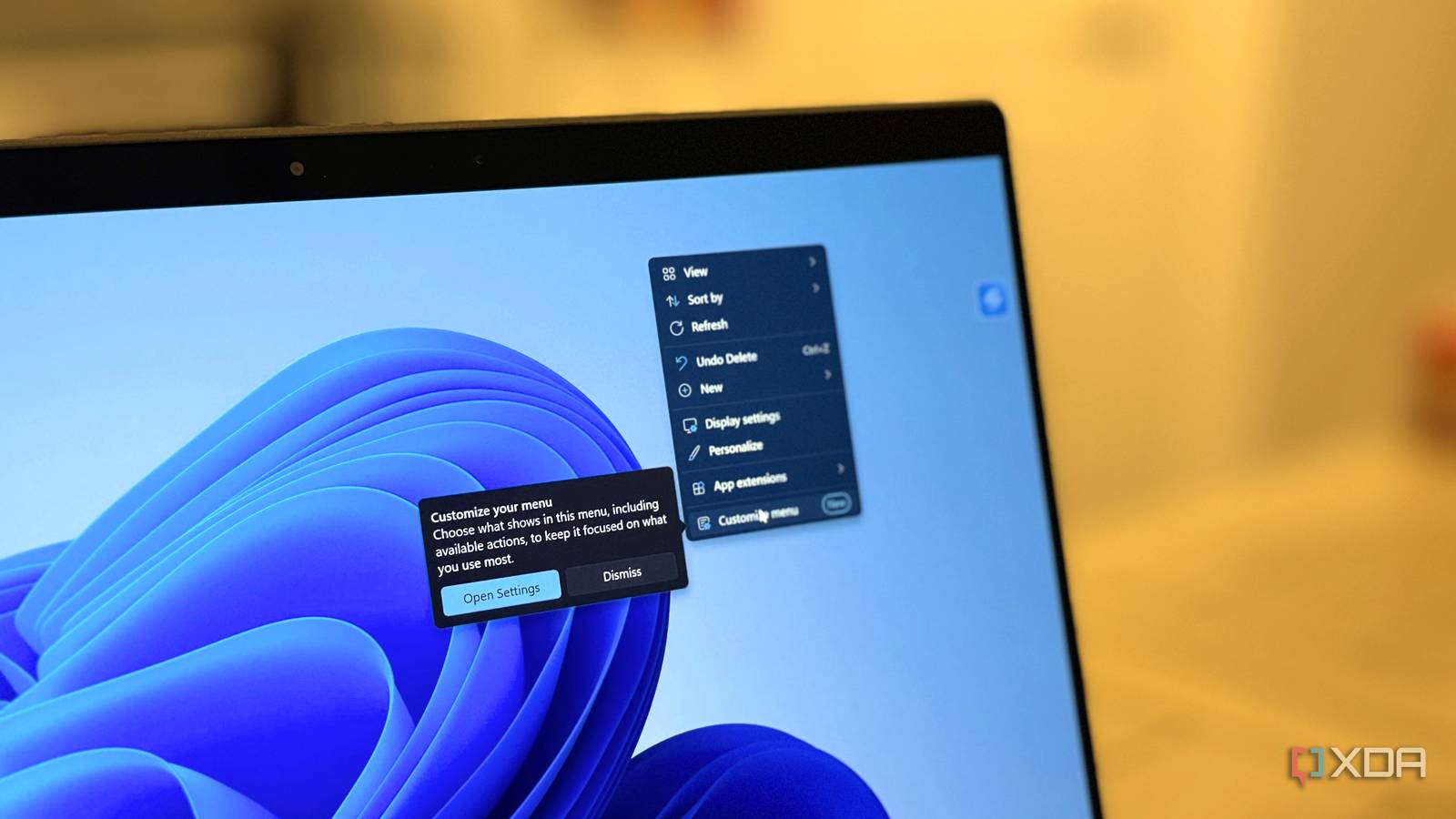
Published Sep 29, 2026, 1:30 PM EDT Maker, meme-r, and unabashed geek, Joe has been writing about technology since starting his career in 2018 at KnowTechie. He's covered everything from Apple to apps and crowdfunding and loves getting to the bottom of complicated topics. In that time, he's also written for SlashGear and numerous corporate clients before finding his home at XDA in the spring of 2023. He was the kid who took apart every toy to see how it worked, even if it didn't exactly go back together afterward. That's given him a solid background for explaining how complex systems work together, and he promises he's gotten better at the putting things back together stage since then. Whenever someone complains about the Windows 11 right-click menu, I point them to the same free app. Custom Context Menu doesn't replace Microsoft's menu; it slots your own commands into it. So when Windows 11's new context menus started rolling out to Insiders, I had to know if my go-to recommendation was about to become obsolete. I tested both on my main PC, on build 26340.9502 in the Experimental channel, with the shell extensions that survived Claude's cleaning up of my Windows install. Other fixes exist, from cleaning it up to reverting to the old context menu, but this one is built in. The result isn't a clean win for either side but we really should applaud Microsoft when they try to make things better. The Settings page is the real fix, not the new look The redesign arrived with build 26340.9212, and Microsoft's own release notes promise a menu that feels "faster, cleaner, and easier to tailor to the way you work." The menu looks tidier, sure, but the headline is a new page at Settings -> Personalization -> Context menu. On my laptop, Windows even flagged it with a "New" badge and a tip telling me to "Choose what shows in this menu, including available actions, to keep it focused on what you use most." That page has 11 controls. File actions like Send to, Print, Create shortcut, Copy as path, and Rotate image each get a toggle, and there's an option to arrange Cut, Copy, Rename, and Delete inline like the Windows 10 list layout. Copy as path is off by default, which feels like a choice made by someone who has never needed a file path in their life. I switched it on before touching anything else. The toggles aren't all the same kind of switch, though. A File actions toggle is a hide switch. With Copy as path off, it vanishes from the new menu entirely, although it's still in the legacy menu and Ctrl+Shift+C still copies the path. That's the right call, because hiding something from the menu shouldn't break the shortcut you already use. What it still won't let you do There's no way to add your own command. The Settings page trims and reorders what apps and Windows put there, but if nothing on your system offers the action you want, you're out of luck. There's also no option to make the legacy menu the default, and old-school shell extensions don't get a seat at the new table at all. 7-Zip is the obvious casualty for me, and for many others. It still registers the old way, so Extract here is buried under Show more options, four clicks from the moment you right-click. Honestly, it's surplus to requirements now. Windows' own Compress to submenu offers ZIP, 7z, and TAR right at the top level—three clicks for a 7z archive—and that covers everything I used 7-Zip's menu entry for. The free app I've been recommending adds what Microsoft won't Every third-party menu entry now falls under the App extensions controls, and the caption on that section gives the game away: "Choose which app extensions appear in the main context menu instead of in a submenu." By default, none of them do. On my PC, 19 apps sat in that list with their toggles off, including Microsoft's own Notepad, Paint, Photos, and OneDrive. Right-click a JPEG and the App extensions submenu holds nine commands, including Edit with Paint and Edit with Photos. The apps built to edit that photo are one level deeper than the Add to Favorites option. Custom Context Menu gets no special treatment either. Its commands land in the same submenu until you flip its toggle, at which point every command it owns jumps to the top level. Promotion is per app, not per command, and it works exactly as labeled. For a moment it looked like Windows was promoting apps on its own, until I remembered I'd switched two of them on to test. I did it to myself, as usual. The list isn't fully polished yet, either. AMD's Radeon extension shows up as a raw resource string instead of a name, even though the package ships the file where its name lives, and the ChatGPT entry turns out to be OpenAI's Codex app. Five fields and one very picky Param box To show what Custom Context Menu can do that Windows can't, I built a command that copies a file's SHA-256 hash directly to the clipboard. It takes five fields in the app's editor, and the only fiddly one is Param. If you want to replicate this, the only gotcha is on that one field. Point Exe at `C:\Windows\System32\WindowsPowerShell\v1.0\powershell.exe`, then paste this into Param, with nothing before or after it: -NoProfile -Command (Get-FileHash -LiteralPath \"{path}\" -Algorithm SHA256).Hash | Set-Clipboard Set it to match all files and no folders, and hide the window once it works. My first attempt failed silently because a stray {path} had crept into the front of that box, so PowerShell tried to run the JPEG as a command. Once I cleared the field and pasted only the line above, the hash matched the Get-FileHash output character for character. Custom Context Menu also doesn't appear until you've saved at least one command. That's worth knowing, because it looks broken straight out of the Store. The app is also still on version 5.8.1, the same build as its May 2024 GitHub release, so don't expect it to learn new tricks. Custom Context Menu Personalize your context menu with this super handy app. Fewer clicks, as long as you do the sorting Speed has always mattered with the context menu, especially once you've installed a few dozen programs that each want their own space. That's why Microsoft redesigned it, but they're not done yet. The only problem is that many things get left on the legacy menu, like every feature Microsoft has tried to modernize in Windows 11. I counted clicks from the right-click to a finished action, including the right-click itself. The pattern is simple. Anything you promote costs two clicks, anything left in App extensions costs three, and anything stuck in the legacy menu costs three or four. Task Route Clicks Copy SHA-256 hash Custom Context Menu promoted 2 Copy SHA-256 hash Left in App extensions 3 Copy as path Toggle on 2 Copy as path Toggle off, via Show more options 3 Make a 7z archive Compress to -> 7z File 3 7-Zip Extract here Show more options -> 7-Zip 4 That's why the Settings page matters more than the visual refresh. Out of the box, the new menu is cleaner but not faster for anything that isn't Microsoft's, because every app starts one level down. Spend two minutes promoting the three or four apps you actually use, and the menu finally gets out of the way. Windows fixed the menu, but I'm keeping the app for the commands it can't add If you only ever used an app to tame the Windows 11 context menu, you can uninstall it once this ships. The new page handles hiding, placement, and the Windows 10 layout, and native 7z support means one less legacy handler to trip over. It's still an Insider feature, so the details could change before it reaches everyone, but the direction is right. Custom Context Menu stays on my PC, though, and it stays on my recommendations list for a narrower reason. Windows can now hide and move commands, but it still can't create one, and a one-click hash is exactly the sort of thing I'd never get from Microsoft. Open Settings -> Personalization -> Context menu, promote the apps you actually use, and add the commands Windows won't give you.
I tested Microsoft's new Windows 11 context menu against the app I've been recommending for years
Full Article
Original Source
Read the full article at Xda-developers →KhanList aggregates and links to publicly available news content. We do not host full articles from third-party sources. Always verify important information with original sources.