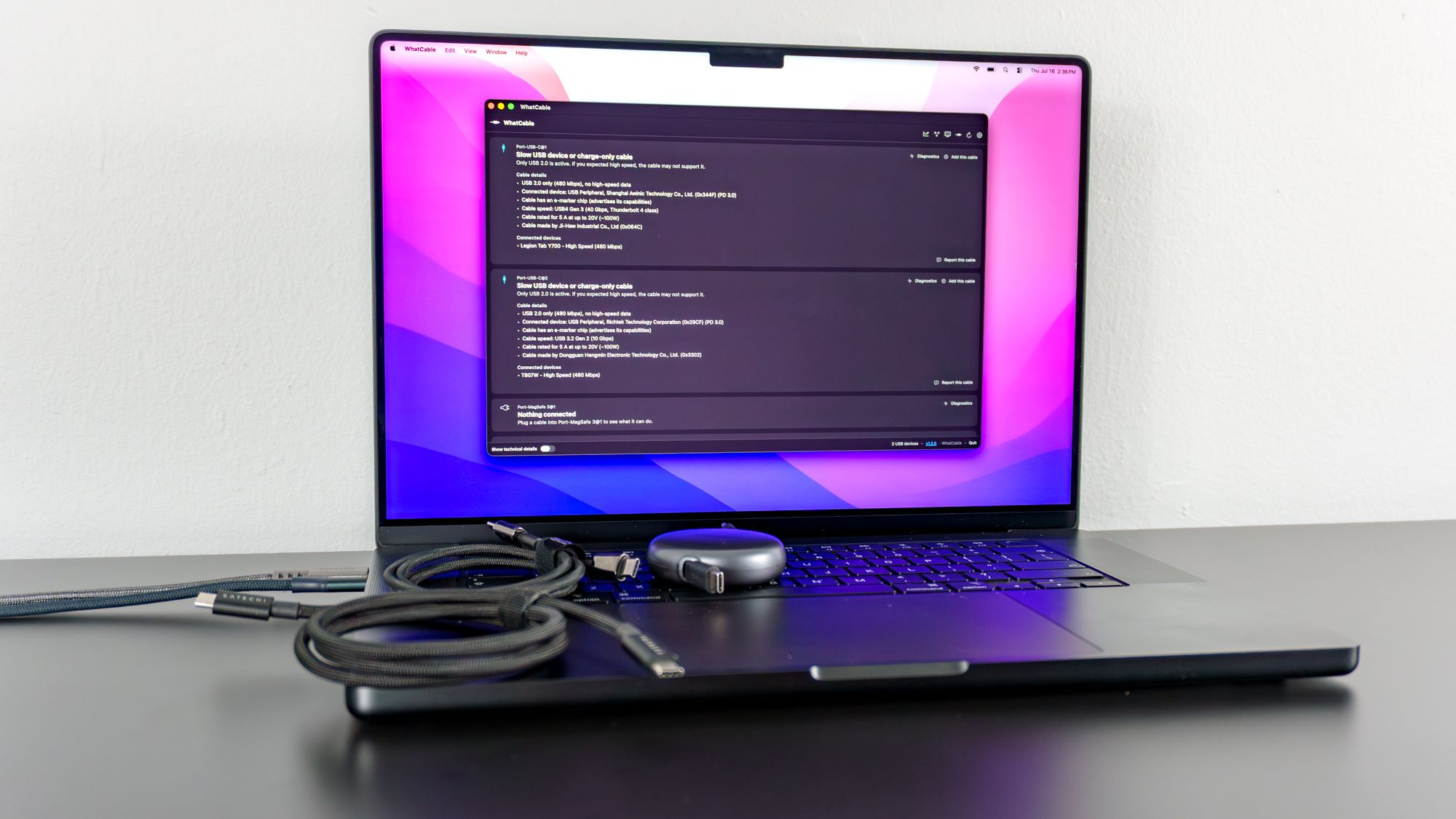
(Image credit: Tom's Guide) Over a decade ago, when we first made the transition to USB-C, cable manufacturers promised things would be different. Sure, we no longer had to worry about which side of our cables we plugged in, but now we’re facing a completely different problem: there’s no easy way to know how fast (and capable) our cables really are.At least with USB-A to USB-C cables, the larger end often gives us some insights. For instance, USB 2.0 cables are black, USB 3.0 ones are blue, and the less aptly named USB 3.2 Gen 2x2 ones are red. With USB-C to USB-C cables, though, it’s a different story entirely. The TOP Must-Have MacBook Neo Accessories - YouTube Watch On While some manufacturers label the ends of their cables with their respective specs, this isn’t always the case. And depending on where you buy your cables, those labels might not even be accurate. For this reason, some people end up buying dedicated cable testers to see whether that high-speed USB-C cable is actually as fast as it claims to be.Just when I was considering buying one of these devices to test my own cables, I stumbled upon an open-source Mac app that can do the exact same thing for free. Here’s what I learned after testing 10 of my own USB-C to USB-C cables, and why I ended up paying the full $13 for the pro version of the WhatCable app.Branded, but untested (Image credit: Tom's Guide)Although I’ll occasionally order several cables at a time online, for the most part, I’ve amassed a huge collection just by keeping the ones that come with the various devices I review. I have a few generic, rubber ones I use in more complex desk setups — mainly behind monitors and tucked under my desk — but over the years, I’ve really come to appreciate braided cables a whole lot more.Braided cables not only look better, but they also feel more premium. They’re easier to manage too, since they tend to hold their shape when laid flat across a desk. However, they do have one major downside: a total lack of information.With rubber cables, manufacturers will often print their specs directly on the cord itself, where there is more room for text. You see this a lot with HDMI 2.1 cables, which are frequently labeled “Ultra High Speed” to signify they can handle the high bandwidth needed for VRR and 4K/120Hz gaming. Some companies even go the extra mile and include extra details on these labels, like whether or not the cable supports Ethernet, or even the brand name.Get instant access to breaking news, the hottest reviews, great deals and helpful tips. (Image credit: Tom's Guide)When it comes to braided cables, though, you’re lucky to get a brand name stamped on either connector end. Even if they do list specs, it’s usually just a brief note like “5A” for 5 amps or “10 Gbps” for 10 gigabits per second. Then again, this kind of labeling is few and far between; only my cables from Fasgear actually have it.So what’s a tech nerd to do? Well, test them, of course. Dedicated USB cable testers can be found for under $10 if you don’t mind a bare PCB, but they can easily run over $100 for premium models with a proper case and a built-in display.I was honestly considering picking one up until I saw a few news stories about WhatCable. Given that it's open-source and completely free to use, I decided to test it out for myself before investing in yet another gadget for my home office.After downloading and installing the app on my MacBook, I grabbed a few of my favorite braided USB-C to USB-C cables — some labeled and some completely blank — and decided to see what they were actually capable of.Plug it in, plug it in (Image credit: Tom's Guide)When I first booted up WhatCable, I was greeted with four sections in the app which correlate with the three Thunderbolt 5 ports and the MagSafe charging port on the MacBook Pro 16-inch M5 Pro I’m currently using.Of course, depending on which of the best MacBooks you have, the sections that show up will vary. I haven’t installed WhatCable on my Mac mini M4 yet, but I’m curious to know whether or not the extra USB-C and USB-A ports on the Ugreen Mac Mini M4 Dock & Stand I’m currently using will show up in the app. If you’re as curious as I am about this, let me know in the comments below.It’s worth noting that even with cables plugged into your Mac, those sections will be blank until you plug in another device on the other end. Since I’m in the process of testing out the TCL NXTPAPER 70 Pro smartphone, I decided to plug that in first and see what WhatCable had to say about the cable connecting the two.Before the app can give you all the details on the cable you’re currently using, you will have to “Allow” the accessory in question — in this case the smartphone — to connect first.With that taken care of, I learned that the retractable, 100W Ugreen USB-C to USB-C cable I had connected is only rated at USB 2.0. It can carry 100W of power just like the circular case the cable retracts into says on the side though.From the get-go with WhatCable, I was very impressed by all the details the app managed to glean from this cable and how it explained them to me. For instance, this USB 2.0 only cable has a max data transfer rate of 480 Mbps and isn’t capable of “high-speed data” transfer. (Image credit: Tom's Guide)Since the NXTPAPER 70 Pro is a budget phone after all, for my next test, I decided to bump up the capabilities of the device on the other end. For this, I plugged in my Lenovo Legion Tab 3 which I know features USB 3.2 as well as DisplayPort Alt Mode over USB-C since I was able to use it seamlessly with a pair of the best smart glasses from Xreal. The untested variable here was one of Apple’s own white braided USB-C to USB-C cables that I can’t remember which device it came with.With the two connected, WhatCable correctly identified the cable as a USB 2.0 one and it even identified my tablet by its model name, the Legion Tab Y700. One term I hadn’t heard before trying out this app, despite being about as immersed in tech as you can be, is E-marker.Apparently, this is a tiny, 1mm² microchip that’s embedded directly into the plastic or metal housing of a USB-C connector. Like a digital passport, these E-marker chips allow the USB-C Power Delivery controllers inside the ports of your laptop and other devices to know exactly what a particular cable is capable of. That way, they send the correct amount of power or data and don’t overload the device on the other end. (Image credit: Tom's Guide)Even with the free version of WhatCable, you can actually drill down further into each section to learn more about the cable you’re testing. By clicking “Show technical details” you can see all of the supported protocols and standards the current connection can handle.For instance here, while the cable itself is bottlenecked at USB 2.0 speeds, the underlying port architecture supports USB2, USB3, power delivery, and video out over DisplayPort. So not only can you use this app to test your cables, but you can also get a clear picture of exactly what your Mac's ports are capable of at the same time.Cables may be faster than they appear (Image credit: Tom's Guide)For my next round of cable testing, I decided to completely switch up devices. I started with a 1TB M.2 drive I’m using inside this SSD enclosure from Ugreen. Given its rated for speeds up to 10 Gbps, I figured it would be an ideal companion for cable testing and it absolutely was.In the WhatCable app, that Fasgear cable — remember the one with 5A, 10Gbps written on the connector? — actually turned out to be as fast as the company claimed. Surprisingly though, according to the app, the E-marker inside it didn’t have a vendor ID, though apparently this is common with genuine cables. Or maybe Fasgear was too humble to take credit for it, I guess we'll never know. (Image credit: Tom's Guide)Next up, I decided to test a cable that wasn’t labeled, but I did know its full capabilities based on the description on the box. Alongside its Vagabond mobile game controller, Elo recently sent over all of the accessories to go with it, including the company’s Link Thunderbolt 4 cable which can deliver up to 240W of power and 40 Gbps of data.I’ve tried it out with other devices and it definitely works as advertised. However, when I used it to connect a Nintendo Switch 2 Pro Controller to my MacBook, it only reached USB 2.0 speeds in WhatCable.You see, in this case, it was the controller and not the cable that was the bottleneck. While the console hardware itself handles modern high-speed connections, the Switch 2 Pro Controller internally relies on basic USB 2.0 protocols to process your inputs. Since game controllers prioritize low latency over raw bandwidth, the hardware only needs a tiny data pipe to pass along button presses to your console.If you decide to download WhatCable and run into a similar situation where you know you have a high-speed cable but you’re seeing slower speeds while testing, I’d recommend connecting a different device. After I swapped out that controller for my Legion tablet, the app instantly registered the Elo Link cable as a high-speed one. (Image credit: Tom's Guide)I learned so much testing the power delivery and data transfer speeds of those 10 cables that I decided to spend the $13 on the pro version of WhatCable and I’m glad I did.Not only do you get additional insights like live power monitoring but you can also add the various cables you test to the app and give them names. This way, you get a timeline of when that cable was last used, what it was connected to and whether or not you ran into any issues while using it.No more second guessing (Image credit: Tom's Guide)Over the years, I’ve accumulated a massive collection of cables. From USB-A to USB-C, HDMI to DisplayPort and even some less common ones like USB Type-B and Micro-USB B, I have a lot of cables — and while I try to get rid of the slower and less full-featured ones when I can, I still have too many.A few years ago, I decided to repurpose a hanging, over-the-door shoe rack to house them all and before I started adding Thunderbolt ones and longer, braided DisplayPort cables to the mix, it worked quite well. Now though, I’m due for a cable audit.While I plan on coming up with a solution that’s a bit more elegant than hanging them in various compartments over the back of my closet door, I also want to separate the wheat from the chaff and only keep the best of the best cables. To do that, I need to test them all.Although I’ll probably end up buying a standalone tester for some of those more obscure cables and the video ones, WhatCable has done a lot of the groundwork for me. At the same time, it’s made me realize that testing cables isn’t nearly as difficult or time consuming as I thought it would be back when I first looked into getting a dedicated cable tester.If you’ve ever plugged in your smartphone, tablet or laptop and seen less than ideal charging or data transfer speeds and you have a Mac, you owe it to yourself to give this open-source app a try. I’m glad I did because when it comes to USB-C to USB-C cables, I’ll never have to doubt their capabilities again. Follow Tom's Guide on Google News and add us as a preferred source to get our up-to-date news, analysis, and reviews in your feeds. Subscribe to Tom's Guide on YouTube and follow us on TikTok. Finally, you can visit our dedicated Tom's Guide Savings Squad hub for expert help on getting the best products for less. More from Tom's GuideI finally found the secret to perfectly straight braided cables and it doesn't cost a thingI used this classic IKEA cart to build a rollable workstation for my laptop and it lets me work comfortably from anywhereI spent a week with dual Apple Studio Displays and realized I’ve been lying to myself about glossy screens for years Anthony Spadafora is the managing editor for security and home office furniture at Tom’s Guide where he covers everything from data breaches to password managers and the best way to cover your whole home or business with Wi-Fi. He also reviews standing desks, office chairs and other home office accessories with a penchant for building desk setups. Before joining the team, Anthony wrote for ITProPortal while living in Korea and later for TechRadar Pro after moving back to the US. Based in Houston, Texas, when he’s not writing Anthony can be found tinkering with PCs and game consoles, managing cables and upgrading his smart home.
I tested all my USB-C cables with this free Mac app instead of guessing each time I plugged one in
Full Article
📰 Original Source
Read full article at Tomsguide →KhanList aggregates and links to publicly available news content. We do not host full articles from third-party sources. Always verify important information with original sources.